
Here, we will discuss how to fix FIFA 23 or FIFA 22 Drop and improve FIFA performance. FIFA boasts the best gameplay and graphics, and is widely regarded as the premier football game on the market. However, since it’s an online multiplayer game, it’s very common to experience frame rate drops. However, thankfully, you can resolve this issue and achieve improved performance in the game.
Fix FIFA FPS Drop and Increase FIFA Performance on PC
Below is a list of all the effective workarounds you can try to fix FIFA 23 or FIFA 22 Drop, Stuttering or Lag or increase the game’s performance.
- Ensures that your PC meets the System requirements
- Change the In-game Settings
- Enable Game Mode
- Run FIFA in Best Performance Mode
- Reduce the FPS
- Update the Game
Now, let’s examine these solutions in detail.
1] Ensures that your PC meets the System requirements
FIFA 22 is one of the latest video games in the market, and it’s almost impossible to find a competitor when it comes to the graphics it offers. However, because it is a graphics-centric game, you will need a high-end system to run FIFA 22 without any issues. Below are all the Minimum requirements to run FIFA 23 without any problem. The recommended System Requirements for FIFA 23 are:
- OS: Windows 11 or Windows 10 (64-bit)
- CPU: Intel Core i7-6700 or AMD Ryzen 7 2700X
- RAM: 12 GB
- GPU: NVIDIA GeForce GTX 1660 or AMD Radeon RX 5600 XT
- DirectX: Version 12
- Storage: 100 GB available space
- Internet: Broadband connection.
If your system doesn’t match the recommended requirement, you will face an FPS drop in the game. However, if your system meets all the recommended requirements and you are still experiencing an FPS drop in the game, then there may be a technical issue causing the problem. Follow the workarounds below to fix the issue.
2] Change the In-game Settings
Unlike any other multiplayer game, FIFA 23 or FIFA 22 doesn’t offer many in-game settings with which you can play. However, there are some video-related settings that you can adjust to improve the FPS drop or enhance game performance. If you have a 1080p monitor, ensure that the game resolution is set to 1920×1080. However, if you have the same pixel monitor but with a weaker GPU, you can lower the resolution to fix the FPS drop.
In the game’s video settings, set the rendering quality to High or Ultra. We recommend these settings only to those who have a high-end system and are still experiencing FPS drops. However, if you have a low-end device, set the rendering quality to Medium or Low.
If you have kept Multi Sampling Anti Aliasing aka MSAA enabled in the game, you will face the FPS drop, especially if you have a low-end device. By default, the MSAA is set to 4x. However, we recommend reducing it to 2x to improve game performance. You cannot also disable the option if the problem continues.
3] Enable Game Mode
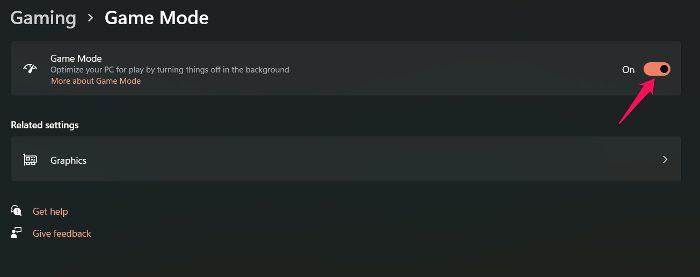
The latest version of Windows OS comes with a dedicated Game Mode feature. You can enable it to prioritize your gaming experience. The game mode basically clears all the background running applications in order to boost the in-game FPS and offers improved gaming performance. Thus, playing FIFA 23 or FIFA 22 with game mode enabled can be an ideal solution to fix FPS drop. Here’s how to enable game mode on Windows 11/10.
- Press the Windows + I shortcut key to open the Windows Settings.
- Click on the Gaming option present on the left panel of the screen.
- Tap on Game Mode, and turn on the Toggle in the following window.
That’s it. Now play FIFA and check if the problem is fixed or not.
4] Update the Graphics Driver
An outdated graphics driver can be another major reason why you are experiencing a drop in FPS in FIFA 23 or FIFA 22. If you haven’t updated your graphics driver in a long time, consider updating it to enhance your gaming performance. You can try either of the following methods.
- Download the latest graphics driver update using the Windows Optional update feature.
- Visit the graphics driver manufacturer’s website to download the latest update.
Once the update is complete, restart your PC. Open the game and check if the problem is fixed.
5] Run FIFA in Best Performance Mode
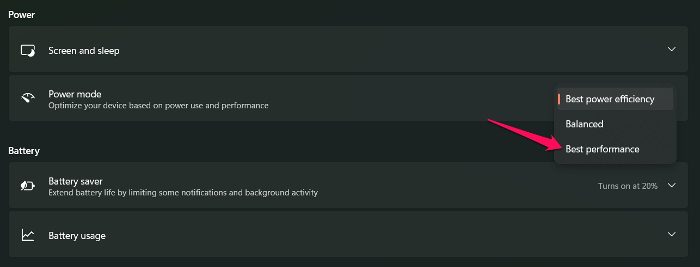
In the latest Windows OS you can choose the power mode depending on the task you are about to perform. For instance, if you want to play graphics-centric games like FIFA 23 or FIFA 22 it’s recommended to set the power mode to Best or Ultimate Performance. To do so, follow the below steps.
- Open the Windows + I shortcut key to open the Settings menu.
- Now, navigate to System and then Power & Battery.
- Click on the dropdown icon present next to Power mode.
- Choose the Best/Ultimate performance option.
Relaunch the game and check if the problem is fixed.
6] Reduce the FPS
FIFA offers the option to manually adjust the frame rate. You can change the frame rate of the game by visiting the video settings. If you have a high refresh rate monitor, it’s recommended to set the refresh rate to “no limits“. However, if you have a week GPU, you can reduce the frame rates to fix the lag or FPS drop problem. On a weak GPU, we recommend maintaining a frame rate of 30 FPS.
7] Update the Game
If none of the workarounds mentioned above help you in solving the problem, the last thing you can try is to update the game. Follow the steps below to update FIFA 23 or FIFA 22.
- Open the EA app on your system, check for any available updates for FIFA.
- Launch Steam on your Windows computer and check if there are any updates for FIFA.
That’s it.
Read: FIFA Stuttering, Freezing, Lagging, Crashing issues on PC
How do I improve my performance on FIFA 23?
There are multiple ways to enhance FIFA 23’s performance. You can update the graphics driver, change the in-game settings, reduce the FPS, or update the game to enhance the gaming performance.
Read Next: FIFA not loading or working on PC.
