
In this post, we will talk about how to fix Twitch Error 6000. Twitch is a popular streaming platform best known for live video streaming. Considering its huge popularity, don’t think the platform is free from bugs and glitches. Similar to any other application, Twitch has a long list of problems and errors. In this post, we will discuss one of the many errors users encounter. Many users have reported meeting error 6000 while using Twitch on their Windows PC. So, if you are facing a similar issue, follow this troubleshooting guide to resolve the problem.
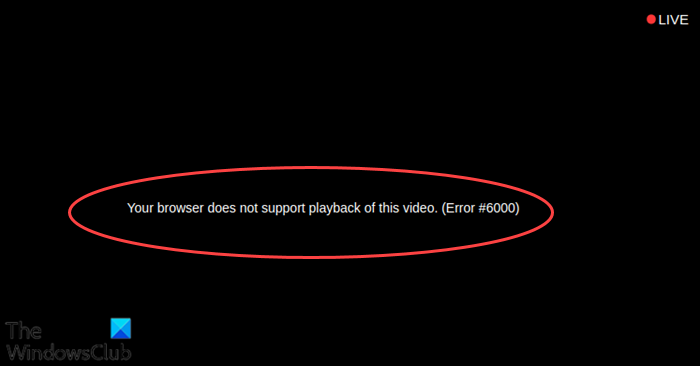
Twitch Error 6000 is a generic Renderer not available issue, and it usually indicates a media playback failure, browser issue, or missing media codecs. The error message you could see is:
Your browser does not support playback of this video. (Error #6000)
Fix Twitch Error 6000
If you face error 6000 on Twitch, try out the workarounds mentioned below to get rid of the problem.
- Restart the PC
- Check the Server status
- Use Twitch in Incognito mode
- Try a compatible browser
- Check the internet speed
- Download the latest Graphics driver update
- Clear the browser cache data
Now, let’s take a look at all the solutions in detail.
1] Restart the PC
Whenever you face an error message on any application, including Twitch, the first thing you should do is to restart your Windows PC. Most applications display error messages due to temporary bugs. And the best way to get rid of such bugs is to restart your PC. So, restart your Windows PC, launch Twitch, login with your credentials and check if the problem is fixed or not. If yes, you are good to go. But if the problem persists, follow this troubleshooting guide.
Read: How to fix Twitch Error 3000
2] Check the Server status
Like any other social platform, Twitch servers can go down at any time due to technical difficulties. In addition, developers can take the server down during maintenance. In either case, you may encounter various issues with the application, including the error 6000 message. But there’s nothing to worry about, as the problem will be automatically fixed once the servers are back to the ideal condition.
Read: How to fix Twitch error 5000
3] Use Twitch in Incognito mode
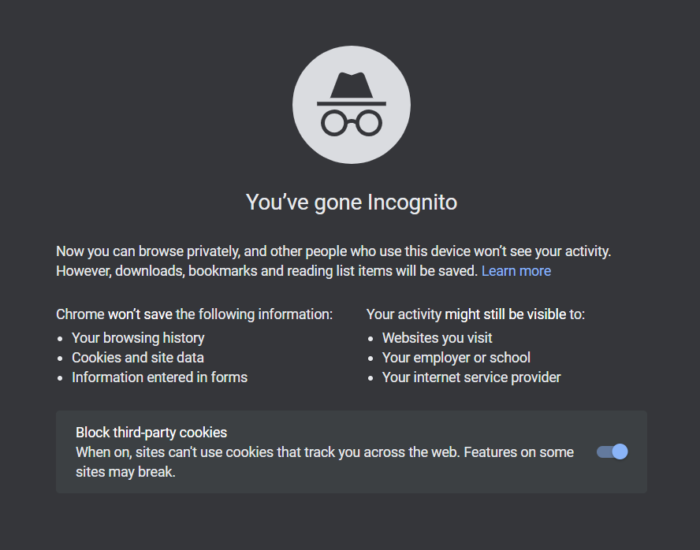
The next effective solution you can try is to run Twitch in incognito mode. However, this solution will only be effective if you use a browser to access Twitch. Below are the steps to turn on Incognito mode in Google Chrome. The process will be very similar in other browsers.
- Launch Google Chrome on your Windows PC.
- Tap on the three-dots present at the top right corner.
- Click on New Incognito Window from the context menu. In addition, you can press Ctrl + Shift + N hotkey simultaneously to access Incognito mode on Google Chrome.
Now, visit the official Twitch page, log in with your credentials, and check whether you are still encountering the mentioned error.
5] Try a compatible browser
Twitch is a global streaming platform; therefore, it is compatible with almost all the browsers present on the internet. But if you are using a new or unpopular browser, Twitch will fail to run and display error code 6000. So, as a solution, make sure you use only compatible browsers to access Twitch. We recommend trying Google Chrome and Microsoft Edge to do live broadcasting on Twitch.
6] Check the internet speed
Twitch requires a stable internet connection. But if your connection is unstable or weak, you may encounter other issues in the application, including the error mentioned. You can check your internet connection speed by visiting any speed test website. If the internet speed is comparatively lower than the plan you have opted for, contact your ISP and ask them to fix the issue.
7] Download the latest Graphics driver update
If you don’t remember updating the system graphics driver, it’s no surprise you are facing Twitch error code 6000. As it turns out, you need to have up-to-date drivers to keep your system free of various issues.
- You can download the latest graphics card driver via the Windows Optional Updates feature.
- You can update your graphics card by visiting the manufacturer’s website, downloading the latest version of your graphics card driver, and installing it manually.
Check whether the issue is fixed.
8] Clear the browser cache data
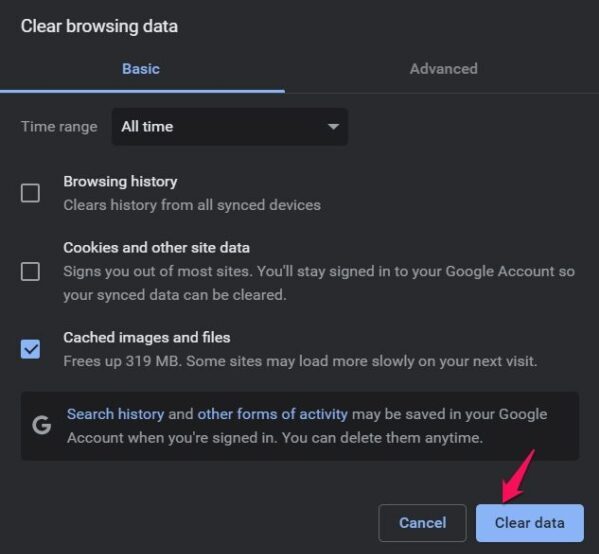
Similar to any other application, the browser stores temporary data called cache to offer faster and smooth service the next time you visit the platform. But at the same time, if you haven’t cleared the cache data for a long time, you will encounter the mentioned issue. So, remove the browser cache data to rid of the problem.
Here’s how to clear the cache data of Google Chrome.
- Launch Google Chrome, and click on the three-dots present at the top right corner.
- Tap on More tools, and from the context menu, choose the Clear browsing data option.
- Click on Cached images and files, and tap on the Clear data option.
Now, relaunch the browser, and visit Twitch. Check if the problem is fixed.
A similar process has to be carried out for Microsoft Edge, Firefox or Opera browsers.
Similar error: Fix Twitch Error 1000 when playing a video.
How do I fix my Twitch network error?
There are multiple ways to get rid of any network issue in Twitch. From clearing the browser cache data, disabling the extensions, turning off the VPN, downloading the latest network driver update to using a desktop client, you can use either of the methods depending on the situation you face.
Similar error: Fix Twitch Error 2000.
Why do I keep getting error 1000 on Twitch?
There are several reasons for error 1000 on Twitch, but it is mainly caused by a temporary glitch. Some helpful solutions for this situation include reloading the site, restarting the system, clearing the browser cache, locking the Bitrate, and resetting the router.
Read Next: Twitch Freezing, Buffering, and Lag Issues.
