
In this post, we will see what you can do if Fastboot is not working on Windows 11/10. The Fastboot binary is rather complex to use. It is a protocol for sending commands to your Android phone over USB. You can use the Fastboot commands to unlock the bootloader of your Android smartphone. Along with this, Fastboot commands are also helpful in flashing different ZIP and IMG files on your Android device. However, some users have reported that Fastboot is not working on their Windows PC. If you are experiencing the same issue, continue with this troubleshooting guide to resolve it.
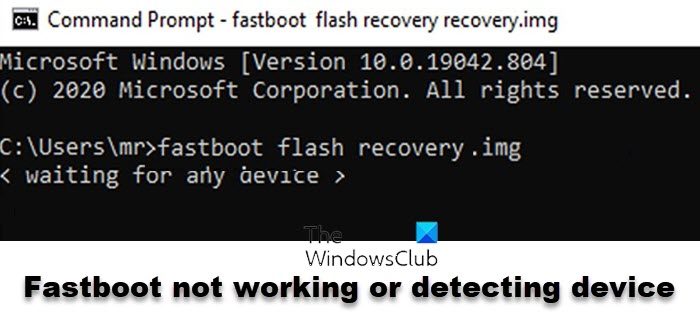
Why is Fastboot not working on Windows 11?
Below are the main reasons Fastboot is not working on your Windows PC.
- The very first reason is a faulty USB cable or port. If either of these things is damaged, Fastboot will not work on your system.
- To access the Fastboot mode, you need to choose “Charge only” upon connecting your Android smartphone with a PC using a USB cable. If you have selected another mode, such as media transfer, you will be unable to access Fastboot mode.
- It’s important that your system includes all the essential drivers. If any of the important drivers are missing from your Windows PC, you will be unable to access Fastboot mode.
- Lastly, if any essential signature is blocking Fastboot, you will encounter the issue mentioned. If this situation applies, Fastboot will fail to communicate with your device.
Fastboot not working or detecting device on Windows 11/10
Here’s a guide to fixing the issue where Fastboot is not working or detecting the Android device on Windows 11/10. Follow these suggestions to troubleshoot the issue:
- Check the USB Port and cable status
- Download the latest Fastboot drivers
- Turn off Driver Signature Enforcement
Now, let’s check out all these in detail.
1] Check the USB Port and cable status
Before getting into the technical solutions, make sure you are using a good USB cable or Port. If either of these things is damaged, Fastboot will not work on your system.
Read: How to install Windows from Android phone using DriveDroid?
2] Download the latest Fastboot drivers
The first thing you can try if Fastboot is not working on your Windows PC is downloading the latest Fastboot drivers. To do so, follow the below steps.
- Open Google Chrome, navigate the Android studio platform, and download the Google USB Driver zip file.
- Extract the downloaded file.
- Now, press the Windows + X key simultaneously, and from the context menu, choose Device Manager.
- Expand the portable devices option.
- Right-click on the smartphone name you have connected with the computer using a USB cable, and choose the Update driver option.
- In the following window, choose the Browse my computer for drivers option.
- Click on Let me pick from a list of available drivers on my computer.
- Click on Have Disk option.
- In the prompt that pops up, choose the Browse option.
- Select, and open the android_winusb.inf file available in the Google USB folder.
- Now, click on OK.
- Select the Android bootloader interface from the following window and click on the next option.
- Choose the Install option from the prompt that pops up.
- That’s it. You have finally installed Android bootloader interface drivers on your system.
- Now you can see the Android Bootloader Interface option under the Android Device option.
- Now open Command Prompt in administrator mode on your Windows PC.
- Type the below-mentioned command and press Enter.
fastboot devices
That’s it. This time, Fastboot will work on your system and detect your Android smartphone. But if the problem persists, proceed with the following workaround.
Read: Turn on Fast Startup option is missing in Windows
3] Turn off Driver Signature Enforcement
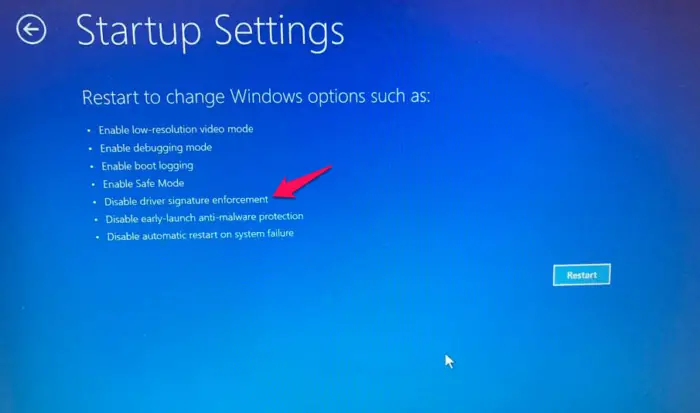
The next solution you can try is to disable Driver Signature Enforcement on your Windows PC. By disabling this feature, you can also easily install drivers that don’t have the necessary signatures. To do so, follow the steps below.
- Press the Windows icon to open the Start menu.
- Now, click on the Power icon while pressing this Shift Key from the keyboard, and choose Restart from the context menu.
- Your system will now boot in Advanced Recovery mode.
- In the following window, select Startup Settings.
- Tap on the F7 key from your keyboard to boot the system without Driver Signature Enforcement.
That’s it. Now, go through solution 1 again to install the Fastboot drivers. Once done, check whether Fastboot is working on your Windows PC.
What does the bootloader do?
A bootloader is a very important part of the Android ecosystem. To understand the bootloader in simple terms, consider it the software that runs automatically every time you boot your Android smartphone. It consists of a list of essential programs that help your smartphone run without any issues.
See: How to transfer files between Android and Windows using ES File Explorer
Can I Enable USB debugging using ADB?
Unfortunately, you can’t activate USB debugging on your Android smartphone using the ADB commands. The reason is quite simple and straightforward. The very first thing you must check to execute ADB commands is that your smartphone has USB debugging enabled. If you fail to meet this prerequisite, ADB will be unable to communicate with your smartphone.
Read Next: What is Fast Startup and how to enable or disable it in Windows.
