
Zipped files are easy to transfer, and they take less space than uncompressed files. Also, it’s very simple to compress, combine and zip several files into one zipped folder. So if you ever have to send some large-sized files to anyone, zip them first. We have already seen how to zip and unzip files in Windows using the built-in feature; now let use see how to open and view ZIP files in iPhone or Android Mobile.
How to open a ZIP file on Android mobile phone
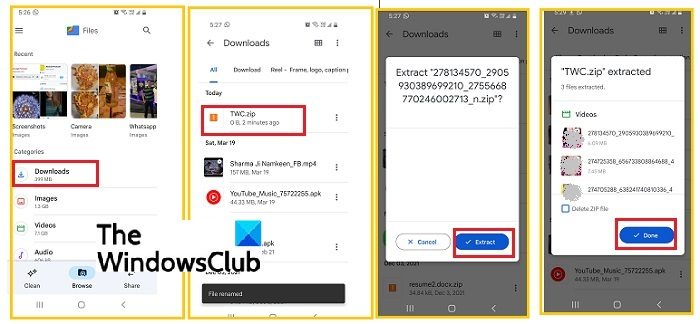
Windows PCs have a built-in feature to zip or unzip multiple files, but if you receive a ZIP file on your Android phone or tablet, you need a third-party app to open it. There are many free programs available on the Google Play Store, but I recommend using Google Files. Google Files is a free file-sharing app available on the Google Play Store. Download this application if you want to open a ZIP file on your Android device.
- Download the ZIP file on your phone.
- Open Files on your phone and go to Downloads.
- Locate and click on the ZIP file. (A file with.zip extension).
- Click on Extract and it’s done.
- These files will be saved in a separate album in your photo gallery.
How to open a ZIP file on iPhone
iPhones, however, have a built-in feature that lets you download and open the ZIP file without even extracting it, however, the process is a little lengthy. You can view these files and save them to your device without extracting them. Let’s see how.
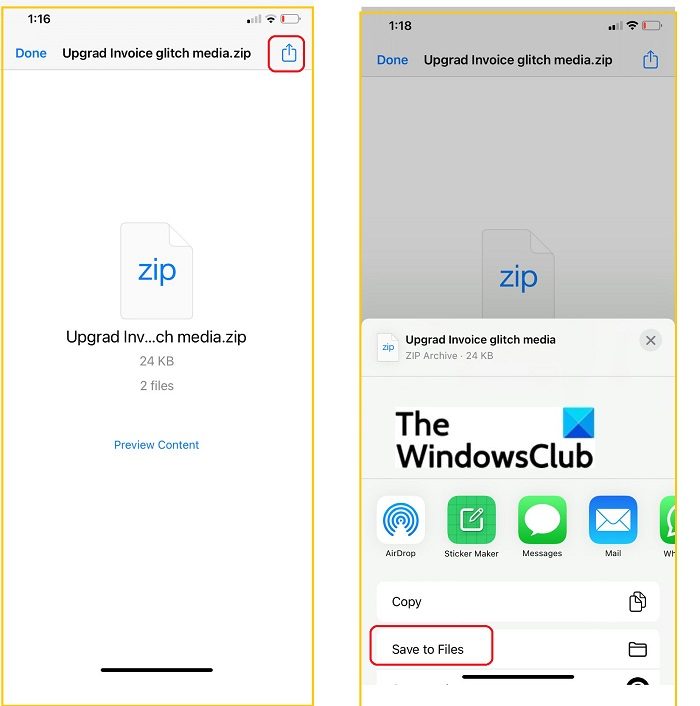
- Download the ZIP file on your iPhone and click on the tiny Sharing Arrow on the top right corner.
- Click on Save to Files and go to Files.
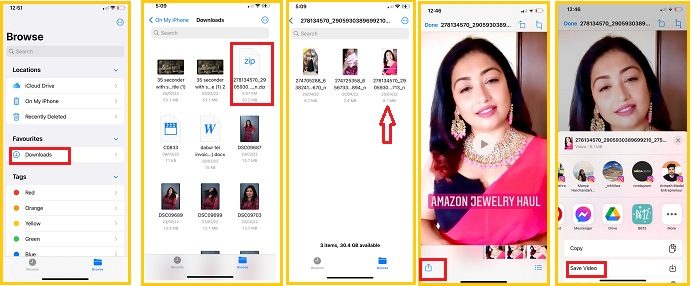
- Click on Downloads and locate your ZIP file.
- Click on it and you can see the files zipped into it.
- Open any file you want to save on your phone and click on the small Sharing Arrow button at the bottom.
- Select Save Video/image/document and it will be saved in your iPhone gallery.
Well, as I said, it is a bit of a lengthy process, so if you want to view and extract your ZIP file quickly on your iPhone, you can download the free iZip app from the App Store. It is a free app but comes with ads.
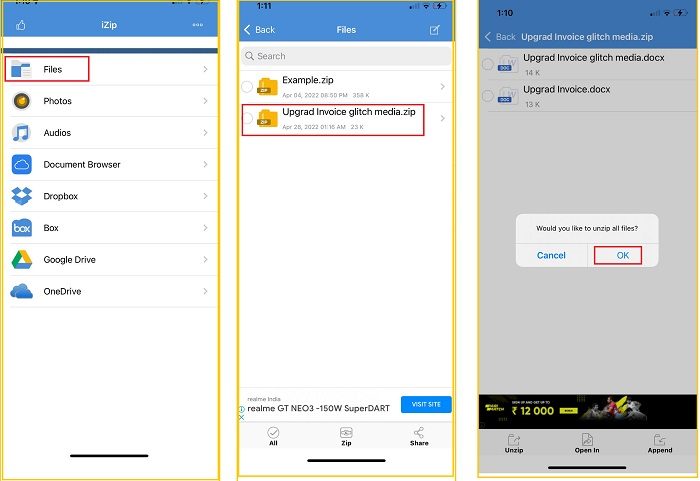
Once downloaded, open the iZip app and go to Files.
Locate the downloaded ZIP file and click on it.
Click on OK to extract all files in the zipped folder and that’s it.
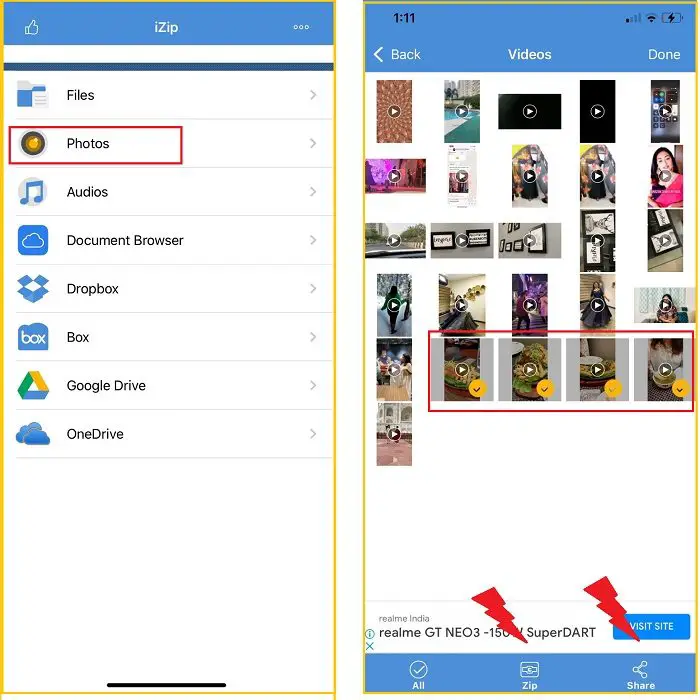
With iZip, you can also compress several files into a zipped folder and share them.
- Open Files, then go to the folder containing the files you want to zip.
- For example, if you want to zip and send some videos, go to the Photos folder.
- Select the videos you want to send, then click the ZIP button at the bottom.
- There is also a Share button in the bottom menu to share it directly from the app.
Do ZIP files work on Android?
Yes, ZIP files work on Android. They are compatible with almost every platform- Windows, macOS iOS, Android. You can open a ZIP file on your Android devices using the Google Files application.
Read: iPhone or Android phone keeps disconnecting from PC
How to send ZIP files from an iPhone?
You can download the free app iZip from the App Store on your iPhone to compress several files into a zipped folder and then share them with anyone.
