
Unlike before, transferring pictures taken with an iPhone to a Windows 11/10 system is now easy. Thanks to several photo-management software, Apple Mobile Device Service, and many more. Recently, some iPhone users have complained about the difficulty of importing photos from their iPhones to their Windows PCs.

Something went wrong, Your files might not have been imported
There may be instances where, while transferring pictures from iPhone to PC, users may not be able to view iPhone photos, or they may find it difficult to transfer pictures using applications like Bluetooth, iCloud or iTunes. In this case, it is important to understand the source of problems that may either be caused by a corrupted driver or may require some tweaking in Settings. If you have encountered similar problems, we will outline potential solutions to address this issue.
Can’t import Photos from iPhone to Windows 11
Before moving on, it is advisable to update your iPhone and iTunes. Additionally, please check if you have updated your Windows system to the latest version. If the problem persists, check out the following solutions. This should help you in resolving the error.
1] Restart the Apple Mobile Device Service (AMDS)
Apple Mobile Device Service is the process that runs alongside other background processes when you install Apple iTunes on Windows 11/10. This process basically helps iTunes to recognize the iPhone device that is connected to Windows system. If your system is not recognizing the iOS device, then you have to restart the Apple Mobile Device service (AMDS)
The following guidelines will help in restarting AMDS.
Go to Run window by clicking Windows Key + R.
Type services.msc in the Run window and hit OK to open the Services Manager.
Search for Apple Mobile Device Service (AMDS) in the page’s list menu.
Right-click on AMDS and click on Properties from the drop-down menu.
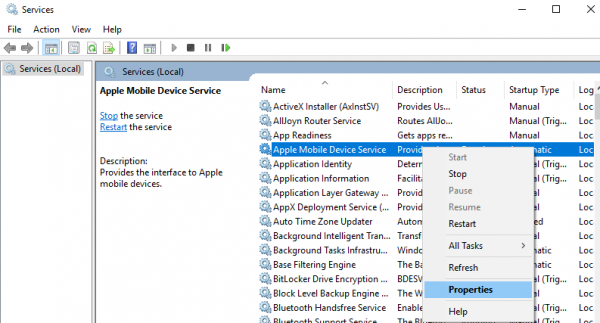
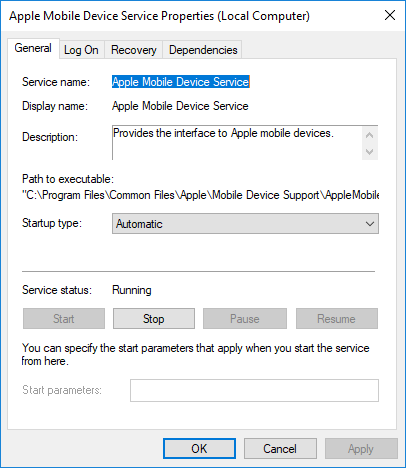
In the Properties window, go to the option Startup type and select Automatic from the drop-down menu.
Under Service status, hit the Stop button and click on OK.
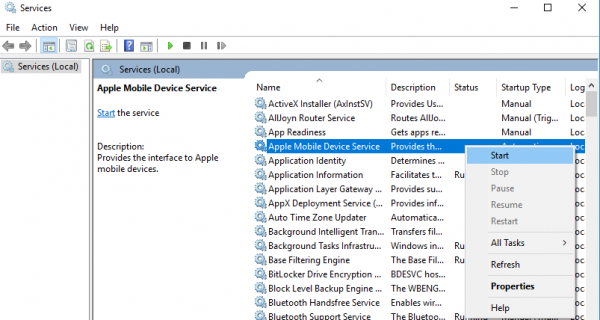
After the service is stopped, right-click Apple Mobile Device Service and select Start from the drop-down menu.
Restart the computer.
Now open your iTunes and connect your iPhone to import the pictures.
2] Import photos from Phone drive to Windows drive
Connect your iPhone to PC. This will display a notification to Trust option.
Click the Trust option to continue and close the prompt window.
Open the File Explorer by pressing Windows + E which will display the phone as a drive.
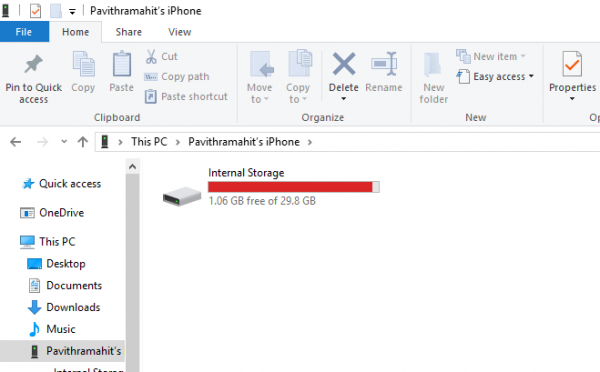
Copy and paste the pictures from the device to your system.
3] Change the Permission of Picture folder
If you have restarted AMDS and the problem still persists, then you may have to check permissions for the Picture directory on your Windows system.
Go to This PC and right-click on Pictures folder.
Click on Properties from the drop-down menu.
Go to Security tab and click on Edit.
Locate and click on your account name from the list of username.
Check Full Control under Allow.
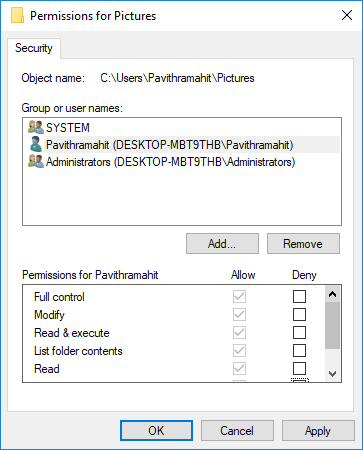
Click on Apply and OK.
4] Connect your iPhone to a different USB port
Although USB 3.0 ports are faster than USB 2.0 ports, iPhone users have had trouble connecting the device to a USB 3.0 port. If you are unable to transfer pictures via USB 3.0 ports, try using USB 2.0. Check whether connecting to different ports fixes your problem.
5] Use Cloud services like iCloud & enable Photo Stream on your iPhone
If you find it difficult importing pictures on Windows, you can try using cloud services like iCloud to easily access pictures and videos from iPhone devices.
Download and install iCloud on the Windows system.
Go to “iCloud for photos” which will display the directories available.
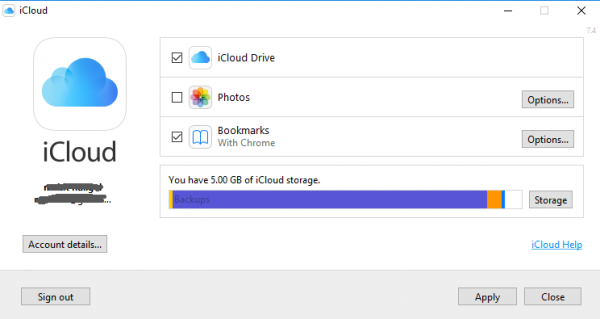
Click on the directories to access the pictures and transfer the desired pictures to PC
PS: Flingflong01 adds below in the comments:
If you can see the iPhone in Explorer but not download the photos, go to Settings > General > Reset > Reset location and privacy. Then unplug and replug the phone, and then “Trust computer” on the iPhone.
