
The Outlook app for Android and the iPhone is already available on the Google Play Store and the Apple Store, respectively, for free. Most apps support adding multiple accounts, but not everyone can find it easily. There’s a way to add multiple IDs in the Outlook app for Android and iPhone without juggling multiple phones or multiple logins on one phone. Here are a few tips to make your life easier. For your information, you can add up to 25 accounts in the Outlook app for mobile and use them together without any problem.
Add multiple accounts in Outlook app for Android
The new version of the Outlook app has a completely new interface with many added features and a more consistent design. The current version offers numerous features, including the ability to access multiple accounts in one app. Here is how you can add multiple accounts to the latest Outlook.com app for Android:
- Open up the Outlook.com app on your Android device. If you don’t have it yet, download it from Google Play Store.
- Swipe the screen towards right from your inbox. You’ll see 3-lined hamburger menu.
- Tap on the round icon appearing on the top. You can also click on the Settings icon towards the bottom to add a new account.
- Now tap on the “Add account” option to add your Microsoft account. Follow the steps and fill up the required details to complete the process.
If you want to delete any of the added accounts from the Outlook.com app, simply go to the “Settings” while using that particular account you want to delete, go to Manage accounts section and select ” Remove.
Add multiple email IDs in Outlook app for iPhone
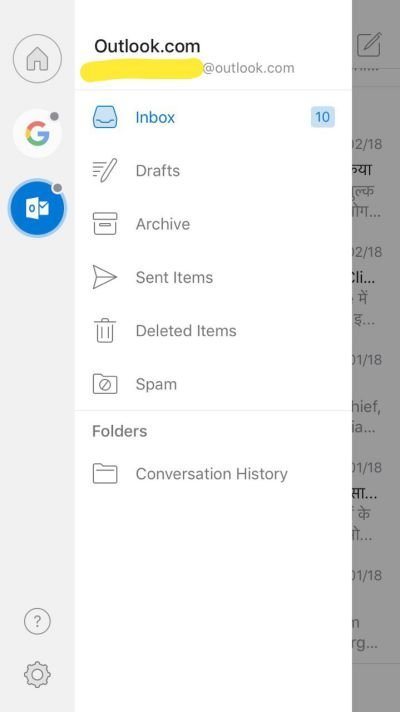
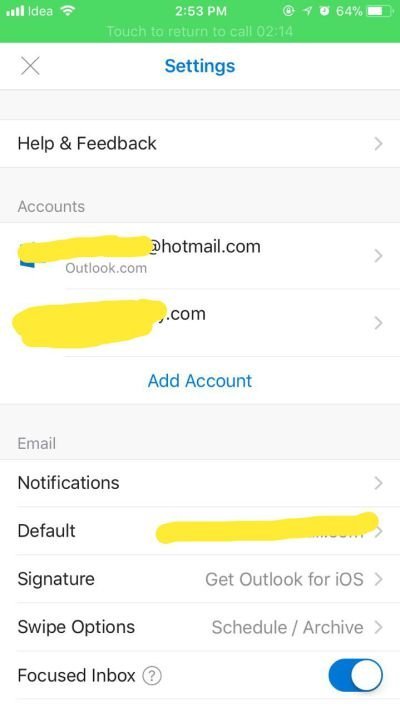
In a similar way, Outlook app for iOS lets you set up multiple Outlook accounts. The current Outlook.com iOS app version is a significant improvement over the previous OWA.
- Open the Outlook application for iOS. If you don’t have it yet, download it from the Apple Store.
- If you are using the Outlook app for iOS for the very first time then just tap get started. If you are already using it and want to add a new account, simply tap the menu icon in the upper-left corner.
- Tap Settings, then tap Add account.
- Enter your email address and password, then tap “Sign in”.
So, here is how to add multiple accounts in the Outlook app on Android and iOS. Both applications are available on their respective app stores and can be downloaded for free. Let us know if this tutorial was helpful by leaving feedback in the comments below.
Can we add additional mailboxes in Outlook for iOS or Android?
Yes, you can undoubtedly add additional mailboxes or email accounts in Outlook for iOS and Android. However, before adding more than one account, you must update the app to the latest version. Following that, you can go through the aforementioned steps to use multiple accounts in Outlook for Android and iOS.
How many Outlook accounts can Android and iOS support?
According to the official statement, you can add up to 25 accounts in the Outlook for Android and iOS apps. It could be Outlook.com, Hotmail.com, Gmail.com, Zoho.com or any other IMAP or POP3 email account. In total, you can add and use 25 accounts simultaneously.
