
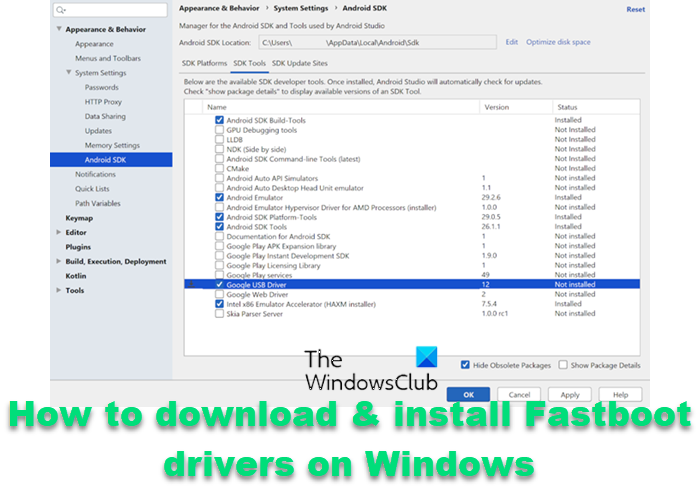
This guide covers step-by-step instructions to download & install Fastboot drivers on Windows 11. A device bootloader is one of the most essential tools, especially if you are into Android customization. From changing the interface to usability and functionality, you can tweak anything by accessing your device’s bootloader. But to use the bootloader, you need to have all the necessary drivers installed on your computer. If Windows doesn’t feature the vital drivers, it will fail to identify the connected Fastboot device. To summarise, your Windows needs to have the Fastboot drivers in order to execute Fastboot Commands. So, let’s check out how to download and install the Fastboot drivers on your Windows 11 or Windows 10 PC.
What is ADB?
ADB stands for Android Debug Bridge, and as it is pretty clear by the name itself, it acts as a bridge between your Android smartphone and Windows PC. After connecting your Android smartphone to the PC, you can easily tweak the smartphone’s system applications and functionality. You can use the feature to install custom OTA and manually install or uninstall files on the connected smartphone. Along with all these, you can also use this feature to boot the device into custom recovery or Fastboot.
To use all these features successfully, you need to do a couple of things on your smartphone and Windows PC. On the smartphone, you will need to enable USB debugging. Whereas, on your Windows PC, you will have to download and install the Android SDK Platform-Tools.
What is Fastboot?
Fastboot drivers are essential for Windows 11 to recognize Android devices in bootloader mode. The Fastboot binary is one of the things in the Android ecosystem that can be complex for users whose sole purpose in using a smartphone is to make calls and send messages. It is a protocol used to send commands to your Android phone over USB. But if you are more into exploring the environment, you should have some prior knowledge of Fastboot and ADB. In Fastboot, your device won’t be booted into a default Android interface. Instead, you will find a dedicated Fastboot menu that ensures you don’t have to enable USB debugging on your Android smartphone, unlike with ADB. You can use Fastboot commands to unlock the bootloader of your Android smartphone.
Along with all these, you can also use Fastboot commands to flash different kinds of ZIP and IMG files on your Android smartphone. As with ADB, your PC must have the essential Fastboot drivers installed to recognize the smartphone in Fastboot mode. You will need to download the Android SDK Platform Tools to resolve the issue. After that, you will also have to download and install the required drivers.
How to download & install Fastboot drivers on Windows 11?
For your convenience, we have divided this guide into three sections. First, we will discuss enabling USB debugging on your Android smartphone. Second, we will see how to download and install the Android SDK Platform Tools. And last, we’ll see how to download and install the Google USB Driver. So, let’s begin.
Enable USB debugging on Android
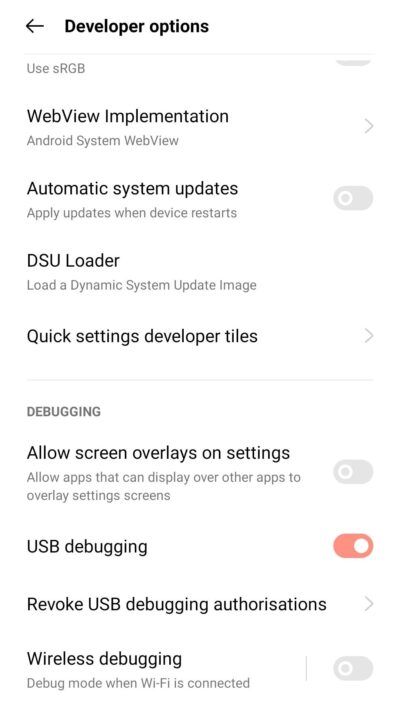
To enable USB debugging on Android smartphones, follow the steps below.
- Open the Settings menu on your Android smartphone, and open the About Phone option.
- In the following window, tap on the Build number option seven times.
- Now, come back to the settings homepage.
- Navigate to Additional Settings > Developer options.
- Toggle on the USB debugging option.
Read: How to install Windows from Android phone using DriveDroid?
Download SDK Platform-Tool for Windows
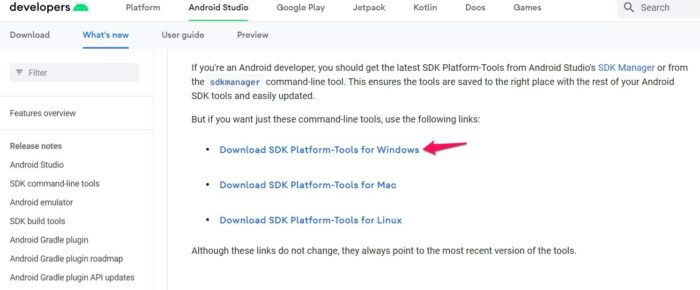
Once you have enabled the USB debugging option on your Android smartphone, it’s time to download the latest SDK Platform-Tool from Android Studio. To do so, follow the below steps.
- Open Google Chrome, navigate to the Android Studio website and download SDK Platform-Tool for Windows.
- Extract the downloaded file to a remote place on your PC.
- Open the extracted folder and click on the address bar.
- Type CMD in the address bar and press the Enter key.
- In the command prompt window that pops up, type the below-mentioned command to boot the device into Fastboot mode.
adb reboot bootloader
Read: Fastboot not working or detecting device on Windows 11
Download, and Install Google USB Driver
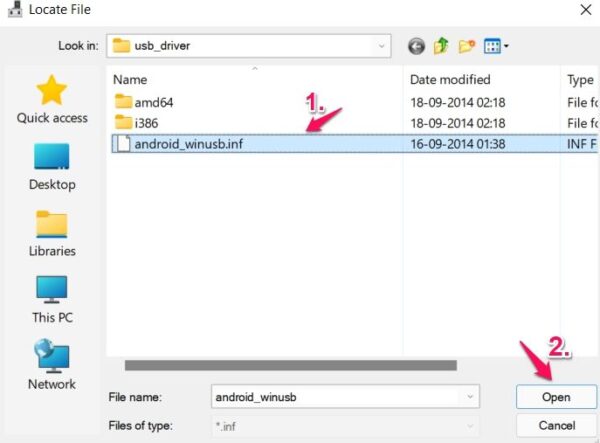
Now that you have the Android SDK platform installed on your system, it’s time to get the Google USB driver. Here’s how it’s done.
- Open Google Chrome, navigate the Android studio platform, and download the Google USB Driver zip file.
- Extract the downloaded file.
- Now, press the Windows + X key simultaneously, and from the context menu, choose Device Manager.
- Expand the portable devices option.
- Right-click on the smartphone name you have connected with the computer using a USB cable, and choose the Update driver option.
- In the following window, choose the Browse my computer for drivers option.
- Click on Let me pick from a list of available drivers on my computer.
- Click on Have Disk option.
- In the prompt that pops up, choose the Browse option.
- Select, and open the android_winusb.inf file available in the Google USB folder.
- Now, click on OK.
- Select the Android bootloader interface from the following window and click on the next option.
- Choose the Install option from the prompt that pops up.
- That’s it. You have finally installed Android bootloader interface drivers on your system.
- Now you can see the Android Bootloader Interface option under the Android Device option.
So, that was all about installing Fastboot drivers on your Windows 11 PC. Hope this guide was helpful.
See: How to transfer files between Android and Windows using ES File Explorer
Can we run APK on Windows 11?
Yes, you can run the APK on Windows 11; in fact, it is one of the significant updates in the latest Windows OS. You can install the APK apps; you need to use Windows Subsystem for Android. To be very precise, you can officially download and install Android apps on Windows 11 using the Amazon Appstore. You can even sideload Android apps on your Windows PC using ADB.
What is WSA in Windows 11?
WSA stands for Windows Subsystem for Android. It is a newly introduced feature in Windows 11, and you can use it to run Android applications that are available on the Amazon App Store.
