
If you want to run Android apps on Windows 11, you must have the WSA installed on your computer. Here is how you can install Windows Subsystem for Android (WSA) on Windows 11.
What is Windows Subsystem for Android or WSA?
Windows Subsystem for Android, or WSA, is a virtual machine powered by Hyper-V to run Android apps on Windows 11 OS. Although it requires the Amazon Appstore to install Android apps on your computer, WSA is the required component you must have on your PC. It is similar to Windows Subsystem for Linux that Microsoft introduced quite a few months back.
How to install Windows Subsystem for Android (WSA) on Windows 11
Since the Windows Subsystem for Android and the Amazon Appstore is no longer available in the Microsoft Store, you can follow these steps now to install Windows Subsystem for Android (WSA) on Windows 11:
- Visit the store.rg-adguard.net website on your browser.
- Select ProductId from the first drop-down list.
- Enter 9P3395VX91NR in the empty box.
- Select the Slow from the second drop-down list.
- Click the tick mark button.
- Download
MicrosoftCorporationII.WindowsSubsystemForAndroid_2305.40000.4.0_neutral_~_8wekyb3d8bbwe.msixbundlefrom the next page. - Right-click on the file and select the Copy as path option.
- Press Win+X and select Windows Terminal (Admin) from the menu.
- Select the Yes option.
- Enter this command: Add-AppxPackage -Path [file path] Click on the Start Menu and open Windows Subsystem for Android.
You need to download the Amazon Appstore package to your computer. For that, you can visit the store.rg-adguard.net website. Here, choose ProductId from the first drop-down menu, and enter this in the empty box: 9P3395VX91NR.
Next, expand the second drop-down list, and choose the Slow option.
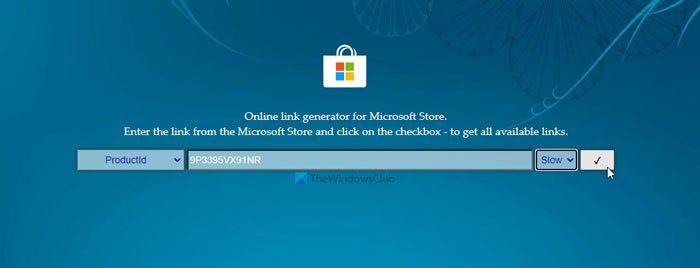
At last, click the tick mark button. Then, it shows a list of bundles. From here, choose:
MicrosoftCorporationII.WindowsSubsystemForAndroid_2305.40000.4.0_neutral_~_8wekyb3d8bbwe.msixbundle
which is over 1.2 GB in size and download the file.
Then, right-click on the file and select the Copy as path option to copy the file path in the clipboard.
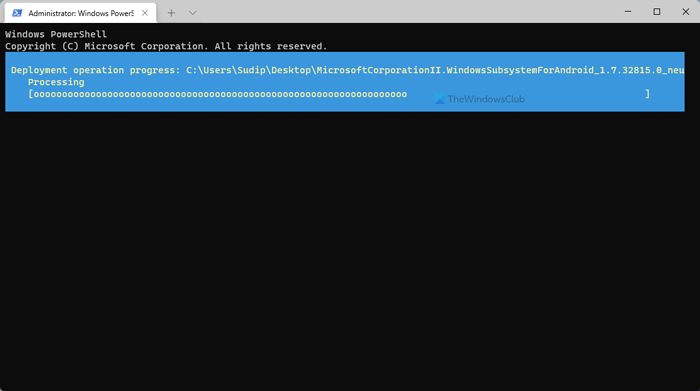
After that, press Win+X, choose Windows Terminal (Admin) and click the Yes option to open Windows Terminal as administrator. You need to ensure that a Windows PowerShell instance is opened. If so, enter the following command:
Add-AppxPackage -Path [file path]
Don’t forget to replace [file path] with the original path you copied earlier to the clipboard.
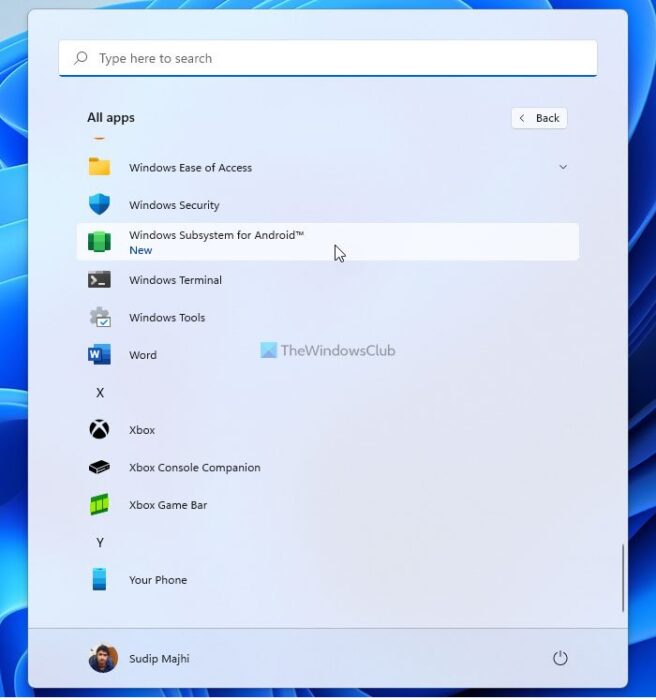
Once done, you can click on the Start Menu and select the Windows Subsystem for Android option to open it.
For information only:
Starting March 5, 2025, the Windows Subsystem for Android and the Amazon Appstore will no longer be available in the Microsoft Store.
How to Uninstall Windows Subsystem for Android (WSA) on Windows 11
To uninstall Windows Subsystem for Android (WSA) on Windows 11, follow these steps:
- Click on the Start Menu and right-click on the Windows Subsystem for Android app.
- Select the Uninstall button.
- Click on the Uninstall option for confirmation.
Let’s check out these steps in detail.
At first, you need to click the Start Menu and select the Windows Subsystem for Android app. Then, right-click on it and select the Uninstall option.
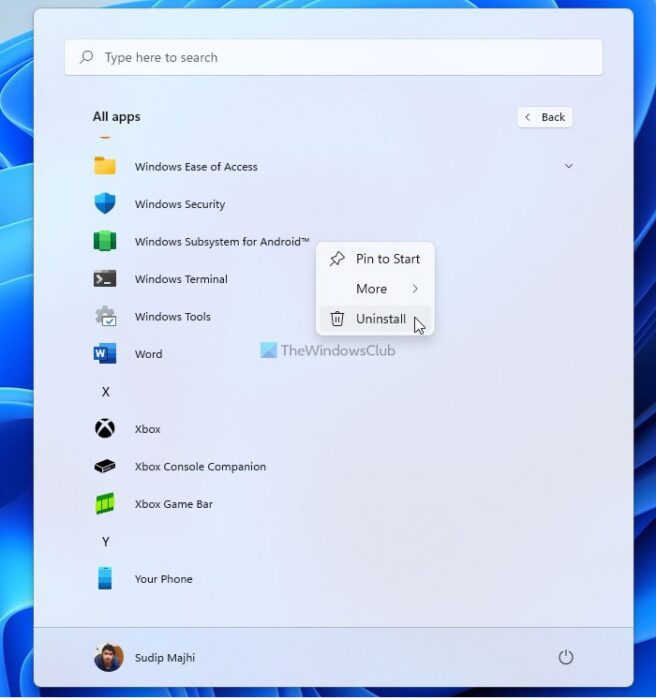
It displays a confirmation window. You need to click on the Uninstall button for confirmation.
That’s all. After that, the Windows Subsystem for Android functionality will be removed from your computer.
That’s it! Hope this guide helped you install Windows Subsystem for Android on your Windows 11 PC.
Can I Play Android games on Windows 11?
Currently, only a handful of apps are available for Windows 11 through the Amazon Appstore. If your desired app or game is available, you can certainly install and play it without any problem. However, if it is not available, you might have to wait for a few more days.
Read: Windows Subsystem for Android vs BlueStacks
How to get Windows Subsystem for Android?
To get Windows Subsystem for Android, you have two options. If you live in the USA, you can download and install the Amazon Appstore from the Microsoft Store. However, if you do not live in the USA, you can opt for the manual method. It involves downloading the bundle and manually installing it.
