
When downloading Amazon Appstore from Microsoft Store, you might encounter error code 0x800700B7 on Windows 11. Whether it is appearing when downloading Amazon Appstore or Windows Subsystem for Android on Windows 11, you can troubleshoot the issue with the help of the following solutions.
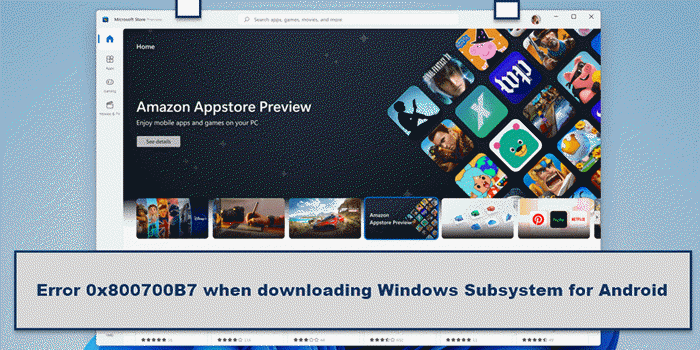
Windows Subsystem for Android requires Amazon Appstore to be downloaded from the Microsoft Store. Otherwise, you cannot run the Android apps on your Windows 11 PC. However, when downloading the Windows Subsystem for Android on Windows 11, you might get an error code 0x800700B7. It primarily indicates that there are issues with the Microsoft Store cache. Additionally, if you previously downloaded the Windows Subsystem for Android, uninstalled it, and then attempted to download it again, this issue may occur on your computer. If so, you can resolve this issue by resetting the Microsoft Store cache. However, if that doesn’t help, you can try other solutions as mentioned below.
Error 0x800700B7 when downloading Windows Subsystem for Android
To fix error 0x800700B7 when downloading Windows Subsystem for Android, follow these steps:
- Reset Microsoft Store cache
- Delete LocalCache folder
- Reset Microsoft Store app
- Use System Restore point
To learn more about these steps, continue reading.
1] Reset Microsoft Store cache
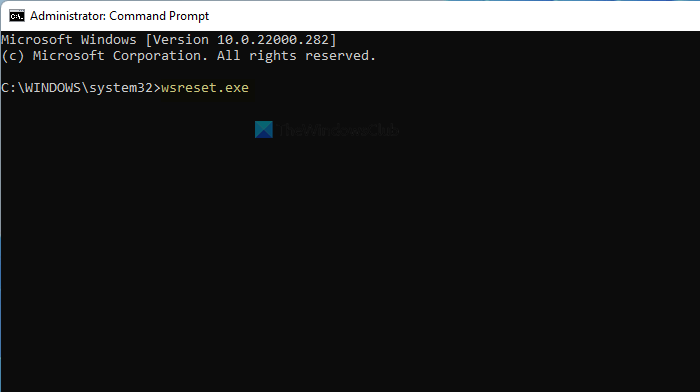
The first thing to do when you receive error code 0x800700B7 while downloading the Windows Subsystem for Android on Windows 11. Since this error occurs due to an incorrect cache, try resetting the Microsoft Store cache first. To reset the Microsoft Store cache on Windows 11, follow these steps:
- Search for cmd in the Taskbar search box.
- Click on the Run as administrator option.
- Click the Yes option.
- Enter the following command: wsreset.exe
- Restart your computer.
After that, try downloading it again from Microsoft Store. You should not get any other issues. However, if the problem persists, follow the subsequent troubleshooting tips and tricks.
2] Delete LocalCache folder
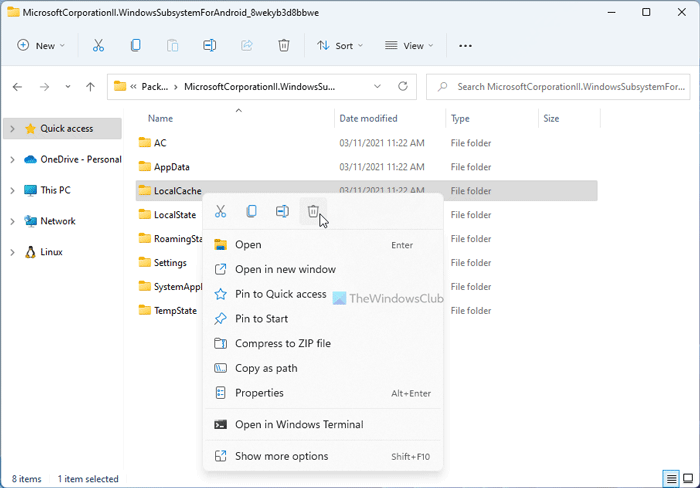
If you previously downloaded Windows Subsystem for Android, uninstalled it, and then tried downloading it again, you may encounter the same issue. It happens because of the existing cache. For that, you need to delete the corresponding folder that contains the cache files of the Windows Subsystem for Android. To do so, you need to head over to the following path in File Explorer:
C:\Users\username\AppData\Local\Packages\MicrosoftCorporationII.WindowsSubsystemForAndroid_8wekyb3d8bbwe
Here you can find a folder named LocalCache. You need to right-click on it and select the Delete option.
After that, restart your computer and check if it solves the issue or not.
3] Reset Microsoft Store app
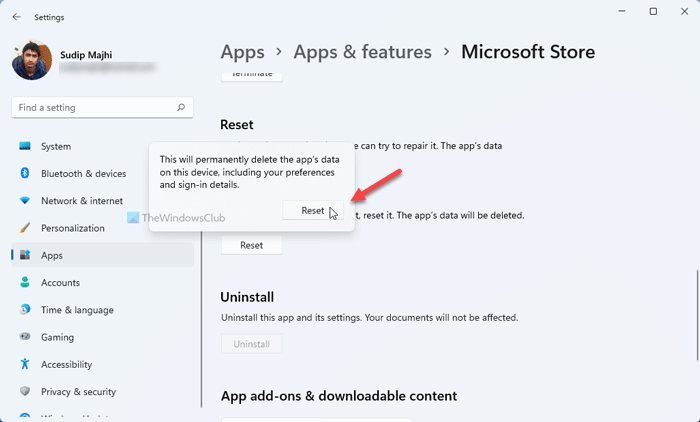
It is equally effective when you encounter issues with the Microsoft Store app on your computer. The best part is that you can complete this step from the Windows Settings, and you don’t need a third-party app to get the job done. To reset the Microsoft Store app, you need to follow these steps:
- Press Win+I to open Windows Settings.
- Go to the Apps section on the left side.
- Click on the Apps & features menu on the right side.
- Find out Microsoft Store.
- Click on the three-dotted icon and select the Advanced options.
- Click the Reset button.
- Confirm the change by clicking the Reset button.
After that, restart your computer and check if you can download Windows Subsystem for Android or not.
4] Use System Restore point
It is likely the last step you need to take to resolve this issue on Windows 11. If you have created a System Restore point earlier, you can use it to restore the old files. After that, you can download Windows Subsystem for Android from the Microsoft Store on Windows 11 without any errors.
That’s all! We hope this tutorial helped you resolve the error and download the Windows Subsystem for Android on Windows 11.
How to get Windows Subsystem for Android?
If you live in the USA, you can download and install the Amazon Appstore from the Microsoft Store. If you do not live in the USA, you can opt for the manual method. It involves downloading the bundle and manually installing it.
What is code 0x800700b7 on Microsoft store?
There are several steps you can take to resolve error code 0x800700b7 in the Microsoft Store. You can start the process by restarting your computer and checking your internet connection. Following that, you can clear the Microsoft Store cache. Finally, you need to reset the Windows Update components to resolve the issue.
Related: WslRegisterDistribution failed with error 0x800700b7 or 0x80080005.
