
When trying to extract a ZIP file, a few users noticed 0x8000FFFF Catastrophic Failure. This vague error typically occurs when the Windows built-in extraction tool encounters an issue it cannot resolve. In this post, we will discuss this issue, explore the reasons behind it, and provide guidance on how to resolve the issue.
The Extraction Operation was not completed
An unexpected error is preventing the archive from being extracted.
Error 0x8000FFFF: Catastrophic failure
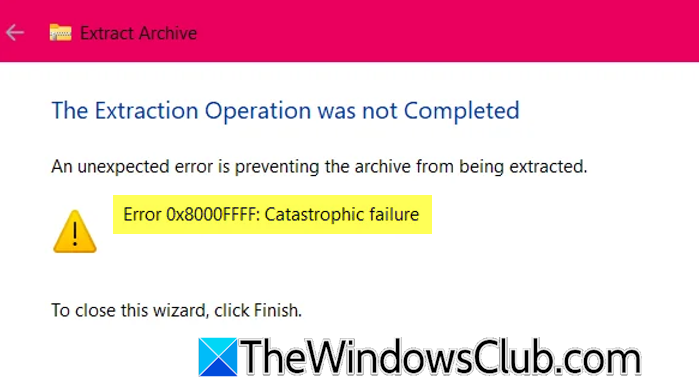
Fix Error 0x8000FFFF Catastrophic Failure extracting ZIP file
This error code typically occurs for a few key reasons: the archive file itself may be corrupt or incomplete due to a faulty download; the file might be very large, exceeding the limits of the Windows Explorer extraction tool. Or, it can be caused by a temporary system glitch or a bug introduced by a Windows update that interferes with the compression/decompression process.
If you encounter Error 0x8000FFFF, Catastrophic Failure, when extracting a ZIP file in Windows 11/10, follow the solutions mentioned below.
- Redownload the ZIP file
- Use the Command Prompt
- Repair System Files
- Uninstall problematic Windows Update
- Use 7-ZIP.
Let’s discuss them in detail.
1] Redownload the ZIP File
This error is often caused by a corruption that occurred during the download process. An interruption or network glitch can create an incomplete file with missing data that the extraction tool cannot read. Downloading a fresh copy replaces this corrupted file with a complete, intact version from the source server, ensuring all necessary data is present for successful extraction. You may even consider downloading it to a different location.
2] Use the Command Prompt
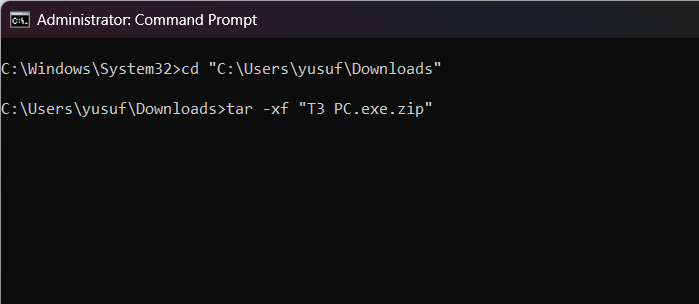
Using Command Prompt, we can bypass the error. The tar command uses a different extraction engine built into Windows that’s more reliable for handling ZIP files. It avoids the graphical shell components that often trigger the Catastrophic Failure message. You need to open the Command Prompt as an administrator and then run the following commands.
Move to the location where your ZIP file is stored.
cd C:\Users\[YourUsername]\Downloads
Now, extract the file
tar -xf "YourFileName.zip"
Finally, check if the issue is resolved.
3] Repair System Files
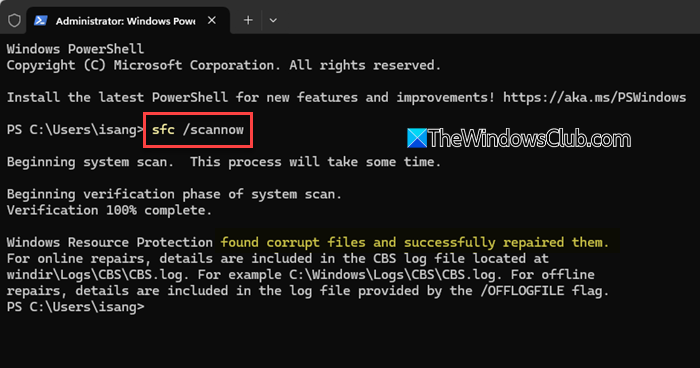
Maybe you need to repair the system files. You can run SFC and DISM to do the same using the Command Prompt or repair your system files using the Installation Media.
4] Uninstall Problematic Windows Update
Sometimes, a specific Windows update can cause errors with the compression and decompression process. If you started seeing this error after a recent update, uninstalling that update may resolve the problem immediately. Many users have successfully resolved the catastrophic failure error in this manner, especially after installing specific cumulative updates.
Follow the steps mentioned below to uninstall a problematic Windows Update.
- Open Settings by Win + I.
- Then, go to Windows Update > Update history.
- Click on Uninstall updates.
- Sort the list by installation date and identify the most recently installed updates
- Select the suspected update and click Uninstall.
Restart your computer and attempt to extract the ZIP file again. Finally, check if the issue is resolved.
If this resolves the issue, you can temporarily pause updates for 1-2 weeks until Microsoft releases a patched fix for the problem. However, it’s recommended to eventually re-enable updates once the issue has been resolved in a later update.
5] Use 7-ZIP

7-ZIP is a dedicated tool with more robust error-handling. Unlike Windows Explorer, which gives up on minor file inconsistencies, 7-ZIP is designed to read past errors and extract whatever data is still intact. It bypasses the Windows Shell code that often generates this generic error, instead dealing directly with the archive file. You need to go to 7-zip.org and download the application. Once done, you need to right-click on the folder you want to extract, click on More options > 7-ZIP > Extract here (or any other extract options).
You can also use any other third-party extraction tools, such as WinRAR.
Read: 7-Zip Cannot open file as archive on Windows PC
Hopefully, you will be able to resolve the issue using the solutions mentioned in this post.
How to fix error 0x8000ffff Catastrophic failure?
To fix the 0x8000FFFF Catastrophic Failure when trying to extract a ZIP file, you can follow the solutions mentioned earlier. However, this is an all-encompassing error message, and you may see the same error message when using Windows Update or Microsoft Store, Outlook, Games, Media Player, copying a File or Folder, performing a system restore, or when configuring a printer – so go to the linked guides to find appropriate solutions.
What is error 0x80004005 when extracting a ZIP file?
Error 0x80004005 is typically a permissions or access issue. To resolve the issue, try running your extraction tool as an administrator, ensure the file isn’t locked by another program, and verify that you have write permissions to the destination folder. Using a third-party tool like 7-Zip often bypasses this error entirely.
