
In this tutorial, we will show you how to enable and use Web Remix in Microsoft Edge on Windows 11. Web Remix is a new feature that lets you change a webpage’s appearance. You can change the background color, font size and style, and switch to dark mode. Most importantly, you can enter a custom prompt to modify a webpage using AI. For example, you can give a prompt to highlight and number instruction steps on a webpage, use Web Remix to add a summary to a detailed page, simplify a long article, etc. It is similar to Reading Mode, the dark mode feature, and Microsoft Edge extensions.
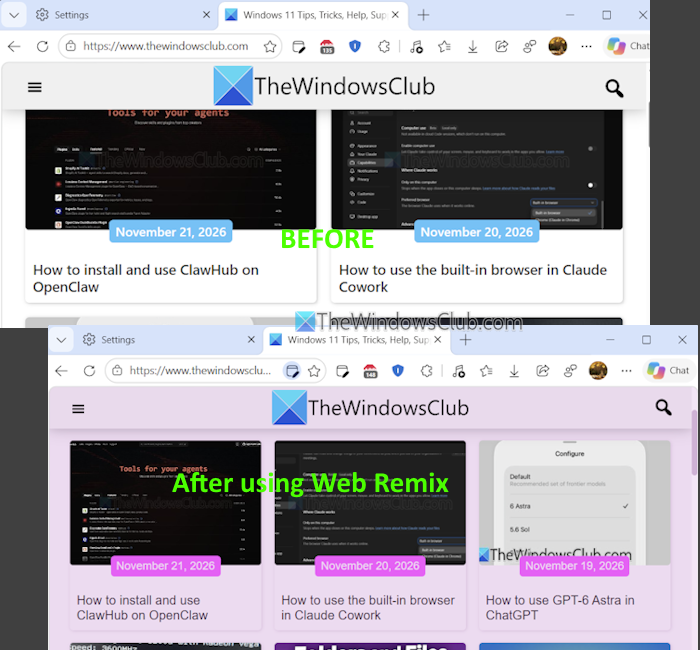
Once you create a remix, it is generated in real time, and you can apply it to an individual webpage or the entire site. The changes are applied locally during the browser session. It doesn’t change the original content or website on the publisher’s servers. While a custom remix is created using AI, it doesn’t access sensitive data (passwords, autofill data, etc.), and the content is not used to train AI models.
How to enable Web Remix in Microsoft Edge in Windows 11
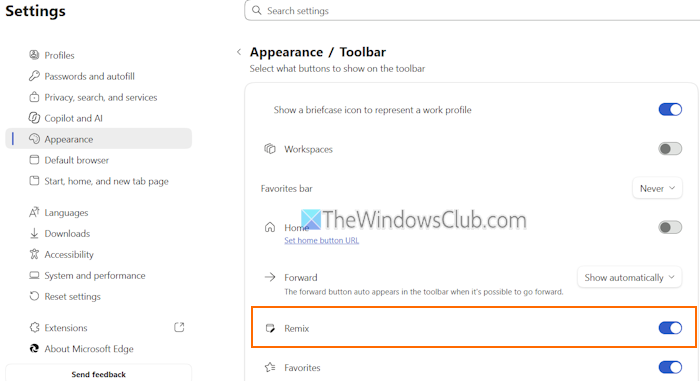
You must be signed in as an administrator to access this feature. Here are the steps to enable Web Remix in Microsoft Edge in Windows 11:
- Open the Microsoft Edge browser
- Press the Alt+F hotkey to open the Settings and more panel
- Click on the Settings option
- On the Settings page, select Appearance
- Scroll down to the Other appearance settings section
- Select the Toolbar option
- Turn on the Remix toggle to enable it.
How to use Web Remix in Microsoft Edge in Windows 11
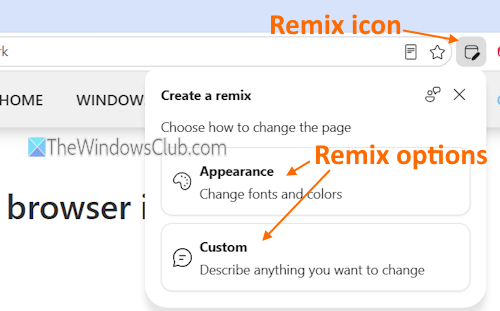
Once you enable Web Remix, it appears in the Toolbar. To use Web Remix in Microsoft Edge on Windows 11, open a supported website and click on the Remix icon. You will see two main options to create a Remix:
- Appearance, and
- Custom.
Appearance
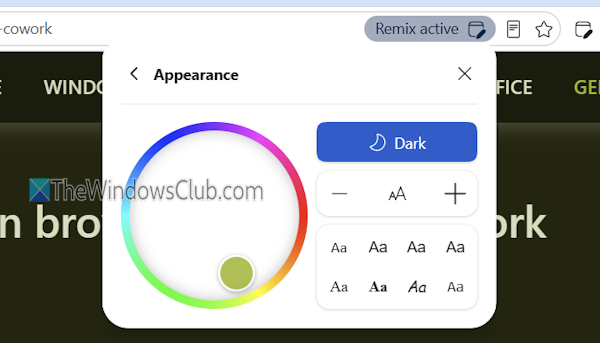
When you select the Appearance option, you can create a remix by turning on dark mode, increasing or decreasing the font size, and selecting a font style (Lexend Deca, Comic Sans MS, Inter, Calibri, etc.). You can also change the background color of a webpage using a color palette circle.
Custom
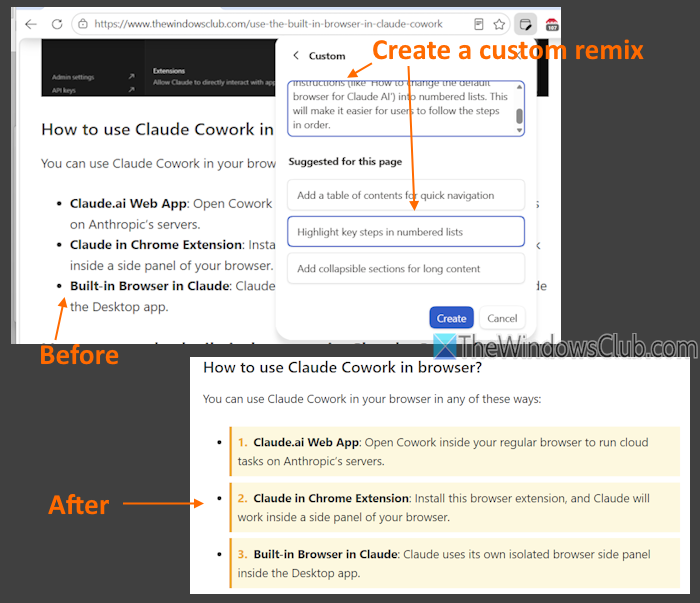
This is an interesting and important feature. Using the Custom option, you can use AI and enter your prompt to make changes to a webpage. For example, you can give a prompt to highlight key steps in numbered lists and press Create to generate a remix. The output is generated accordingly.
It also provides suggested prompts for a page that you can use, or describe your prompt in your own words.
Read: How to enable and use Edge Clarity Boost in Windows 11
Manage a Remix
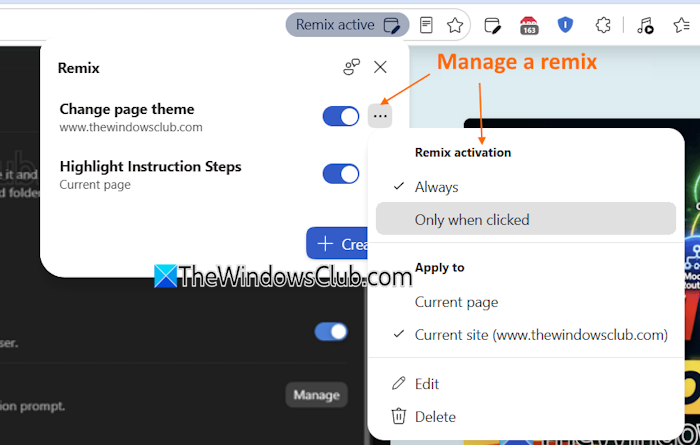
Once a remix is generated, you can manage it as per your needs. Click on the Remix icon, and you will see a remix created by you. You can use the Remix toggle to turn it on/off. In addition, you can click the More option (…) to:
- Set the Remix activation to always on or when clicked
- Apply a remix to the current page or site
- Edit a remix, and
- Delete a remix.
That’s all.
Also read: How to customize the Toolbar in Microsoft Edge
How to enable Extensions on Edge?
To enable or manage extensions in Microsoft Edge, open Settings and click Extensions in the left sidebar. On the Extensions page, use the extension toggle to enable it. If you want to enable an extension in Incognito or private mode, click the Details button for an extension, and use the Allow in InPrivate toggle.
How to enable IE mode on Microsoft Edge on Windows 11?
To enable IE mode in Microsoft Edge on a Windows 11 PC, open the Settings page of the Edge browser. Select the Default browser category from the left sidebar. In the Internet Explorer compatibility section, set the Allow sites to be reloaded in Internet Explorer mode (IE Mode) option to Allow.
Read next: How to stop Edge from downloading AI models on Windows 11.
