
This guide discusses different solutions to help you if Elden Ring Multiplayer is not working on your Windows PC. Elden Ring is a new fantasy action RPG game available for Windows PC. However, as with any other game, it is common to face various problems in the game. Among them, the one that has grabbed the most attention is the game’s multiplayer mode. Many users have reported that the Elden Ring multiplayer mode is not working for them. So, if you are also facing this problem, try the workaround mentioned in this post to resolve it.
Elden Ring Multiplayer not working on Windows PC
Below is a list of all the effective solutions you can try to fix Elden Ring multiplayer not working issues on Windows 11/10 PC.
- Restart the Game and PC
- Check the Game server status
- Check the internet connection
- Run Internet Connection Troubleshooter
- Update the Game
- Repair the Game files
- Update the network driver
- Reinstall the Game
Now, let’s check out all these solutions in detail.
1] Restart the Game and PC
First things first, restart the game and check if it solves the problem. There can be a temporary other cause of the issue. And the best thing you can do to eliminate it is restart the game. But if restarting the game wasn’t sufficient, you can restart the PC and see if that makes any difference. If the problem continues, try the following technical methods.
2] Check the Game server status
Elden Ring is a comparatively new game; thus, it’s very common for its servers to go down regularly for maintenance. You can check the server status on any server status-checking website. Alternatively, you can check for any server issues by visiting the Elden Ring official Twitter handle.
3] Check the internet connection
To play online games like Elden Ring, you need to ensure you have a strong internet connection. As it turns out, trouble accessing multiplayer mode is mainly due to internet issues. So, make sure you are connected to a strong and stable internet connection. You can use any internet speed checking website to check your internet speed. If the speed you are getting is competitively lower than the plan you are opting for, contact your ISP and ask them to solve the issue.
See: Not Connecting to Call of Duty Online Services
4] Run Internet Connection Troubleshooter
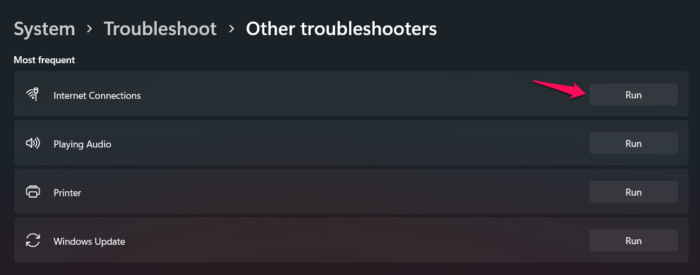
If everything is fine with your internet connection, and you are still facing the mentioned problem, the probability is high that there is some issue with your system that is causing the internet problem. You can solve the problem by running an Internet Connection troubleshooter. To do so, follow the steps below.
- First off, open the Windows Settings by pressing the Windows + I shortcut key.
- Click on this System option present at the left pane of the screen.
- Click on the Troubleshoot option.
- In the following window, choose the Other troubleshooters.
- Click on the Run option present next to Internet Connections.
- Now, a window will pop-up looking for any issue related to the internet connection.
Once the process is complete, reboot your system and connect to the internet. Now launch the game and try playing multiplayer mode. Check whether the issue is fixed. If not, try the next solution on the list.
5] Update the Game
If you haven’t downloaded the latest game patch update, you will most likely face the mentioned issue. Each update comes with bugs fixes; considering the popularity of Elden Ring, the developers won’t take long to fix the multiplayer mode issue. Below are the steps you need to follow to download the latest game patch update.
- To begin with, launch the Steam client on your Windows PC.
- Click on the Library option present at the top left corner of the screen. Here you will find a list of all the games installed on your system.
- Right-click on Elden Ring, and from the context menu, choose the Manage option.
- Select Properties.
- Switch to the Updates tab, and select the Automatic Updates option.
As soon as an update is available for the game, it will be downloaded to your system.
See: Fix Game Stuttering with FPS drops in Windows
6] Repair the Game files
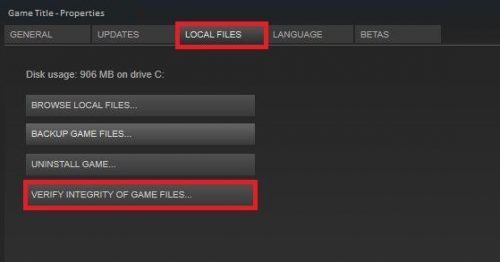
The next thing you can try is to repair the game files. If the game files have been corrupted or have gone missing for some reason, you will face difficulty accessing the game’s multiplayer mode. Thankfully, you can resolve the issue using Steam’s Verify integrity of game files feature. Below are the steps you need to follow to get the work done.
- Open Steam on your system.
- Click on the Library option present at the top left corner.
- Right-click on Elden Ring, and choose Properties from the context menu.
- In the following window, go to Local Files.
- Click on Verify integrity of game files option.
- Now, Steam will look for missing game files and repair corrupted ones.
Once the process is complete, launch the game and check whether you can play multiplayer mode. If yes, you are good to go. But if the problem continues, try the next solution.
7] Update the network driver
Outdated network drivers can be another significant reason behind the mentioned problem. As a solution, update the installed network driver to fix the problem.
8] Reinstall the Game
If you have been facing the problem ever since you installed the game on your system, there is a chance it is caused by an installation issue. In this case, you are left with no other option than to reinstall the game.
Read: JoyRide Turbo Local Multiplayer is not working on Xbox One
How to fix Elden Ring white screen problem?
It is very common to face a white screen crash on Elden Ring. But thankfully, you can solve the problem by trying these solutions: run the game in High-Performance mode, download the latest driver update, reinstall the Microsoft Visual C++, verify the integrity of game files, and delete Temp and Prefetch files. You can also update the game to solve the problem.
How to fix Elden Ring FPS drop?
Like any other game, it’s common to face FPS drop in Elden Ring. Thankfully, you can address the issue by following these solutions: download the latest graphics driver update, optimize the graphics settings, disable the Steam overlay and turn off the Microsoft Device Association Root Enumerator. You can also set up NVIDIA settings to resolve the FPS drop problem.
Read Next: Halo Infinite Multiplayer not Loading on Windows PC.
