
If Call of Duty Black Ops Cold War is not able to connect to Online Services, then this post may help you. Call of Duty: Black Ops Cold War is an addition to the Call of Duty franchise and is loved by millions of gamers. But, some players have reported experiencing trouble connecting to online services.
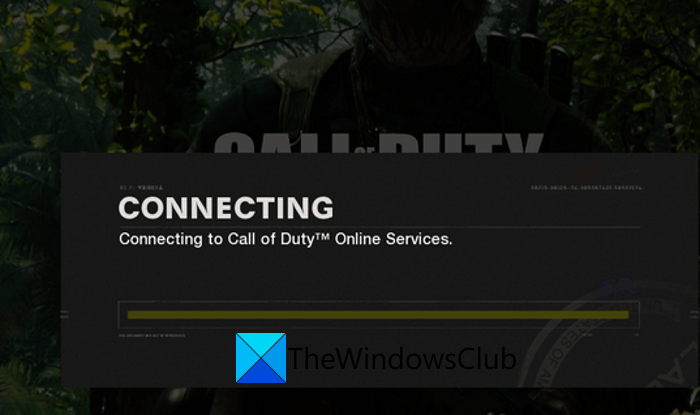
While some users have encountered the ”Cannot Connect to Online Services” error message, some users reported being stuck at the “Connecting to Call of Duty Online Services” screen. Now, if you are one of those users experiencing this issue, this post is for you. We are going to discuss several working fixes that should help you resolve the issue.
Why can’t I connect to online services on CoD Cold War?
Here are some of the potential causes due to which you might not be able to connect to online services on Call of Duty: Black Ops Cold War:
- This problem may be due to server issues. There might be a server overloading issue. Or, the servers might be down under maintenance. Hence, you need to make sure that there is no service outage or that the servers are not under maintenance.
- It can also be triggered by a lack of administrator rights to launch the game. So, if the scenario is applicable, try launching the game and game launcher as an administrator.
- In case you have out-of-date, faulty, or corrupted network drivers on your system, this problem is likely to occur. So, update all your network drivers, then check if the issue is fixed.
- Your firewall or antivirus can be another reason for the same issue. In that case, you can try allowing your game through your firewall to resolve the problem.
- You might be having trouble connecting to online services if you haven’t linked Activision and Blizzard accounts. So, make sure you have linked your Activision and Blizzard accounts.
You can try a suitable fix based on the scenario that suits you the most.
Not Connecting to Call of Duty Online Services
Here are the methods that you can use to resolve the ”Cannot Connect to Online Services” or the “Connecting to Call of Duty Online Services” screen on Call of Duty Black Ops Cold War:
- Make sure the game’s server is not down.
- Run your game and game launcher with administrator privileges.
- Update your network adapter driver.
- Allow Call of Duty Black Ops Cold War through Windows Firewall.
- Link your Activision and Blizzard accounts.
Let us discuss the above solutions in detail now!
1] Make sure the game’s server is not down
In many cases, if you are unable to connect to online services in Call of Duty, it may be due to server issues. The game servers might be down due to a server outage or maintenance. Hence, you need to check the server status for Activision and Call of Duty and ensure the servers are not down. To do that, you can use a free service status checker tool.
If you find out the server is down, there is not much you can do about it. Just wait a while, then try connecting to online services again. However, if the server status is up and running, there must be another reason for the issue. So, try some other method to fix the problem.
Read: Call of Duty Vanguard keeps freezing or crashing.
2] Run your game and game launcher with administrator privileges
The problem might be caused by the lack of administrator rights to run the game. In that case, you can try relaunching your game and game launcher with administrator privileges.
To run the game launcher as administrator, try the steps below:
- Firstly, exit the game launcher i.e., Battle.net.
- Now, go to the Battle.net shortcut on your desktop and right-click on it.
- Next, select the Run as administrator option and then click Yes on the UAC prompt.
- After that, try launching the game and see if the problem is fixed.
For launching the game, follow the below steps:
- Firstly, open Battle.net and click on Games.
- Now, go to Call of Duty: BOCW and then tap on the Options > Show in Explorer option. This will open up the game’s installation directory.
- Next, right-click on the BlackOpsColdWar.exe file and then select the Properties button.
- After that, navigate to the Compatibility tab and enable the Run this program as an administrator checkbox.
- Finally, press the OK button to save changes.
See if launching the game and the game launcher with administrator rights fixes the problem for you. If not, you can move down to the next solution to resolve the problem.
See: Fix Memory Error 13-71 in Call of Duty Modern Warfare and WarZone.
3] Update your network adapter driver
This problem might be a result of outdated or faulty network drivers. So, if you haven’t updated your network drivers, consider updating them and then retry connecting to online services in Call of Duty Cold War.
To update network drivers, you can use the following methods:
- Manually update network drivers; open Settings app and go to Windows Update > Advanced options > Optional Update.
- Use Device Manager to update your network adapter drivers.
- Visit the official website of your device manufacturer and download network drivers.
- Try free third-party driver updater software to automatically update your network drivers.
Update your network drivers, then check whether the error is fixed. If you still encounter the same problem, move on to the next potential fix.
Read: Fix Error Code 664640 in Call of Duty Modern Warfare or Warzone.
4] Allow Call of Duty Black Ops Cold War through Windows Firewall
There are several instances where your firewall blocks the connection between the server and the game launcher. If the scenario applies, you can try allowing the game through Windows Firewall to fix the problem. Additionally, the problem might be caused due to your overprotective antivirus suite as well. So, you can try adding the game and game launcher (Battle.net) to the exception or exclusion list of your antivirus.
Here are the steps to allow the game through Windows Firewall:
- First, evoke the Run dialog box by pressing Windows + R hotkey.
- Now, types firewall.cpl in it and then press the Enter button to open up the Windows Defender Firewall window.
- After that, click on the Allow an app or feature through Windows Defender Firewall option present on the left-hand side pane.
- Next, press the Change settings button and then tap on the Allow another app… button.
- Then, simply browse and select Battle.net’s executable and BlackOpsColdWar.exe files to add them to the list of Allowed apps and features.
- Now, make sure to enable the added apps and then turn on the Private and Public checkboxes.
- Lastly, click on the OK button to apply changes.
You can try relaunching the game and then see if you can connect to online services. If the problem persists, try the next potential fix to resolve it.
See: Fix COD Modern Warfare DEV ERROR 6068, 6606, 6065, 6165, 6071.
5] Link your Activision and Blizzard accounts
You might not be able to connect to online services if you haven’t linked your Activision and Blizzard accounts. If the scenario applies, try linking your Activision and Blizzard accounts to fix the error. To do that, you can try the below steps:
- Firstly, go to the activision.com website in your web browser.
- Now, log in to your account and then click on PROFILE.
- Next, click on the Link with Battle.net Account button and follow the onscreen instructions to link your account.
- When the process is done, relaunch Battle.net and see if the issue is resolved or not.
Hope this helps!
See: COD Warzone Lagging or having FPS Drops on Windows PC.
Why does my Cold War not load?
If Cold War is stuck at the loading screen or is unable to load, it can be due to corrupted game files, outdated network adapter drivers, or internet connectivity issues. Besides that, if you haven’t linked your Blizzard account to Activision, you might face this problem. So, to fix the issue, try verifying the integrity of your game files, updating your network drivers, improving your internet connection, and linking your Activision and Blizzard accounts.
Now read:
