
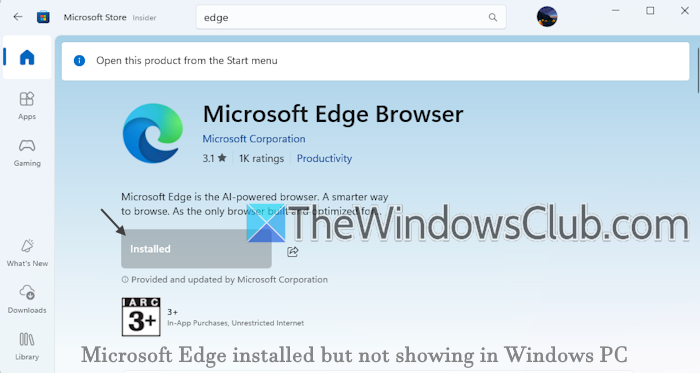
Some users have reported that Microsoft Edge is installed but not showing on their Windows 11/10 PC. They find that the product is visible as installed in the Microsoft Store, but it doesn’t appear in the Start menu, installed apps list in the Settings app, or search results, and its taskbar icon has also vanished. As a result, they are unable to launch Microsoft Edge. This can happen while updating Edge, after installing some third-party tool(s), or because of malware. For those who encounter this issue, the solutions outlined in this post will be helpful.
Before proceeding, restart File Explorer and see if it helps. Also, uninstall third-party browser, and remove leftover files after uninstall to ensure the empty folders, temporary files, and Registry entries related to the software are also deleted from your Windows PC. See if this helps. If not, use the solutions added below.
Microsoft Edge installed but not showing in Windows 11/10
If Microsoft Edge is installed but not showing in Windows 11/10, use these solutions:
- Perform a Microsoft Defender Antivirus offline scan
- Use the msedge.exe application file
- Use a System Restore point
- Reset Microsoft Edge using PowerShell
- Download Microsoft Edge Offline Installer
- Reset your PC.
Let’s check these solutions.
1] Perform a Microsoft Defender Antivirus offline scan

If this issue is caused by some malicious software, you should perform a Microsoft Defender Antivirus (offline scan). It uses up-to-date threat definitions to find and remove malware from the system.
In the Windows Security app, go to Virus & threat protection > Scan options > Microsoft Defender Antivirus (offline scan) > Scan now. Your computer will restart, and the scan will take approximately 15 minutes to complete. You can also perform a full scan to check all files on your hard disk if needed.
2] Use the msedge.exe application file
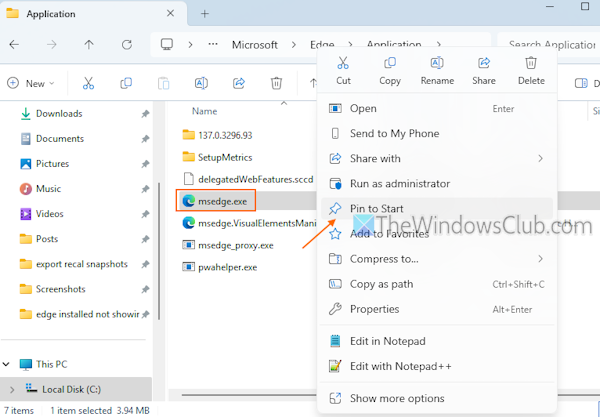
This is one of the best fixes to use if Microsoft Edge is installed but not showing on your Windows 11 PC, or Microsoft Edge won’t open in any other way. To launch the Edge browser, access its installation location and use the msedge.exe application file. You can also use that file to Pin Microsoft Edge to Start or create a desktop shortcut. Go to the following location:
C:\Program Files (x86)\Microsoft\Edge\Application
Look for the msedge.exe file and double-click on it. This should launch the Edge browser. Now you can pin Microsoft Edge to the taskbar. Additionally, you can also right-click on the msedge.exe file and select Pin to Start. This will pin the Edge icon to the Start menu.
3] Use a System Restore point
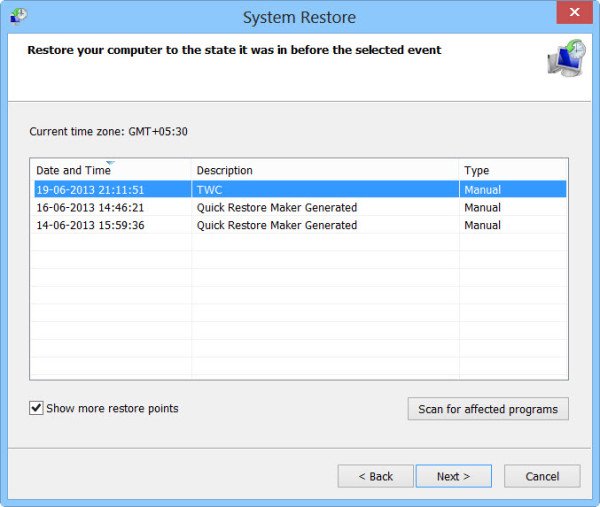
If the problem started after some driver updates, software installations, or system settings modifications, which is most likely the cause of this issue, then this solution is quite helpful. If you have turned on the System Restore feature and created system restore points, you can restore your computer using a system restore point to undo such changes without losing any important data.
4] Reset Microsoft Edge using PowerShell
While we can reset or repair Microsoft Edge using the Settings app or by opening the browser itself, this doesn’t fit in this situation because the browser doesn’t appear in the Settings app or launch in Windows 11. So, we need to reset Microsoft Edge to its default state using PowerShell.
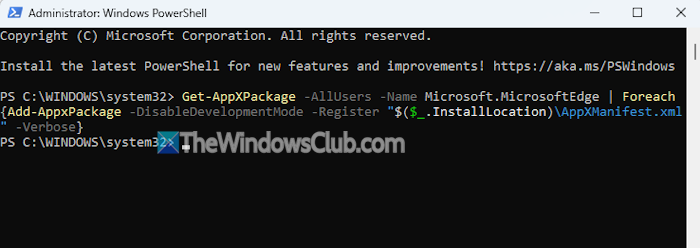
Open an elevated PowerShell window or launch the Windows Terminal app with a PowerShell profile. Execute the following command:
Get-AppXPackage -AllUsers -Name Microsoft.MicrosoftEdge | Foreach {Add-AppxPackage -DisableDevelopmentMode -Register "$($_.InstallLocation)\AppXManifest.xml" -Verbose}
This will completely re-register Microsoft Edge, deleting your favorites, cookies, browsing history, and other data.
5] Download Microsoft Edge Offline Installer
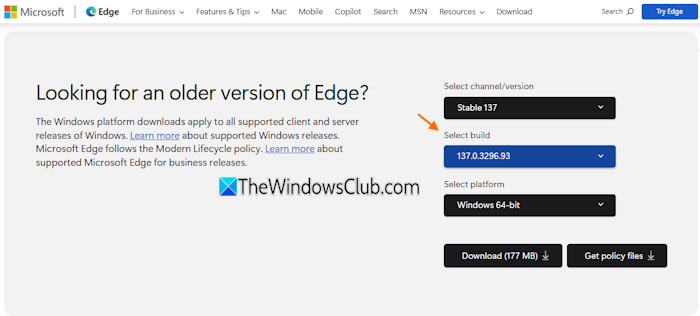
You can access the official page and download the Microsoft Edge Offline installer. Though the page is to download and deploy Microsoft Edge for Business, it has the stable builds of Microsoft Edge. Access the page and scroll down. Now, select the Channel/Version (say Stable 138), Build (like 138.0.3296.93), and the Platform (Windows 64-bit). This activates the Download button. Get the offline installer and use it to solve your problem.
6] Reset your PC
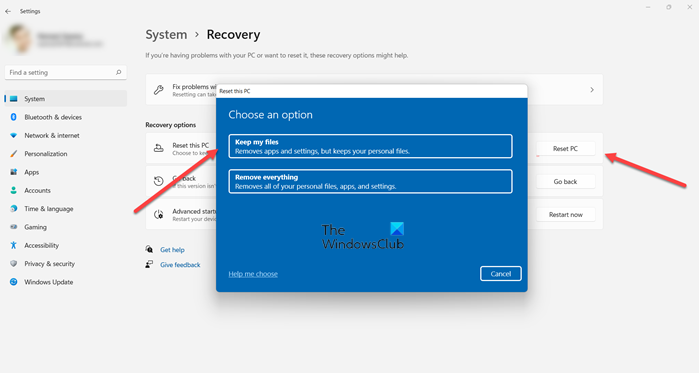
If the above solutions don’t help, you should reset your PC. You can perform the system reset by keeping your files or removing everything (personal files, settings, apps, etc.). For me, the latter option was effective in resolving this issue.
That’s all. Hope this will help.
Microsoft Edge missing in Windows 11
If the Edge browser is missing from the Start menu and taskbar (icon disappeared) on your Windows 11 PC, you can manually pin it using the Search box and Pin to Start and Pin to taskbar options. If this doesn’t help, you should reset Microsoft Edge or use the System File Checker utility.
Why is my Microsoft Edge not popping up?
If pop-up or push notifications are not working in Microsoft Edge, you should check the Pop-ups and redirects setting. Open Microsoft Edge > Privacy, search and services > Site permissions > All permissions > Pop-ups and redirects. Check the sites that are allowed/not allowed to use redirects or send pop-ups. You can also clear cookies for the site and check system notification settings to resolve this issue.
Read next: This page is having a problem loading in Microsoft Edge.
