
Where is my disk space going? Why is my Hard Drive full? What is taking up space on my Hard Drive in Windows 11/10? If you have these questions, then here is a list of free Disk Space Analyzer software to find out, check and analyze the disk space on your Windows computer.
While the built-in Disk Footprint Tool in Windows 11/10 will let you carry out several tasks pertaining to Disk Space usage, if you are looking for 3rd-party tools with a UI, check these out.
Disk Space Analyzer software for Windows 11/10
Here is a list of free Disk Space Analyzer software to analyze & check disk space on your Windows computer. Find out where your disk space is going!
- Disk Usage Analyzer Free
- SpaceSniffer
- Saleen File Pro
- WinDirStat
- Better Directory Analyzer
- MeinPlatz
- Disk Space Fan
- Disk Savvy
- JDiskReport
- TreeSize
- Filelight.
Let us take a look at them in detail.
1] Disk Usage Analyzer Free
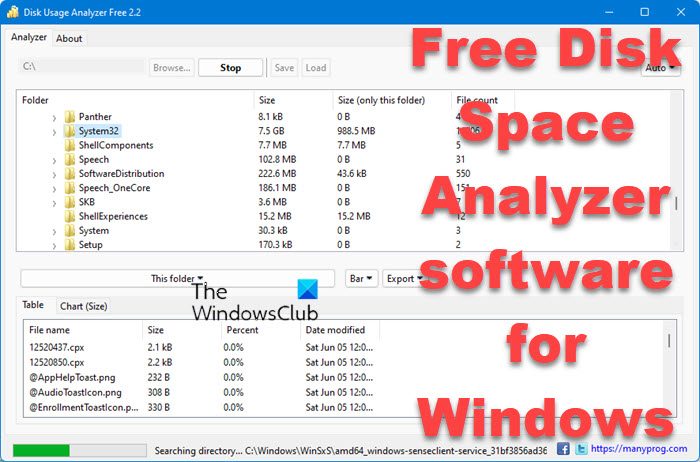
Disk Usage Analyzer Free lets you quickly perform storage and disk usage analysis on your computer. Download and install this tool, run it and select the folder or drive to analyze disk usage. You will receive a list of all folders in the selected directory or disk, along with their sizes and the number of files.
2] SpaceSniffer
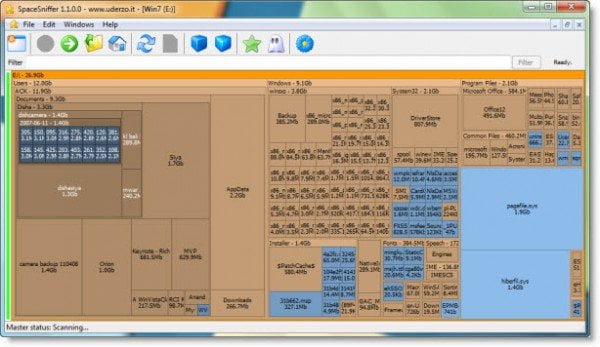
SpaceSniffer is a free software to check where your disk space is lost. The main overview might look cluttered at first glance but it is simple to understand. It displays a Treemap showing how your files and folders utilize disk space. The treemap helps you understand where your big files and folders reside on your PC. It’s portable, and no installation is required; simply place the executable file somewhere, and you’re good to go.
Read: What is the DiskUsage.exe Tool in Windows?
3] Saleen File Pro
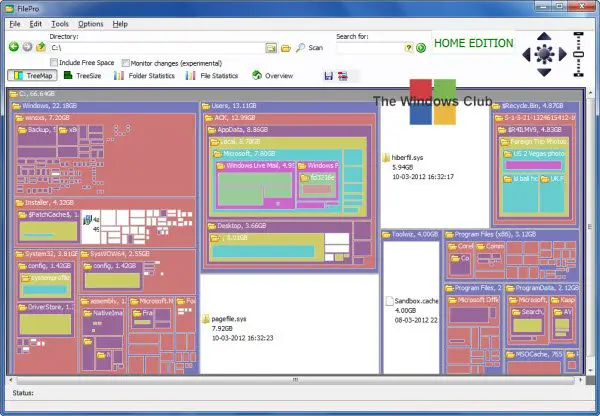
Saleen File Pro is a free tool designed for professional disk manipulation. The tool analyzes your PC’s disk from multiple perspectives, including folder statistics, file statistics, tree size, and tree map, among others. The tool is available as a free version, termed as Home Version as well as a premium version. Once installed, the Saleen File Pro software scans your PC’s C: drive and generates the report in a few minutes. The report presents a simple overview of the files and folders consuming the most disk space.
4] WinDirStat
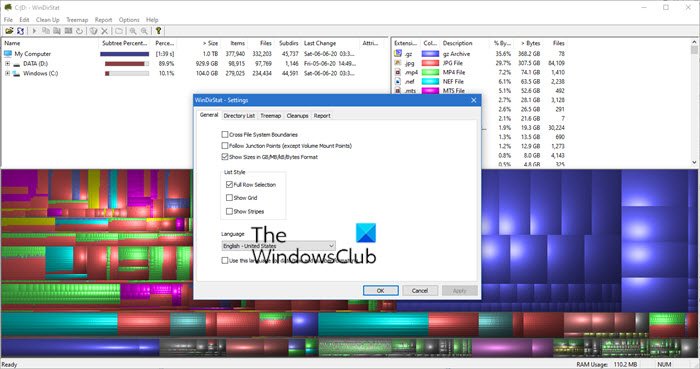
This free software WinDirStat is published under GNU. The software comes with a very simple interface. You need to download the file, save it, and then run the setup. Once installed, the program launches automatically and starts scanning the selected directories of your PC. You can, however, select or deselect the directories manually. Once the scanning is complete, you can delete the files by hitting the ‘Cleanup’ tab in the menu ribbon.
5] Better Directory Analyzer
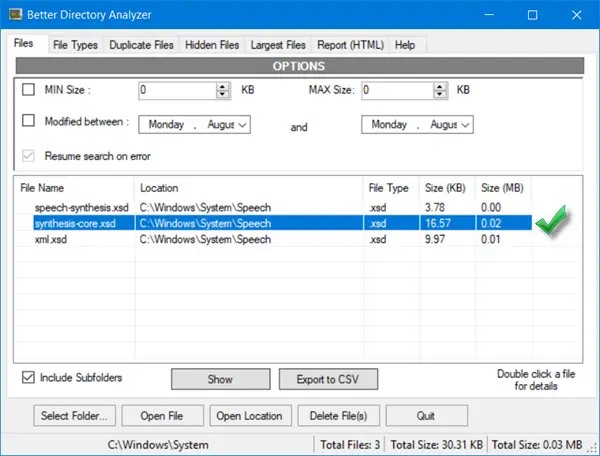
Better Directory Analyzer is a free tool that helps you find duplicate files on your hard drive, identify which files or folders take up the most space, and more. With this free tool, you can scan your hard disks and examine the files and folders. You can use the advanced filter in this tool for advanced search; for example, you can search for files by size, file type, or duplicates. Again, like most of the tools mentioned above, Better Directory Analyzer too comes with a simple layout and interface.
6] MeinPlatz
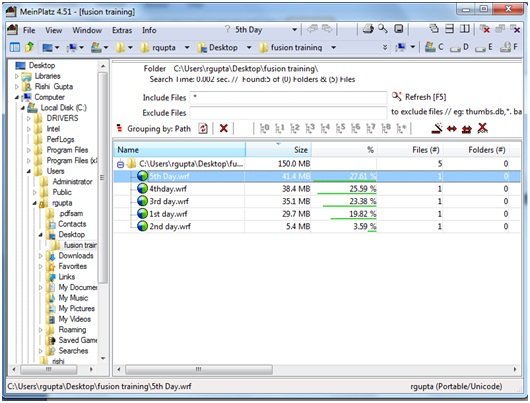
MeinPlatz is a free portable and smooth-running software that discovers the lost space on your system and helps you save disk space. The tool scans your PC after it’s downloaded and shows which files and folders are using the most space on your hard drive. The graphical interface is quite simple to understand and use. Just select the desired directory and the software will report you the detailed information about that, including the number of files, the size of files and the space occupied by those files and folders.
Read: Hard drive full? How to find the largest files on Windows PC?
7] Disk Space Fan
Disk Space Fan checks the disk space and analyzes it on different perspectives. It helps you identify where the disk space has gone and perhaps helps you to delete the cluttered useless files and folders too.
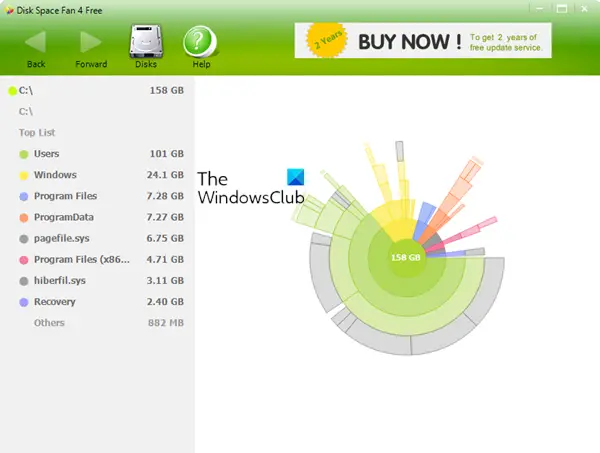
Disk Space Fan is a freeware disk space analysis tool with nice eye candy and graphics for Windows 11/10 that can help you.
This tool will help you identify where your disk space has gone and possibly help you to free up disk space by quickly finding and deleting useless files.
It displays disk space usage in a nice chart. The chart makes navigating folders easy. It is also integrated with Windows Explorer, allowing users to open, delete, and browse files or folders.
The tool has fantastic Disk visualization and animation. The folders and files are sorted by size for easy identification. What’s more, it integrates with Windows Explorer, making it easy to browse, open, and delete files.
Features:
- Scans directories and drives to find out useless and larger files
- Diagram of a flower shown in the form of free disk space
- Browse/open files on rings chart
- Preview a picture on rings chart
- Support for Unicode
- Save scan history
- Network path support.
8] Disk Savvy
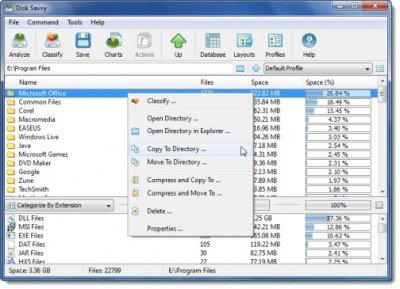
Disk Savvy analyzes your PC’s disk drives and directories, helping you see which files and folders take up the most space. Furthermore, you can also delete the files, move them or create groups and directories. There are both free and paid versions of Disk Savvy software available. The free version of Disk Savvy, however, does not allow you to analyze more than 100000 files simultaneously.
There are more!
- JDiskReport is another cool free Disk Analyzer that requires Java to work
- TreeSize Free displays File, Folder sizes, using Context Menu
- Use Filelight app to see the disk usage statistics
- Know what is taking up space on hard drive on Windows with WizTree
- Ashampoo Disk-Space-Explorer helps analyze and visualize space usage
If you are facing disk space issues and don’t really know where the disk space has gone, these free software might help you out. Try these out, and let us know if you’d like us to add any more free tools to the list.
How do I analyze disk space in Windows?
There are several apps available for analyzing disk space in Windows. Even if you use the latest version of Windows, you can take the help of such apps. For your information, you can get started with the Space Sniffer app mentioned in this article. It is a lightweight program that does the job pretty well.
How can I tell which folders are taking up the most space?
There are two ways to tell which folders take up the most space on your Windows computer. First, you can use the manual method to check one folder at a time. Second, you can use third-party apps such as WinDirStat, Disk Savvy, Filelight, etc. All of them are free, and you can use any on a Windows 11/10 PC.
