
There might be times when a logical partition on your hard disk starts filling up and rapidly runs out of space. There can be several reasons for this. However, there is no particular reason for this behavior; several potential causes may be at fault. Malware, a bloated WinSxS folder, Hibernation settings, System Corruption, System Restore, Temporary Files, other Hidden files, etc can cause this.
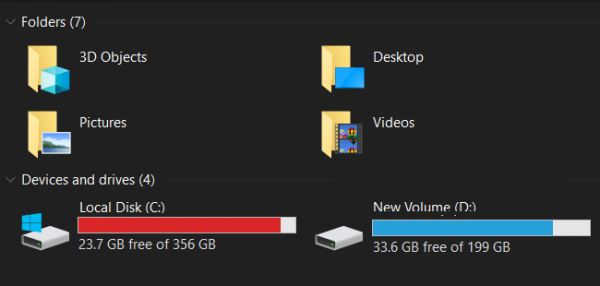
In this post, we take a look at two scenarios. The reasons would be different, and so would the troubleshooting:
- C System Drive keeps filling automatically
- D Data Drive keeps filling up automatically.
Hard Drive keeps filling up by itself automatically
The System Drive could be filling up automatically for several reasons. If you have been installing and uninstalling software, it could end up bloating your WinSxS folder with orphaned DLL files. You need to check the space allocated to System Restore Points and also disable Hibernation file – or it could be excessive log files (.log) being generated for errors occurring on your system.
Before you begin, use a free Disk Space Analyzer software to find up which of your folders on which drive are consuming excessive space. If you find any non-system folders occupying disk space, with data, download, etc, files, then delete all such files that are not required, manually.
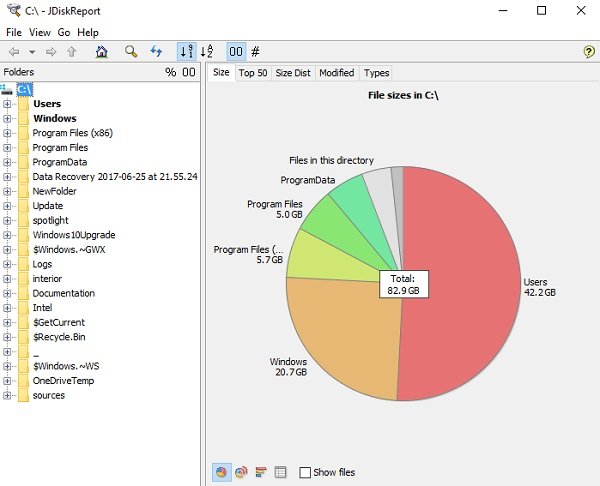 Once you get an idea, here is what you need to look at if your C (System) drive or your D (Data) drive keeps filling up automatically on Windows 10/8/7.
Fixes applicable to C System Drive Only
The following fixes apply to the C System Drive only,
- Managing the Hibernation Settings
- Perform WinSxS folder cleanup
- Software misbehaving and eating up disk space
- Delete these two large files.
1] Managing the Hibernation Settings
Press WINKEY + X button combo or right-click on the Start button and click on Command Prompt (Admin). Click on Yes for the UAC or User Account Control prompt that you get. Then, the Command Prompt window will finally be open. Now, type in the following command to disable Hibernation and then hit Enter.
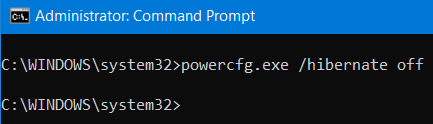
powercfg.exe /hibernate off
Close the Command Prompt window.
However, if you note, this method applies to the System Partition only. This is usually the C: partition.
Related: Deleted files from Hard Drive, but it is still full
2] Perform WinSxS folder cleanup
Perform WinSxS folder cleanup to reduce the size of the folder.
3] Check installed software
Check whether any installed software is misbehaving and consuming disk space. Maybe it is generating a lot of log files (.log). Installing the software is the only option in this case.
4] Delete these two large files
You can safely delete these two large hidden files – weights.bin and ExtensionActivityEdge.
Fixes applicable to both C System Drive and D Data Drive
The following fixes apply to the C System Drive as well as the D Data Drive,
- Fixing File System Corruption.
- Detecting and removing malware.
- Managing the System Restore Points.
- Running Disk Cleanup.
- Looking for Hidden Files.
- Miscellaneous Fixes.
1] Fixing File System Corruption
Start by pressing the WINKEY + X button combo or right-click on the Start button and click on Command Prompt (Admin) or search for cmd in the Cortana search box, right-click on the Command Prompt icon and click on Run as Administrator. Click on Yes for the UAC or User Account Control prompt that you get. Then, the Command Prompt window will finally be open. Now, type in the following command to run chkdsk and then hit Enter.
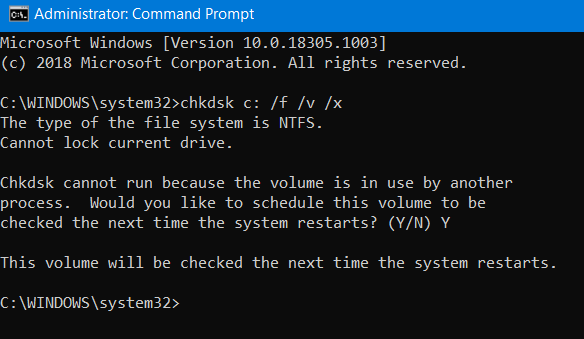
chkdsk <Partition Letter> /f /v /x
It will either start checking for errors and fixing them. Else it will show up a message saying,
Chkdsk cannot run because the volume is in use by another process. Would you like the schedule this volume to be checked the next time the system restarts? (Y/N)
Then, you can hit Y for scheduling the Disk Check the next time the system restarts.
2] Detecting and removing malware
There may be a serious malware infection on your computer that could be causing this behavior. To fix this, you can perform a full system scan, a quick scan and a boot-time scan from Windows Defender or any other antivirus software that you are using.
3] Manage the System Restore Points
To configure the disk space used by system restore points, right-click on the This PC icon and then click on Properties.
On the left side ribbon, click on System Protection.
Then a mini window will pop up. On the bottom side of that mini window, click on Configure.
Another mini window will now pop up. In the Disk Space Usage section, you can move the slider to set the maximum storage allowed when creating a System Restore Point.
You can also select the Delete button to delete the created system restore points or toggle to enable or disable the system restore points.
Click on Apply and then OK for the changes to take effect.
4] Run Disk Cleanup
Run Disk Cleanup Utility.
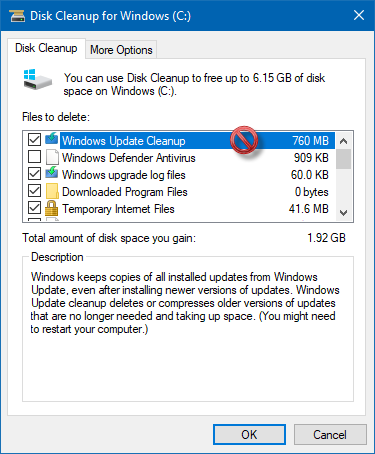
Type in Disk Cleanup in the Cortana Search Box and hit Enter to bring it up and Select the appropriate result.
You can also use it to delete even 7-day old temporary files and even free up additional disk space by removing all, but the most recent system restore point using the Disk Cleanup utility.
TIP: USBDriveFresher is a Junk file and folder cleaner for USB Drives.
5] Look for Hidden Files
You can also try to use the Show Hidden Files option to check all the hidden files that are taking up space on your hard disk.
These files can be deleted to free up some additional space.
It includes some RAW data files from games and some utility software.
Read: Hard drive full? How to find the largest files on Windows?
6] Miscellaneous Fixes
This fix covers a broad spectrum of options you can take to address the issue you are facing.
First of all, you can try to uninstall the UWP or Win32 applications installed on your computer. You can uninstall applications that you no longer use or are buggy enough to cause this issue of eating up free space on your disk.
Secondly, you can use third-party tools like CCleaner to clean up junk from almost every part of your computer and free up a lot of space.
Thirdly, you can clean up the Recycle Bin to free up more space by permanently deleting files you are sure you do not need.
I hope this helps.
Does formatting a hard drive permanently delete?
When you delete a file from your computer, Windows moves it to the Recycle Bin, so that you can restore it whenever needed. Formatting a hard drive does not move data to the Recycle Bin. But still, data can be recoverable. You can use free data recovery software to recover deleted data. Keep one thing in mind: data recovery only works until you do not overwrite the hard drive. When you place another file on a formatted hard drive, it overwrites the drive, making the previously deleted data unrecoverable.
