
Many of us still prefer to use the built-in Disk Cleanup Tool. However, if you use the tool to delete junk and temporary files, you may find that some files still remain in the temp folder. This is because, by default, Windows does not delete the temporary (.tmp) files in the %WinDir%\Temp folder and in other folders that have been created or accessed in the last 7 days.
Make Disk Cleanup Tool delete ALL temporary files in Windows 11
The temporary files aren’t useless; apps, programs, and the operating system also use them. These files may be related to something you are downloading or currently working on. They could even be related to some applications that may still be open. Windows plays it safe and chooses not to delete temporary files that are less than 7 days old. However, it is normally secure and okay to delete temporary files, especially if an app or program is not working properly or you need to free up some disk space.
If you wish, you can set Disk Cleanup Tool to delete all the files in the temp folders.
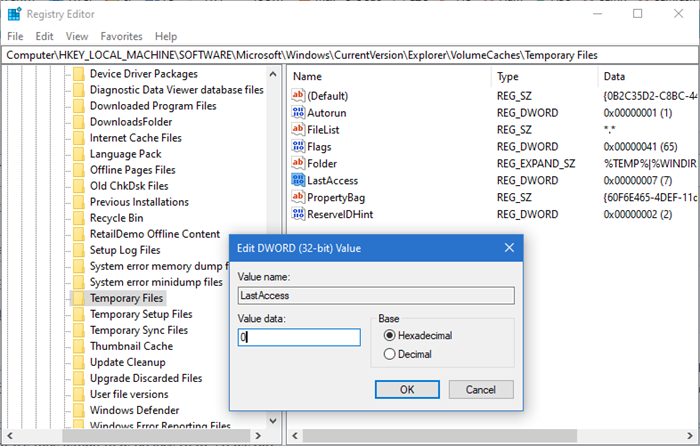
To do so open Registry Editor and navigate to the following key:
HKEY_LOCAL_MACHINE\SOFTWARE\Microsoft\Windows\CurrentVersion\Explorer\VolumeCaches\Temporary Files
Locate and double-click on LastAccess. When you see the Edit DWORD Value dialog box, change the Value Data setting from 7 to 0 and click OK.
Setting it at 0 will make Disk Cleanup Tool delete all the files. If you set it at say 1, it will not clean the last 1 days temp files.
You may need to restart Windows to allow the changes to take effect.
How do I automatically delete Temporary files in Windows?
There are multiple ways to delete Temporary files in Windows 11/10. But, if you want to automatically delete temporary files, then you can turn on the Storage Sense feature of Windows 11/10. Open the Settings app, access the Storage page in the System category, and turn on the Storage Sense option. After this, configure Storage Sense to automatically delete junk files or temporary files. You can also create a BAT file and then use that file to delete temporary files automatically whenever needed.
