
We all know that even high-performance and super-fast bikes come tuned for roads and not race tracks. Its engine, NOS systems, brakes, suspension, and other parts needed to be thoroughly checked and tweaked before it could be exploited to its full potential.
The same rule applies to computers. To maintain the system’s speed, you need to leave say, about 20% of your computer’s main hard disk free for system tasks and virtual memory operations if there are loads of files, downloads, etc., you need to tweak the settings for optimizing the performance and get rid of some files, if necessary.
But how do you find the location of a file that is consuming the largest portion of the memory? Search them manually? Not anymore! There are a few good programs that can save the day for you. These programs, or DISK ANALYZERS, analyze the disk space and allow you to graphically view the distribution of hard disk space among files. We already have freeware like SpaceSniffer, Disk Space Fan, Disk Savvy, and Better Directory Analyzer. Today let us check out TreeMapFs (formerly Saleen File Pro) – which is also free for personal use.
Analyze Disk Space and Usage
TreeMapFs is a professional disk and file manipulation tool that analyzes disk space from multiple perspectives, including Tree Map, Tree Size, File Statistics, Folder Statistics, and more. The freeware program consumes only a little CPU memory and is light on other resources too. Above all, it is free for personal use.
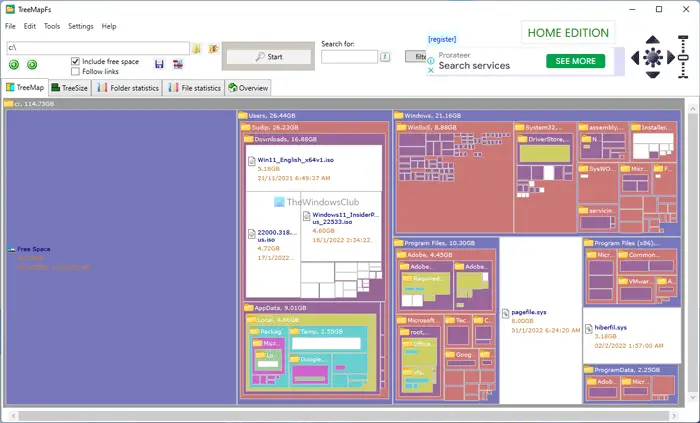
Please note the free version of the application is available as ‘Home Edition’ so make sure while installing you choose the correct version of it. After you have installed the program successfully, the first function that it will perform is scanning your C: drive, this process may take a few minutes to complete.
Once done, it will generate a report in which you can easily locate the file or folder consuming the most memory. How? You will notice an unusually big file/folder on the ‘Treemap’. The file/folder is so large that it warrants further investigation.
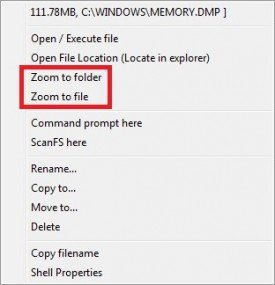
So to investigate further, you will be required to zoom-in on the file/folder. How? Just do a right-click on the desired file/folder and select ‘Zoom to file’ or ‘Zoom to Folder’ option. With this option, you can get an idea of whether the file/folder is useful. If not useful, delete it safely.
By default, TreeMapFs allows you to view the disk space distribution in ‘Treemap’ view. A disk treemap is a graphical representation of the size allocation of a directory or drive. If you want, you can view the disk space distribution in the other three views viz,
- Tree size
- Folder Statistics
- File Statistics.
Also, this Disk Space Analyzer software uses a different color for each directory level. Files are drawn using white color.
TreeMapFs is compatible with Windows 11/10 and can be downloaded for free from here.
What is the best disk space analyzer?
Although there are plenty of free disk analyzer tools available in the market, you need to use one that offers all the essential options. For that purpose, Saleen TreeMapFs or TreeMapFs is one of the best options you have in your hands. It is compatible with Windows 11, Windows 10, and some other older versions. It displays a visual on your screen so that you can find the file, size, location, etc.
How do I find out what’s taking up my hard drive space?
To find large files or what’s taking up space on your hard drive, you need to use a tool like TreeMapFs. It helps you scan the hard drive and shows all the files that take up the most space. Whether it is a game, app, software, video, or anything else, you can use this app to find that out.
