
Logitech devices are designed not just to work, but to work smarter, with added customization, comfort, and productivity-focused features. At its core, Logitech focuses on creating software-enabled hardware that improves how people interact with digital systems.
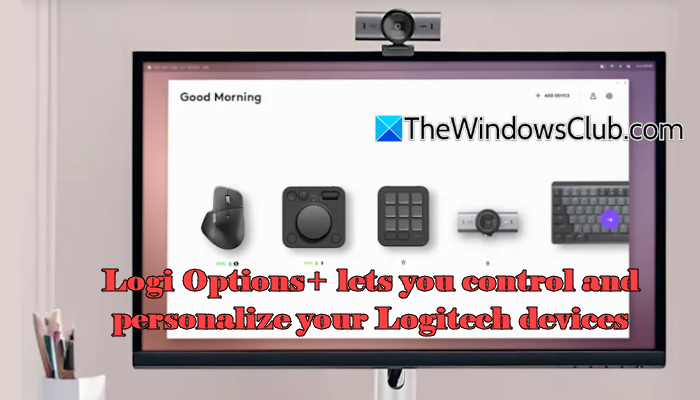
That’s where Logi Options+ comes in. It’s Logitech’s official software that bridges the gap between Logitech peripherals and your system, allowing you to customize controls, automate tasks, and unlock the full potential of your devices. In this post, we’ll take a closer look at what Logi Options+ offers and how it lets you control and personalize your Logitech devices.
Logi Options+ lets you control and personalize your Logitech devices
Logi Options+ is an upgraded version of Logitech’s older Options software. It offers a redesigned interface, better performance, and additional customization features for supported Logitech mice, keyboards, and other peripherals. With Logitech Options+, you can:
- Customize buttons, keys, and controls across supported devices
- Create app-specific profiles for different workflows
- Monitor device status, including battery level and connectivity
- Adjust device behavior such as scrolling, pointer speed, or key functions
- Set up shortcuts and automate repetitive tasks (Smart Actions)
- Enable advanced features like gestures and multi-device controls (Flow)
Note: For a complete list of supported devices, visit Logitech’s official support page using this link.
Download and install Logi Options+
To get started with Logi Options+, you first need to download and install it on your Windows 11/10 PC. Logi Options+ supports Windows 10 (version 1607) and later.
Visit the official Logitech website using this link and download the latest version of Logi Options+. Once the setup file is downloaded, double-click on it to launch the installer. Click Install and follow the on-screen instructions to complete the installation.
Using Logi Options+
Before you start customizing your device in Logi Options+, you need to connect it to your Windows PC. You can do this using Bluetooth or a USB receiver.
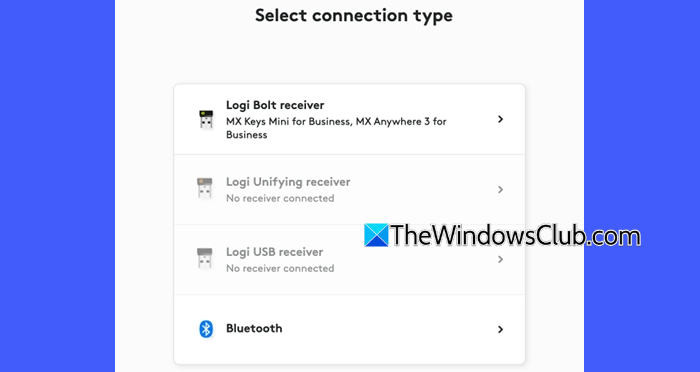
Pair using Bluetooth:
Press and hold the Connect (pairing) button on your Logitech device until the LED starts blinking. This indicates that the device is ready to pair.
Next, turn on Bluetooth on your Windows 11/10 PC. Click Add device and select Bluetooth.
Select your Logitech device from the list, and then click Pair. Follow the on-screen instructions to complete the setup.
Connect using a USB receiver:
Plug the Logitech USB receiver into a USB port on your computer. Open Logi Options+.
Click Add device and follow the on-screen instructions.
Once connected, the device LED will stop blinking and remain steady for a few seconds. It will then turn off to save energy.
Key features of Logi Options+
Logi Options+ comes with several powerful features to improve productivity and simplify everyday tasks. Here are some of the most useful ones:
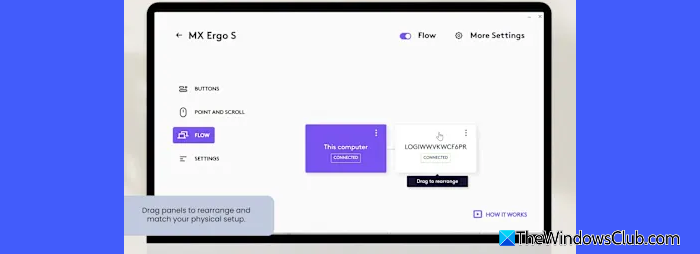
1] Logitech Flow: Flow lets you control multiple computers seamlessly using a single mouse and keyboard. You can switch between systems by moving your cursor to the edge of the screen, or transfer text, images, and files between computers across both Windows and macOS. Just copy on one device and paste on the other.
2] Smart Actions: Smart Actions is one of the newer features in Logi Options+ that helps you automate repetitive tasks. It consists of triggers and actions. Once triggered, a predefined sequence of actions runs automatically. For example, a single trigger can open multiple apps simultaneously.
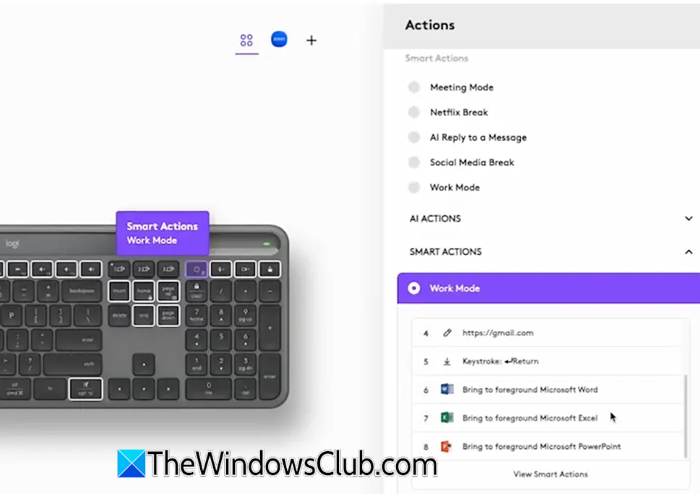
You can access Smart Actions from the top-right corner of the Logi Options+ home screen. They can also be assigned to buttons or keys from the device settings (under the AI Actions section) to trigger a chain of actions.
3] Logi AI Prompt Builder: Logi AI Prompt Builder provides instant, in-context access to ChatGPT. You can assign it to a customizable button on a supported Logitech mouse or keyboard and trigger it instantly while working.
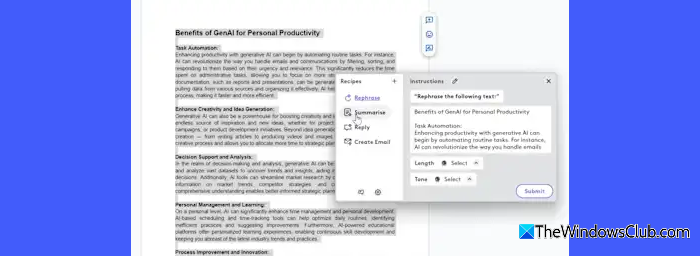
You can choose between two actions: Open AI Prompt Builder, which launches an on-screen overlay that automatically captures any selected text, or Open ChatGPT, which opens the ChatGPT window for direct interaction. It then applies your chosen prompt “recipes” (predefined instructions) and submits both the text and the recipe to ChatGPT. This makes it easier to perform common tasks like summarizing or rewriting content quickly, without switching between apps.
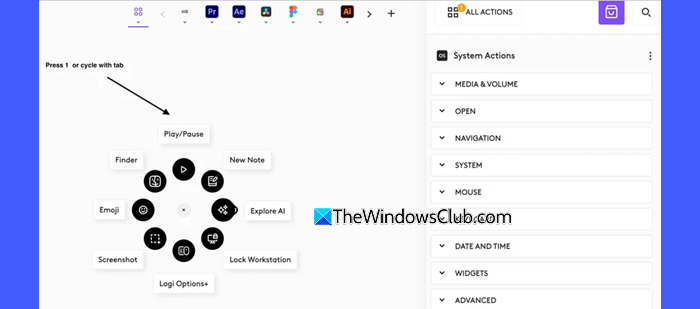
4] Actions Ring: Actions Ring is an on-screen radial menu that gives you quick access to your most-used actions. When triggered, it appears as a circular overlay on your screen, displaying multiple “bubbles” (round icons) for quick actions.
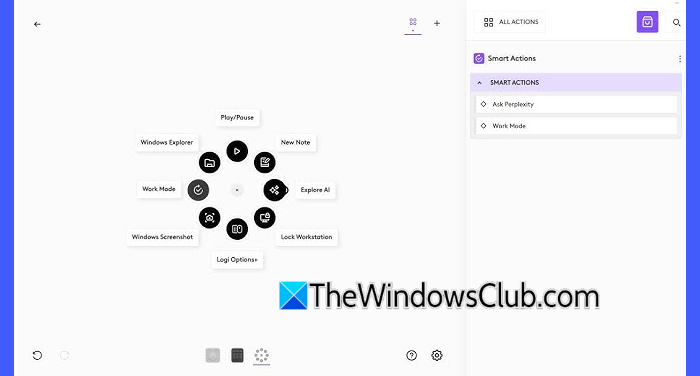
You can customize these bubbles by choosing what each one does. You can also add more functionality to them by installing plugins (for example, a Spotify plugin lets you control music directly from the Actions Ring).
5] App-Specific Profiles: App-specific profiles let you assign different functions to your mouse buttons or keyboard keys based on the application you’re using. Instead of having the same controls everywhere, your device adapts automatically. For example, a button can switch tabs in a browser, scroll horizontally in Excel, and control tools in a design app. Profile changes occur automatically in the background when you switch apps, helping you work more efficiently without having to manually reconfigure settings.
That’s all! I hope you find this useful.
Is Logitech Options+ free?
Yes, Logi Options+ is completely free to download and use. There are no subscription charges for the core software. You just need a compatible Logitech device to use it. The “+” in its name represents improved features and experience, not a paid version.
What does the Logi Options+ do?
Logi Options+ is a customization software that lets you control and personalize your Logitech devices. It allows you to remap buttons and keys, create shortcuts, automate tasks, and use features like Flow for multi-device control. In short, it helps you optimize how your mouse, keyboard, and other supported devices work for your workflow.
Read Next: Fix Logitech Setpoint Runtime error on Windows.
