
Death’s Door is an excellent dungeon puzzle game. But according to some users, Death’s Door is crashing, stuttering, or failing to launch on their Windows systems. These issues have been encountered by a ton of Windows users, and we are here to put an end to them. In this article, we will see how to resolve this issue in detail.
Why does the Death’s Door game keep crashing and freezing?
If the Death’s Door game starts freezing and stuttering and then crashes, chances are that the game is overheating your computer, which is slowing down your processor, and eventually, making the app consume the maximum resources, which is why the game crashes. However, that is not the only reason; corrupted files, incompatibility, and conflicting apps are some other reasons causing this issue. We have outlined all the solutions you need to follow when Death’s Door crashes or freezes.
Fix Death’s Door crashing, stuttering, not launching issues on PC
If Death’s Door is crashing, stuttering, or not launching on your Windows 11/10 computer, try the following solutions to resolve the issue.
- Run the game from the game folder
- Close redundant apps
- Use windowed Borderless Mode
- Fix Corrupted Game Files
- Use Ultimate Power Plan
- Update Graphics Drivers
- Troubleshoot in Clean Boot
Let us talk about them in detail.
1] Run the game from the game folder
For many victims, just opening the game from the game folder rather than Steam has worked. Go to the location where you have stored your game, right-click it, and select Run as administrator. If you always want to run the game with administrative privileges, right-click on the game, select Properties, go to the Compatibility tab, tick Run this program as an administrator, and click Apply > OK. Hopefully, this will work for you too.
2] Close redundant apps
If you have a lot of apps running in the background, your game will likely stutter or even crash. So, open Task Manager, and see which one is consuming your resources such as CPU, GPU, and Memory. Right-click the ones you feel are unnecessary and select End Task. After closing all the resource-hogging apps, open your game and check if it’s stuttering.
3] Use windowed Borderless Mode
In some scenarios, the issue is caused by incompatibility. We are going to try and play the game in windowed Borderless Mode and see if that works.
- Open Steam.
- Go to Library.
- Right-click on your game and select Properties.
- Now, set the Launch Option to Windows Borderless by typing -windowed –noborder.
Now, restart the game and check if the issue persists.
4] Fix Corrupted Game Files
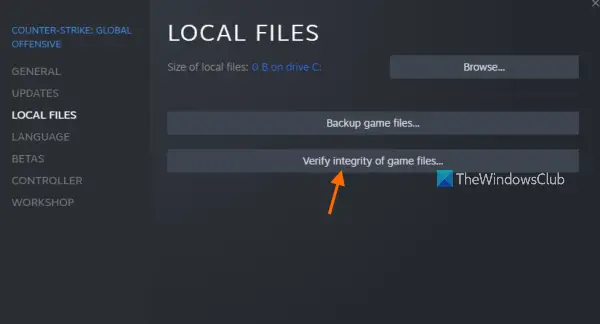
If your game is crashing, it will definitely crash. The good news is that you can use the Steam client to fix those files. The following are the steps to follow.
- Go to Steam > Library.
- Right-click on your game and select Properties.
- Click Local Files > Verify integrity of game files.
Hopefully, this will do the trick for you.
5] Use Ultimate Power Plan
If the game is stuttering or freezing, you should use Ultimate Power Plan Mode. This mode will make the power saving an afterthought and give all the power to the processor which will allow your game to run smoothly.
6] Update Graphics Drivers
Death’s Door can crash due to graphics incompatibility. To resolve this issue, we need to update the Graphics Drivers. The following are some of the methods to do the same.
- Download Driver and Optional Updates.
- Go to the manufacturer’s website and download the latest version of the driver.
Hopefully, this will do the job for you.
7] Install the latest version of DirectX and Visual C++ Redistributable
Both DirectX and Visual C++ Redistributable are a must-have to run the game. So, try installing the latest version of DirectX and Visual C++ Redistributable. After installing the feature, restart your computer and replay the game. Hopefully, it will do the trick for you
8] Troubleshoot in Clean Boot
A third-party app can conflict with your game and cause the issue in question. You should try to troubleshoot it in Clean Boot to find out the culprit. Then remove the trouble-making app. This should fix the problem for you.
That’s it!
Death’s Door System Requirement
Make sure that your computer matches the following requirements to run the game.
Minimum
- OS: Windows 11/10 (64-bit)
- Processor: Intel Core i5-8250U or equivalent; AMD Phenom II X4 965 or equivalent
- RAM: 8 GB
- Graphics: GeForce MX 150; Radeon R7 260X
- Storage: 5 GB available space
Recommended
- OS: Windows 11/10 (64-bit)
- Processor: Intel Core i5-4670K or equivalent; AMD FX-8350 or equivalent
- RAM: 8 GB
- Graphics: GeForce GTX 1050; Radeon RX 580
- Storage: 20 GB available space
If you have a computer that meets these requirements, you should install the game.
How many hours does it take to complete Death’s Door?
If you focus only on the main objectives, you can complete Death’s Door in around 8-10 hours with continuous play. On the other hand, if you want to complete the entire game in full, it may take more than 15 hours.
Is Death’s Door a hard game?
Death’s Door is a challenging game, but you may not find it too difficult to play if you are a regular gamer. Though a player may die multiple times against common enemies and bosses, the game gets easier as the player progresses. Also, it has no setting to adjust the difficulty level, so you need to play it with the default difficulty level.
Also Read: Improve Windows 11 Performance by tweaking these 5 settings.
