
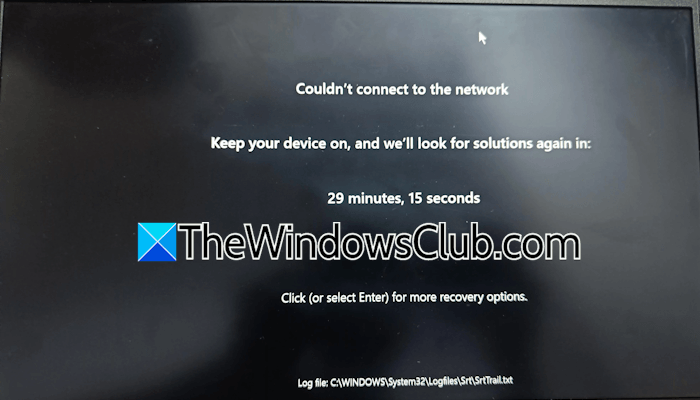
Some users cannot boot into Windows 11 due to the “Couldn’t connect to the network, Keep your device on, and we’ll look for solutions again ins 30 minutes” error. According to the reports, this error occurs when users turn on their computers. The screen shows a particular time after which the system restarts automatically. After the restart, the same error occurs again, resulting in a continuous restart loop.
The complete error message is:
Couldn’t connect to the network
Keep your device on, and we’ll look for solutions again in 30 minutes
Click (or select Enter) for more recovery options
Log file C:\Windows\System32\Logfiles\Srt\SrtTrail.txt.
For your information, SrtTrail.txt is a log file that records events that may have caused Automatic Startup Repair to fail or a Blue Screen Stop Error.
Couldn’t connect to the network, Keep your device on, and we’ll look for solutions
Use the following fixes if you encounter the “Couldn’t connect to the network, Keep your device on, and we’ll look for solutions, Log file srttrail.txt” error on Windows 11 startup:
- Shut down and leave your system for some time
- Perform a hard reset
- Run Automatic Startup Repair
- Restore your system
- Reset your system
- Perform the clean installation of Windows
Youwill have to to access and use Advanced Startup options to carry out some of these suggestions.
1] Shut down and leave your system for some time
This is the first fix that you should try. If this works, you will save your time in further troubleshooting. Force shut down your system by pressing and holding the power button. Now, leave your system for some time. Now, turn on your computer and see if the error occurs.
2] Perform a hard reset
If the issue persists, you can try performing a hard reset. The following steps will guide you on this:

- Force shut down your computer by pressing and holding the power button.
- Disconnect all the peripherals and the power cord. If it is a laptop, disconnect the charger and remove its battery.
- Now, press and hold the power button for 30 to 45 seconds.
- Connect the power cord or charger and turn on your system.
See if the issue persists.
3] Run Automatic Startup Repair
Automatic Startup Repair is an automated tool in Windows OS that helps fix startup problems. You can try running this tool and see if it helps. To run the Automatic Startup Repair, you need to enter the Windows Recovery Environment. Press the Enter key to boot into the Windows Recovery environment.
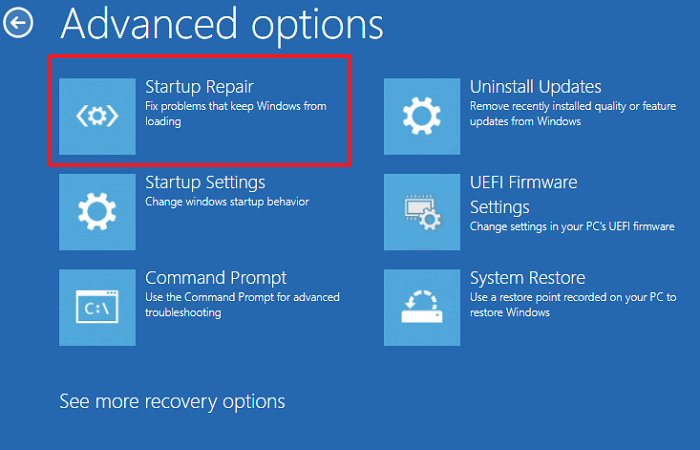
Once you are in Recovery Environment, select Troubleshoot > Advanced Options > Startup Repair. This will take time. After the process completes, restart your system and see what happens.
If you cannot boot into the Recovery Environment by pressing the Enter key, terminate the normal boot process of Windows. Follow these steps:
- Press and hold the power button to shut down your system.
- Turn on your system.
- When the Windows or manufacturer’s logo appears on the screen, press and hold the power button immediately to force it to shut down.
- Repeat these steps until you see the “Preparing Automatic Repair” message on your screen.
The above steps will take you into the Windows Recovery Environment.
4] Restore your system
If the Startup Repair does not help, you can use the System Restore tool to fix this problem. The System Restore takes your system to the previous point in time when your system was working perfectly.
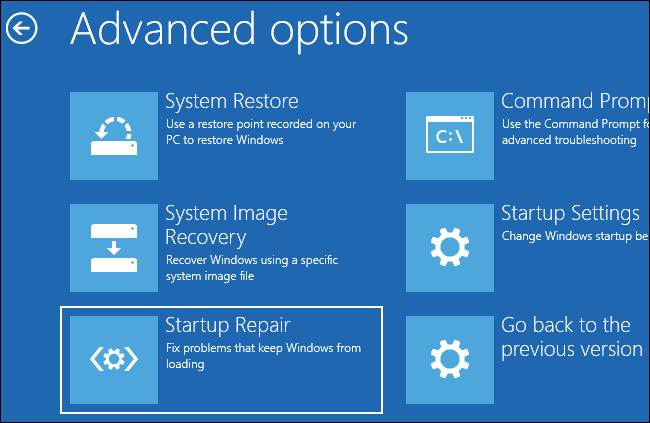
To use System Restore, boot into WinRE and navigate to Troubleshoot > Advanced Options > System Restore. Enter the password if asked. Now, select the correct restore point to restore your system to a proper working state. Proceed with the on-screen instructions.
5] Reset your system
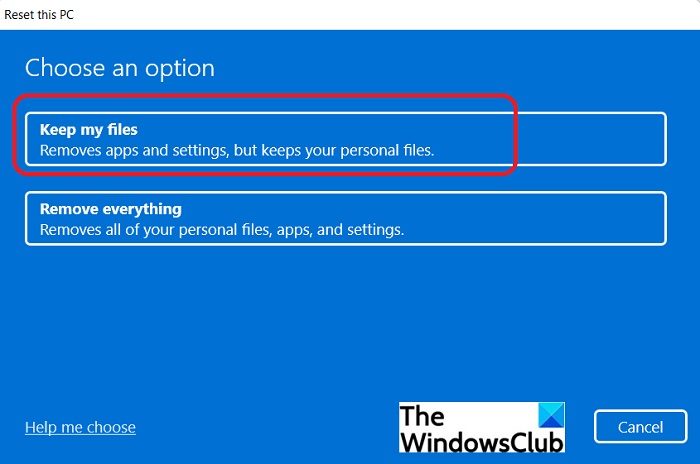
You can use System Restore only if the restore points are saved on your system. If no restore points exist, you cannot use this tool. In such a case, you can reset your PC to the factory default settings. To stop Windows from deleting your files during the factory reset, select the Keep my files option.
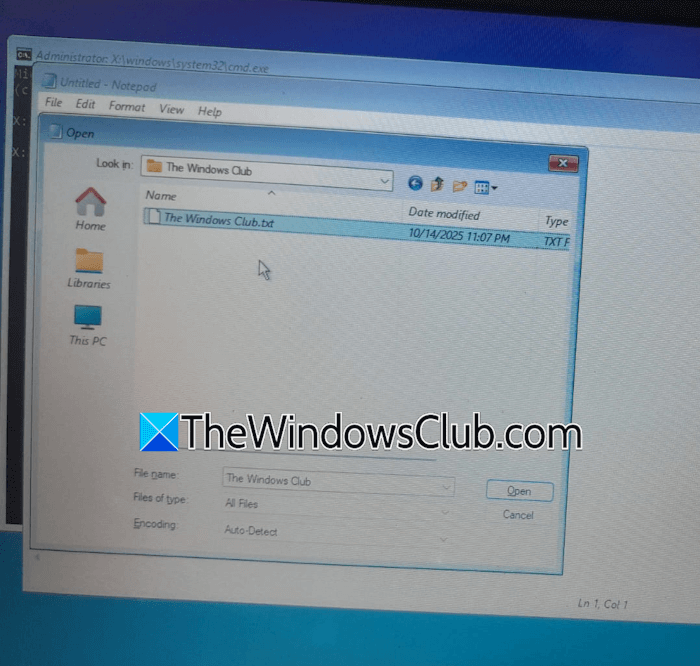
While the Keep my files option prevents your data from being deleted, it is better if you back up all your important files before proceeding. Since you cannot boot into Windows, you need to enter the Windows Recovery Environment to back up all your important files.
6] Perform the clean installation of Windows
If none of these solutions work, the last resort is to perform a clean installation of Windows. For this, you will need a working PC or laptop. Create a bootable USB flash drive using a working computer and then use that flash drive to perform the clean installation of Windows.
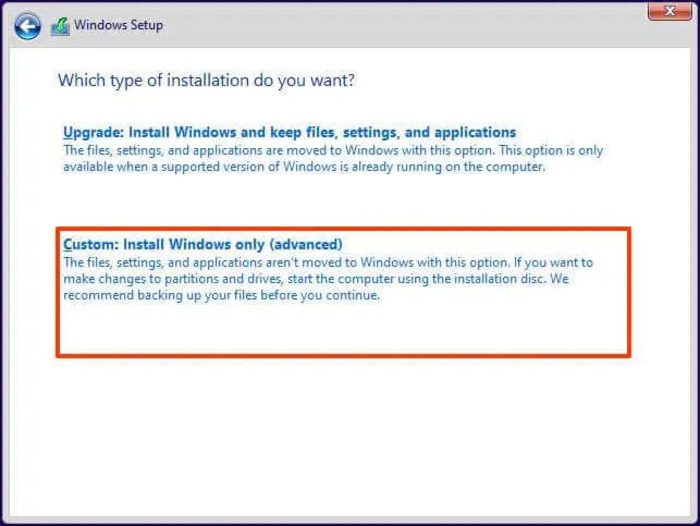
This action will erase all the data from the selected hard drive partition. Therefore, carefully select the right hard drive partition while installing Windows from scratch.
That’s it. I hope this helps.
How to solve Couldn’t connect to the network?
To fix the Can’t connect to this network WiFi error on Windows 11, you can try some fixes, like running the Network and Internet Troubleshooter, updating or reinstalling your network adapter, flushing the DNS, resetting the network, etc.
How do I reset my network settings?
To reset your network settings on Windows 11, open its settings and navigate to Network & Internet > Advanced Network Settings > Network Reset. Click Reset now. This process takes up to 5 minutes, and Windows reboots automatically after 5 minutes. Therefore, save all your pending work before proceeding.
Read next: Enable and Test Quick Machine Recovery in Windows.
