
MBR2GPT is a command-line utility for Windows computers that allows users to convert their hard disks from MBR to GPT without data loss. Sometimes, the tool fails to convert the disk and throws an error. “Cannot find OS partitions for disk 0 MBR2GPT” is one such error that can occur while converting a disk from MBR to GPT using the MBR2GPT command-line tool. If you encounter this error on your Windows computer, the solutions provided in this article will help.
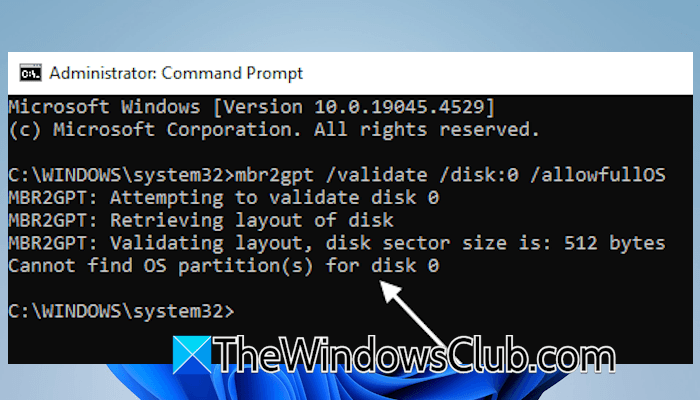
Cannot find OS partitions for disk 0 MBR2GPT Conversion failed
The error “Cannot find OS partitions for disk 0” when converting a disk from MBR to GPT with the MBR2GPT tool can occur for several reasons. Some of these causes are listed below:
- If the BCD file also contains an entry for another operating system. This usually happens in the case of a dual-boot system. For example, if you install Windows 11 on Disk 0 and Windows 10 on Disk 1. In this case, if the BCD file contains an entry that points to the Windows operating system installed on another Disk, this error occurs.
- The BCD file contains an entry for the deleted recovery partition. In this case, that entry points to the recovery partition that does not exist. As a result, the tool throws the error.
- You cloned the Windows operating system from another drive or PC. If you didn’t clone the recovery partition, the BCD may point to the missing recovery partition, resulting in the “Cannot find OS partitions for disk 0” error.
- If the recovery partition does not exist on the disk, you may encounter this error while converting MBR to GPT.
- If the System Reserved partition size on your disk is very small.
Use the following fixes to resolve this error. Before proceeding, we strongly recommend you back up all your data to an external storage device.
- Create a new partition on the disk
- Delete another boot entry (if applicable)
- Create the Windows Recovery Environment
- Use a third-party tool
All these fixes are explained below in detail.
1] Create a new partition on the disk
On MBR disks, the boot files are stored on the System Reserved or Recovery Partition. MBR2GPT tool requires a System Partition that contains system boot files and is marked active. If that partition is not marked active, MBR2GPT may show this error while converting the disk to GPT. In another case, the error occurs even when the System Partition is marked active. This usually happens due to the size restrictions. When you convert a disk to GPT, a separate EFI partition is created, which requires a minimum of 500 MB of space on the disk. If the System Reserved partition on the MBR disk has a size less than 500 MB, the MBR2GPT tool fails to convert the disk and shows this error.
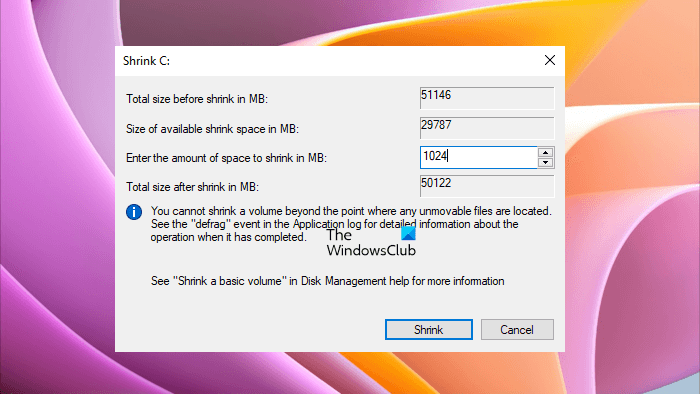
To resolve this problem, create a new partition of a minimum 1 GB size and mark it active. The following instructions will help you:
- Open Disk Management.
- Right-click on the C drive and select Shrink Volume.
- Now, enter 1024 as the amount of space you want to allocate to the new partition. After that, click Shrink.
- An Unallocated space of 1 GB will be created on your disk. Now, right-click on the Unallocated space and select New Simple Volume.
- The New Simple Volume Wizard will appear. Click Next. Click Next again and select the drive letter you want to assign to that partition.
- On the next screen, select the Format this volume with the following settings option and select NTFS as the File System.
- Click Next and then click Finish.
When you are done, launch Diskpart and run the following commands:
list disk

select disk #

list partition

select partition #

active

exit
In the select disk # command, replace # with the correct disk number. In the select partition # command, replace # with the partition number of the newly created partition. Now, you need to copy the boot files from the System Partition to the small partition you created. Run the following command:
bcdboot C: Windows /f all /s D:\
In the above command, replace D with the partition letter of the newly created partition. Now, run the MBR2GPT commands. The error should not occur this time.
2] Delete another boot entry (if applicable)
This fix is for dual-boot systems. If you have a dual-boot system, the BCD might be pointing to the boot files of the operating system on another disk. This triggers the error in MBR2GPT. To fix this problem, you can delete the boot entry. Doing this will not delete the operating system installed on another disk, but removes its boot entry, due to which you will not see the screen to select an operating system at system startup.
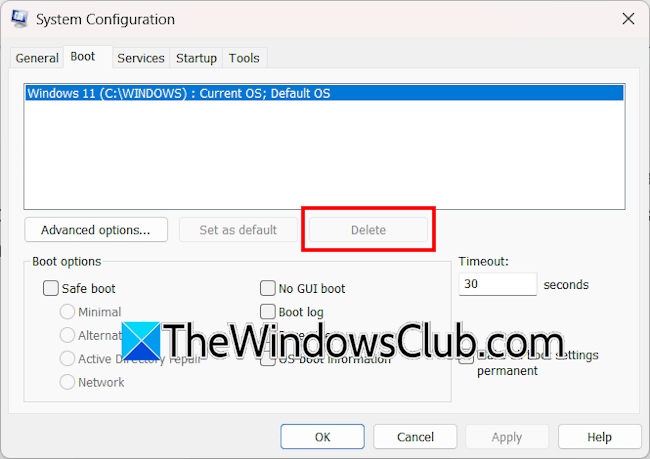
Follow these steps. Before proceeding, boot into another operating system and back up all your important files to an external storage device.
- Open MSConfig.
- Navigate to the Boot tab.
- Select another operating system and click Delete.
- Click Apply and then OK.
3] Create the Windows Recovery Environment
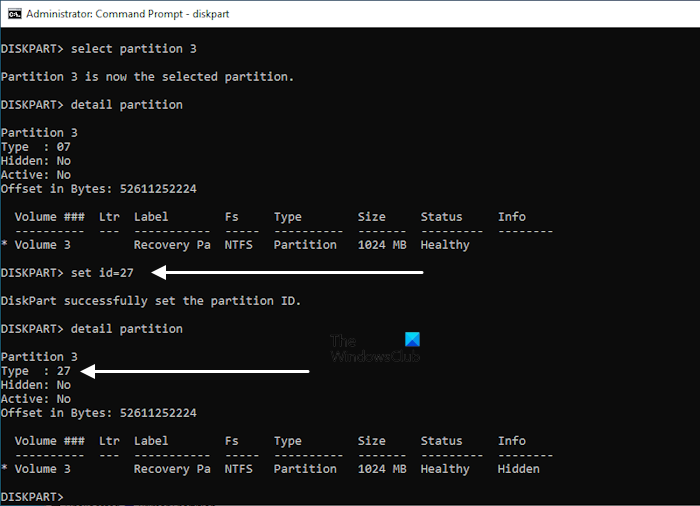
One possible cause of this error is the missing Recovery Partition. Therefore, if the Recovery partition does not exist on your MBR disk, create it. After creating the Windows Recovery Partition, the error should not occur.
4] Use a third-party tool
If you encounter issues with the MBR2GPT command line utility, you can use a third-party tool, such as AOMEI Partition Assistant and Minitool Partition Wizard. These tools offer the easiest way to convert an MBR disk to a GPT one. So, they’re the best option for non-tech users. Select the target disk, then choose the option to convert it from MBR to GPT. The software will handle the rest and convert the disk quickly.
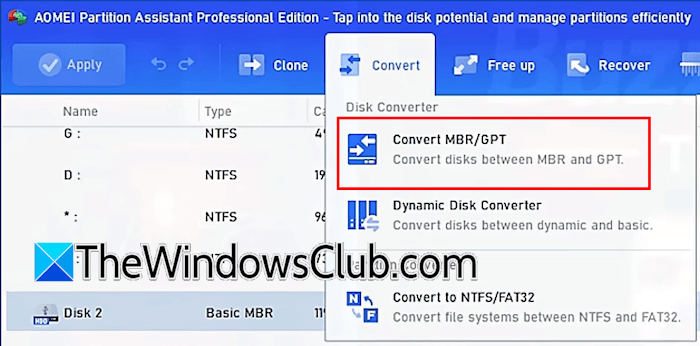
After converting your disk to GPT, enter your system’s BIOS and change the BIOS mode from legacy to UEFI; otherwise, your system will not boot.
That’s it. I hope this helps.
How to fix MBR2GPT disk layout validation failed?
The MBR2GPT disk layout validation failed error occurs when there are more than 3 primary partitions or multiple logical partitions on the MBR disk. To fix this error, delete all logical partitions. Alternatively, you can use third-party software, such as AOMEI Partition Assistant.
How long does MBR2GPT take?
MBR2GPT is a command-line utility that converts a disk from MBR partition style to GPT partition style without deleting data. The entire process is quick and takes only a few seconds to minutes. If you are not familiar with command-line utilities in Windows 11, you can use a third-party tool.
Read next: MBR2GPT Last partition too close to the end of the disk.
