
Some people have been reporting that Windows Search, is unable to find desktop apps. Its search includes results from the Windows Store but does not include desktop software and applications. If Windows Search cannot find desktop apps or programs on your Windows 11/10 computer, this post will help you. Although no official solution is known for the given problem, users reported that the following steps helped them.
Windows Search not finding desktop applications
Before you begin, ensure the system is updated to the latest version, has all Windows Updates installed, and create a system restore point. Also remember that Cortana has been separated from the Search in recent Windows 11/10 versions.
1] Re-install Search using PowerShell
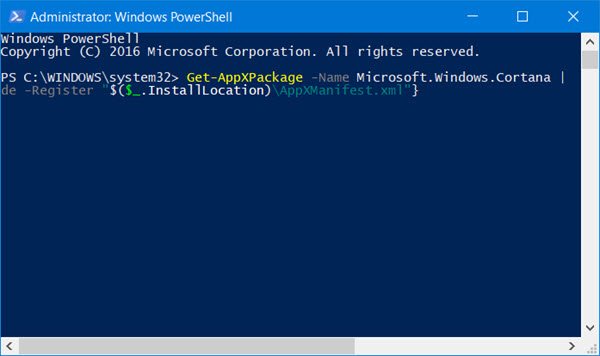
Cortana isn’t easy to reinstall, and it certainly cannot be done like a usual program. It has to be reinstalled using PowerShell.
Open an elevated PowerShell window and run the following command:
Get-AppXPackage -Name Microsoft.Windows.Cortana | Foreach {Add-AppxPackage -DisableDevelopmentMode -Register "$($_.InstallLocation)\AppXManifest.xml"}
This re-installs Cortana. If it works, great, else restore your system back to the created system restore point.
2] Perform an SFC scan
A System File Checker scan helps scan protected files and replaces missing or corrupted ones with previously cached good versions.
Open CMD as administrator and run the following command:
sfc /scannow
Restart the system.
Read: Windows Start Search not displaying results; shows blank white
3] Windows Search Troubleshooter
Run the Windows Search Troubleshooter and see if that helps.
4] Reset Windows Search
Reset Windows Search and see if it helps you.
5] Rebuild the Windows Search Indexer
Rebuilding the Search Indexer may help in repairing the built-in search tool in Windows. To rebuild the Windows search index, head to Control Panel > Indexing options. Click on Advanced and ensure that you are on the Index Settings tab in the Advanced Options window.
The rebuilding process will take some time, but once it’s complete, you can begin searching for the necessary files, and the Search Function should work properly. If you need more details, you will get them in this post titled Windows Search Indexer tips. See this post if you need to troubleshoot and fix Windows Search Indexer not working issues.
Let us know if anything helped you.
Also read: Windows Search not working or finding files.
