
In this post we will show you how to fix the Connection to the Blizzard game server has been lost error on Windows 11/10 PC. Battle.net is a desktop game launcher application using which you can install, update, and play games from Battle.net games on a Windows PC. However, you might encounter some errors and bugs like any other software or application.
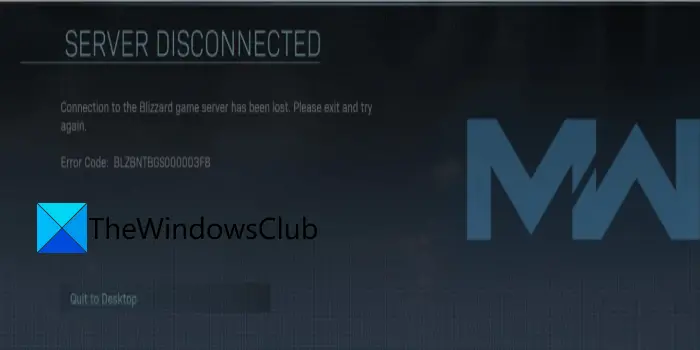
One of such errors includes “Connection to the Blizzard game server has been lost.” The error is accompanied by the error code BLZBNTBGS000003F8. When triggered, you will get the following error message:
Connection to the Blizzard game server has been lost. Please exit and try again.
Error code: BLZBNTBGS000003F8
This error is mostly reported by the Call of Duty players. Now, if you are one of those users facing the same error, we got you covered. In this guide, we are going to mention several fixes that helped affected users resolve the error. You can also try these fixes and get rid of the error.
What causes the Connection to the Blizzard game server has been lost error?
Here are the reasons due to which you might encounter the Connection to the Blizzard game server has been lost error on Battle.net:
- One of the primary causes of this error can be server problems. So, you need to ensure that the Blizzard Battle.net servers are not down. If the servers are down, you will need to wait until the error is resolved on the server side.
- Your firewall can also be one reason you are getting this error. In case your firewall is blocking the connection between your system and the servers, you should be able to resolve the error by allowing the game through your firewall.
- Network issues on your PC can be another cause of this error. You can try performing a network reset to fix the error.
- Inconsistencies with your DNS server can also trigger the Connection to the Blizzard game server has been lost error. Hence, you can try switching to a reliable DNS server, such as Google DNS, to resolve the error.
- Outdated or faulty device drivers, including network drivers can also cause the error. If the scenario applies, you can try updating your drivers to fix the error.
Now that you know the scenarios that trigger the error, you can try a suitable fix to resolve it.
Connection to the Blizzard game server has been lost, Error BLZBNTBGS000003F8
Here are the methods that you can use to fix the Connection to the Blizzard game server has been lost, error code BLZBNTBGS000003F8 on Windows 11/10 PC:
- Make sure the server is not down.
- Allow your game to run through Windows Firewall.
- Perform a network reset.
- Use Google DNS Server.
- Update your device drivers.
- Try a VPN.
1] Make sure the server is not down
A server issue can cause this error. There can be a server overloading problem or the server might be under maintenance. So, make sure the Blizzard game servers are up and running and that the error is not due to server problems. You can check the server status of the Blizzard server using a free server status detector.
If you find that a server issue is causing the error, there is not much you can do to fix it. Wait for a while, and the error should be fixed on the server side. However, if it turns out to be that the servers are up and running, there must be some other issue due to which the error has occurred. Hence, move on to the next potential fix to resolve the error.
Read: How to increase Battle.net download speed in Windows PC?
2] Allow your game to run through Windows Firewall
An overly protective antivirus or firewall might cause this error. Your firewall might be blocking or hindering the connection between your PC and Blizzard game servers. To check whether your firewall is the main culprit, try turning it off temporarily. After that, check if you encounter the same error on Battle.net or not. If the error is gone, you can be sure your firewall was the one causing it.
Now, when you find out that your firewall is triggering the error, you can try allowing the game to run through Windows Firewall. Here are the steps to do that:
- Firstly, press Windows + R hotkey to open the Run dialog box and then enter firewall.cpl in it to open up the Windows Defender Firewall window.
- Now, press the Allow an app or feature through Windows Defender Firewall option from the left pane.
- Next, tap on the Change settings button and then click on the Allow another app… button.
- After that, browse and add Battle.net’s executable and BlackOpsColdWar.exe files to the list of Allowed apps and features.
- Then, select the added apps and then enable the Private and Public checkboxes.
- Finally, press the OK button to save changes.
You can now try relaunching Battle.net and open your game to check if the error is fixed or not. Similarly, you can also check if your antivirus is causing the problem and then add Battle.net and the game to the exception or exclusion list of your antivirus.
In case the problem is not your firewall, you can try the next potential solution to fix the error.
Read: Fix Epic Games connection error, issues, and problems
3] Perform a network reset
You can also try performing a Network reset since the error might be caused due to some network issue. Here are the steps to do that:
- Firstly, open Command Prompt with administrator privilege.
- Now, type and enter the following commands in the below order:
netsh winsock reset
netsh int ip reset
ipconfig /release
ipconfig /renew
ipconfig /flushdns
- When all the commands are completed, you can reboot your PC and open the game to check whether the error is gone or not.
If the error persists, you can move on to the next potential fix.
See: Fix VALORANT connection error codes VAN 135, 68, 81 on Windows PC.
4] Use Google DNS Server
The “Connection to the Blizzard game server has been lost” error can also be triggered in case you are dealing with some inconsistency with your default DNS server. Hence, if the scenario applies, you can switch to a more reliable public DNS server. A lot of affected users were able to fix the error by switching to Google DNS server. So, you can also do the same and check whether or not it resolves the error for you.
To switch to Google DNS Server, you can try the below steps
- Firstly, press Windows + R to evoke the Run dialog box.
- Next, type ncpa.cpl in the Open field and then press Enter to launch the Network Connections window.
- Now, simply select and right-click on your active connection and then hit on the Properties option.
- Then, select the Internet Protocol Version 4 (TCP/IPv4) option and then press the Properties button.
- After that, choose the Use the following DNS server addresses option and then use the following addresses in the respective fields:
Preferred DNS server: 8.8.8.8
Alternate DNS server: 8.8.4.4 - Now, to save changes, click on the OK button.
- Finally, relaunch the Battle.net client and open the game again to see if the error is fixed or not.
If you are not dealing with a DNS server problem, you can try the next potential solution to fix the error.
5] Update your device drivers
If the error is still not resolved using the methods above, the problem might be with your device drivers. There is a chance that corrupted or outdated drivers, especially network drivers, are causing the error in question. In that case, you should be able to fix the error by updating your Network drivers. After updating device drivers, reboot your PC and then check if the error is resolved.
Read: Fix Connection Interrupted error in COD Black Ops Cold War.
6] Try a VPN
If none of the above solutions worked for you, you can try using a VPN. As confirmed, some ISPs have trouble connecting to Blizzard and Battle.net servers. In that case, you should be able to fix the error by using a VPN client on your PC.
That’s it.
How do I fix BLZBNTAGT00000BB8?
To fix the error code BLZBNTAGT00000BB8 on Battle.net, you can try disabling your antivirus that might be interfering with the Battle.net game launcher. If that doesn’t help, you can try using an optimal internet connection, flushing the DNS cache, disabling proxy or VPN, reinstalling the problematic game, or reinstalling the Battle.net client.
Now read:
