
This post will show you how to use the DISM Tool to repair a Windows System Image in Windows 11/10. The System Update and Readiness Tool or CheckSUR tool will scan your Windows computer for inconsistencies, which may be caused by various hardware failures or by software issues and potentially fix that corruption. In Windows 11/10/8 and Windows Server, the Inbox Corruption Repair brings CheckSUR functionality to Windows. You do not need to download the tool separately.
What is Deployment Image Servicing and Management Tool (DISM.exe)?
Deployment Image Servicing and Management (DISM.exe) is a command-line tool for servicing a Windows image or preparing a Windows PE image. It is available in Windows 11/10.
The DISM tool replaces the Package Manager (pkgmgr.exe), PEimg, and Intlcfg tools used with Windows Vista. Deployment Image Servicing and Management, or DISM, consolidates the functionality of those three tools and adds new capabilities to improve the experience of offline servicing.
When used on Windows 11/10, you get additional functionality.
You can use DISM to:
- Add, remove, and enumerate packages and drivers.
- Enable or disable Windows features.
- Apply changes based on the offline servicing section of an unattend.xml answer file.
- Configure international settings.
- Upgrade a Windows image to a different edition.
- Prepare a Windows PE image.
- Take advantage of better logging.
- Service down-level operating systems like Windows Vista with SP1 and Windows Server 2008.
- Service all platforms (32-bit, 64-bit, and Itanium).
- Service a 32-bit image from a 64-bit host and service a 64-bit image from a 32-bit host.
- Make use of old Package Manager scripts.
Read: DISM vs SFC first? What should I run first?
How to Run DISM Tool in Windows 11/10
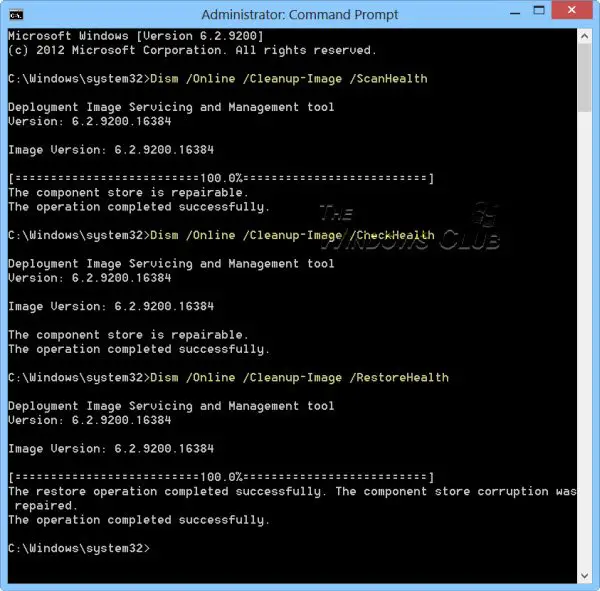
You can repair the Windows System Image using the DISM tool.
If a Windows image becomes unserviceable, you can use the Deployment Imaging and Servicing Management (DISM) tool to update the files and correct the problem. In the case of system inconsistencies or corruption, you can use the DISM tool with the Cleanup-Image functionality, along with the available switches.
Windows Component Store Corrupt
Use Dism /Online /Cleanup-Image followed by these switches:
1] /ScanHealth
This checks for component store corruption and records that corruption to the C:\Windows\Logs\CBS\CBS.log but no corruption is fixed using this switch. This is useful for logging what, if any, corruption exists. Use:
Dism /Online /Cleanup-Image /ScanHealth
This could take 10-15 minutes.
2] /CheckHealth
This checks to see if a component corruption marker is already present in the registry. This is merely a way to see if corruption currently exists. Think of it as a read-only CHKDSK. Use:
Dism /Online /Cleanup-Image /CheckHealth
This could take less than a minute.
Read: DISM /online /cleanup-image /restorehealth is stuck
3] /RestoreHealth
This checks for component store corruption, records the corruption to C:\Windows\Logs\CBS\CBS.log and FIXES the corruption using Windows Update. Use:
Dism /Online /Cleanup-Image /RestoreHealth
This operation takes 15 mins or more, depending on the level of corruption.
To carry out these operations, you have to open an elevated Command Prompt. First, you have to check whether there is corruption and whether the corrupted image is repairable. If yes, you can use the /RestoreHealth switch to fix the corruption.
TIP: Fix corrupted Windows Update system files using DISM Tool.
You can use this:
- If your System File Checker is corrupted or SFC is not working and the SFC /SCANNOW command is unable to repair corrupted system files because the store is corrupted.
- To fix Windows component store corruption when the same Windows Updates continue to appear to be available to install even though they already show successfully installed in update history.
- If a Windows image becomes unserviceable, you can use the Deployment Imaging and Servicing Management (DISM) tool to update the files, correct the problem, and repair the Windows image. You can use DISM to repair an offline Windows image in a WIM or VHD file or an online Windows image.
This post will help you if DISM is not working in Windows 11.
Related: How to repair Windows 11 without losing data or programs
Incidentally, our freeware FixWin for Windows lets you repair the Windows Component Store, with a click. Windows Software Repair Tool from Microsoft will repair system components and detect corrupt files, resync System date and Time, reset System Settings, reinstall System Applications and run the DISM Tool to repair system image, with a click.
Read: How to view DISM log files on Windows
See this post if you receive a DISM fails The source files could not be found error message. You can also run DISM Offline to repair Windows 11/10 System Image backup.
Additional reads:
