
DISM, or Deployment Image Servicing and Management, is a command-line utility in Windows 11/10 that allows users to find and fix corrupt system image files via PowerShell or Command Prompt. However, if the DISM /online /cleanup-image /restorehealth command is stuck at 62.3 or any point, here are some solutions that you should try.
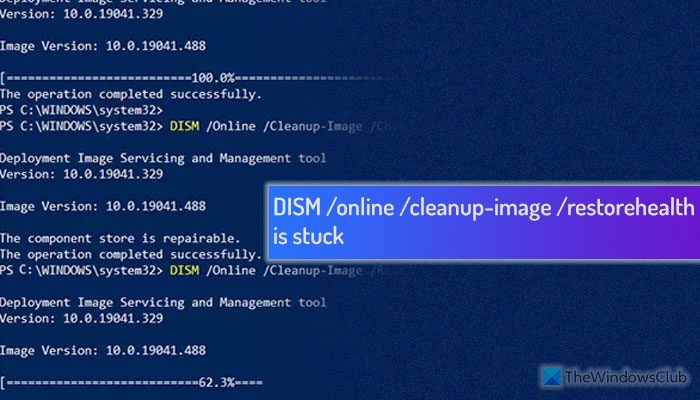
Since you have already run the command mentioned above, you might know what it does. However, if you do not know the command or have used it after copying it from somewhere, here is a brief overview you should know. This particular command has three parameters – /online, /cleanup-image, and /restorehealth.
The first one checks for system files. The second parameter deletes all the corrupt files, and the last one restores the file from your system image.
DISM /online /cleanup-image /restorehealth is stuck in Windows 11
If DISM /online /cleanup-image /restorehealth process is stuck at 62.3 or any percentage, follow these solutions to resolve the issue on your Windows computer:
- Restart your computer
- Run CHKDSK command
- Run System File Checker
- Run DISM in Clean Boot State
- Run DISM with a local source
- Check DISM log files
- Repair Windows.
To learn more about these solutions, continue reading.
1] Restart your computer
When you run the DISM tool, you cannot do anything else fluently since several things change in the background. In other words, you need to keep your computer in standby mode. Having said that, if the DISM command is not running on your PC or is stuck for a long time, you cannot do anything, as usual.
You can cancel it using CTRL+C in the window.
We suggest that you restart your computer and try again.
For your information, your files will be intact, and nothing will happen with any application if you close the ongoing process and restart your computer.
2] Run CHKDSK command
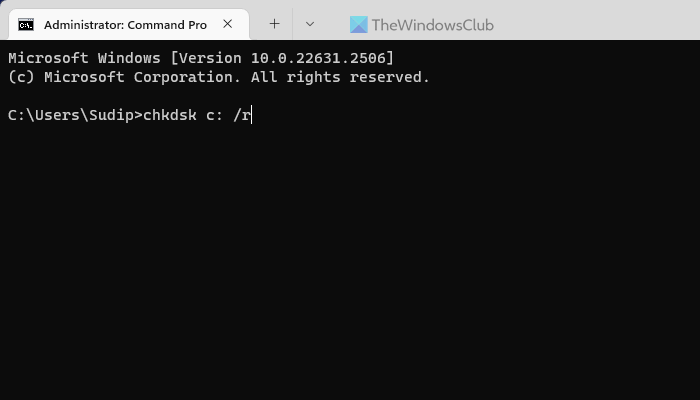
CHKDSK command also helps you find disk-related errors and fixes them automatically. If DISM was stuck at a certain point, a corrupt disk could be a reason. That is why it is recommended to run the CHKDSK tool to get rid of this issue.
Although there are so many chkdsk parameters, you need to use /f and /r parameters only. In other words, the command will look like this:
chkdsk c: /r
In case you don’t know, if you include the /r parameter, it will cover /f as well.
Read: Disk Error Checking: How to run CHKDSK in Windows
3] Run System File Checker
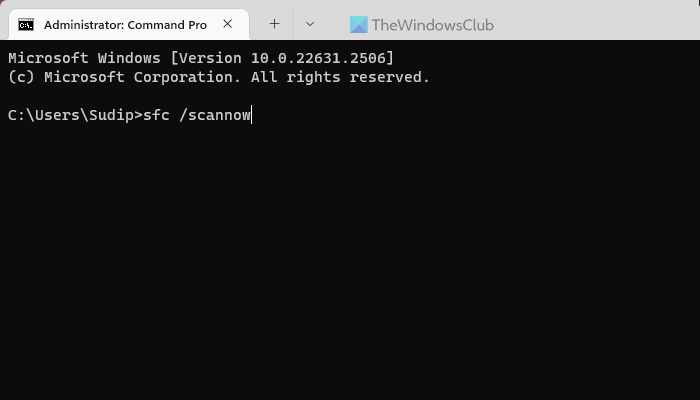
System File Checker (SFC) lets you check for and repair corrupt system files on the fly. One of the reasons for the aforementioned problem is the presence of corrupt files on your system. That is why we recommend you run the SFC scan.
Once you have completed these steps, connect to the internet and run the DISM command again; it should work.
4] Run DISM in Clean Boot State
Perform a Clean Boot and then run DISM and see if that works.
Make sure your antivirus software is disabled.
5] Run DISM with a local source
If Windows Update is slow, you can point DISM to a local source and see if that works:
DISM /online /cleanup-image /restorehealth /source:D:\sources\install.wim /limitaccess
You have to replace D:\sources\install.wim with the path to your Windows installation media.
6] Check DISM log files
To o view DISM log files, you can go to C:\Windows\Logs\DISM\dism.log for details. They may tell you what the issue is.
7] Repair Windows
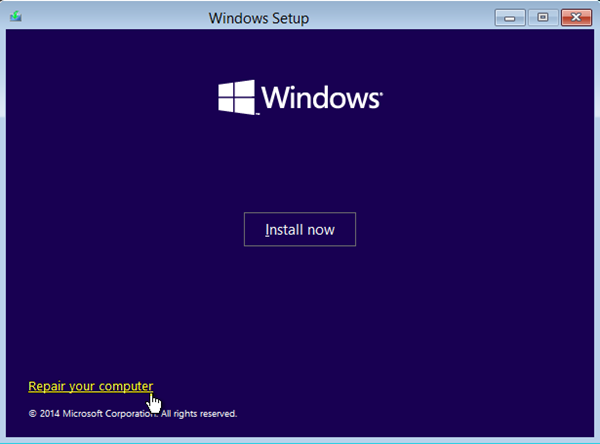
If nothing helps, you should consider repairing Windows using installation media or an in-place upgrade.
I hope this helps.
Read: ChkDsk stuck at particular % or hangs at some Stage
How long should DISM online cleanup image Restorehealth take?
There is no fixed time for DISM /online /cleanup-image /restorehealth to be completed on a Windows 11 or Windows 10 computer. It depends on the system, the number of bad sectors, the type of files it needs to repair, etc. However, it can take 30 minutes to 3 hours, depending on your situation.
What to do if DISM gets stuck?
There are mainly two things you can do. Restart your PC, and run the chkdsk tool to check for problems in your disk. Second, you can run the System File Checker or SFC scan to find and fix corrupt system files. Apart from that, any pending updates should be installed immediately.
