
While loading or opening a project, if you see Clipchamp has stopped responding, Error: Illegal invocation, then this post will help you fix the issue. This error mainly arises when you try to open an old project in the desktop version of Clipchamp.
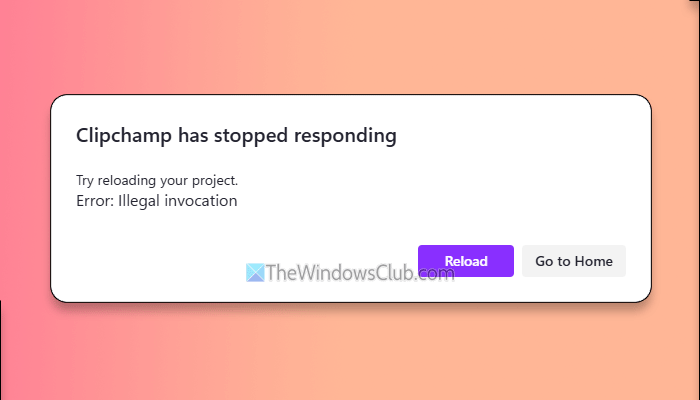
The entire error message says something like this:
Clipchamp has stopped responding
Try reloading your project.
Error: Illegal invocation
What does “Illegal invocation” mean?
An illegal invocation denotes an error in JavaScript. It typically occurs when a function is called with an unregistered argument. It could be a typing mistake, file corruption, etc.
Why does Clipchamp show an illegal invocation error?
If Clipchamp shows an illegal invocation error, one of these could be the reason:
- Your Microsoft account has some issues.
- Clipchamp files are corrupt.
- Old cache files are messing up your project.
- Your project files are corrupt.
- Your default browser has some problems.
- The installed graphics driver has some issues.
Clipchamp has stopped responding, Illegal Invocation error on Windows 11
To fix the Clipchamp Illegal Invocation error on Windows 11, follow these solutions:
- Delete all old data files of Clipchamp
- Use a different Microsoft account
- Update Clipchamp
- Verify your project media files
- Update/install/reinstall graphics driver
- Disable all extensions of Microsoft Edge
- Reset Microsoft Edge
- Repair and reset Clipchamp
To learn more about these solutions, continue reading.
1] Delete all old data files of Clipchamp
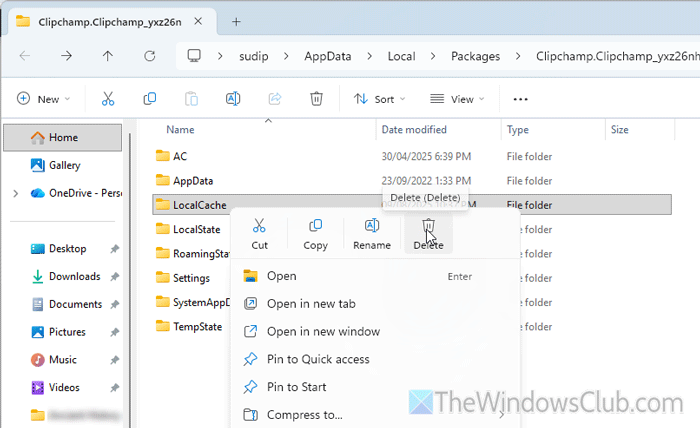
If you have been using Clipchamp for a long time and have updated your computer multiple times, your system may still contain old cache files. Due to those files, there is a high likelihood of encountering the aforementioned error when loading a Clipchamp project.
Therefore, follow these steps to delete all old data files of Clipchamp:
First, open the File Explorer and navigate to this path:
C:\Users\username\AppData\Local\Packages\Clipchamp.Clipchamp_yxz26nhyzhsrt
Note: You must show hidden files to find the AppData folder.
However, you can also press Win+R, and enter this path:
%LOCALAPPDATA%\Packages\Clipchamp.Clipchamp_yxz26nhyzhsrt
Then, delete these two folders: LocalCache and TempState. Once done, you can start Clipchamp again.
2] Use a different Microsoft account
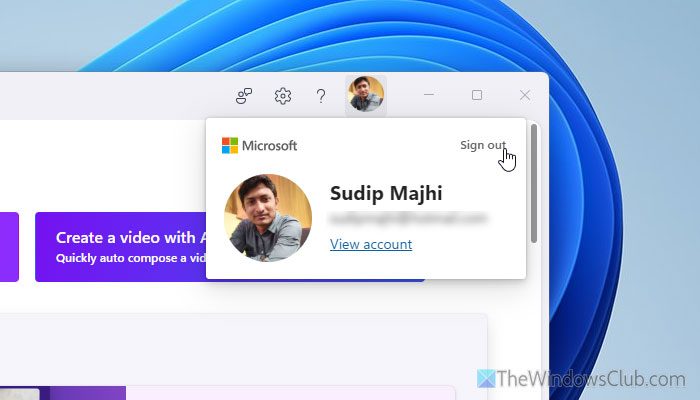
At times, your current Microsoft account could cause this error. If so, you can try switching to a new Microsoft account if you have one. Otherwise, it is very easy to create a new Microsoft account. You can go through this step-by-step guide to create a new Microsoft account.
3] Update Clipchamp
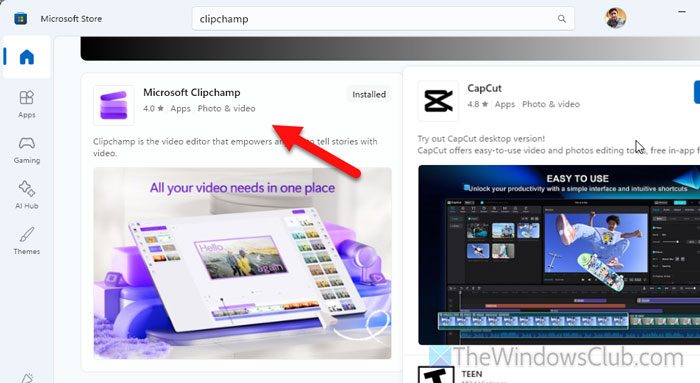
If Clipchamp has not been updated for a long time, you may encounter this error. It behaves weirdly when your default browser is updated multiple times, and Clipchamp has not been updated for a long time. That is why it is suggested to update Clipchamp by following these steps:
First, open the Microsoft Store on your computer and search for “clipchamp.”
Once you find the search results, click on them. If an update is available, you can find the Update button. Otherwise, there is nothing to do.
Read: How to update Microsoft Store Apps manually
4] Verify your project media files
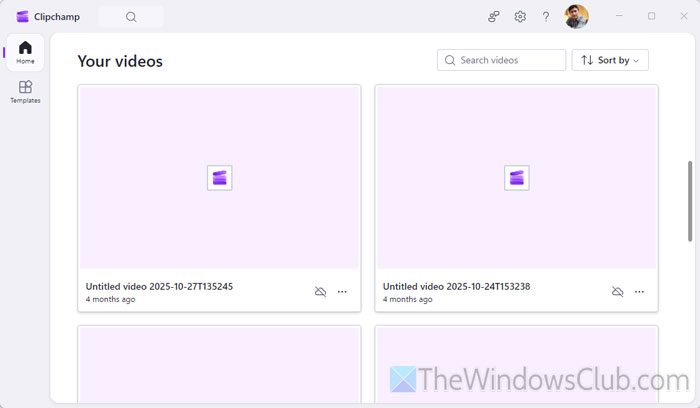
It is one of the most important steps, as the project depends on the linked files you used earlier. If those files are not intact, there is a high chance of getting this problem. That said, it is recommended to review the project files and verify them. Not only that, but it is also recommended to open them manually, as a single-file corruption can cause this error.
Read: How to Repair corrupted and damaged ZIP or Compressed files on Windows PC
5] Update/install/reinstall graphics driver
Graphics drivers are directly related to Clipchamp, and the corresponding driver has some issues; there is a chance of getting an error on Windows 11. Consider the following scenarios and execute the instructions accordingly:
- If you haven’t installed your graphics driver, install it.
- If you have already installed the graphics driver, uninstall and reinstall it. Always download the driver from the official website of the manufacturer. You can use the Device Manager to uninstall the existing driver.
- If your graphics driver hasn’t been updated in a while, update it.
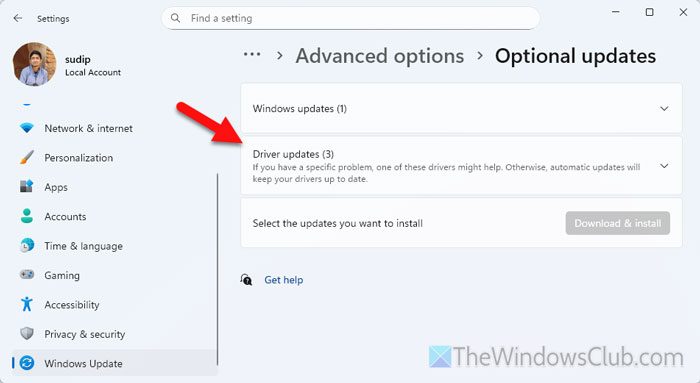
To update the graphics driver, open Windows Settings and go to Windows Update > Advanced options > Optional updates.
Expand the Driver updates section and find the graphics driver update. Tick the corresponding checkbox and click on the Download & install button.
Read: How to update NVIDIA Drivers on Windows 11 properly
6] Disable all extensions of Microsoft Edge
Clipchamp uses browser-based APIs to perform all the tasks, even though you use the desktop version. More specifically, it uses Microsoft Edge as the built-in engine. Therefore, if Microsoft Edge has extensions you suspect may be causing this issue, disable them.
To disable Edge extensions, follow these steps:
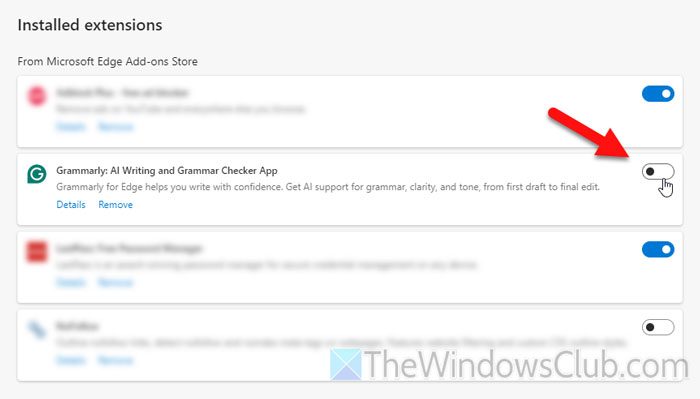
Open the Edge browser and go to Settings. Click on the Extensions on the left-hand side. Toggle the corresponding buttons to turn them OFF.
If that resolves the issue, enable one extension at a time and check whether the problem recurs. In this way, you will find the actual culprit.
Read: How to install, add, remove, disable Extensions in Edge browser
7] Reset Microsoft Edge
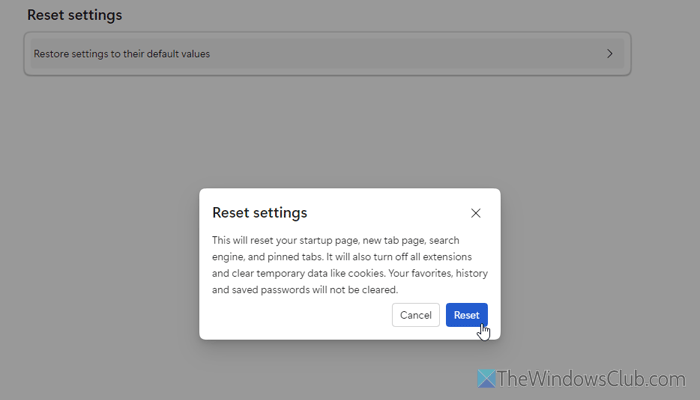
To reset Microsoft Edge, follow these steps:
- Open the Edge browser and go to Settings.
- Find the Reset settings option on the left side and click on it.
- Click the Restore settings to their default values option and click the Reset button.
8] Repair and reset Clipchamp
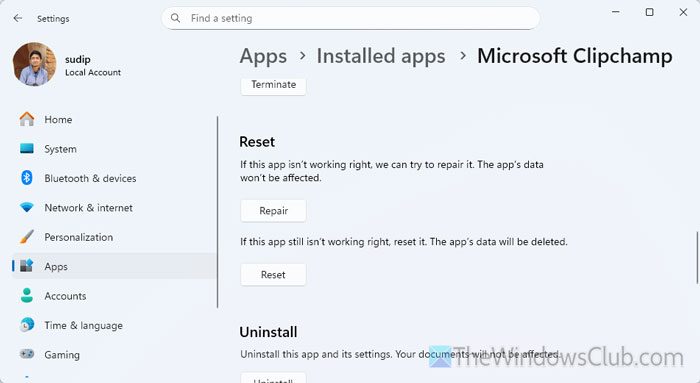
To repair and reset Clipchamp in Windows 11, follow these steps:
First, press Win+I to open the Windows Settings panel on your computer. Next, head to the following path: Apps > Installed apps > Microsoft Clipchamp.
Click on the three-dotted icon and select Advanced options. Head to the Reset section and click on the Repair button.
Once done, check if it resolves the issue or not. If not, click the Reset button to reset Clipchamp.
For your information, if you reset Clipchamp, you will need to re-enter your login credentials to access your existing projects.
Read: Clipchamp not opening or working, or Projects won’t load or export
How to fix JavaScript error on Windows 11?
To fix the JavaScript error on Windows 11, delete all the app contents from %AppData% and %LocalAppData%. Next, re-register all the JavaScript files. However, if nothing works, reinstall the app.
