
In video editing, effects are visual enhancements added to raw footage to alter its appearance and mood, depending on the video’s theme. Most modern video editing tools, including Clipchamp, have a variety of built-in effects to help creators enhance their content. However, the Clipchamp Effects are not loading for some users. If you encounter such an issue with Clipchamp, this article will help.
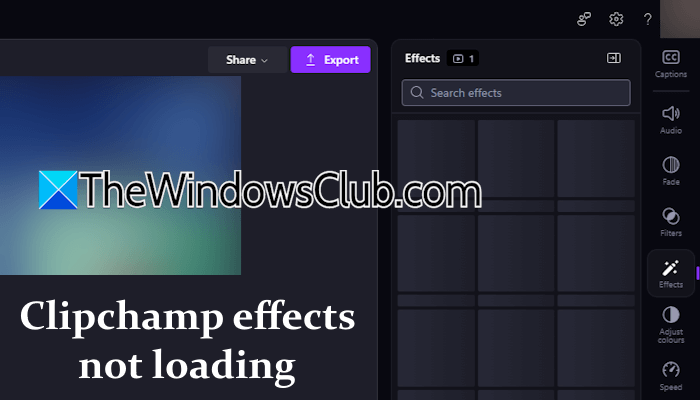
Clipchamp Effects are not loading on Windows 11
Use the following suggestions if the Clipchamp Effects are not loading on your Windows 11 computer:
- Check your internet connection
- Update and launch Clipchamp as an administrator
- Clear browser cache and cookies (if applicable)
- Disable extensions
- Check your browser privacy settings
- Terminate and repair Clipchamp
- Reset or reinstall Clipchamp
- Create a new user profile
All these fixes are explained in detail below.
1] Check your internet connection
Clipchamp requires an active internet connection to work flawlessly. If your network connection is unstable, you may experience issues with Clipchamp. Switch to another network. You can use your mobile data to connect your PC to the internet via a mobile hotspot.
If this works, the problem is with your WiFi. In this case, power cycling the WiFi router can help. Follow these steps:
- Turn off your WiFi router.
- Unplug the adapter from the wall socket.
- Wait for a few minutes, and turn on the router.
2] Update and launch Clipchamp as an administrator
One possible cause of this problem is the outdated version of Clipchamp. Check for its updated version in the Microsoft Store. Follow these steps:
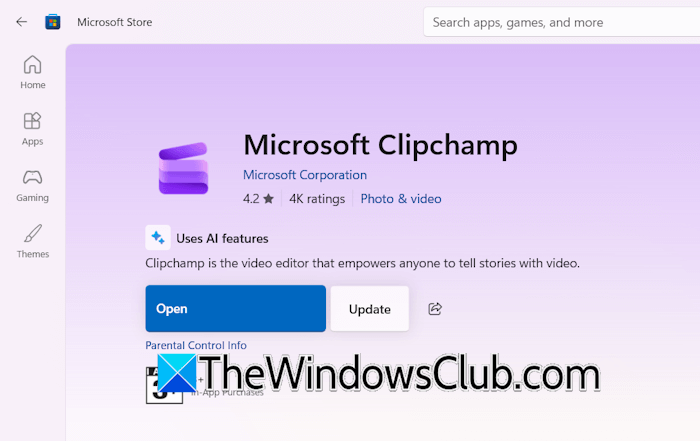
- Launch Microsoft Store.
- Search for Clipchamp.
- If an update is available, you will see the Update button. Click on it to install the update.
Now, launch Clipchamp and check if the issue persists. If so, try launching the app as an administrator. Click Windows Search and type Clipchamp. Right-click on it and select Run as administrator.
3] Clear browser cache and cookies (if applicable)
If you use the web version of Clipchamp, the issue might be due to the corrupted cache and cookies. To confirm this, sign in to Clipchamp in Incognito Mode. Alternatively, you can also Hard Refresh the web page by using the Ctrl + F5 key combination. The Hard Refresh in a browser reloads the opened tab by bypassing the local cache. If the issue does not occur, you need to clear the cache and cookies.
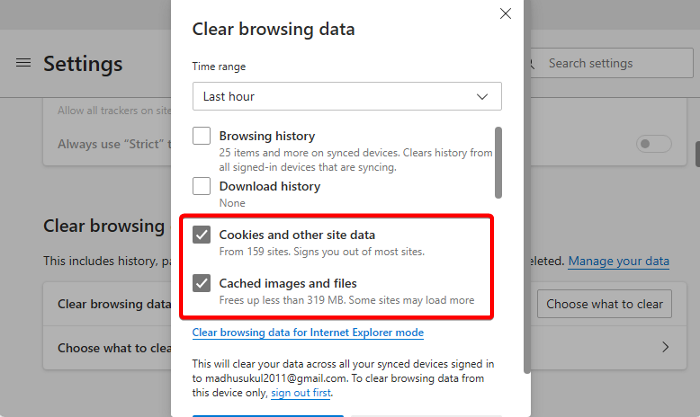
You can also try switching to another web browser. Microsoft suggests Edge for the best user experience with Clipchamp. However, you can use any browser.
4] Disable extensions
If the issue persists after clearing the cache and cookies, the problem might be due to installed extensions. To confirm this, disable all the installed extensions. Reload the Clipchamp page in your browser after disabling the extensions. If the issue disappears, one of the extensions is causing this problem.
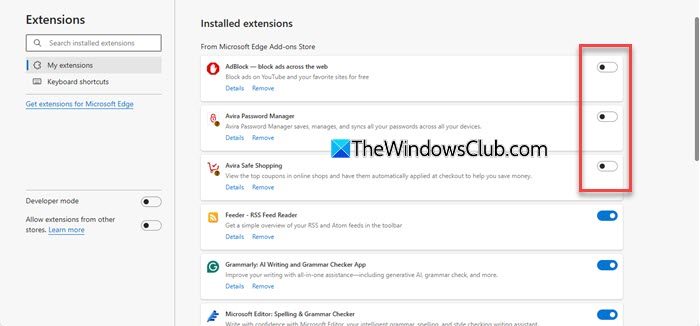
Now, to identify which extension is causing the problem, enable the extensions one by one. Reload the Clipchamp web page after enabling each extension. When the problem occurs again, the extension you have just enabled is the culprit. If the extension is important, you can keep it disabled while using Clipchamp. Otherwise, you can uninstall it.
Most commonly, such issues occur due to Ad Blocker extensions, as they can block scripts on some websites, causing certain website features to break.
5] Check your browser privacy settings
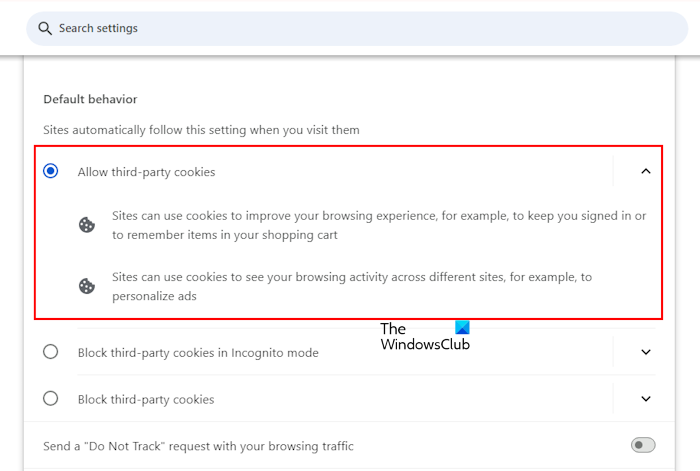
Check your browser privacy settings. Some websites have issues when third-party cookies are disabled. Check this and enable the third-party cookies if they are disabled.
Additionally, check the tracking protection settings. If the tracking protection is set to Strict, you may encounter issues with most websites. Change this setting to Balanced.
6] Terminate and repair Clipchamp
If the issue persists with the Clipchamp app, you can repair it. First, terminate it and then run repair.
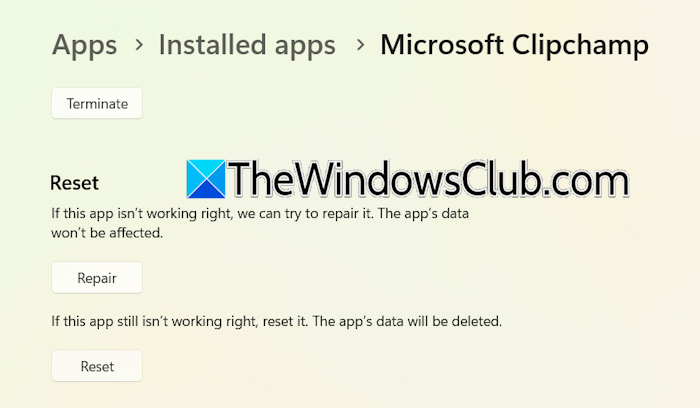
Follow these steps:
- Open Windows 11 Settings.
- Go to Apps > Installed Apps.
- Search for Clipchamp.
- Click the three dots next to it and select Advanced Options.
- Click Terminate and then click Repair.
7] Reset or reinstall Clipchamp
Resetting an application clears temporary files, forcing it to start from scratch. Hence, this action can help fix this issue with Clipchamp. Before you reset Clipchamp, export all the projects currently opened in the app. If this does not work, uninstall and reinstall Clipchamp.
8] Create a new user profile
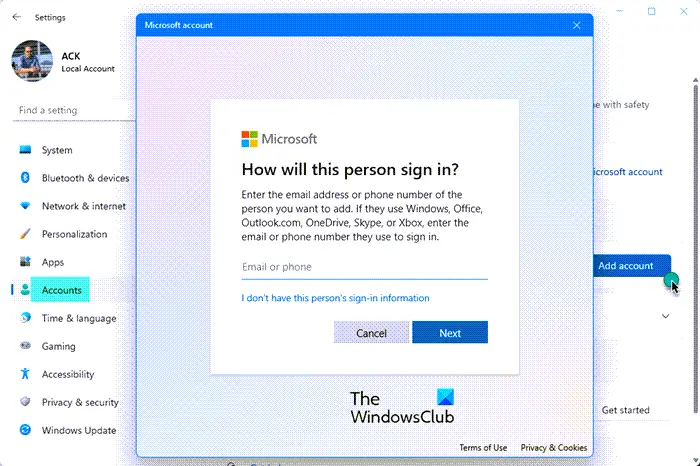
If you still experience this issue with Clipchamp, create a new user profile on Windows 11. Now, log in to that user profile and launch Clipchamp. If the issue does not occur in the new profile, you can use Clipchamp in that profile. Or, you can transfer your profile data to the new profile using a third-party tool, such as Transwiz.
That’s it. I hope this helps.
Is Clipchamp compatible with Windows 11?
Yes, Clipchamp is compatible with Windows 11. You can install it from the Microsoft Store. However, your system should have the required hardware to run this app. 8 GB is the recommended minimum RAM for Clipchamp, but it will be better if your system has 16 GB or more.
Why does my Microsoft Clipchamp keep buffering?
There can be multiple reasons why Microsoft Clipchamp keeps buffering on your system. If your system does not meet the minimum hardware requirements to run Clipchamp, you may encounter such issues. Additionally, if the video file you are editing is large, Clipchamp may buffer. In such cases, you can compress the video file or edit it into different parts.
Read next: We can’t export your video Clipchamp error.
