
Clipchamp is free video-editing software from Microsoft. However, you need an active internet connection to edit videos in Clipchamp. Some users cannot use Clipchamp despite being connected to the internet. It continuously shows the “Clipchamp needs an internet connection to work” error. If Clipchamp is not detecting the internet on your system, this article will help you.
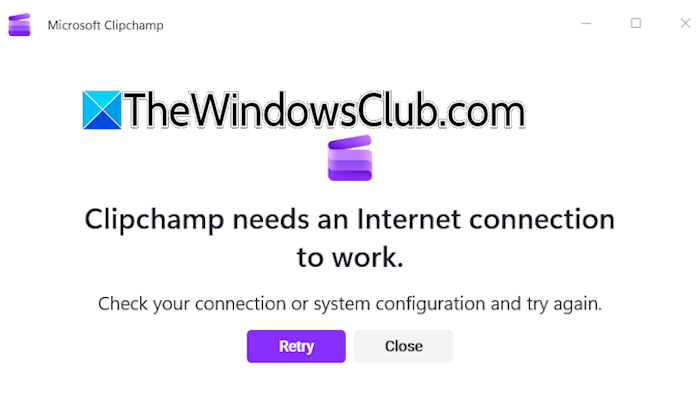
Clipchamp is not detecting the internet on Windows 11
Use the following fixes if Clipchamp is not detecting the internet on your Windows 11 computer. Before proceeding, check for Windows Update.
- Power cycle your WiFi router
- Connect to a different network
- Disable your antivirus or firewall
- Disconnect from VPN
- Use another web browser (if applicable)
- Reset your network
- Repair or reset Clipchamp
- Create a new user profile
- Reinstall Clipchamp
All these fixes are explained in detail below:
1] Power cycle your WiFi router
Your internet might not be working properly. Power-cycling your Wi-Fi router can help.
Follow these steps:
- Turn off your WiFi router.
- Unplug the adapter from the wall socket.
- Wait for a few minutes.
- Connect the adapter and turn on your WiFi router.
Now, launch Clipchamp and check whether it detects an internet connection. If this does not work, try an Ethernet cable.
2] Connect to a different network
If the issue persists, connect to a different network. If another network connection is unavailable, you can connect your system to your mobile data via a mobile hotspot.
3] Disable your antivirus or firewall
Your antivirus or firewall might be preventing Clipchamp from connecting to the internet. If so, this is a false positive that can be easily fixed. To check this, temporarily disable your antivirus and firewall, then launch Clipchamp. If Clipchamp connects to the internet after disabling your antivirus or firewall, you can fix this problem by allowing Clipchamp through the firewall and adding it to your antivirus exception list.
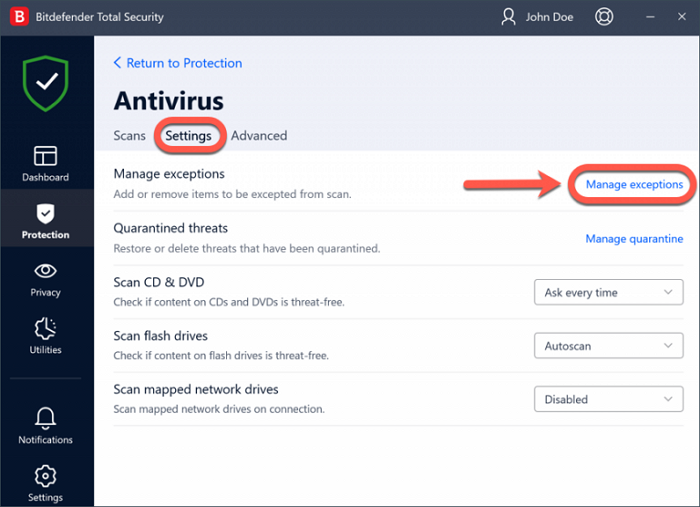
You can easily allow Clipchamp through Windows Firewall. However, if you use a third-party firewall, visit its official website for instructions to allow or block an app through it.
4] Disconnect from VPN
A VPN secures a network connection. However, sometimes, issues occur due to a VPN connection. Some applications have trouble connecting to the internet when you use a VPN connection. This can be the case with you if you are using a VPN. To check this, disconnect from the VPN and then launch Clipchamp.
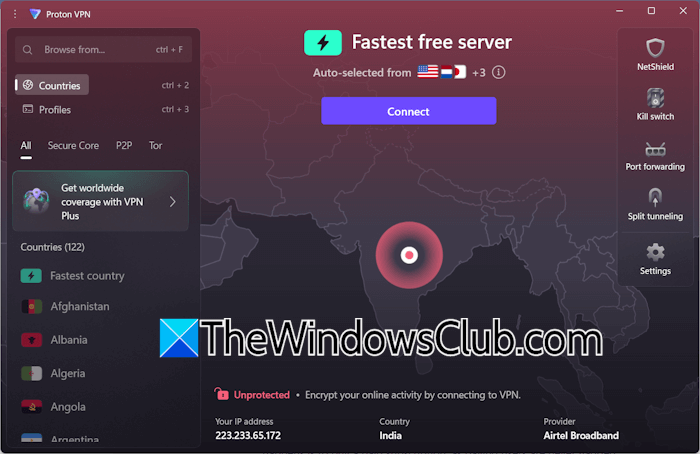
If this works, your VPN is causing issues with the Clipchamp. To fix this, contact your VPN service provider’s support. If you use a free VPN, you can switch to a paid VPN.
5] Use another web browser (if applicable)
If the issue occurs in the web version of Clipchamp, it might be due to a specific web browser. To check this, open Clipchamp in a different web browser. Microsoft recommends Microsoft Edge for the best experience with Clipchamp. However, you can use it in any browser.
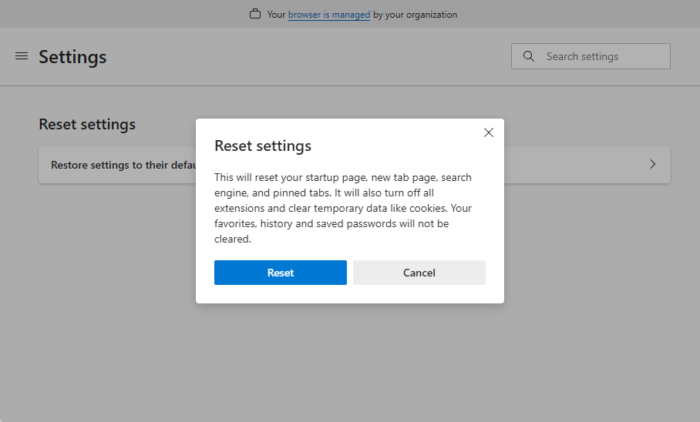
If this fixes the issue, you can keep using Clipchamp in another browser, or you can reset the previous browser where Clipchamp was having issues. Save all your bookmarks before resetting the browser. If you are signed into the browser, all your bookmarks, extensions, and browsing data are already saved to the cloud.
6] Reset your network
If the issue persists, you can try resetting your network. Resetting the network can resolve network issues on your system or with specific applications. This action reinstalls all the network adapters and resets all the networking components to their default values.
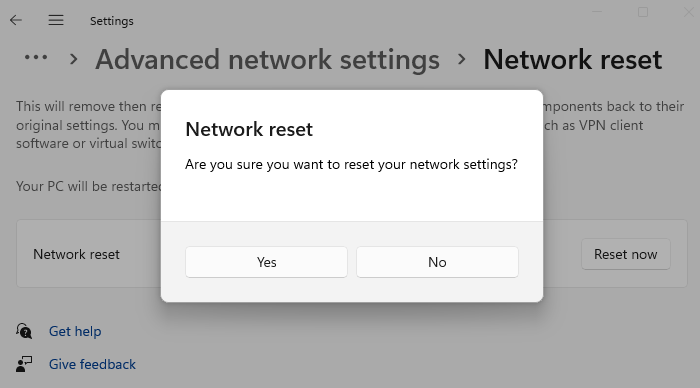
Windows takes 5 minutes to reset your network. After 5 minutes, your system reboots automatically. Therefore, save all your pending work before proceeding.
7] Repair or reset Clipchamp
Resetting the network should fix this issue. However, if the error persists after resetting the network, corrupt Clipchamp files may be causing the issue. Repair Clipchamp by following these steps:
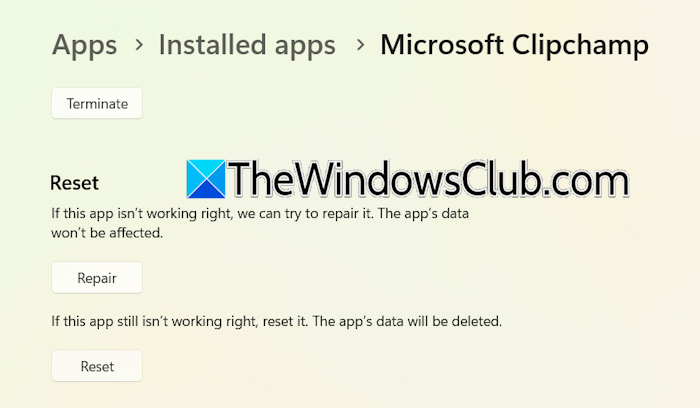
- Open Windows 11 Settings.
- Navigate to Apps > Installed Apps.
- Search for Clipchamp, click on the three dots next to it, and select Advanced Options.
- Scroll down and click Repair.
- Now, launch Clipchamp and check if the issue persists.
If repairing Clipchamp doesn’t work, reset it. This action will delete all the projects in Clipchamp. Therefore, before proceeding, export all your projects. You can do so through the web version of Clipchamp.
8] Create a new user profile
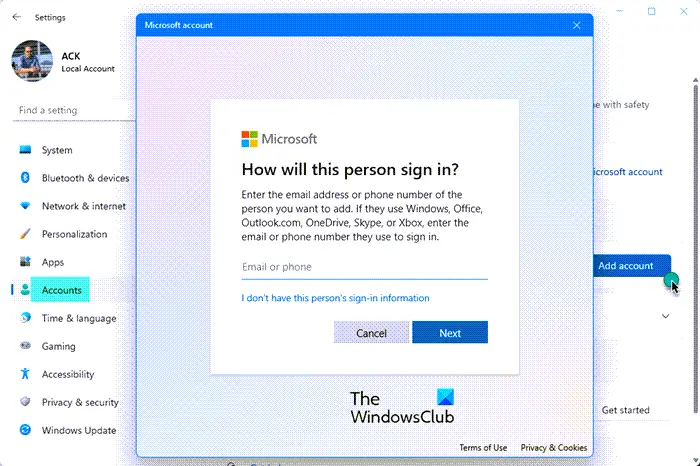
Sometimes, issues are associated with a particular user profile. If another user profile exists on your system, log in to that profile and check if you can use Clipchamp. If only one profile exists, create a new one.
9] Reinstall Clipchamp
If the issue persists, the last resort is to reinstall Clipchamp.
That’s it. I hope this helps.
Which browser is the best for Clipchamp?
Clipchamp works in all web browsers. However, Microsoft recommends Microsoft Edge for the best experience with Clipchamp. If you encounter issues with the web version, you can switch to the desktop app.
How to fix the No internet problem?
If you encounter the No internet problem on Windows 11, the issue might be with the network adapter. Reinstalling the network adapter can help. You can also use the Get Help app to troubleshoot the network issues.
Read next: Clipchamp not uploading or saving files to OneDrive.
