
If Clipchamp is showing a sign-in loop on Windows 11, here is how to get rid of it. Here you can find every possible reason, along with solutions to troubleshoot the problem in moments.
Why is Clipchamp showing sign-in loop error in Windows 11?
If Clipchamp is showing a sign-in loop error in Windows 11, one of these could be the reason:
- Your internet connection is not working, so Clipchamp cannot fetch the account credentials.
- You are using two different accounts for Windows and Clipchamp.
- Your system administrator has blocked the account.
- Clipchamp is corrupt.
Fix Clipchamp sign in loop error in Windows 11
To fix the Clipchamp sign-in loop error in Windows 11, follow these solutions:
- Check internet connection
- Use same account for Windows and Clipchamp
- Start Microsoft Account Sign-in Assistant
- Update Clipchamp
- Repair and reset Clipchamp
- Reinstall Clipchamp
- Set correct time zone
To learn more about these solutions, continue reading.
1] Check internet connection
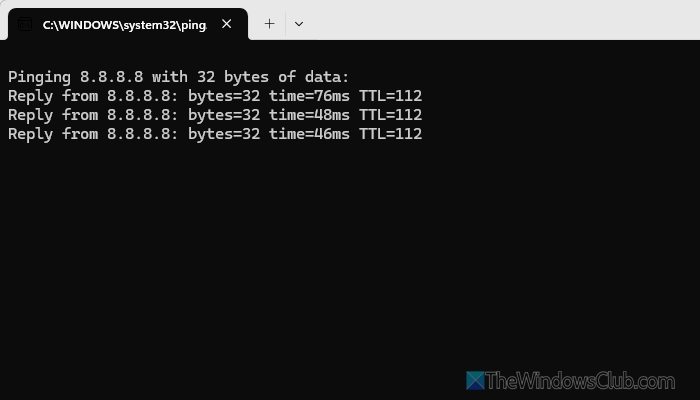
There could be times when Clipchamp may show We couldn’t sign you in message continuously. It implies you have an internet connection issue that needs to be fixed. In that case, follow the article mentioned above.
2] Use same account for Windows and Clipchamp
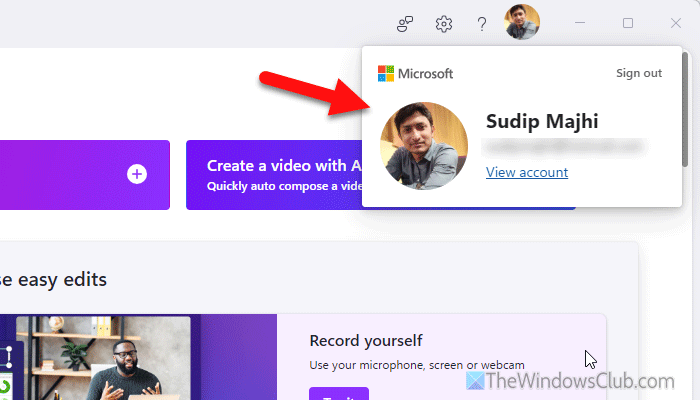
This problem might occur when you use one account to sign in to a Windows PC and another to sign in to Clipchamp. That is why it is suggested to use the same account for Windows PC and Clipchamp.
Read: How to create a Microsoft Account in Windows 11
3] Start Microsoft Account Sign-in Assistant
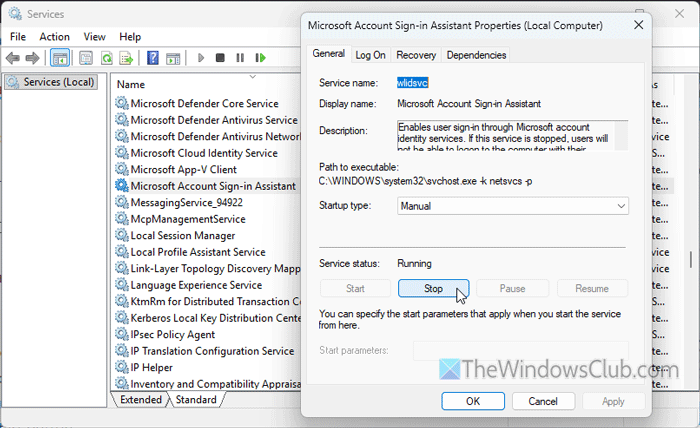
Microsoft Account Sign-in Assistant service lets you sign in through your Microsoft account in Windows 11. If this service is not enabled, there is a high chance of getting this problem while opening Clipchamp.
To start the Microsoft Account Sign-in Assistant service in Windows 11, follow these steps:
- Search for “services” in the Taskbar search box.
- Click on the individual search result.
- Double-click on the Microsoft Account Sign-in Assistant service.
- Choose Automatic as the Startup type.
- Click the Start button.
However, if it is already enabled, restart the service. For that, click the Stop button, choose Automatic from the Startup type drop-down list, and click the Start button.
4] Update Clipchamp
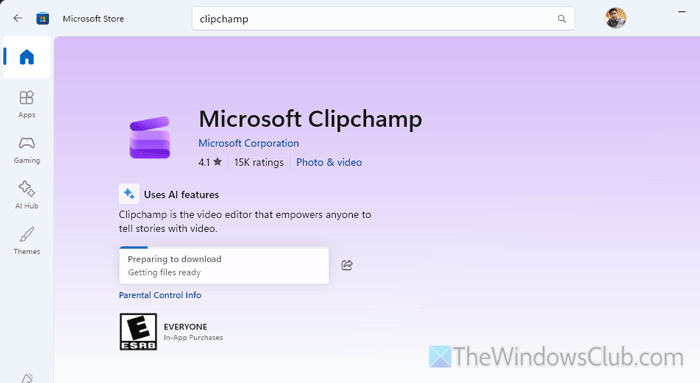
If your Clipchamp app is outdated or hasn’t been updated for a long time, you may encounter such problems. To update Clipchamp in Windows 11, follow these steps:
- Open the Microsoft Store on your computer.
- Search for Microsoft Clipchamp and click on the corresponding search result.
- If an update is available, click the Update button.
In some cases, it might start downloading the update automatically.
5] Repair and reset Clipchamp
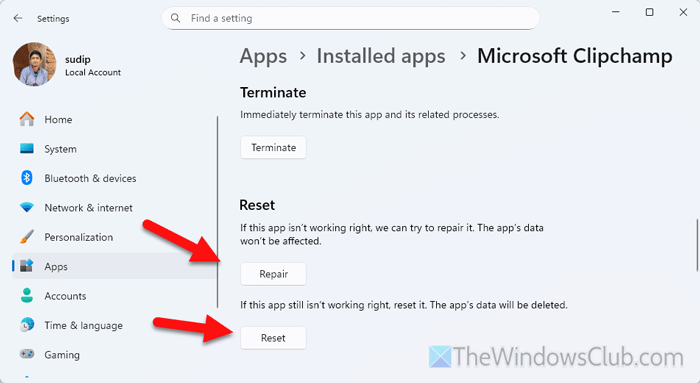
To repair and reset Clipchamp in Windows 11, follow these steps:
- Press Win+I to open the Windows Settings panel on your computer.
- Go to Apps > Installed apps.
- Click on the three-dotted button of Microsoft Clipchamp.
- Select Advanced options.
- Click the Terminate button to close all background processes.
- Click the Repair button to start the repair process.
If it works, you do not have to reset the app. Otherwise, click the Reset button twice to confirm and start the reset process.
6] Reinstall Clipchamp
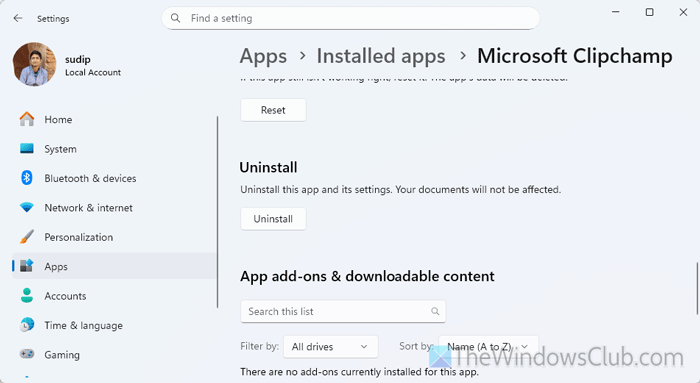
To uninstall Clipchamp, follow these steps:
- Open Windows Settings panel on your computer.
- Go to Apps > Installed apps.
- Find Microsoft Clipchamp and click on the three-dotted icon.
- Click on Advanced options and scroll down to the bottom.
- Click on the Uninstall button.
Once it is done, open the Microsoft Store and search for Microsoft Clipchamp. Click the Get button to start the downloading process. Following that, the app will be installed automatically.
7] Set correct time zone
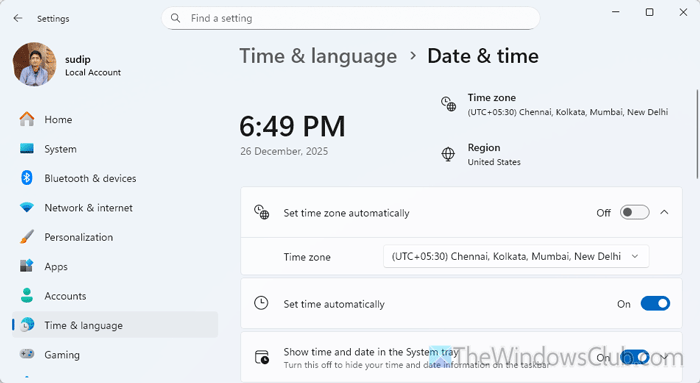
To set the correct time zone in Windows 11, follow these steps:
- Open the Windows Settings panel.
- Go to Time & language > Date & time.
- Expand the Time zone drop-down menu and choose the correct time zone.
Alternatively, you can toggle the Set time zone automatically option to turn it ON.
Read: Clipchamp Error: Cannot access ‘Pe’ before initialization
Why is Microsoft Clipchamp not letting me sign-in?
According to the official statement, if your organization uses Trusted Sites and blocks third-party cookies, you cannot sign in to Microsoft Clipchamp. Otherwise, if you have an internet connection issue, it may cause the same problem.
Read: Clipchamp We couldn’t sign you in, Please try again
Is Clipchamp compatible with Windows 11?
Yes, Clipchamp is 100% compatible with Windows 11. In fact, Clipchamp is preinstalled on Windows 11. You can search for Clipchamp and open it to use.
Read: Clipchamp keeps lagging, buffering or stuttering on Windows 11.
