
While exporting a video, if Clipchamp shows Error: Cannot access ‘Pe’ before initialization, here is how you can troubleshoot the issue for the desktop version in Windows 11. Whether you fail to export an HD, SD, or FHD video, you can follow these solutions to resolve this problem.
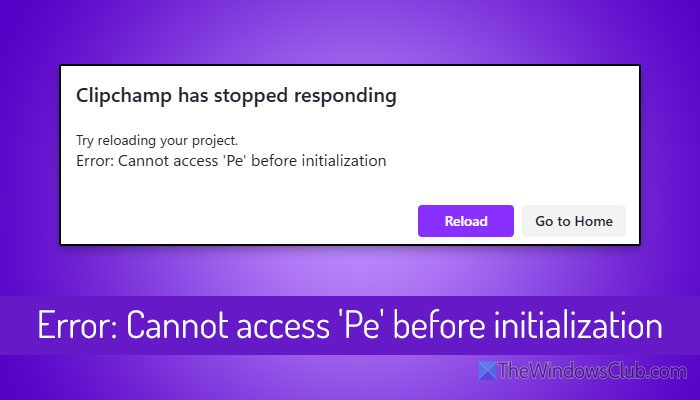
The entire error message says:
Clipchamp has stopped responding
Try reloading your project.
Error: Cannot access ‘Pe’ before initialization
Even if you click the Reload button, you won’t be able to export your video. Moreover, you might have to re-edit your video from the start.
Why is Clipchamp showing Error: Cannot access ‘Pe’ before initialization
- Imported files have been deleted during editing.
- It could be a bug or a glitch.
- Your graphics driver might have some problems.
- Your external firewall software is preventing Clipchamp.
Although there are other reasons, these are some of the most common causes.
Error: Cannot access ‘Pe’ before initialization
To fix Error: Cannot access ‘Pe’ before initialization in Clipchamp in Windows 11 PC, follow these solutions:
- Verify imported files
- Delete LocalCache content
- Check your firewall software
- Update Clipchamp
- Repair and reset Clipchamp
- Update graphics driver
- Uninstall and reinstall Clipchamp
To learn more about these solutions in detail, continue reading.
1] Verify imported files
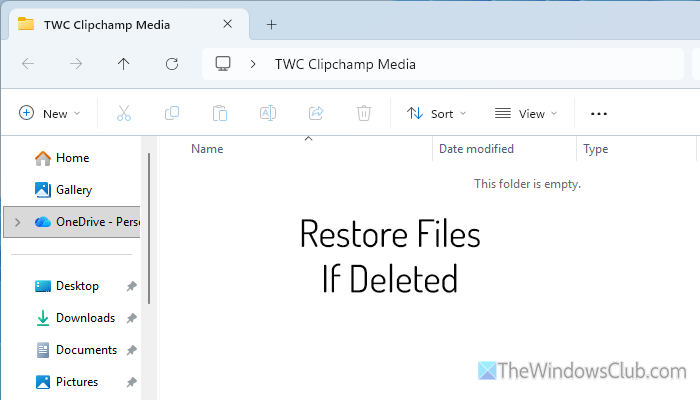
It is the first thing you should check, as Clipchamp requires all your imported files when editing a video or working on a project. If any of your files have been deleted by mistake, there is a chance of getting this problem while exporting the project.
Therefore, open the File Explorer and check for those files first. If they are intact, no action is required. However, if they are missing, it is suggested to check the Recycle Bin and restore them accordingly.
2] Delete LocalCache content
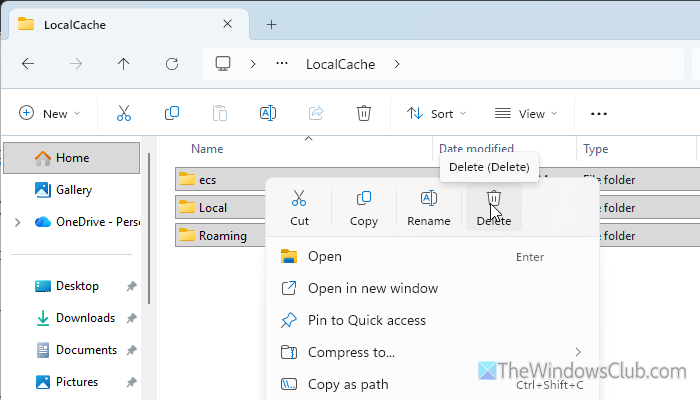
LocalCache and LocalState – these are two folders where Clipchamp stores the cache content. At times, the error above may arise when the old cache content causes a conflict. That is why it is recommended to clear the LocalCache folder first. However, if it doesn’t work, you must delete the contents of the LocalState folder.
To get started, open the File Explorer and navigate to this path:
C:\Users\your-username\AppData\Local\Packages\Clipchamp.Clipchamp_yxz26nhyzhsrt
You can also press Win+R to open the Run prompt, type %LocalAppData%\Packages, and hit the Enter button.
Next, open the LocalCache folder and remove all the folders and files.
Then, reopen Clipchamp and check if the issue is resolved. If not, open the LocalState folder and delete all its contents.
Read: Clipchamp keeps lagging, buffering or stuttering
3] Check your firewall software
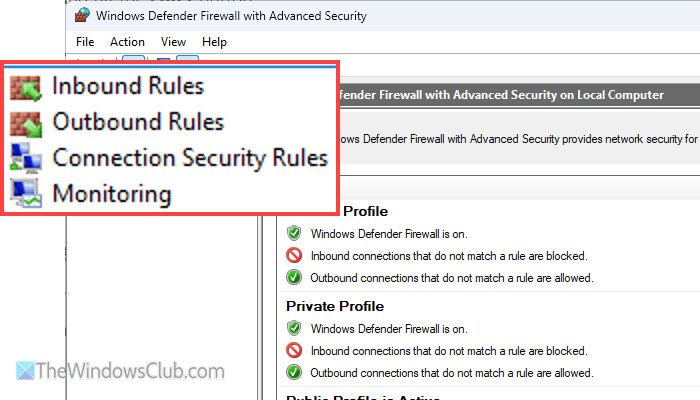
There are so many third-party firewall programs that allow you to block specific programs and websites on your computer. If you use such software to block incoming and outgoing traffic for Clipchamp, there is a chance of getting the error mentioned above.
Although the internet is not required to edit a video, it is necessary if you use AutoCaptions. That is why it is recommended to check the third-party firewall software and make an exception for Clipchamp.
4] Update Clipchamp
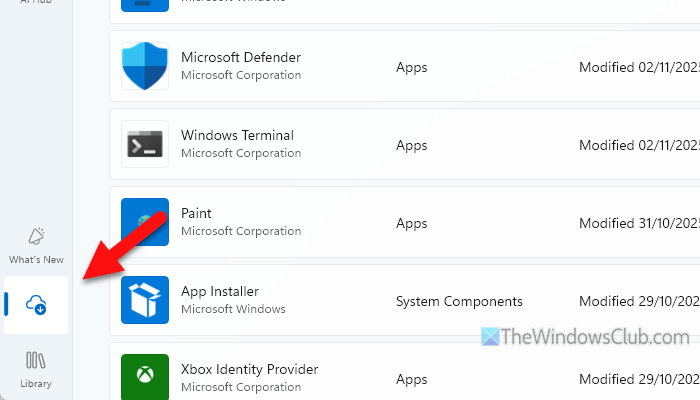
If Clipchamp has not been updated for a long time, this problem may arise while exporting a project. In simple words, Clipchamp may fail to comply with your updated version of Windows and graphics drivers.
To update Clipchamp, follow these steps:
- Open the Microsoft Store on your computer.
- Click on the Downloads menu on the left-hand side.
- If an update is available, Clipchamp will be visible on the list.
- Click the Update button.
5] Repair and reset Clipchamp
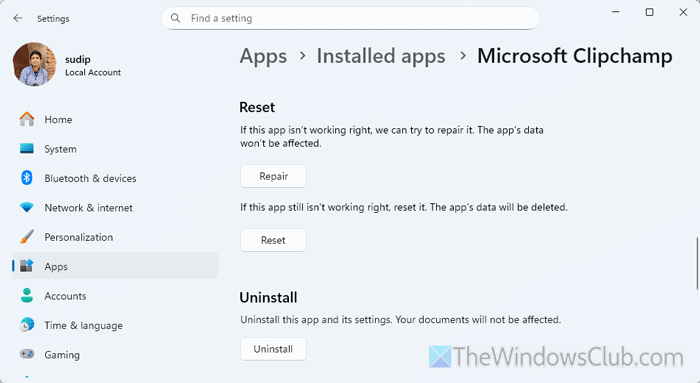
At times, Clipchamp may experience a glitch or bug, and you may be able to resolve it by updating or repairing the app. To repair and reset Clipchamp, follow these steps:
- Press Win+I to open Windows Settings.
- Navigate to Apps > Installed apps.
- Click on the three-dotted button of Microsoft Clipchamp.
- Select Advanced options.
- Click the Repair button and let the process finish.
- If it doesn’t work, click the Reset button twice.
6] Update graphics driver
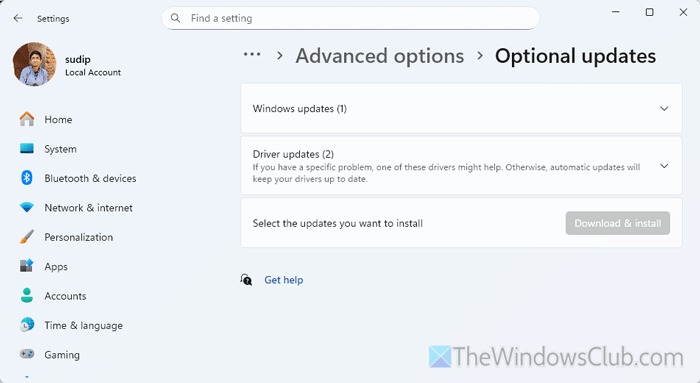
To edit a video in FHD, you must have an updated version of your graphics driver. Not only that, but Clipchamp also requires a valid graphics driver to render the project before exporting. If you experience issues with your graphics driver or it has not been updated in a long time, it is time to update it.
To update the graphics driver in Windows 11, follow these steps:
- Open Windows Settings first.
- Go to Windows Update > Advanced options > Option updates.
- Expand the Driver updates section.
- Check if a graphics driver update is available.
- If available, tick the corresponding checkbox and click the Download & install button.
You may need to restart your computer to complete the installation.
7] Uninstall and reinstall Clipchamp
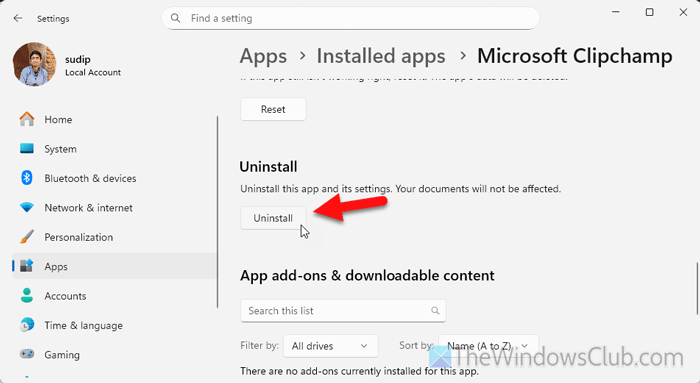
It is probably your last option. Apply this solution only if none of the aforementioned solutions yield any positive results.
To uninstall Clipchamp, follow these steps:
- Open Windows Settings.
- Go to Apps > Installed apps.
- Click on the three-dotted button of Microsoft Clipchamp and select Advanced options.
- Click the Uninstall button twice to confirm.
Alternatively, you can click the three-dotted button and select the “Uninstall“ option.
Then, open the Microsoft Store, search for Clipchamp, and install it accordingly.
Read: Clipchamp not opening or working, or Projects won’t load or export
How to clear the Clipchamp app cache?
There are two options to clear the Clipchamp app cache. First, open Windows Settings and go to Apps > Installed apps. Click on the three-dotted icon of Microsoft Clipchamp and select Advanced options. Click the Reset button. Secondly, you can open File Explorer and navigate to the following path: C:\Users\your-username\AppData\Local\Packages\Clipchamp.Clipchamp_yxz26nhyzhsrt\LocalCache and delete all the contents.
Why can’t I access the internet on Clipchamp?
If you can’t access the internet on Clipchamp, some of the reasons could be:
- Firewall software is blocking the Clipchamp website.
- You have set a browser setting that blocks internet access.
- Your browser may still contain old cookies and cache.
- Your VPN or Proxy server has some issues.
Read: Clipchamp keeps freezing or crashing in Windows 11.
