
If the AutoCaption feature isn’t working in Clipchamp, here is how to fix it on a Windows 11 computer. The main reason Clipchamp is not showing or generating captions automatically is that the audio is unclear or there are issues with Clipchamp.
How to use autocaptions in Clipchamp
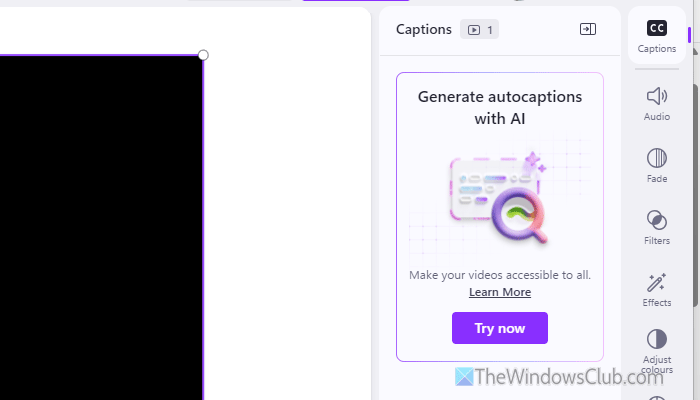
To use autocaptions in Clipchamp, follow these steps:
- Open Clipchamp on your computer and create a new video.
- Import your video and add it to the timeline.
- Click on the Captions button.
- Click the Try now button.
Primary reasons why Autocations may not be working:
- Old version of Clipchamp.
- The video’s voice is not clear.
- Glitch or bug in Copilot.
- Unsupported language. Mainly regional languages.
Clipchamp Autocaptions not working
If the autocaptions feature is not working in Clipchamp, follow these instructions:
- Check autocaptions setting
- Let the caption generation be completed
- Check your internet connection
- Ensure the voice is loud and clear
- Ensure the language
- Repair and reset Clipchamp
To learn more about these solutions, continue reading.
1] Check autocaptions setting
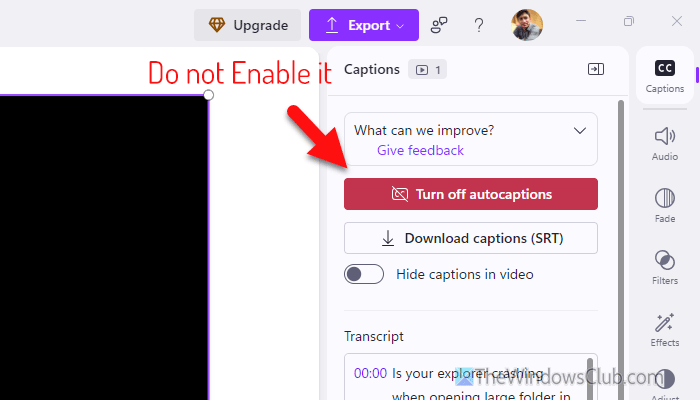
It is the first thing you need to do, as this functionality must be enabled manually. If you do not enable autocaptions, you won’t get it at all. As of now, there is no keyboard shortcut introduced for turning on the autocaptions feature. Having said that, you need to click on the Try now button to start generating autocaptions.
Read: Show or hide Lyrics, Captions and Subtitles for videos in Windows 11
2] Let the caption generation be completed
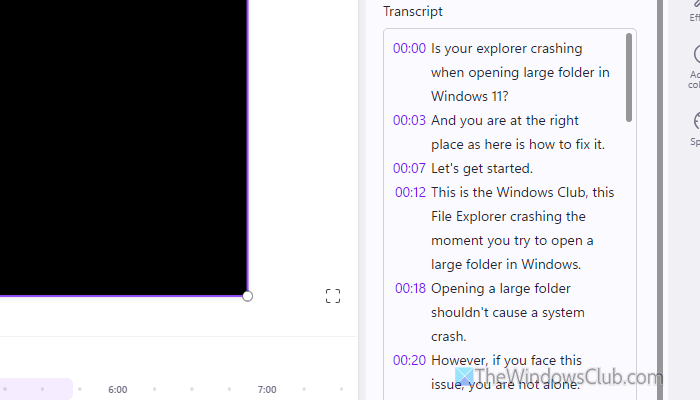
When you click on the Try now button, it takes a few minutes to generate the caption. The longer the video, the more time it takes to complete the process. In the meantime, you cannot find any prompt to check the progress. In other words, you need to wait for some time to get the process completed.
Read: Best free Subtitle Editor software for Windows 11/10
3] Check your internet connection
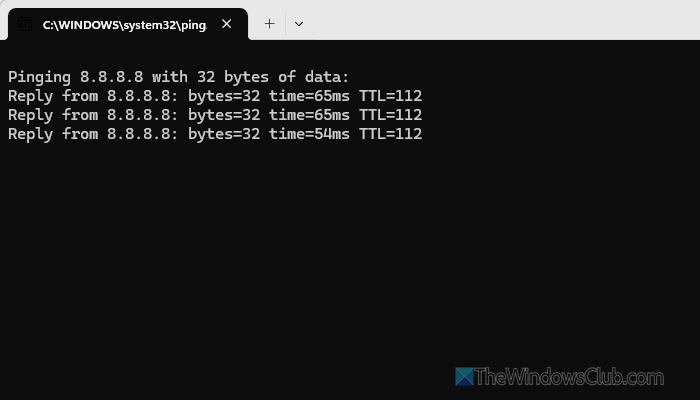
If you are thinking of using the autocaptions feature in Clipchamp, your computer must be connected to the internet. Not only that, but you must also have a valid and uninterrupted internet connection. Otherwise, it will take forever to generate subtitles or captions.
If you have a second thought in mind about your internet connection, simply open the Command Prompt and enter this command:
Ping 8.8.8.8 -t
If you see positive results, your internet connection is fine. Otherwise, you need to work on your internet connection first.
Read: Ethernet connection not working in Windows 11
4] Ensure the voice is loud and clear
When you enlist the video for creating subtitles or captions, Copilot uses the audio to generate text. However, if the audio is unclear, Copilot will have difficulty translating it into readable text. That being said, if your video doesn’t have clear audio, you need to work on it.
Read: How to merge Audio and Video in Windows 11
5] Ensure the language
Although Clipchamp supports more than 100 languages from all over the world, you might face problems when you have mixed languages or regional languages. If Copilot cannot fetch or recognize the language, it won’t translate or convert into captions. Therefore, it is very important to use a language that is supported by Clipchamp.
Another important thing you must know is that Clipchamp identifies only one language at a time. That said, if your video has more than one language, you won’t be able to get the captions.
Read: How to change YouTube subtitles language
6] Repair and reset Clipchamp
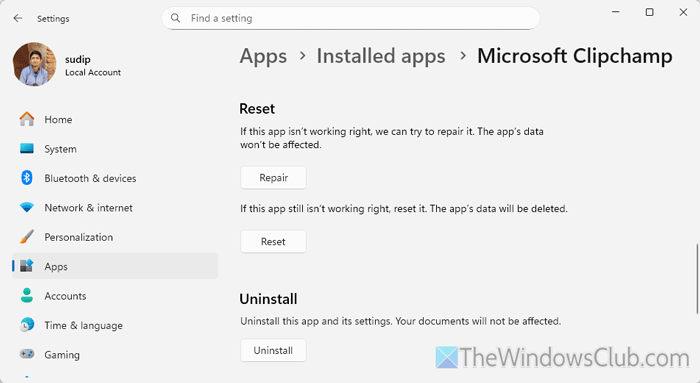
To repair and reset Clipchamp, follow these steps:
- Press Win+I to open Windows Settings.
- Go to Apps > Installed apps.
- Click on the three-dotted button of Microsoft Clipchamp.
- Select Advanced options.
- Click the Repair button first.
- If it doesn’t work, click on the Reset button twice.
Once done, re-open Clipchamp.
However, you can also update the app if it hasn’t been updated for a very long time. If an update is available, you can find it on the Microsoft Store.
Read: Clipchamp not opening or working, or Projects won’t load or export
Why is Clipchamp not generating captions?
If the audio in your video is unclear, Clipchamp won’t generate a caption. Apart from that, your computer is having an internet connectivity issue; you can find the same problem.
Why is Clipchamp not working properly?
If the Clipchamp app is not updated for a long time, it could cause this problem. On the other hand, if there are some bugs or glitches, the same problem may arise.
Read: Clipchamp keeps lagging, buffering or stuttering on Windows 11.
