
It can be quite frustrating to be signed out of Clipchamp, especially when one cannot put their creative ideas into action. The good news is that it can be easily fixed, and that’s what we will be doing in this article. In this post, we will see what you can do if Clipchamp says We couldn’t sign you in, Please check your network connection and try again.
![Clipchamp We couldn't sign you in, Please try again [Fix]](https://www.thewindowsclub.com/wp-content/uploads/2025/10/clipchamp-sign-in-error.png "Clipchamp We couldn't sign you in, Please try again [Fix]")
Clipchamp We couldn’t sign you in, Please try again
If you encounter the ‘We couldn’t sign you in’ error message in Microsoft Clipchamp, follow the solutions below.
- Check the Internet connection
- Clear the Microsoft Store cache
- Clear the browser cache
- Repair or reset the Clipchamp app
- Disable VPN/ Proxy temporarily
Let’s get started with the troubleshooting guide.
1] Check the Internet connection
Before diving into a complicated troubleshooting solution, we will first rule out the network problems mentioned in the error message. To do so, open a web browser and see if it’s loading. If it doesn’t, the problem rests with the internet access. Unplug the router and modem for a few seconds, and plug them back in. Next, ensure the WiFi connection you are using is stable and try signing in again. If the issue persists, see the next solution, as the Internet is not the cause.
2] Clear the Microsoft Store cache
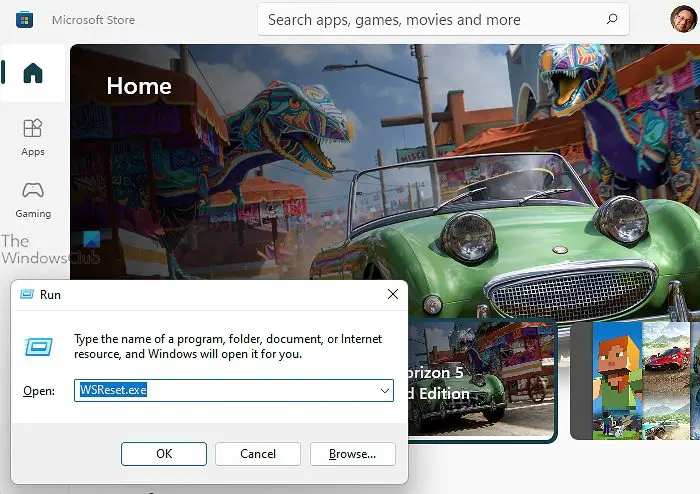
Microsoft Store’s cache is temporary data that, over time, can become corrupted and interfere with the app’s ability to handle login credentials properly. This hindrance then causes launch issues.
To resolve this, we will clear the Microsoft Store’s cache to provide a fresh start. For that, click Win + R to open the Run dialogue box, type wsreset.exe to clear the cache, and hit Enter. Do not close the blank blue command prompt window; wait for the process to complete, and disappear automatically. After the process is completed, restart the device and open Clipchamp. Go to the next solution if you are still unable to sign in.
3] Clear the browser cache
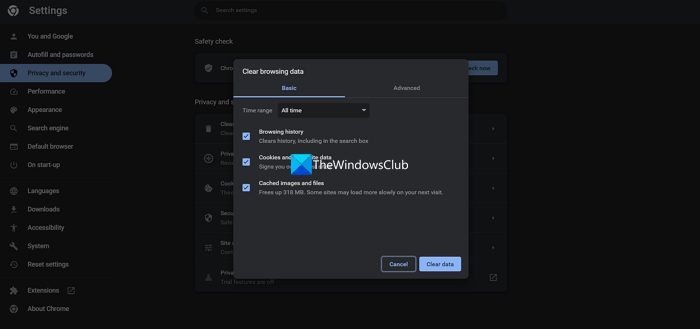
Users accessing ClipChamp via a web browser may be unable to sign in due to outdated or corrupted website data. They are notorious for creating conflict with Microsoft’s authentication processes. In this solution, we will clear the website cache to force the browser to download fresh, clean files from the servers.
Clean your browser’s cache in Chrome and Edge.
Reopen it, navigate to the ClipChamp website, and try signing in. Proceed to the next situation if the status remains unchanged.
4] Repair or reset the Clipchmp app
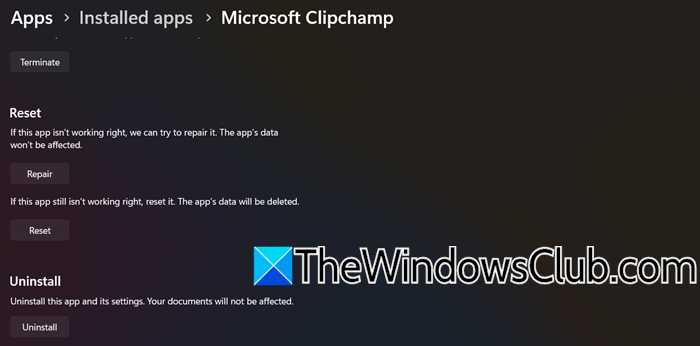
If the above steps didn’t resolve the issue, repairing or resetting the Clipchamp app can resolve corrupted local files and settings. This process re-installs the core components without affecting the data.
- Click Win + I to open Settings, go to Apps, and then click on the Installed apps tab.
- In the search bar, type Clipcamp, and click on the three dots next to it.
- Click on the Advanced option and then scroll down to find the Repair button. Click on it and wait for the process to complete.
- If the error persists after repairing, return to the menu, and this time, click on the Reset button and follow all the prompts.
Relaunch the app, and verify the condition. If the ‘We couldn’t sign you in’ error appears, see the next solution.
Read: How to make a Video from Photos in Windows 11 using Clipchamp
5] Disable VPN/ Proxy temporarily
VPN and Proxy Services can be among the reasons users are facing the issue. They can interfere with the connection to the Microsoft authentication server.
If you’re using a third-party VPN app, open it and disconnect or turn it off. Alternatively, uninstall it temporarily if it’s deeply integrated.
If you’re using Windows’ built-in VPN, press Win + I to open Settings. Go to Network & Internet > VPN. If any VPN connections are listed, click them and choose Disconnect or Remove.
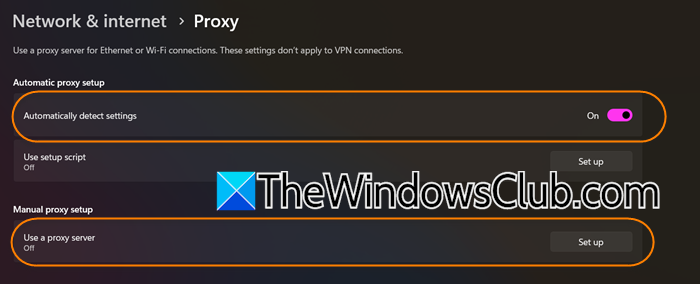
Additionally, you need to disable Proxy settings as well. For that, press Win + I to open Settings. Navigate to Network & Internet > Proxy. Check for the following settings.
- Use a proxy server is turned off.
- Automatically detect settings is turned on.
After making these changes, restart your PC to ensure all network settings are refreshed.
That’s it!
Read: Clipchamp stuck on Preparing screen
Clipchamp stuck on Signing in screen on Windows 11
If Clipchamp is stuck on the Signing screen in Windows 11, try these suggestions:
- Go to Settings > Apps > Installed apps > Clipchamp > Advanced options > Reset the app.
- Sign out of your Microsoft account, then restart and sign back in to clear the Microsoft account cache.
- Ensure your Microsoft account is properly synced under Settings > Accounts > Email & accounts.
- If nothing helps, reinstall Clipchamp from the Microsoft Store.
Related: Fix Clipchamp sign in loop error in Windows 11
Why is Clipchamp not working for me?
Clipchamp may not be working due to various reasons. Common issues include a weak Internet connection (since Clipchamp is a web-based video editor that requires a stable connection), an outdated browser, and hardware acceleration disabled. Additionally, browser and app caches are common causes of functionality issues.
Read: Clipchamp keeps lagging, buffering or stuttering on Windows 11
Which is better, CapCut or Clipchamp?
CapCut and Clipchamp have different strengths, and which is better depends on the users’ needs and demands. If you are doing mobile-first editing and want many trendy templates and effects, CapCut is the right choice. On the other hand, Clipchamp is the answer to their worries if they want to work on a desktop or in a browser, with a straightforward editor for longer videos or presentations.
Also Read: Clipchamp not opening or working or Projects won’t load or export.
