
Coffee shops, airports, hotel lounges – you can connect to the Internet from any place that provides you with a hotspot. More than helping you out, such Wi-Fi hotspots help snoopers access your data. The dangers of using a public Wi-Fi hotspot are many. Here are some Wi-Fi security tips so you can continue enjoying the Internet without much fear. The article assumes you are using the latest Windows operating system and have good security software installed. The methods discussed, however, apply to any operating system with similar facilities.
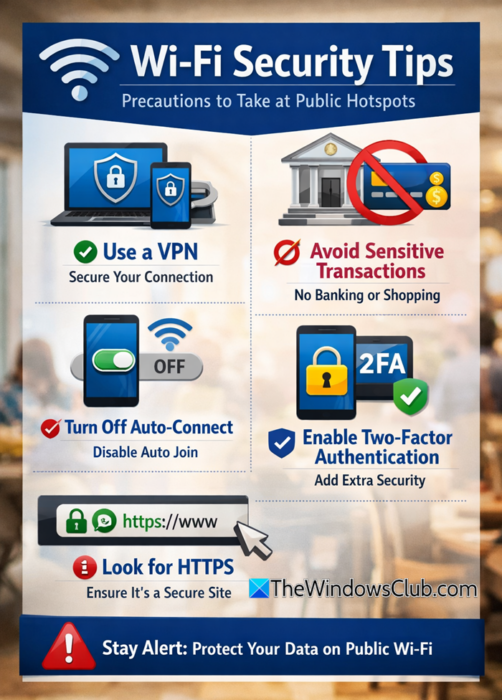
WiFi Security Tips
Some suggestions you should follow to stay protected and secure when using a public hotspot:
- Change to Public Network
- Connect To Secure Network If Available
- Disable Your Wi-Fi Adapter When Not Using The Computer
- Use Secured Pages (HTTPS)
- Use VPN
- Consider Encryption
- Keep Your Firewall Active
- Keep An Eye On Access Points
- Turn OFF Printer & File Sharing
- Safe Browsing Habits
- Use Additional Security If Available.
1] Change to Public Network
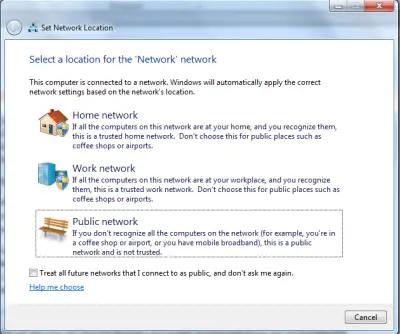
When you change the current network setting from Home or Work to Public, file and printer sharing are disabled. This prevents your data from appearing on other computers that are probably searching for an available hard disk.
To set the network to Public, click on the network icon in the system tray. Then click on the Open Network and Sharing Center. In the dialog box that appears, check under Network to see if the network is already public. The icon for Public is a park bench while for a Home network, it is a home icon. If it is home or work, click on it and from the resultant dialog box, select public network.
2] Connect To Secure Network If Available
With the increase in skepticism about using Wi-Fi hotspots, more and more companies – including hotels and coffee shops – are offering secure networks. Check for secure networks in the list of available networks. If you are in a hotel, the management might provide you with a password to access a secure network.
As far as possible, connect to secure networks. Keep in mind that not every entity will give you the security option. To check whether a network is secure, click the network icon in the system tray. Hover the mouse cursor over each connection to know if a network is secure and, if yes, the type of security used.
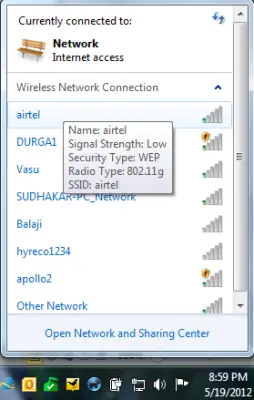
Remember WPA2 is better than WPA. Similarly, WPA is better than WEP.
Unsecured networks should be avoided to the extent possible. Of course, if there is no secure network, you may want to use the insecure one, but then work using browsers, as it will reduce the threats to some extent.
Read: How hackers can steal passwords over WiFi.
3] Disable Your Wi-Fi Adapter When Not Using The Computer
Many devices today come with a hardware switch to turn the wireless adaptor on or off. Since you are not using the hotspot, there is no sense it keeping the computer connected to the network. People may hack into the computer and steal your data. It is advised that once you are finished with your work, turn off the adapter, if not the computer.
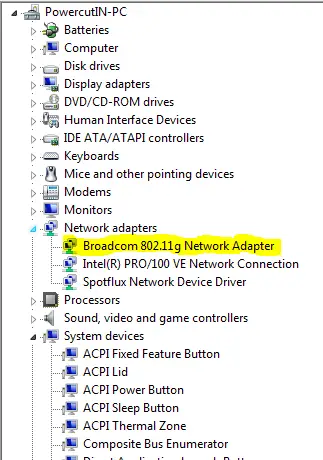
If you can’t see the Wi-Fi Adaptor, you can follow these steps:
- Press Windows Key + Break Key
- In the window that appears, click on Device Manager
- In the Device Manager window that appears, click on Network Adapters to expand the list of adapters on your computer
- Right-click on Wireless Adaptor and select Disable.
- Click [x] button on the top of the window to close Device Manager window
4] Use Secured Pages (HTTPS)
While using webmail pages, try to enter https instead of HTTP. This will make sure that your login information is encrypted and not exposed to the wireless network. Social networks also have the option of providing you with https pages so that you can use secured-encrypted pages instead of normal ones that are not encrypted. For example, when using X (Twitter), use https://x.com/compose.aspx instead of http://x.com/compose.aspx. Your data would be safer this way.
In the case of webmail, however, they provide https only for the login page and not for the other pages that let you compose emails and view emails. You can see if the option is available by prefixing https to the URL in the address bar. If you get a 404 error, the encrypted page does not exist. In such cases, it is advised you use some sort of encrypted network over the hotspot.
Read: Wi-Fi security when Traveling.
5] Get a VPN
VPN is not the safest option but it does safeguard your data from prying eyes effectively. It also depends on the type of VPN software you are using. Both regular and cloud-based VPNs are available to help you connect without worrying about using your email client at Wi-Fi hotspots.
One of the best cloud-based VPNs is HotspotVPN.com VPN. When you sign up with them, they create a virtual tunnel between your computer and their secure servers. The only thing you may not like about VPNs is their cost. With improvements in the cloud sector, I expect greater flexibility in VPN services, with relative costs going down. SpotFlux allows you to create a tunnel between SpotFlux servers and your computer so that data can transfer securely. You can read the entire review of SpotFlux.
Read: How to generate a WiFi History or WLAN Report.
6] Consider Encryption
There are several open-source software that can encrypt your files as well as entire hard disks. I suggest TrueCrypt, a free software that encrypts your entire hard drive so that none can access it without breaking your password. So if you are using encryption, use a good one, create a good password and do NOT forget the password else it will be trouble decrypting. BitLocker comes with Windows 7/8/10 and provides encryption to each of your hard drives and partitions. You may set up BitLocker to decrypt the drives automatically or using a key. Here is an article explaining Bitlocker in Windows.
Read: What are FragAttacks? How to secure your WiFi against FragAttacks?
7] Keep Your Firewall Active
You get a free firewall when you install Windows OS. By default, the Windows firewall is active and protecting your data. If you are using Windows 11/10, this firewall should be sufficient to create a layer of protection for your data.
Read: How to get free WiFi anywhere on a laptop or phone.
8] Keep An Eye On Access Points
Access points are the points that your computer uses to connect to the Internet. In cases where different networks overlap, you may see multiple access points. You need to know if you are connecting to the correct one – so that your data does not travel on an unknown network. If you are using Windows, the operating system alerts you as soon as it finds a new network – asking you if you wish to use and name it. If you know the network, you can name it and set a category for it before using it. If you do not know the network, you can disregard it. This means that you do not have to worry if you are using Windows 7 or higher versions of Windows. If you are using a different operating system, please refer to its documentation for information on detecting access points.
9] Turn OFF Printer & File Sharing
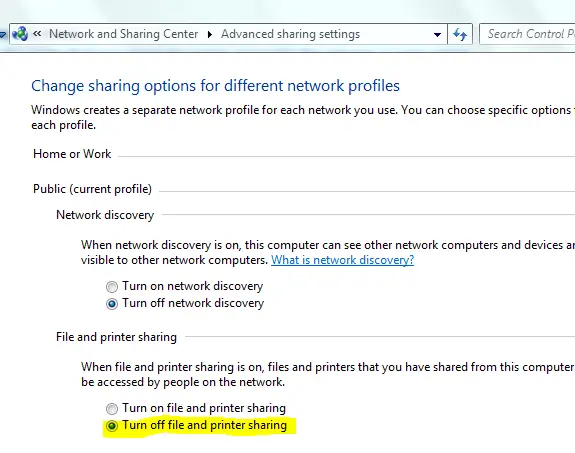
For HomeGroups on Windows, Printer and File Sharing is turned ON by default. If you are at a public place, you should disable Printer and File Sharing. You can do this by selecting Public Network when you are prompted to add the Wi-Fi hotspot to your list of wireless networks. If you did not see the dialog box asking you to confirm whether you wish to place the new network in the Home or Public group, you can manually check and disable File and Printer Sharing.
- Open Control Panel
- Click Network and Internet
- Click Network and Sharing Center
- In the left pane, click Change Advanced Sharing Options
- If you see File and Printer Sharing is ON, click to turn it OFF
10] Safe Browsing Habits
As mentioned earlier, use a browser to check your email and other tasks. Browsers reduce the data theft risk by providing an encrypted connection between your computer and service providers’ servers. Most of the websites come with HTTPS option, and you should make it a habit to use the secure versions of websites.
11] Use Additional Security If Available
You should not access banking services and other financial institutions while at a public spot. If it is urgent, consider the security measures offered by your banks. Some banks send the PIN to your cell phone that you need to enter before you can access your accounts online. See what security options are available beforehand so that you are not stuck without security later.
And finally, remember to turn off your Wi-Fi when you do not use it.
These were some tips for secure Wi-Fi usage. Now see how to fix Public and Home Wi-Fi Network vulnerabilities. If you have any more, please leave it in the comments section, and we may add it to the article.
