
If Clipchamp is not uploading or saving files to OneDrive, here is how you can fix the issue. As there could be several reasons, here we have consolidated some of the most common causes and solutions to get rid of this problem in Windows 11.
Why is Clipchamp not uploading or saving files to OneDrive?
If Clipchamp is uploading or saving files to OneDrive, it could happen because of one of these:
- Your OneDrive is inactive or disabled by the administrator.
- You do not have free space in your OneDrive account.
- You do not have permission to set up OneDrive.
- The desktop app is broken.
- The OneDrive-Clipchamp link needs to be set up correctly.
Note: According to the official statement, it might take up to 10 minutes to complete the upload or saving process. Follow these instructions only if you have crossed that period.
Clipchamp not uploading or saving files to OneDrive
If Clipchamp is not uploading or saving files to OneDrive, follow these instructions to fix the issue:
- Ensure the project is intact
- Set up Clipchamp and OneDrive link
- Repair Clipchamp
- Log out of OneDrive and re-log in to it
- Ensure the available space
- Use the web version
To learn more about these solutions, continue reading.
1] Ensure the project is intact
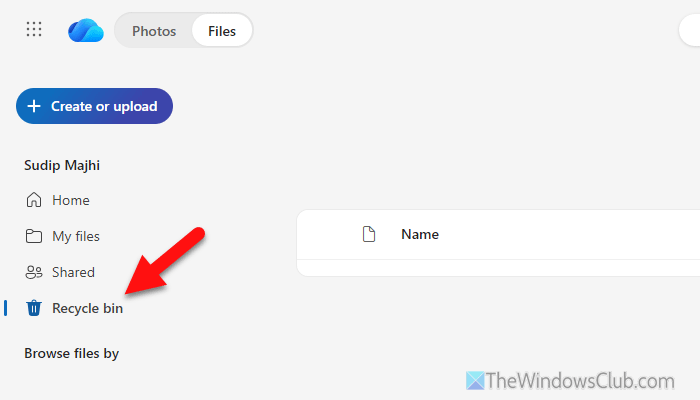
It is the very first thing you need to do. If the project is removed or moved from OneDrive, you cannot expect it to be updated. However, if you want to save a new project, this solution might not be for you.
On the other hand, it is suggested to check if the project file is available in OneDrive. If it is deleted by mistake, you can head to the Recycle Bin and restore it.
To restore deleted OneDrive files, you can simply open the Recycle Bin, find the corresponding file, select it, and click on the Restore button.
2] Set up Clipchamp and OneDrive link
Since Clipchamp recently introduced this functionality, it must be set up manually. If you missed the setup wizard earlier, you can close Clipchamp and re-open it.
When you open the Clipchamp app, you can find a window like this:
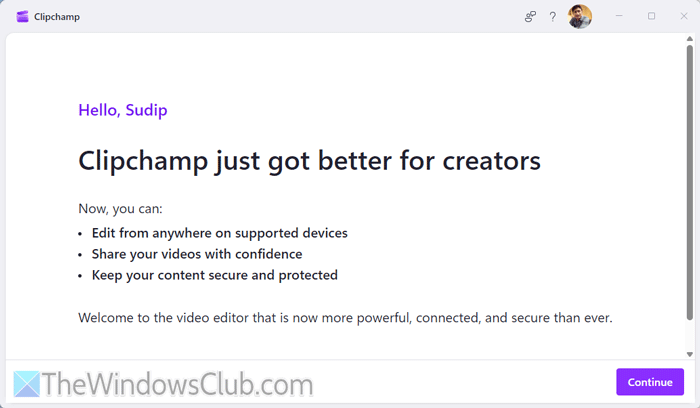
Click the Continue button. Then, ensure that the OneDrive location is correctly selected. If not, you can click on the Choose a different folder option to select another folder or create a new one for this purpose.
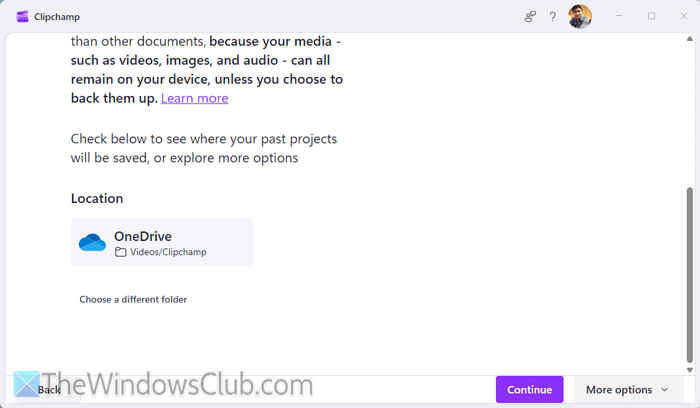
Once done, click the Continue button.
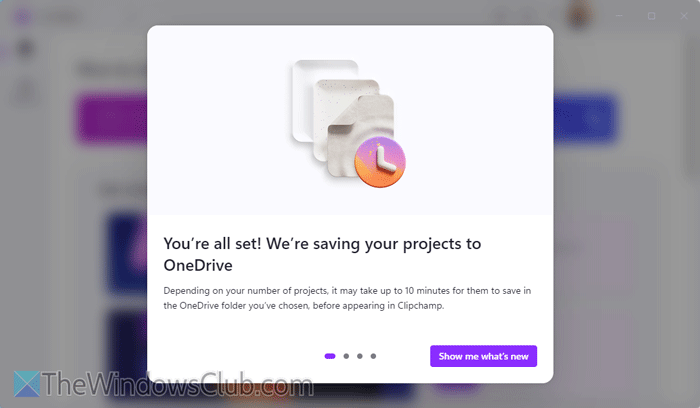
Now, you are all set.
Read: Clipchamp We couldn’t sign you in, Please try again
3] Repair Clipchamp
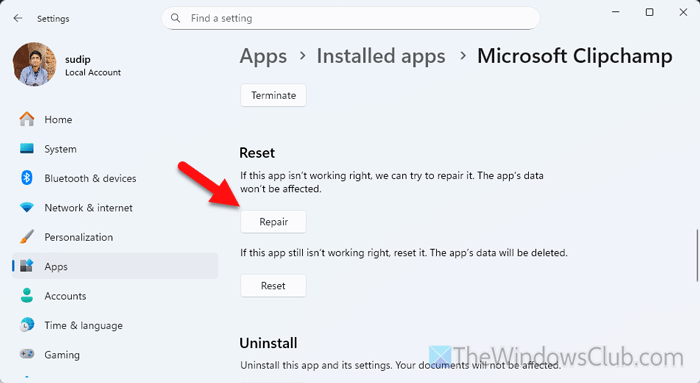
At times, this problem might arise when your Clipchamp installation is corrupt or your computer was attacked by malware, adware, trojan, ransomware, etc. In that case, you must repair the Clipchamp installation. For that, do the following:
- Press Win+I to open Windows Settings.
- Go to Apps > Installed apps.
- Click on the three-dotted button of Clipchamp and select Advanced options.
- Click the Terminate button first to stop all the background processes.
- Click the Repair button.
Then, you can open Clipchamp. However, if it doesn’t do anything, you can reset the app as well. For that, open the same location as above and click on the Reset button twice.
4] Log out of OneDrive and re-log into it
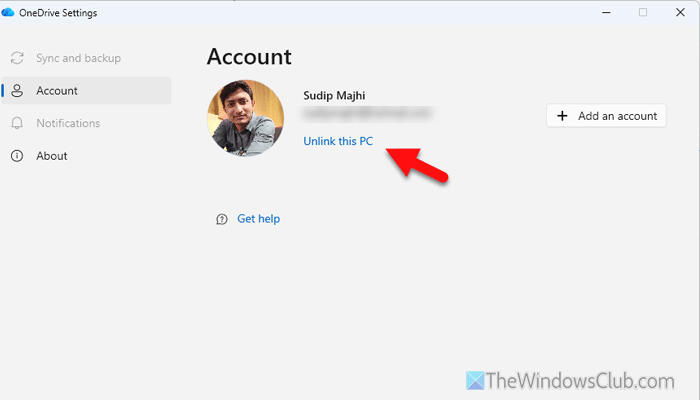
If you have recently changed your OneDrive credentials in the browser, it is recommended to update them in the app as well. If the updated credentials do not match the existing ones, you won’t be able to save anything in OneDrive.
To log out of OneDrive, open the OneDrive app, follow these steps:
- Open the OneDrive app on your computer.
- Go to the Account tab.
- Click on the Unlink this PC option.
Following that, you will find an option to sign in to your account. You need to enter the new credentials to log into your account.
Once done, you can reopen Clipchamp and start saving your files to OneDrive.
Read: How to find out which Microsoft Account you’re using with OneDrive
5] Ensure the available space
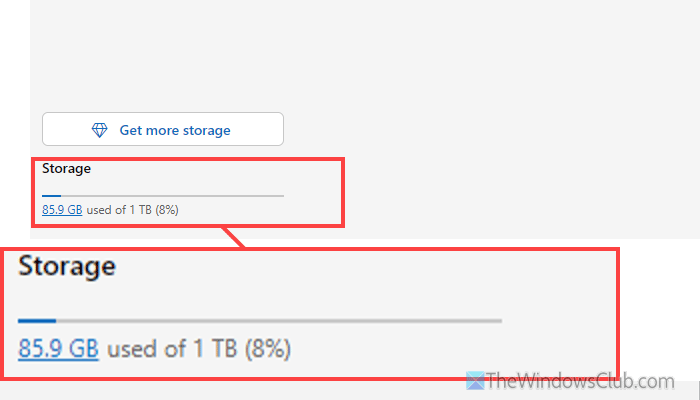
If you do not have available space on OneDrive, you cannot save or upload new files. To do that, you must delete some of the old files to free up space. You can go through this detailed guide to free up space in your OneDrive storage.
6] Use the web version
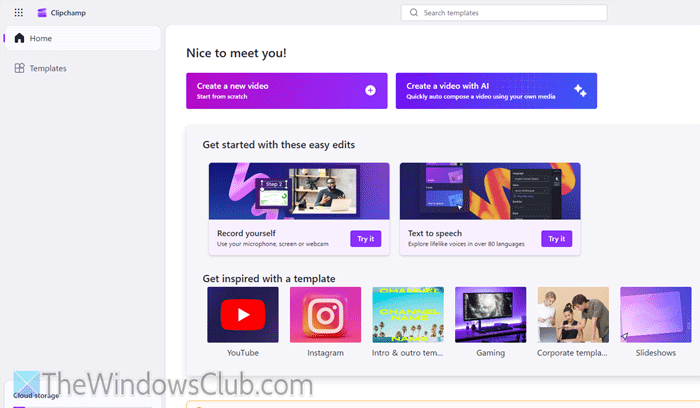
It is probably the last option. At times, the desktop version of Clipchamp may go through a rough patch for internal reasons. In such moments, you can open the web version of Clipchamp and start editing your videos.
Read: Edit, convert, compress, record videos with Clipchamp extension for Chrome
Why isn’t my video uploading to OneDrive?
If your video doesn’t meet the file size, type, etc., requirements, it won’t be uploaded to OneDrive. On the other hand, a rough internet connection could also cause this problem.
Does Clipchamp save to OneDrive?
Yes, Clipchamp saves files to OneDrive. However, it requires a manual setup. Following that, you can export files to OneDrive directly. Apart from that, you can access the data files and share them with anybody.
