
Clipchamp is one of the best video editors available for Windows devices. Some users cannot export video from Clipchamp due to the “We can’t export your video” error. According to the reports, Clipchamp stops exporting the video midway and shows this error. If you cannot export your videos due to this error, use the solutions provided in this article.
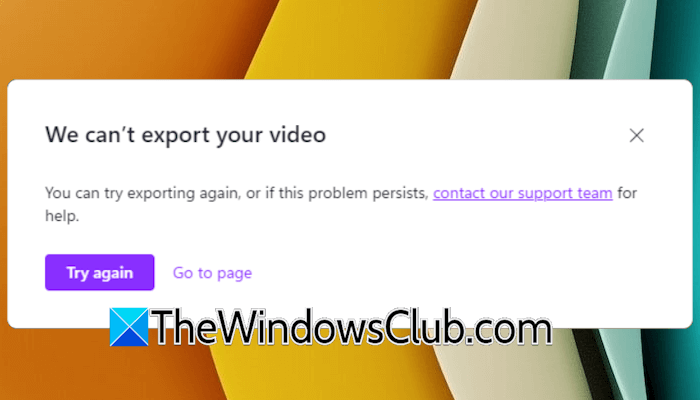
We can’t export your video
Use the following fixes for the “We can’t export your video” error in Clipchamp. Before proceeding, check your disk space. If the disk space is low, delete unnecessary files to free up some space. Also, try to create another copy of your project and see if you can export it.
- Try exporting the video using the web version
- Disable hardware acceleration
- Compress the video and reupload it
- Export the video into two parts
- Repair Clipchamp
- Change the video format
- Workarounds
All these fixes are explained in detail below.
1] Try exporting the video using the web version
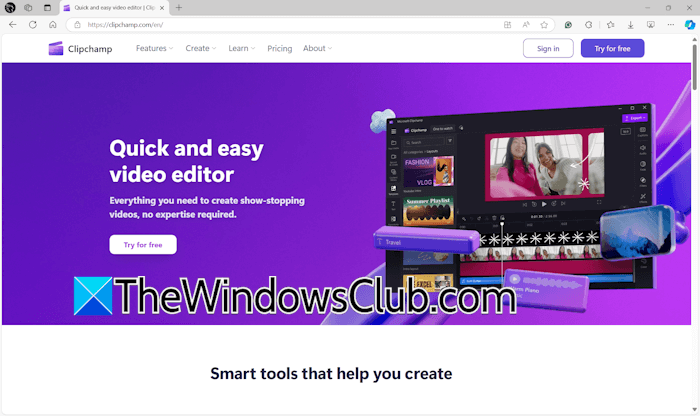
If the error occurs in the Clipchamp Windows application, use the web version. Open your favorite web browser and visit clipchamp.com. Sign in with the same Microsoft account and open your project. Now, export the video. If this does not work, try another web browser. Microsoft Edge is preferred for using the web version of Clipchamp video editor for the best user experience.
2] Disable hardware acceleration
You can disable the hardware acceleration in the Clipchamp video editor settings if you are having trouble exporting your videos. Go through the following instructions:
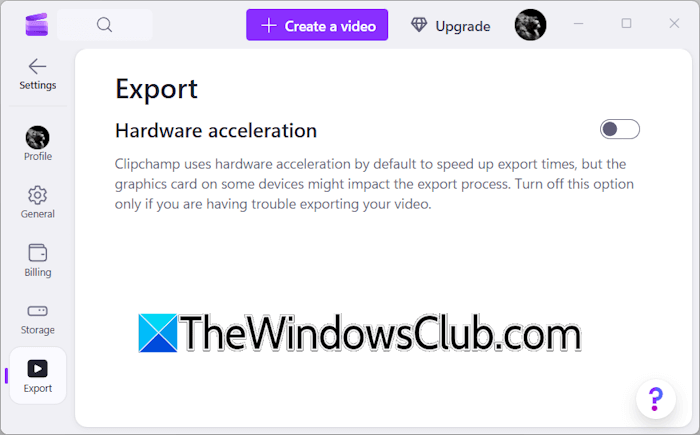
- Click on your profile icon on the top right side and select Settings.
- Click Export.
- Disable Hardware acceleration on the right side.
- Restart Clipchamp.
Clipchamp uses hardware acceleration to speed up the video export process. After disabling this feature, your videos may export more slowly.
3] Compress the video and reupload it
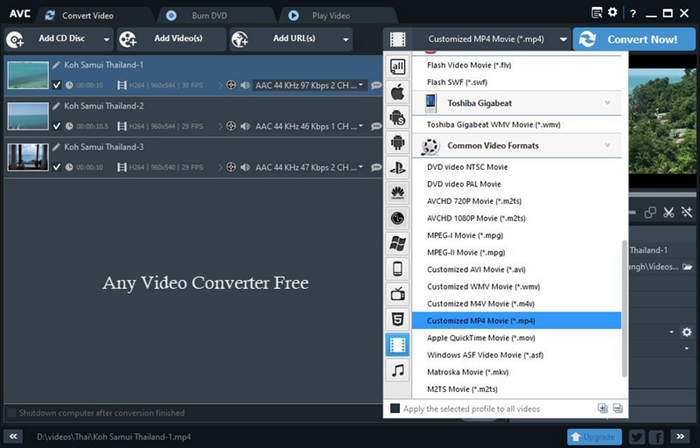
Sometimes, Clipchamp shows an error while processing heavy video files. In such a case, you can compress and reupload the video to Clipchamp. To compress the video, you can use any free third-party tool.
4] Export the video into two parts
Clipchamp sometimes causes issues while processing the long video files. If your video is longer, you can split it into two parts. First, make a copy of your video file, so the original file remains safe and unaltered. Now, close your project and open the copy you have just created.
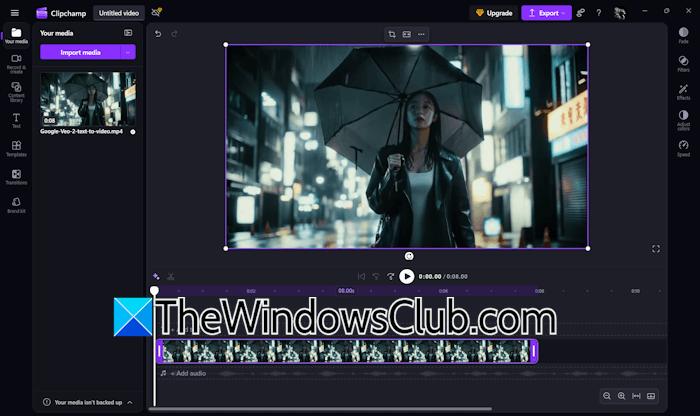
Select half of your video and delete it. Now, export the remaining video file. The error should not occur this time. When the export process is completed, click Keep editing instead of the Home key. This will take you back to the project. Now, press the Ctrl + Z keys to bring back the deleted part of the video. This time, delete the previously exported part, then export the remaining part.
Now, you have your video split into two parts. Create a new project in Clipchamp and upload both videos. Arrange them in the correct order to combine them in a single video. Export the final video.
5] Repair Clipchamp
You can also try repairing Clipchamp and see if it helps. This action repairs corrupt Clipchamp files. Follow the steps provided below:
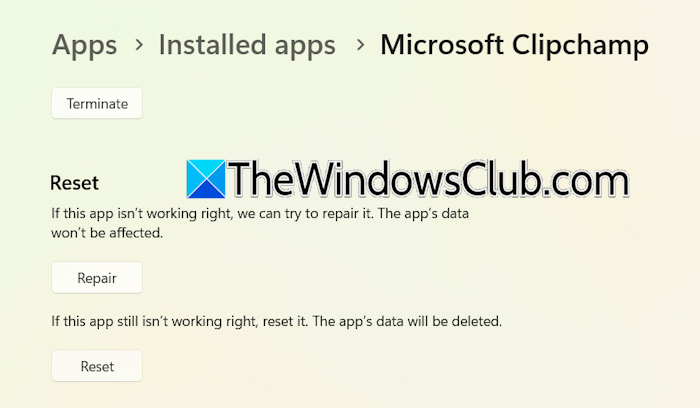
- Close Clipchamp.
- Open the Task Manager and terminate all instances of Clipchamp (if any).
- Open Windows 11 Settings.
- Go to Apps > Installed Apps.
- Type Clipchamp.
- Click on the three dots next to the Clipchamp and select Advanced options.
- Scroll down and click Repair.
Now, open Clipchamp and try to export the video. Do not reset Clipchamp, as this will delete all your data.
6] Change the video format
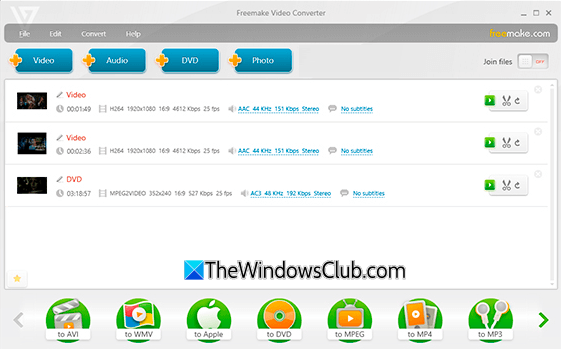
You can try changing the video format to see if it helps. Clipchamp works best with MP4, MOV, and WEBM video formats. If your video file is in a different format, you can convert it to any of these formats. For this, you can use free video converter software.
7] Workarounds
If the error persists, you can try the following workarounds:
- Remove the problematic part from the video
- Remove audio from the video
Play the video in Clipchamp. If the video gets stuck somewhere, note that timestamp. Now, create a copy of your project and open that copy. Now, remove the part that causes the video to freeze. Export the video. Now, go back to the project by clicking the Keep editing option. Press Ctrl + Z to bring back the deleted part. Now, keep that part and delete the rest of the video. Export the video. Create a new project in Clipchamp, combine the exported videos, and export the final project.
Another workaround is to delete the audio and then export the video. Before proceeding, create a copy of your project. Now, you can add audio to your video by uploading the exported video to a new project.
That’s it. I hope this helps.
How do you export a Clipchamp video?
You can easily export a Clipchamp video. Click the Export button in the top-right corner, then select the desired video resolution. After that, Clipchamp will automatically start exporting the video.
Can you export from Clipchamp for free?
Yes, exporting video from Clipchamp is free. Clipchamp is a free video editor from Microsoft. You can export edited videos up to 1080p resolution for free. However, exporting the video in 4K resolution is paid.
Read next: Unexpected application error in Clipchamp.
