
If you cannot use Clipchamp due to the Unexpected application error, the solutions provided in this article will help you. This error occurs after launching the Clipchamp application and prevents users from editing videos. Many factors can cause this error, such as a weak or unstable internet connection, an outdated version of Clipchamp, etc.
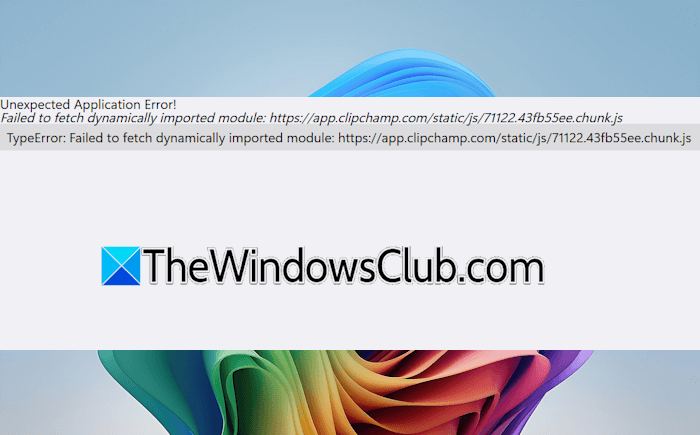
The complete error message is:
Unexpected Application Error
Failed to fetch dynamically imported module
Fix Unexpected application error in Clipchamp
Use the following fixes if you cannot edit videos in Clipchamp due to the “Unexpected application error.” Before proceeding, we recommend restarting the Clipchamp application, as issues may sometimes occur due to minor glitches. If this does not work, go through the following fixes:
- Update Clipchamp
- Power cycle your WiFi router
- Connect to another internet connection
- Allow Clipchamp through the Firewall
- Use the web version
- Repair or reset Clipchamp
- Uninstall and reinstall Clipchamp
- Create a new user profile
All these fixes are explained in detail below.
1] Update Clipchamp
An outdated version of Clipchamp may have some bugs that cause errors. That’s why it is always recommended to keep Clipchamp up to date. Check if updates are available. Follow these steps:
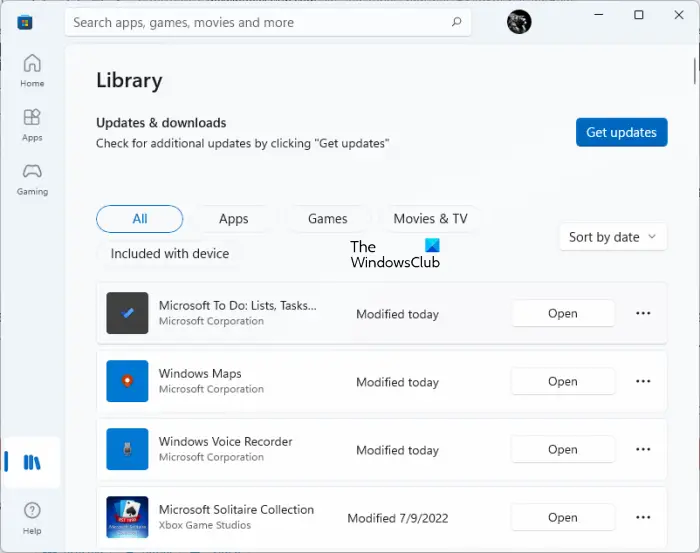
- Open Microsoft Store.
- Go to Downloads.
- Click Check for Updates.
If an update for Clipchamp is available, install it.
2] Power cycle your WiFi router
Internet issues are one of the possible causes of the “Unexpected application error” in Clipchamp. Follow these steps:
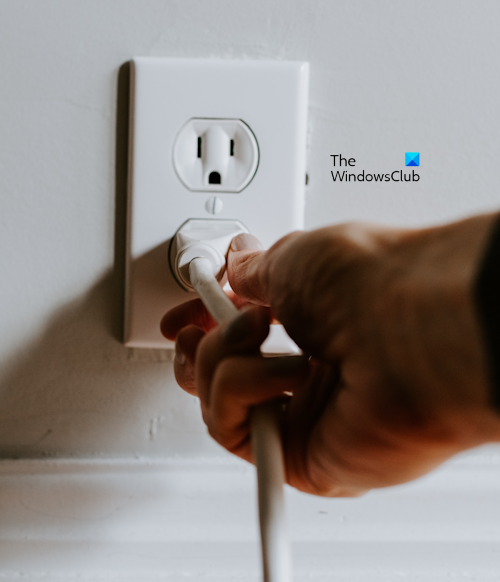
- Turn off your WiFi router.
- Unplug the power adapter from the wall socket.
- Wait for a few minutes.
- Plug the power adapter and turn on the router.
Now, launch Clipchamp and see if the error occurs.
3] Connect to another internet connection
If power cycling the router does not work, you can connect your system to another internet connection. You can also use your mobile data by connecting your computer to the mobile hotspot.
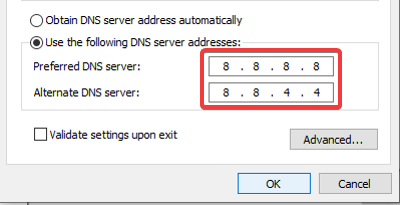
If this works, the speed of your WiFi network might be slow. Check the speed of your WiFi and contact your internet service provider (if required). Additionally, you can try changing your DNS settings. Switch to Google Public DNS and see if it works.
4] Allow Clipchamp through the Firewall
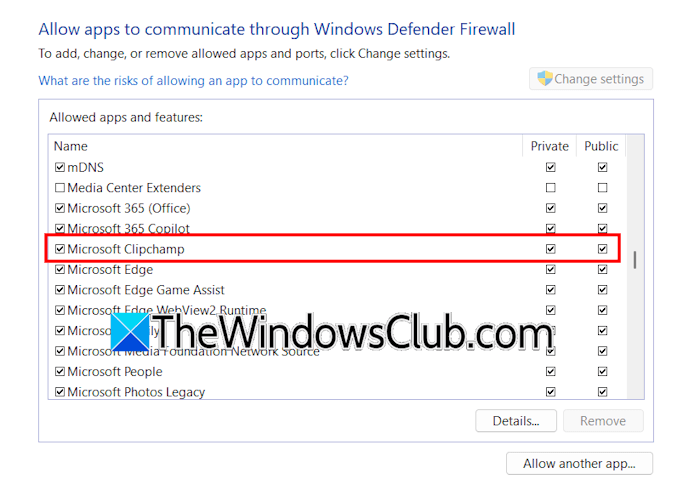
Check if Clipchamp is blocked in Windows Defender Firewall. If so, allow it through the Firewall. If you use a third-party Firewall or antivirus, the steps will be different.
5] Use the web version
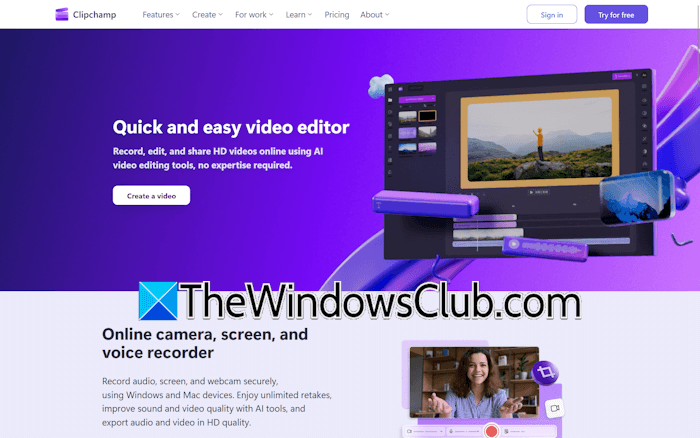
The error can be due to a temporary glitch. You can check again after some time. Till then, you can use the web version of Clipchamp. Open your favorite web browser and visit clipchamp.com. Sign in with your Microsoft account and start editing videos. For the best user experience, Microsoft Edge is preferred.
6] Repair or reset Clipchamp
If the issue persists, you can try repairing Clipchamp. This action repairs corrupt application files and fixes the issue. Close Clipchamp and follow these steps:
- Open Windows 11 Settings.
- Go to Apps > Installed Apps.
- Search for Clipchamp.
- Click on the three dots next to it and select Advanced Options.
- Scroll down and click Repair.
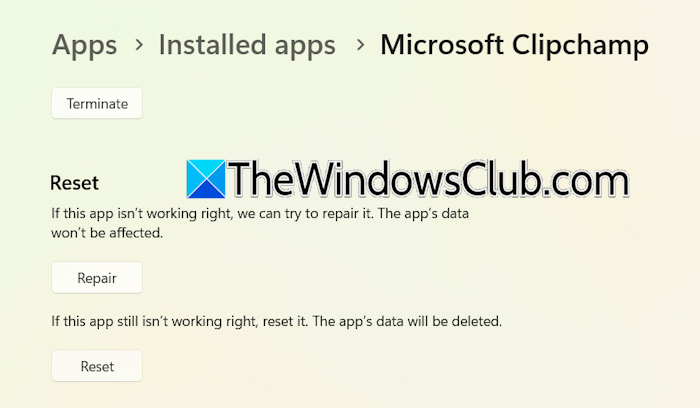
Now, launch Clipchamp and see if the error occurs. If so, you can reset Clipchamp. Resetting Clipchamp permanently deletes your data from the app. Therefore, before proceeding, export all your videos from Clipchamp.
7] Uninstall and reinstall Clipchamp
If resetting Clipchamp does not work, uninstalling and reinstalling it can help. Open Windows 11 Settings and go to Apps > Installed apps. Search for Clipchamp and uninstall it. Restart your computer.
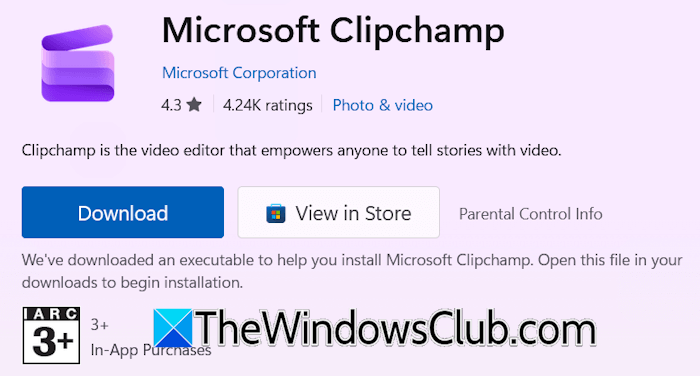
Now, open the Microsoft Store and install Clipchamp from there. Alternatively, you can download its exe file from the official Microsoft website.
6] Create a new user profile
The problem might also be associated with your user profile. If another user profile exists on your system, log in to that profile and see if Clipchamp shows the same error there. If you have a single user profile on your system, you can create a new one.
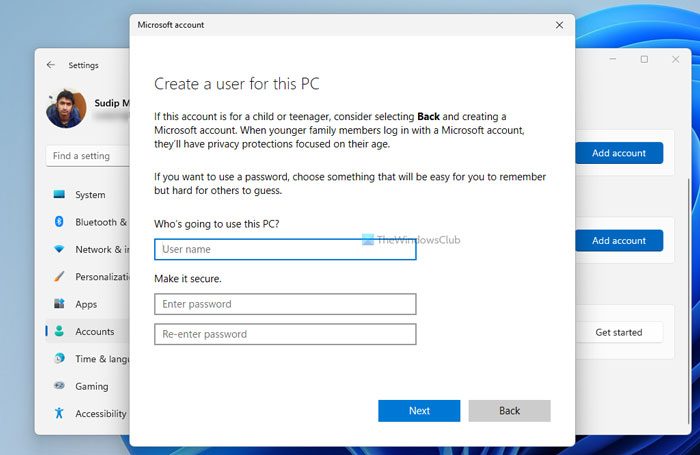
If Clipchamp works perfectly in the new user profile, you can keep using that profile and transfer your profile data from the previous user profile using free tools, such as Transwiz.
That’s it. I hope this helps.
Why is the Clipchamp app not working?
If the Clipchamp app is not working and keeps lagging or buffering on your system, check your system requirements. If your system cannot run Clipchamp, you will encounter such issues. Clipchamp also lags with heavy video files. Therefore, compress the video before uploading it.
What does an unexpected application error mean?
An unexpected application error means any unplanned or undesirable event that occurs during the execution of a program, causing it to malfunction. There can be many causes of this error. If you encounter this error, check for the updated version of the program. Repairing or reinstalling it can also help.
Read next: Unable to import some media error in Clipchamp.
