
In this article, we will discuss some fixes for the error “Unable to import some media” in Clipchamp. This error occurs while uploading video, image, or audio files to Clipchamp and prevents users from editing videos.
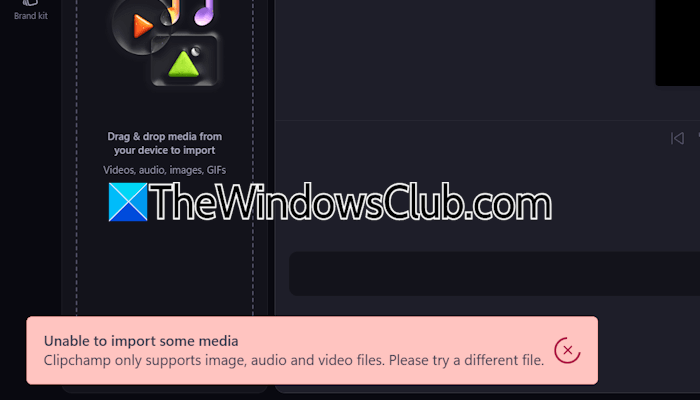
The complete error message is:
Unable to import some media
Clipchamp only supports image, audio, and video files. Please try a different file.
Clipchamp Unable to import some media
Use the following fixes for the “Unable to import some media” error in Clipchamp:
- Upload the file using other methods
- Use the web version
- Change the file format
- Repair or reinstall Clipchamp
Let’s start.
1] Upload the file using other methods
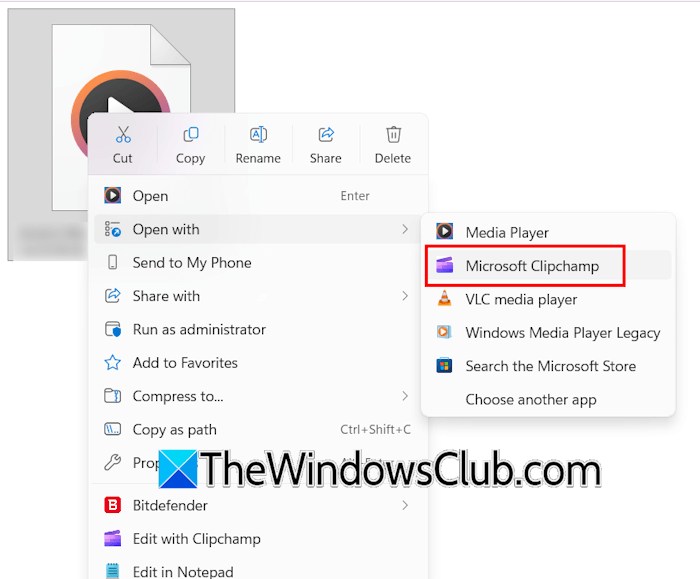
Try to upload the file using other methods. Right-click on the file and select Open with > Clipchamp. Alternatively, you can choose Edit with Clipchamp in the right-click context menu. These options will open the video file in the Clipchamp video editor.
2] Use the web version
If the Desktop version of Clipchamp is not working properly, you can use the web version. Clipchamp works best with Edge. Therefore, launch Microsoft Edge and visit clipchamp.com. Sign in with your Microsoft account and upload the video file. If this does not work, try to clear your browser cache and cookies. You can also try other web browsers.
3] Change the file format
Clipchamp supports specific video, audio, and image formats. The media files you are trying to upload to Clipchamp might be in an unsupported format. The following are the best media file formats for Clipchamp:
- Video: MP4, MOV, and WEBM
- Audio: MP3, WAV, and OGG
- Image: JPEG/JPG, PNG, TIFF, BMP, and GIF
Check the format of your file. If the file is in another format, convert it into any one of the supporting formats. You can use free tools to convert your image, audio, and video file formats.
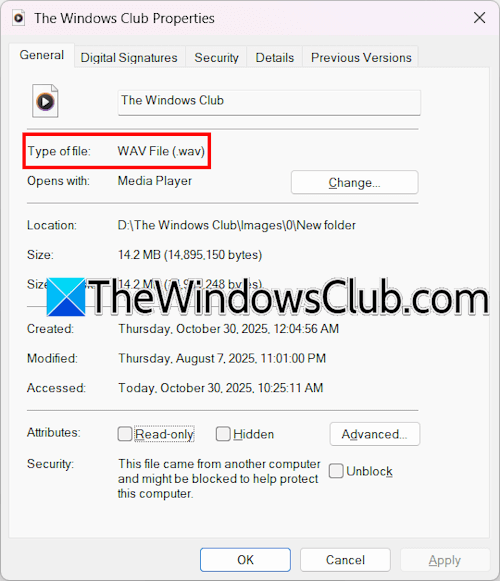
To check the file extension, right-click on it and select Properties. You will see its format under the General tab.
4] Repair or reinstall Clipchamp
You can also try to repair Clipchamp. The repair option checks for corrupted app files and repairs them. To repair Clipchamp, follow the steps written below:
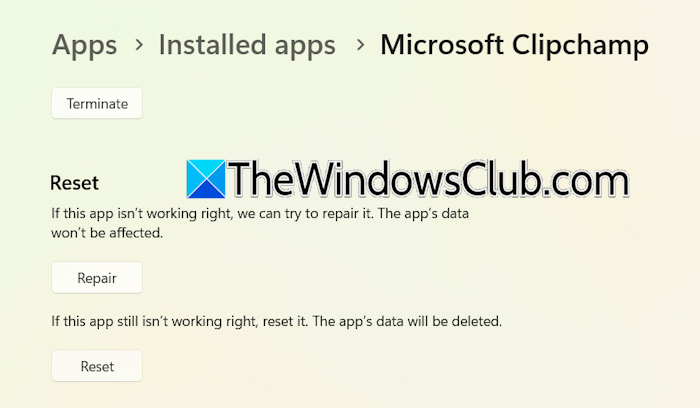
- Open Windows 11 Settings.
- Go to Apps > Installed apps.
- Search for the Clipchamp app.
- Click on the three dots next to it and select Advanced Options.
- Scroll down and click Repair.
If repairing Clipchamp does not work, reset it. Resetting Clipchamp may delete your data. Therefore, before proceeding, export all your videos from Clipchamp.
If these options do not work, uninstalling and reinstalling Clipchamp is the last resort. Please restart your computer after uninstalling Clipchamp, then install it from the Microsoft Store.
That’s it. I hope this helps.
Why is my Clipchamp export not working?
There may be many reasons why the Clipchamp export is not working on your system. If you use the web version, the cause may be the corrupted browser cache and cookie data. You can try another browser or the desktop app. If the issue occurs on the desktop app, check if Clipchamp is up to date. Corrupt files or unsupported hardware also cause this issue.
How do I import photos to Clipchamp?
You can easily import photos to Clipchamp. Open a project in Clipchamp and click Import media and select images from your computer. Alternatively, you can also upload images by dragging and dropping them to the Clipchamp project interface.
Read next: Clipchamp keeps freezing or crashing in Windows.
