
If the Battlefield game is not launching or working on your Windows 11/10 PC, follow this guide to fix the problem. Battlefield 6/5/4 are among the most popular first-person shooter games. But, a lot of gamers reported having trouble launching the Battlefield 4 game. The reasons for the issue may differ for each individual. It could be outdated graphics drivers, a temporary glitch with the game launcher, or something else. If you are one of those users who is unable to launch Battlefield on their PC, try the fixes mentioned in this post.
Why is Battlefield not launching or working on Windows PC?
Here are the potential causes why Battlefield 6/5/4 won’t launch or work on your PC:
- This issue may occur if the game doesn’t have administrator privileges. In that case, you can launch both the game launcher (Origin) and the Battlefield game as an administrator to fix the problem.
- Outdated graphics drivers can also cause this problem. Update your graphics driver to fix the Battlefield launch issue.
- Another possible cause is corrupted, missing, or broken Battlefield game files. If that applies, try verifying and repairing the game files.
- It could also be caused by a corrupted installation of the game. Hence, reinstalling the game should help you fix the problem.
Here are some scenarios that might trigger the problem. Now, let us get straight to the fixes to this problem.
Battlefield not launching or working on Windows PC
Here are the solutions to help you if Battlefield 6/5/4 is not launching or working on your Windows 11/10 PC:
- Run Battlefield and Origin with administrator rights.
- Update your graphics driver.
- Verify the integrity of game files.
- Modify game properties.
- Switch offline and then online mode in Origin.
- Reinstall the Battlefield 4 game.
Let us discuss the above fixes in detail.
1] Run Battlefield and Origin as administrator
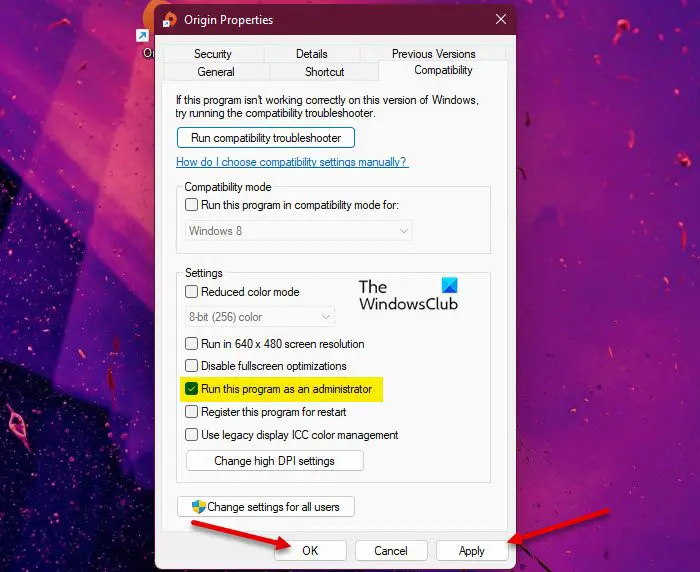
You might be unable to launch Battlefield because the game or launcher doesn’t have administrator rights. In that case, you can fix the problem by launching the game launcher i.e., Origin client, and the Battlefield game as an administrator. Go to the Origin client on your desktop and right-click on it. Then click Run as administrator to launch it with admin rights. Do the for the Battlefield game as well. If the problem is fixed, you can make Origin and Battlefield 4 run with admin rights always by following the steps below:
- Firstly, open File Explorer using Win+E and then go to the directory where Origin is installed.
- Now, right-click on the Origin’s executable and then select the Properties option.
- Next, go to the Compatibility tab and enable the Run this program as an administrator checkbox.
- Then, press the Apply > OK to save changes.
- After that, go to Battlefield’s installation directory. By default, you will find the folder at the below location:
C:/Program Files (x86)/Origin Games/Battlefield 6
- Next, right-click on the Bf6.exe file and repeat steps (2), (3), and (4). Battlefield and Origin will now launch with admin rights always.
If this fix doesn’t work, move on to the next potential fix.
Related: Battlefield keeps crashing or freezing on PC.
2] Update your graphics driver
Outdated or corrupted device drivers, especially graphics drivers, can cause issues launching games. This might be why you can’t launch Battlefield. Make sure you have up-to-date graphics drivers for the best performance in your games.
You got multiple methods to update graphics drivers on Windows 11/10. Try using the Optional Updates feature available under the Settings > Windows Update section. It provides all the optional updates, including driver updates, that you can download and install. You can also use the official website of the device manufacturer to get the latest graphics driver installer.
Device Manager is another conventional method to update GPU card drivers. Launch Device Manager from the Win+X menu and expand the menu of Display adapters. Now, right-click on your graphics card and click on the Update Driver option. Windows will then attempt to update your graphics driver. A free driver updater can also be used to do the same.
After you update the graphics driver, reboot your PC, then try launching Battlefield 4 to see whether the issue is fixed. If the problem still persists, try the next potential fix.
Read: Battlefield FPS Drops and Stuttering Issues on PC.
3] Verify the integrity of game files
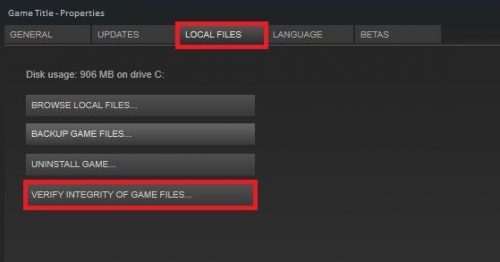
If your game files are corrupted, you are likely to run into this issue. So, try verifying the integrity of Battlefield’s game files and repairing any corrupted ones. Here are the steps to repair game files on Origin:
- Firstly, open Origin and move to My Game Library.
- Next, locate Battlefield and right-click it.
- After that, select the Repair option from the appeared context menu.
- Once the process is complete, try launching the game and check whether the problem is fixed.
If you are a Steam user, try the steps below:
- Firstly, start Steam and navigate to Library.
- Right-click Battlefield and select Properties.
- Next, go to the Local Files tab and then press the Verify Integrity of Game Files button.
- When done, relaunch the game and see if the issue persists.
If the problem still persists, move on to the next potential fix.
4] Modify game properties
Try changing some Battlefield 4 game properties to fix the launch issue. Some affected users fixed the problem using this method. Try the same and see if it works for you. Here are the steps to do so:
- Firstly, start Origin and select My Game Library from the left-side panel.
- Now, right-click on the Battlefield game and choose the Game Properties…. option.
- Next, under the When launching this game section, click on the drop-down button and choose Battlefield™ (x86).
- Then, click OK to apply the changes.
- Then, relaunch Origin and repeat step1 and step 2, modify game properties back to Battlefield™ (x64), and press the OK button.
- Lastly, restart your PC, open Origin, and see whether you can launch Battlefield.
If the problem persists, try the next potential solution.
See: How to Fix Battlefield Error Code 25
5] Switch offline and then online mode in Origin
Try switching to Offline mode, then back to online mode in Origin to fix the issue. This workaround worked for several affected users. Try the same and see if it fixes the issue. Here’s how to do that:
- Firstly, launch Origin and select the Origin menu from the top menubar.
- Now, click on the Go Offline option.
- Next, try launching the Battlefield game in offline mode.
- When you are prompted with the “You’re offline” message, click on the Go online option to switch to online mode.
See whether you can launch the game now.
Read: Battlefield Black Screen on startup or while loading.
6] Reinstall the Battlefield game
If none of the above solutions work, reinstall the game as a last resort. The game installation files might be corrupted or broken, which is why it is not launching or working properly for you. So, uninstall the game and reinstall it to see if that fixes the problem. Here are the steps to follow:
- Firstly, open the Origin client and then select the My Game Library option from the left pane.
- Now, right-click on the Battlefield 4 title and click on the Uninstall option.
- After that, reinstall the game and check whether the problem is resolved.
That’s it!
How do I fix Battlefield 6 not launching?
If Battlefield 6 won’t launch on your PC, try running Origin and the game as an administrator. Besides that, you can try updating your graphics drivers as outdated drivers can cause game launch issues. You can also verify and repair the game files or adjust some game properties. If none of that works, try reinstalling the game to fix the issue. We have discussed these and more fixes in detail. So, check out below.
Can Windows 11 run Battlefield 6?
Yes, Battlefield 6 runs perfectly on Windows 11. It will run smoothly on Windows 11/10.
Will Battlefield 6 work on my PC?
If your PC meets the minimum requirements for Battlefield 6, it will run fine. Here are the minimum requirements:
The recommended PC system requirements for Battlefield 6 are:
• Operating System: Windows 11 (64-bit)
• Processor (CPU): Intel Core i7-10700 or AMD Ryzen 7 3700X
• Memory (RAM): 16 GB (Dual Channel 3200 MHz recommended)
• Graphics Card (GPU): Nvidia GeForce RTX 3060 Ti, AMD Radeon RX 6700-XT, or Intel Arc B580
• Video Memory (VRAM): 8 GB
• DirectX: Version 12
• Storage: 80 GB to 90 GB available space (SSD required)
• Network: Broadband Internet connection
• Additional Notes: TPM 2.0 Enabled, UEFI Secure Boot Enabled, HVCI Capable, VBS Capable.
Now read:
