
If you get Unable to load persistence data error along with error codes like 4C and 13C on Battlefield 2042 then this guide will help you fix the error. Battlefield 2042 is just recently launched and has garnered the attention of millions of gaming enthusiasts. While it is an amazing game, many users have faced different errors. One of the errors includes the error message that says Unable to load persistence data and is accompanied by error codes like 4C and 13C. The entire error message is as follows:
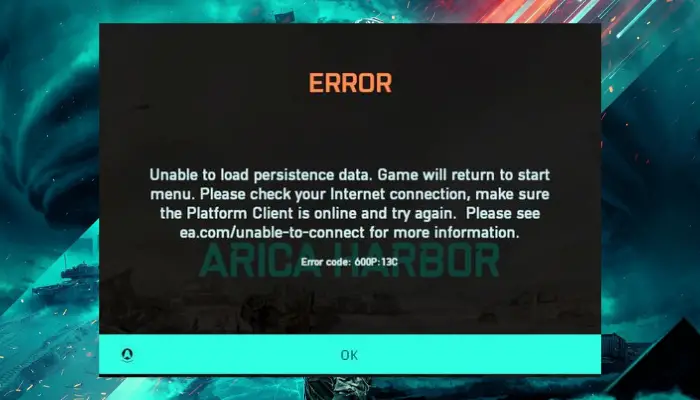
Unable to load persistence data. Game will return to start menu. Please check your Internet connection, make sure the Platform Client is online and try again. Please see ea.com/unable-to-connect for more information.
Error code: 600P:13C
This error can be a result of DNS issues, internet connectivity problems, corrupted cache, etc. Another common reason for this kind of error is if the Cross-Play feature is enabled. Now, in any scenario, if you are dealing with an “Unable to load persistence data” error on Battlefield 2042, this guide will help you fix it up. Check out the solutions we have mentioned and apply a suitable fix to resolve the error.
Fix Battlefield 2042 Error Unable to load persistence data, 4C or 13C
Here are the solutions that you can try to fix Battlefield 2042 error codes 4C and 13C, Unable to load persistence data:
- Try some general fixes.
- Disable Cross-Play.
- Perform a power cycle on your console.
- Switch to Google DNS.
- Verify the integrity of game files (for Steam users).
- Forward the required ports.
- Use a VPN on PC.
Let us elaborate on the above fixes now!
1] Try some general fixes
The “Unable to load persistence data” error can be a result of a temporary bug or issues. First, try some general fixes to resolve the error.
Try restarting your PC and then launching the game on the platform you use. See if this fixes the error for you.
As the error message prompts, also check your internet connection to ensure you are connected to a stable one. Internet issues can be a primary reason that you are getting this error. So, check your internet and troubleshoot WiFi issues if any.
If these fixes resolve the error for you, that’s great. If you continue to experience the same error, there may be an underlying cause. So, proceed to the next potential fix to resolve the error.
2] Disable Cross-Play
Cross-play is a handy feature that allows gamers to play with others on any platform, regardless of their own. However, this function when enabled can also cause some errors including the Unable to load persistence data error. Many affected users have reported that disabling this function helped them resolve the error. You can also try this approach and check if the error is resolved.
Here are the steps to disable the Cross-Play function:
- Firstly, open the game and let it load completely.
- Now, go to the Options menu and navigate to the General tab.
- Next, under the Other options, you will see a Cross-Play feature; simply turn it off by selecting the OFF option.
- After that, relaunch the game and see if the error has now stopped.
3] Perform a power cycle on your console
If you are facing the Battlefield 2042 error on your console, try performing a power cycle. Temporary files cache can also cause the problem, so performing a power cycle should resolve it and help you resolve the error. This method is quite effective on Xbox Series X and Xbox One. Even if you use a PlayStation console, you can perform a power cycle on it to see if it resolves the error.
To perform a power cycle, make sure your console is fully powered on, and then press and hold the power button on your console for at least 10 seconds. Now, please wait for a minute or so to let it completely turn off. After that, turn your console on conventionally and let it completely load. Finally, try launching the game and see if the error is resolved.
If you still encounter the same error, proceed with the next potential fix.
4] Switch to Google DNS
An inconsistent DNS range or other issues are common causes of the ‘Unable to load persistence data’ error in Battlefield 2042. It causes problems in connecting to the game servers and thus, it might cause the error in hand. If the scenario is applicable, you should be able to resolve the issue by changing your DNS to Google DNS.
If you are on Windows PC, here are the steps to use Google DNS:
- Firstly, evoke the Run dialog box using the Win+R key and then enter ncpa.cpl in it to open up the Network Connections window.
- In the window, right-click on the active network and then select the Properties option.
- Now, choose the Internet Protocol (TCP / IP4) option and then press the Properties button.
- After that, select the Use the following DNS server address option and then enter below values in the respective field:
- Preferred DNS server: 8.8.8.8
- Alternate DNS Server: 8.8.4.4
- Next, press the OK button, go back to the previous window, select Internet Protocol Version 6 (TCP/IPv6), and press the Properties button.
- Then, enter the following values in the Preferred DNS server and Alternate DNS server fields, respectively:
- 2001:4860:4860::8888
- 2001:4860:4860::8844
- Finally, save changes and reboot your PC.
On the next startup, launch your game client and start the Battlefield 2042 game to check if the error is now fixed.
To change the default DNS on Xbox One / Xbox Series X, follow the below steps:
- While being the main dashboard screen of your Xbox menu, press the Xbox button on your controller to bring up the guide menu and click on the gear icon and then select the All settings option.
- Now, go to the Network tab and click on the Advanced settings option.
- On the next screen, select DNS settings and then click on the Manual option.
- After that, you need to enter 8.8.8.8 for the Primary DNS and 8.8.4.4 for the Secondary DNS
- Finally, save changes and restart your Xbox console and router. See if this fixes the error for you.
5] Verify the integrity of game files (for Steam users)
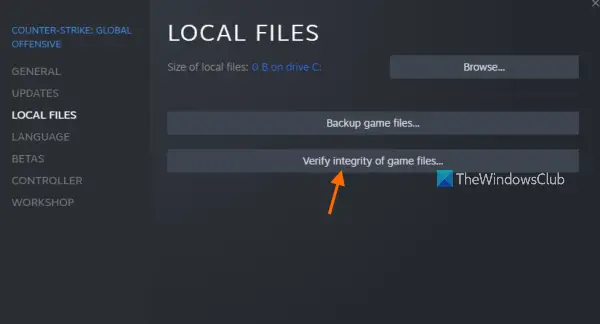
If you use the Steam desktop client to launch Battlefield 2042, you can also try verifying the integrity of game files. Corrupted or missing game files can also cause errors and bugs like these. Try this solution and see if it resolves the issue for you. Here is how you can verify the integrity of game files on Steam:
- Firstly, start Steam and then click on the LIBRARY menu from the top toolbar.
- Now, locate the Battlefield 2042 game and then right-click on it.
- Next, select the Properties option and then go to the Local Files tab.
- After that, press the Verify integrity of game files button and wait until the process is complete.
- When done, launch the game and see if the error has now stopped.
6] Forward the required ports
If the ports the game is trying to use are not open and are causing issues in establishing a connection with the game server, this error can be triggered. You can try forwarding the required ports to resolve the error.
If Universal Plug and Play (UPnP) is supported and enabled, the ports that the game use are automatically handled by the router. However, if you using an older router that doesn’t support UPnP, you can try forwarding the required ports manually. Here are the steps to do that:
Firstly, open a browser and access your router settings by entering one of the below addresses in the address bar:
192.168.0.1
192.168.1.1
Now, enter your login details to access your router settings.
Next, inside the settings menu, go to the Advanced / Expert menu and locate the Port Forwarding / NAT Forwarding option.
After that, to manually forward the ports used by Battlefield 2042, enter the below ports depending on the platform your use:
Xbox
- TCP: 3074
- UDP: 88, 500, 3074, 3544, 4500
PC
- TCP: 5222, 9988, 17502, 20000-20100, 22990, 42127
- UDP: 3659, 14000-14016, 22990-23006, 25200-25300
PS4 and PS5
- TCP: 1935, 3478-3480
- UDP: 3074, 3478-3479, 3659, 14000-14016
Finally, save changes and restart your router. Connect to the internet and then try playing Battlefield 2042 and see if the error is now fixed.
8] Use a VPN on PC
If you are facing this error on PC, you can try using a VPN in case the error is occurring due to a connectivity issue. You can use ProtonVPN or some other free VPN software.
Read: Battlefield FPS Drops and Stuttering Issues on PC.
How to Turn off Crossplay in Battlefield (BF) 2042 on Xbox One & Series X/S?
To disable Cross-Play in Battlefield (BF) 2042 on Xbox One & Series X/S, follow the below steps:
- Press the Guide button on the Xbox controller and go to the Settings > Account > Privacy & Online Safety menu.
- Go to Xbox privacy and choose Custom > View Details and Customize.
- Select the Communication & Multiplayer option.
- Locate the “You can join cross-network play” option and set its state to Block.
Read: Fix Battlefield Error Code 2002G on PC.
Are Battlefield 2042 servers down?
If you are facing login issues or server connectivity issues, it is most likely that Battlefield 2042 servers are down. It can be due to the servers being under maintenance or there might be a server outage.
Now read: Fix Battlefield DirectX Errors.
