
Here is a full guide on fixing the error code 2002G on Battlefield 2042 on your Windows 11/10 PC. Battlefield 2042 was launched a while back, and gaming enthusiasts have already been loving it. However, some users have already faced some issues with the game. Many users have experienced error 2002G when attempting to connect to the Battlefield 2042 servers. When triggered, you will see the following error message along with the error code 2002G:
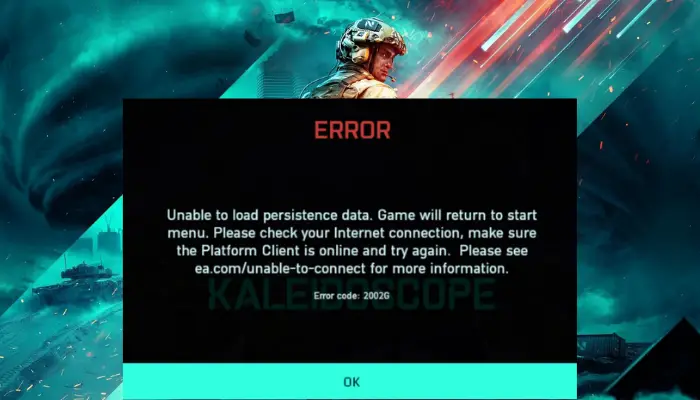
Unable to load persistence data. Game will return to start menu. Please check your internet connection, make sure the Platform Client is online and try again. Please see ea.com/unable-to-connect for more information. Error code: 2002G
This error can be a result of network connectivity issues that are preventing your PC from connecting to the Battlefield servers. In some instances, your firewall can also be blocking the connection to the servers and causing the error in question. Some users also experienced the error because the Crossplay feature was enabled in the game settings. In any scenario, this guide will help resolve the error using several fixes. Let us now check out these fixes now.
Are Battlefield servers down?
If you are facing login issues or having trouble connecting to the server, the Battlefield 2042 servers are most likely down. It might be due to a server outage or servers might be down due to maintenance. In case you are facing issues with the game, you will have to wait for the servers to be up and running again.
Fix Battlefield Persistence data error 2002G
Here are the methods to resolve the Unable to load persistence data, Error code 2002G on Battlefield 2042 on Windows PC:
- Check if relaunching the game helps.
- Restart your Router.
- Disable Crossplay.
- Launch the Battlefield 2042 game directly through Origins.
- Disable Windows Defender Firewall.
1] Check if relaunching the game helps
The first thing to do is relaunch the game and see if it resolves the error for you. Sometimes, the error can be caused by a temporary glitch or bug in the game. In that case, you can try closing the game and then relaunch it. First, ensure that you have completely closed the platform you are using (E.g., Origins, Steam) and any related tasks from the Task Manager (press CTRL+SHIFT+ESC). After that, relaunch the game client and start the Battlefield game. See if this fixes up the error for you.
If not, you can proceed with the next potential fix to resolve the error.
See: Rockstar Games Launcher Error Code 7002.1 with GTA 5 and RDR 2.
2] Restart your Router
This error can be a result of a network or internet problem. In case your computer is not able to build a stable connection to the Battlefield servers, you are likely to encounter the error code 2002G. So if the scenario applies, restarting your router will help you get rid of any network connectivity issue that perhaps is causing the error in hand. It will force the router to establish a new optimal connection with your Internet Service Provider (ISP) servers. If you don’t have a static IP, it will assign you a new one, which helps resolve connectivity issues.
To restart your router, first, unplug the power cord from the main switch and wait for 2-3 minutes to let it completely turn off. Then, plug in your router and restart it. After that, connect to the internet and try relaunching Battlefield 2042. See if this fixes up the error for you.
You can also try resetting your router using the reset button on your router. However, resetting will result in clearing all your custom network configurations and you will be required to configure the settings again. Therefore, use this option only if restarting doesn’t help.
If this fix doesn’t help, proceed to the next potential solution to resolve the error.
See: Fix CoD Vanguard Error Code 0x00001338 N
3] Disable Crossplay
As some user reports suggest, the error can be triggered by the Crossplay function being enabled in your game settings. Crossplay is an essential feature that enables users to play the game with their friends, regardless of the platform they are on. For example, if you are using a console and your friend is on a PC, you both can play together using this feature. It is a useful feature. However, it may also be a reason for some connection issues and cause the error 2002G on Battlefield 2042.
If the scenario applies, to resolve the error, simply turn off Crossplay and see if it resolves the problem. It has fixed the error for some affected users and might work for you as well. Here is how you can disable the Crossplay feature:
- Firstly, if you have joined a party in the game, leave it.
- Now, go to the Options menu.
- Next, move to the General tab.
- After that, you will see a Cross-Play function under the Other options. Click on this option and then set its state to OFF.
- Finally, try opening the game again to see if the error has been resolved.
If you are still receiving the same, don’t worry. We have some additional solutions that will definitely help you resolve the error. Therefore, proceed to the next method.
Read: Fix Application Load Error in Steam on Windows PC.
4] Launch the Battlefield 2042 game directly through Origins
You can try launching the game directly via Origins and see if the error is fixed. The Battlefield 2042 game is compatible with various platforms, including Steam. However, you are required to install Origins on your PC to play the Battlefield 2042 game. When you open the game via any client, Origins runs in the background automatically to ensure the game works properly.
A few of the affected users who encountered the same error were able to resolve it by launching the game directly through Origins. You can also try launching the game via Origins and see if the error is resolved.
Related: Fix Battlefield DirectX Errors.
5] Disable Windows Defender Firewall
In case none of the above solutions worked for you, you can try disabling Windows Defender Firewall to prevent the error. There is a chance that your firewall might be blocking the connection between your PC and the Battlefield server, which causes the error. If the scenario is applicable, you should be able to resolve the error by disabling the firewall. If turning off the firewall resolves the issue, you can be certain that the main culprit was the Windows Firewall.
Now, you might not want to permanently disable your firewall while playing the game as it can invite viruses and malware to your PC. Hence, you can try allowing Origins and the Battlefield game through Windows Firewall. Once done, you should be able to play the game without the annoying 2002G error.
How do I fix persistence data in Battlefield?
To fix the persistence data error in Battlefield 2042, you need to check your internet connection first. As this problem arises when the client fails to connect to the server, checking the internet connection is the best solution. Additionally, you can disable VPN and proxy services on your computer if you are using them.
Now read: Battlefield FPS Drops and Stuttering Issues on PC.
