
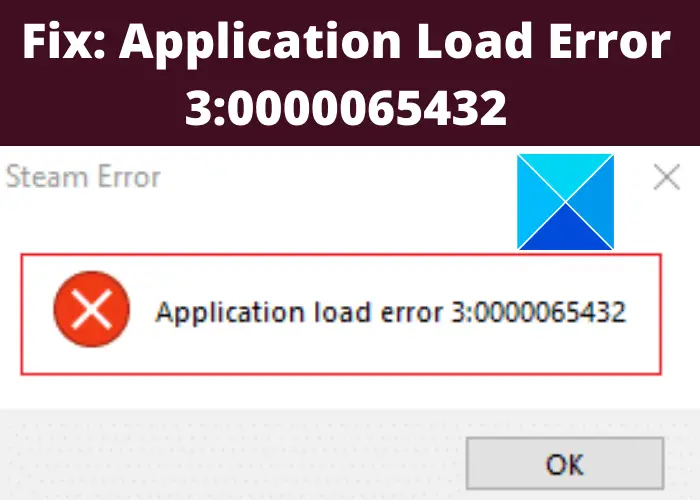
Are you experiencing the Application load error 0000065432 or 0000065434 when opening games through Steam? Here is a comprehensive guide to resolving this error on Windows 11/10 PCs. Steam is a popular video game distribution service developed by Valve Corporation. It is used by millions of users worldwide and works smoothly most of the time. However, you may encounter some errors and problems while playing games or using Steam. Two such errors are Application load error 3:0000065432 or 5:0000065434 that basically occurs while you try to launch games through it. Now, if you are experiencing this error, this guide is your stop. In this post, we are going to show you multiple fixes to resolve this error code.
Before discussing the methods to resolve the error, let us try to understand the causes of this error. So, without further ado, let us discuss the potential reasons behind this error.
What causes Application Load Error when opening games through Steam?
Here are the possible causes of this error:
- In case the game’s files on Steam are corrupted or not up-to-date, you might receive this error. In this case, the error can be rectified by verifying the integrity of the game files.
- This error can also be triggered if your game is not installed in the original installation directory of Steam.
- It can also be caused by interference from your third-party antivirus. You can try disabling the antivirus program if the scenario suits you.
- If the Steam client was not correctly installed or the installation is corrupted, you may receive this error code. If the scenario applies, reinstalling Steam is the only solution for you.
Based on the above scenarios, you can try applying a fix from the methods mentioned below to resolve this error code.
Fix Application Load Error in Steam
Here are the main methods to fix the Application Load Error 3:0000065432 or 5:0000065434 that occurs when trying to open games through Steam:
- Verify the integrity of game files.
- Move the game folder to the original Steam directory.
- Turn off third-party antivirus.
- Reinstall Steam.
1] Verify the integrity of game files
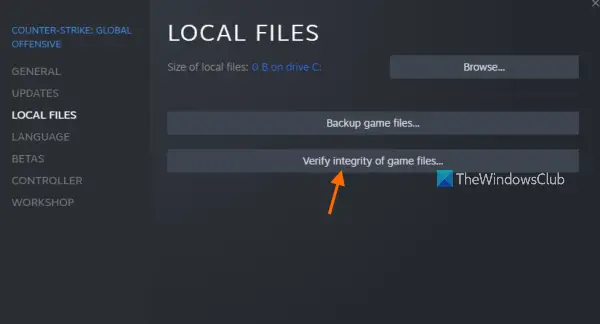
In many cases, users have experienced this error due to corrupted or incomplete game files. If you are experiencing this error with specific games, you are most likely dealing with issues related to the game files. Also, when the game is starting, Steam might not be able to retrieve some update files related to the game, which can cause this error. If the scenario is applicable, you can try resolving the issue by verifying the integrity of game files using the dedicated function in Steam. Let us check out how to do that.
Here are the main steps to verify the integrity of your game files on Steam:
- Firstly, open the Steam client and then go to the Library tab from the top menu bar.
- Now, right-click on the game that is throwing you this error, and from the appeared options, click on the Properties option.
- Next, move to the Local Files tab.
- Here, you will see a Verify the Integrity of Game Files option; simply tap on this option. Steam will now attempt to repair your game files.
- When the verification process is finished, you can restart Steam and launch your game. See if the issue is now fixed.
In case the application load error 0000065432 or 0000065434 still persists, try the next potential fix from this list.
Related: An error occurred while installing or updating the Steam game
2] Move the game folder to the original Steam directory
Some users reported the main cause of this error was the fact that the game with which they experienced this error was installed in a different folder than the original Steam directory. And, they were reportedly able to fix the error by moving their game folder to the primary Steam directory. You can try this fix and see if the error is resolved or not.
To move the game folder to the original Steam directory, here are the steps you can follow:
- Firstly, launch the Steam client and from the top menu bar, navigate to the Steam > Settings option.
- Now, move to the Downloads tab and press the Steam Library Folders button from the right panel.
- Next, select the Add Library Folder option and then enter the following location for the Library folder: C:\Program Files (x86)\Steam. If you have Steam installed at a different location, simply enter the respective location for your library folder. If your library folder is already set to this location, you can skip this step.
- After that, save changes and go back to the home screen of Steam.
- Now, go to the Library option from the top menu bar and right-click on the problematic game.
- From the context menu, select the Properties option and then go to the Local Files tab.
- Then, tap on the Move Install Folder button, and in the next screen, click on the drop-down button present under the Choose location for install option and select the C:\Program Files (x86)\Steam location.
- Finally, press the Next button.
Try opening your game now and see if the error is fixed.
Read: Steam Error Codes 53 and 101 on Windows PC
3] Turn off Third-party antivirus/ firewall
This error can be a result of an overprotective third-party antivirus suite. It is not a new phenomenon that third-party antivirus software often suspects processes related to Steam as a threat and blocks them. And hence, it can also cause the Application Load Error. In case the scenario applies to you, you can resolve the error by disabling the third-party antivirus that you are using.
To ensure your antivirus is not causing the problem, you can disable it for a short time and then try opening your game that was giving you this error. If you successfully launch the game without the error, your antivirus is the main culprit. Now, turning off antivirus software or uninstalling it is not recommended as it can put your PC at risk.
You can add Steam to the exclusion list of your antivirus program to prevent it from blocking processes related to Steam. You can access the Exclusion settings in your antivirus program and add Steam to the list. Each antivirus has a different location for exclusion settings. For Avast antivirus, navigate to Home > Settings > General > Exclusions.
In case you use AVG, you can navigate to Home > Settings > Components > Web Shield > Exceptions.
Similarly, your firewall can also be the cause of this error. To fix the error in this case, disable your antivirus or whitelist the Steam application in your firewall.
Some users have also reported encountering this error when using the F-Secure cybersecurity solution. They were able to fix the issue by disabling the Deep Guard feature of F-Secure. In case this scenario is applicable to you, you can also try disabling this function by the settings menu. Just go to the Computer Security option, and click on the Settings > Computer > DeepGuard option. Here, uncheck the Turn on DeepGuard option and save changes.
See if this fixes the issue for you. If not, proceed to the next potential fix outlined in this guide.
See: Steam games won’t launch; Stuck on Preparing to Launch on Windows
4] Reinstall Steam
If the above solutions don’t work for you, you may be experiencing issues with the improper installation of Steam. In that case, reinstalling the Steam client may help you fix the error. Therefore, uninstall the Steam app and then reinstall it. You can uninstall Steam via the Settings app or use a free third-party uninstaller to completely remove Steam from your PC.
After uninstalling Steam, download the latest version from its official website and then reinstall it on your PC. Hopefully, this will fix the error for you.
Read: Fix Steam App Configuration Missing or Not available error
How do I fix error E502 L3 on Steam?
To resolve the error E502 L3 on Steam, try checking the Steam status. If Steam servers are currently down, you will have to wait for some time for the team to resolve the issue. Additionally, you can try whitelisting the Steam client in your firewall program or reinstalling the Steam client. You can check out the details on this Steam error and how to fix it in this guide to resolve error E502 L3 on Steam.
What is Steam application load error 3:0000065432?
If your game files are not up to date, there is a high chance of encountering error 3:0000065432 when opening the game via Steam. Additionally, ensure that you install the game in the correct directory and disable any third-party security apps. In addition to these, you need to verify whether the installation is corrupted or not.
Now read: Fix Steam Content File Locked Error.
