
If all your files, or specifically your image files, have changed to .exe files in Windows 11, you can take these steps to resolve the issue. It is likely a virus infection that is causing this to happen.
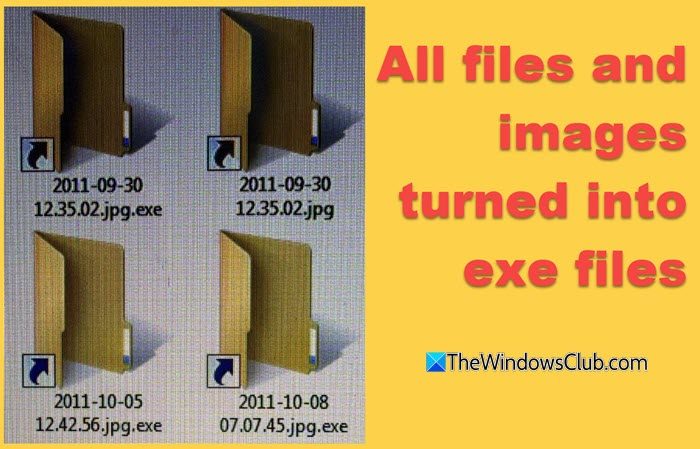
All Files and Images changed to EXE files in Windows 11
If all your files, or specifically your image files, have turned into .exe files in Windows 11, first disconnect your computer from the internet right away and remove any connected USBs before using the following suggestions:
- Unhide original files
- Run antivirus scan at boot-time
- Reset all File Associations to default
- Reset Default apps in Windows Settings
- Use this Registry fix
- Run SFC and DISM scans
- Try System Restore
- Repair Windows using Windows Update.
1] Unhide original files
You will have to unhide your original files, which the virus may have hidden. This will rule out the presence of the folder.exe virus
To show hidden files and folders, you may execute the following in an elevated Command Prompt:
attrib -h -r -s /s /d F:\*.*
Here, replace F: with the actual drive letter of your affected partition or the USB drive.
Having done this, delete all the suspicious .exe files and any autorun.inf files you may see left behind by the virus.
2] Run antivirus scan at boot-time
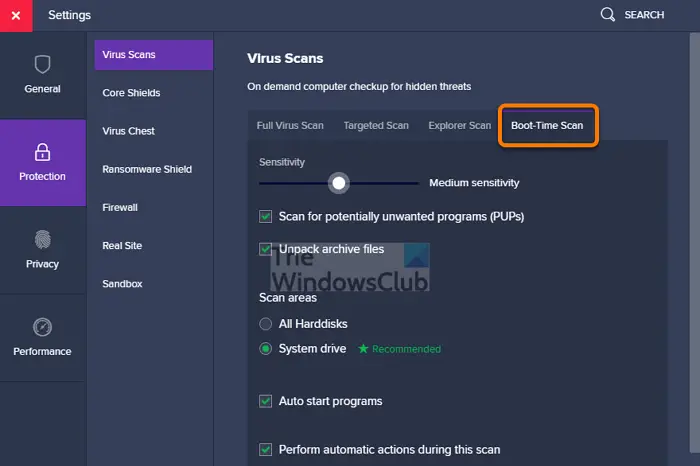
Run a boot-time full-scan of your antivirus software.
You can also use Windows Defender to run an Offline Scan at boot time.
Since a boot-time scan runs before the OS loads, it’s easier to remove the virus.
Additionally, you can also download and use a second-opinion portable antivirus software for best results.
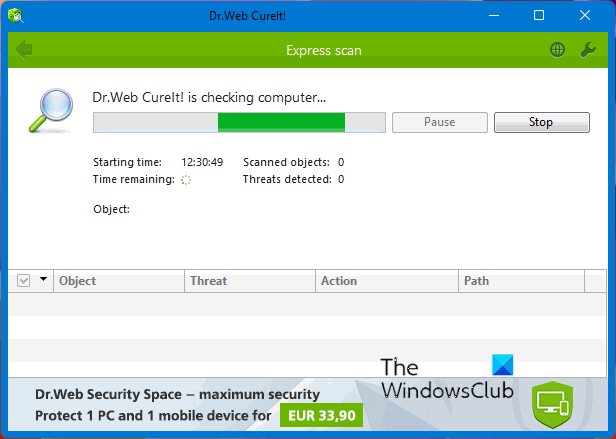
Dr.Web CureIt! is a good scanner to use when you need a second opinion. The latest version also scans for rootkits and BIOSkits in the BIOS. Its advanced custom scan features let you scan computer memory, boot sectors, startup objects and more.
Read: Virus has changed all file extensions on my Windows computer
3] Reset all File Associations to default
To reset all File Associations to default in Windows 11, follow these steps:
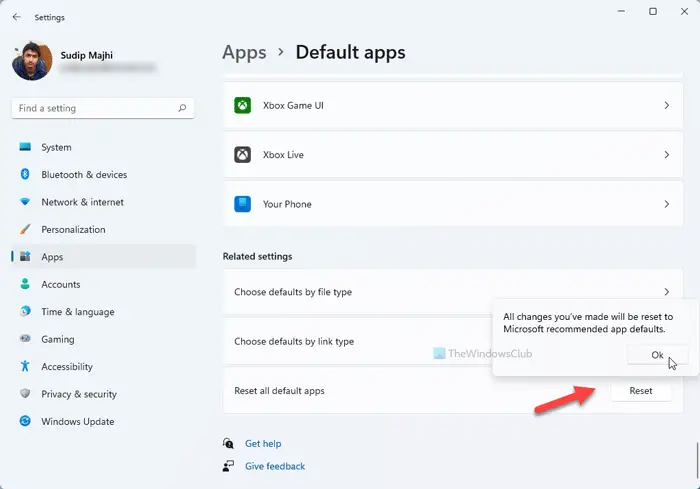
- Press Win+I to open Windows Settings.
- Go to Apps > Default apps.
- Scroll down to the bottom.
- Click on the Reset button.
- Click the OK button.
Read: File Association Fixer can help fix broken files associations in Windows.
4] Reset Default apps in Windows Settings
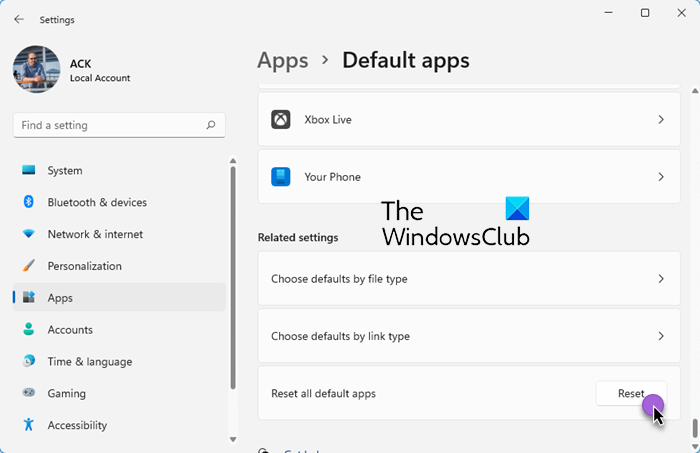
In Windows 11, open Settings (Win + I), and then go to Apps > Default apps. Scroll down till you see Reset all default apps and click on the Reset button.
5] Use this Registry fix
To fix corrupted or broken EXE file association, you can download and use this Registry fix from our servers.
This solution has helped many.
6] Run SFC and DISM scans

Running SFC and DISM scans will help if your problem is caused by missing or corrupted Windows system files.
6] Try System Restore
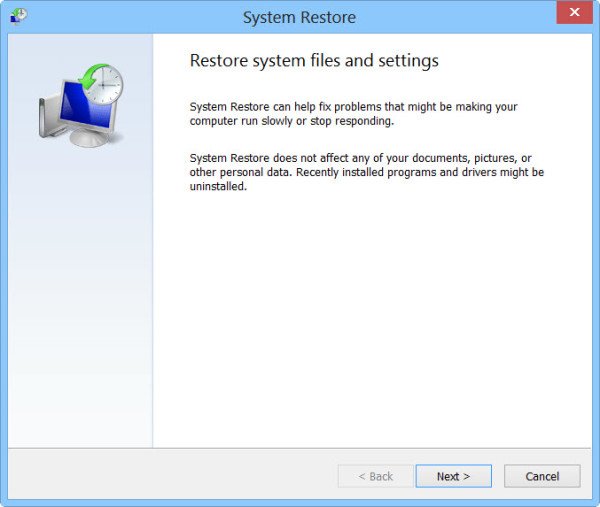
Try restoring your computer to a prior good point when your files were appearing normally and see if you can recover the files.
If you can, then back them up to an external USB.
Then format your computer and reinstall Windows to ensure all traces of the malware are removed.
8] Repair Windows using Windows Update
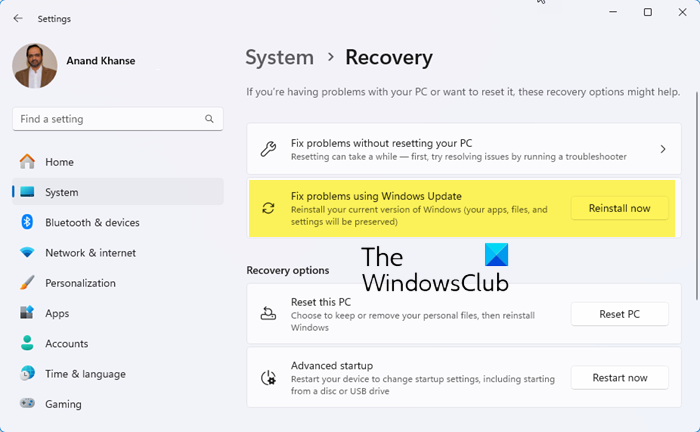
The last option you have is to repair Windows using Windows Update and see if that helps.
All the best.
How does the folder.exe virus work?
The folder.exe virus hides the legitimate files and folders by changing their attributes, and then creates malicious copies with the same name, but with the .exe file type, in order to trick users into running malicious code. It spreads primarily through removable drives like USB flash drives and shared network folders. When you click what you think is your folder, the virus is launched and it silently runs in the background. It infects your system memory, and then opens your real hidden folder so you do not suspect anything went wrong.
How to change image file type in Windows 11?
To change the image file type, open it in the Photos app or any other image editor, then use Save As to save it in your chosen format (JPG, PNG, etc.).
How to remove .exe virus?
The best way to remove the .exe virus is to run a boot-time full scan using your antivirus software, or use Windows Defender to run an Offline Scan at boot time. Once the scan is complete, use a Windows junk cleaner to remove residual junk.
