
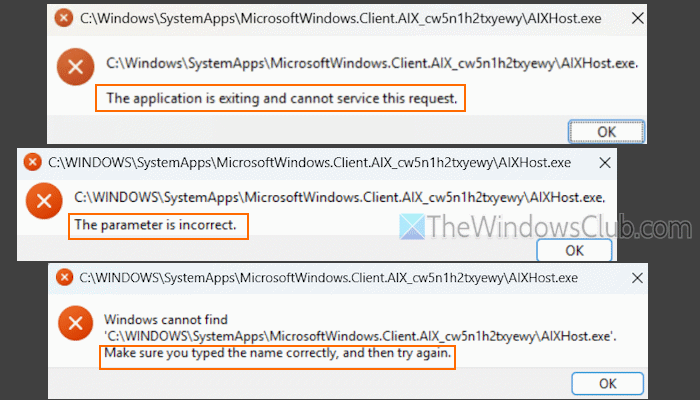
Some users have complained that a recurring AIXHost.exe error message, “The application is exiting and cannot service this request”, appears on their screen each time they sign in to Windows. This and other related errors may appear if the AIXHost.exe system file is corrupted or missing from its original location. Thankfully, there are working solutions to resolve AIXHost.exe errors. Users received the following AIXHost.exe error messages:
C:\Windows\SystemApps\MicrosoftWindows.Client.AIX_cw5n1h2txyewy\AIXHost.exe. The application is exiting and cannot service this request.
C:\WINDOWS\SystemApps\MicrosoftWindows.Client.AIX_cw5n1h2txyewy\AIXHost.exe. The parameter is incorrect.
Windows cannot find ‘C:\WINDOWS\SystemApps\MicrosoftWindows.Client.AIX_cw5n1h2txyewy\AIXHost.exe’. Make sure you typed the name correctly, and then try again.
What is the AIXHost.exe error?
As the error indicates, it is related to the AIXHost.exe application file. It is a system component essential for powering or running AI features (especially Windows Recall) smoothly. It is located at C:\Windows\SystemApps\MicrosoftWindows.Client.AIX_cw5n1h2txyewy folder in SystemApps. If the AIXHost.exe application file is missing, corrupted, or not working properly, you will get AIXHost.exe error message(s) while opening Recall or working with Excel, Word, or other apps.
AIXHost.exe error The application is exiting and cannot service this request
- Check for Windows updates
- Temporarily disable the Windows Search service
- Reset or remove MicrosoftWindows.Client.AIX package
- Run System File Checker
- Reset or reinstall Recall.
Let’s check these solutions.
1] Check for Windows updates
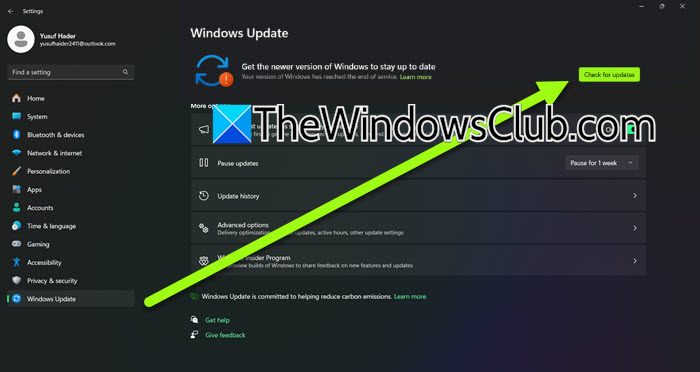
This fix worked for one of the users with the same issue. So, you should check for Windows updates and install them (including Optional updates). Make sure you haven’t paused updates. Reboot your PC, and it should solve this problem.
2] Temporarily disable the Windows Search service
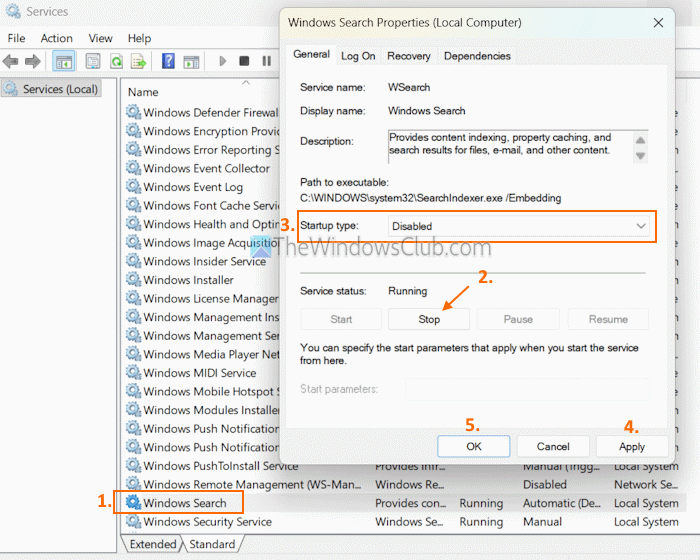
You can temporarily disable the Windows Search service to solve this problem. This will stop Windows Search indexing and prevent AIXHost.exe from interfering, especially while searching for files. Here are the steps:
- Type services in the Search box and press Enter
- In the Services window, scroll down to Windows Search, and double-click on it
- Press the Stop button
- In the Startup type drop-down menu, select Disabled
- Press OK.
Restart your PC.
Later, you can restart the Windows Search service. Access the Windows Search service in the Services window, and double-click on it. Press the Start button, and set its Startup type to Automatic (Delayed Start). Press the Apply button and the OK button. This will also rebuild the search index.
3] Reset or remove MicrosoftWindows.Client.AIX package
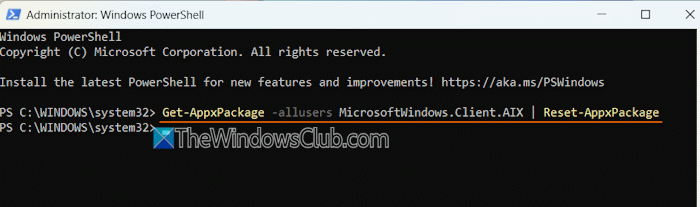
You can also reset or remove the MicrosoftWindows.Client.AIX package or the AIXHost component to fix this problem. If you don’t use AI features that require the AIXHost.exe file, this solution is helpful.
Open Windows PowerShell as administrator on your PC and execute the following command to reset this package:
Get-AppxPackage -allusers MicrosoftWindows.Client.AIX | Reset-AppxPackage
If the command runs successfully, reboot your PC.
If this doesn’t work, you can remove the AIXHost.exe component using the following command:
Get-AppxPackage MicrosoftWindows.Client.AIX | Remove-AppxPackage
Restart your PC.
Related: What is AI Host file AI.exe in Windows PC?
4] Run System File Checker

This is one of the best solutions to fix AIXHost.exe errors, and it also worked for me. If the AIXHost.exe file is missing, replaced, or corrupted in its original location, you may get The application is exiting and cannot service this request and The parameter is incorrect AIXHost.exe errors. Running the System File Checker built-in tool helps to find missing or corrupt files (including AIXHost.exe) and repair them automatically.
To run the System File Checker tool, open Command Prompt as an administrator, and execute the sfc /scannow command.
5] Reset or reinstall Recall

You can also reset Recall or reinstall Recall on your Windows 11 PC to fix the AIXHost.exe application file and solve this issue. However, this will delete all Recall snapshots, and settings will also be reset.
To reset Recall, navigate to the Settings app > Privacy & security > Recall & snapshots > Advanced settings > and press the Reset Recall button.
To reinstall Recall, open the Windows Features window. Uncheck the Recall option, press OK, and reboot your PC. Once uninstalled, reinstall it by selecting the Recall option in the Windows Features window and restarting your PC.
That’s all.
Now read: Can’t access Recall right now in Windows PC
How do I fix an exe application error?
If you want to fix the Explorer.exe Application error on your Windows 11 PC, restart File Explorer, and see if it helps. If not, change the size of virtual memory, disable Fast Startup, and run the SFC/DISM scan. In addition, you can also remove third-party shell extensions from your PC.
Read next: WindowsPackageManagerServer.exe Application Error.
