
Factory Reset is a feature in Windows 11 that helps you restore your PC to its original state. Since this feature reinstalls Windows, keeping your PC on is strongly recommended. However, some users mistakenly turned off their computers during the factory reset and are now encountering issues with their PCs. This article lists some fixes for this issue.
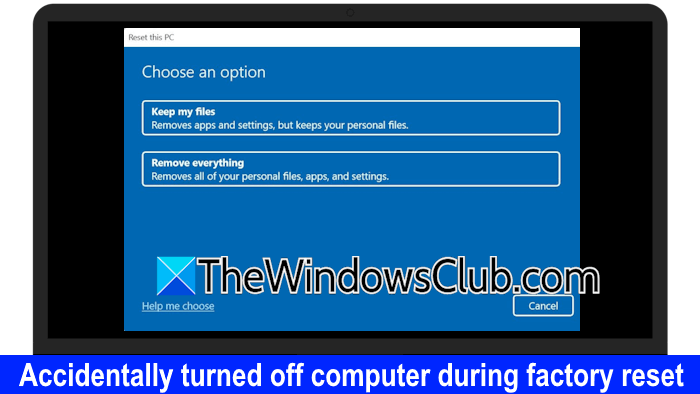
Accidentally turned off computer during Factory Reset Windows 11
If you have accidentally turned off your Windows computer during the factory reset and now you cannot use your system, use the following fixes:
- Hard reset your computer
- Clear CMOS
- Rebuild BCD
- Run Startup Repair
- Perform the clean installation of Windows
- Take your system for repair
All these fixes are explained below in detail.
1] Hard reset your computer
If your PC is unbootable, a hard reset can help. Follow these steps:

- Disconnect all the peripherals and the power cord.
- Disconnect the charger (if you have a laptop).
- Press and hold the power button for up to 30 seconds.
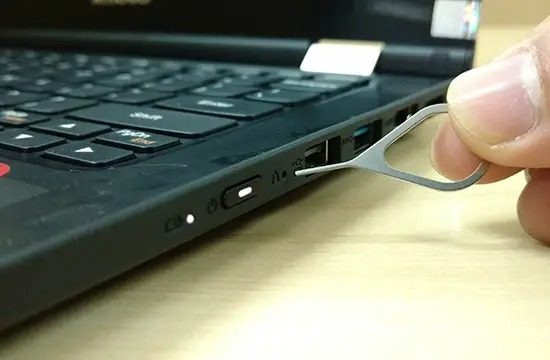
Some laptops have a pinhole hard reset. If your laptop has this pinhole, insert a pin to press the tiny button. Now, turn on your PC or laptop.
2] Clear CMOS
The next fix is to clear the CMOS. This step also resets your BIOS to the default settings.
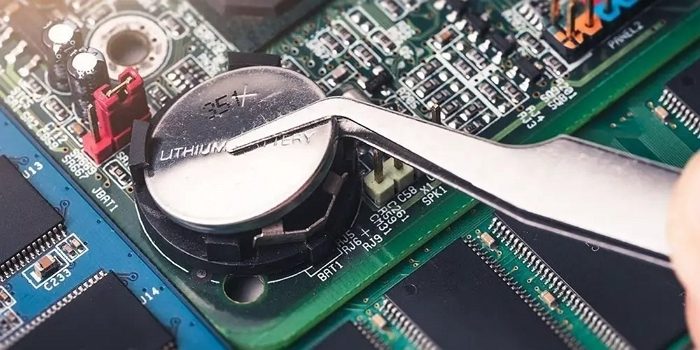
To clear the CMOS, open your PC case or laptop. After that, locate a small coin-shaped battery and gently pull it out of the socket. Wait for a few minutes and reinsert the battery. Make sure that the battery is placed with the right polarity. Now, check if you can turn on your PC.
3] Rebuild BCD
Boot issues also occur due to a corrupt BCD file. BCD is the Boot Configuration Data file that contains Boot configuration settings for the Windows operating system.
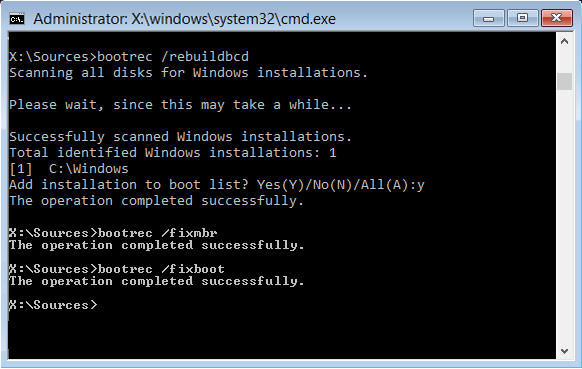
If you can boot into your system BIOS, you can rebuild the BCD file. Use the right BIOS key to enter your system’s BIOS.
4] Run Startup Repair
Automatic Startup Repair is a built-in utility in Windows that diagnoses and fixes common issues that prevent the operating system from starting correctly. Since you have turned off your system during the factory reset, it might have corrupted your operating system. Therefore, running the Startup Repair can help.
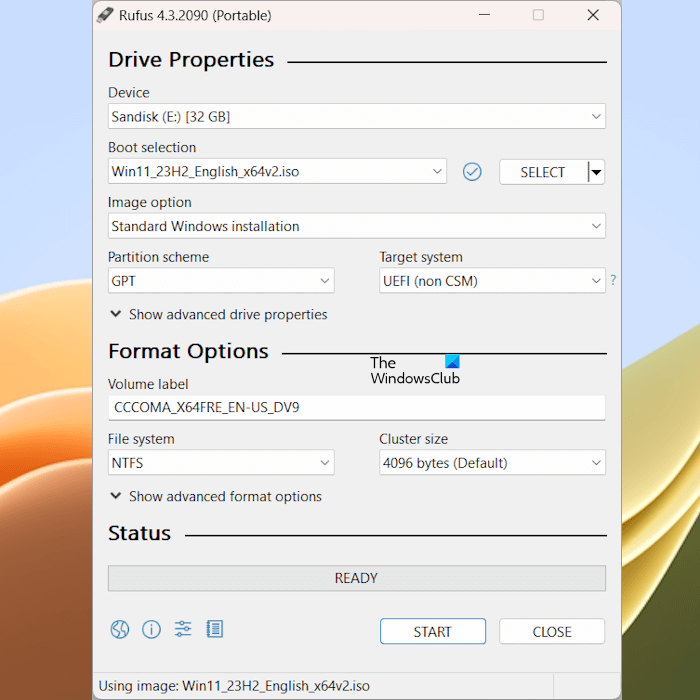
To run the Startup Repair, you need to boot into the Windows Recovery Environment. Since your PC does not start, you have to use a bootable USB flash drive to boot into Windows Recovery Environment.
Download the Windows 11 ISO file from the Microsoft website on a working computer. Now, use a third-party tool, such as Rufus, to create a bootable USB flash drive with the Windows 11 ISO. You can also use the Media Creation Tool instead.
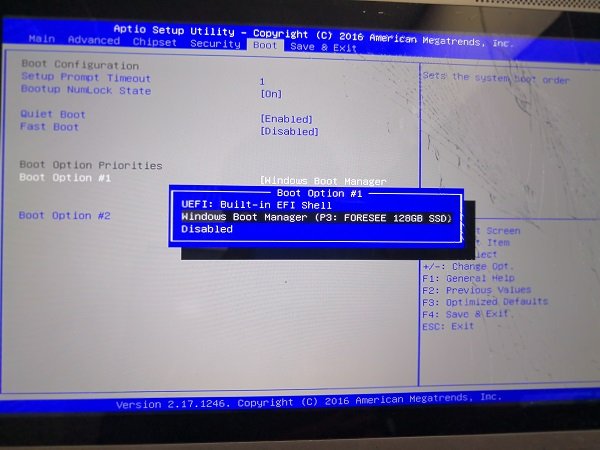
Your USB flash drive should not contain any important files because they will be deleted during this process. Now, go back to your computer and insert the USB flash drive into its USB port. Turn it on. It will automatically detect the bootable USB flash drive and use it to boot into Windows Recovery Environment. If it does not, boot into BIOS and change the boot order.
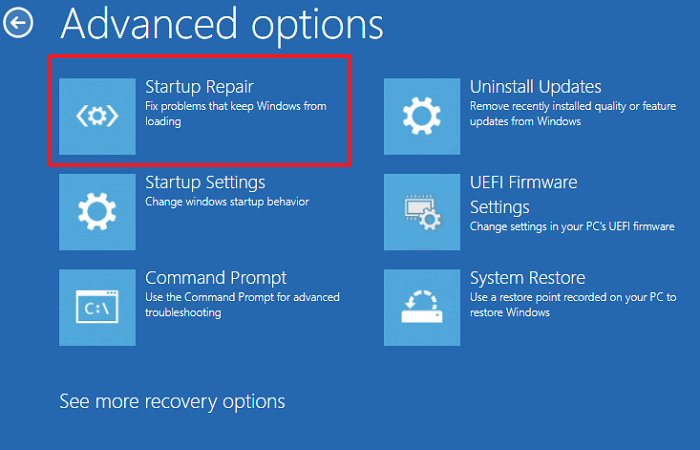
In WinRE, click Repair your computer link on the bottom left side. After that, select Troubleshoot > Advanced Options > Startup Repair. The process will take time. Therefore, do not interrupt this process. Connect the charger of your laptop and turn on the switch to provide it with a continuous power supply.
5] Perform the clean installation of Windows
If startup repair does not work, the last resort is to perform a clean Windows installation. This step will delete all your data from the hard drive partition you select for Windows installation. If you mistakenly select the wrong hard drive partition to install Windows, all your important files will be deleted. Therefore, it is important to back up all your important files before proceeding.
To back up all your data from the unbootable PC, enter Windows Recovery Environment and open Command Prompt. Now, type the following command and press Enter.
notepad.exe
When Notepad opens, press Ctrl+O to open File Explorer. Here, you can open each hard drive partition to identify which partition contains your data. Once you find it, copy your data and paste it into an external USB storage device.
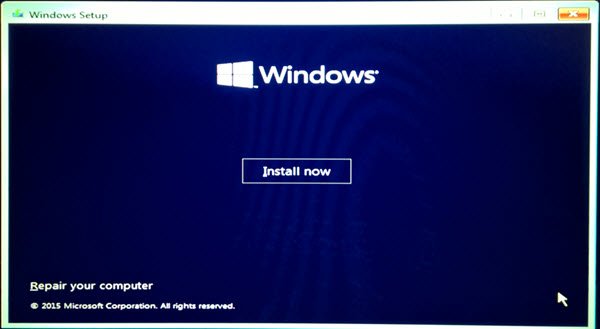
After backing up all your data, proceed with a clean Windows installation.
6] Take your system for repair
If you do not see any hard drive partitions in the Windows Recovery Environment, your hard drive may be corrupted. However, the chances of this are less. In this case, you have to take your computer for further troubleshooting and repair.
I hope this helps.
Read: What happens if you interrupt System Restore or Reset Windows?
Can you undo a factory reset on a PC?
The factory reset reinstalls the Windows operating system. You can choose whether to keep your files or remove everything during the factory reset. This process also deletes all the programs installed on your system. That’s why you cannot undo a factory reset.
Read: What happens if you turn off computer during Windows Update?
What happens if the power goes out while the PC is resetting?
During a factory reset, it is strongly recommended to provide a continuous power supply to your PC. A power outage can corrupt your operating system, making it unbootable. Therefore, do not turn off your system during the factory reset.
Read next: Boot Device Not Found in Windows.
