
This post explains how to fix the error message, “A Conexant audio device could not be found“, on a Windows 11/10 PC. Many users have reported getting this error every time they boot up or try to open the Conexant SmartAudio app. In most cases, the error is accompanied by a loss of both speaker and headphone output. The complete error message reads:
A Conexant audio device could not be found. The application will now exit.
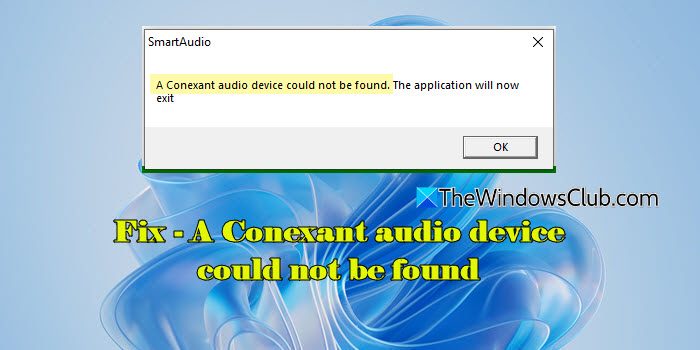
Conexant audio chips are commonly found in laptops, particularly in older models from HP, Lenovo, and Dell. These chips handle sound playback, recording, and microphone input, and are often bundled with the Conexant SmartAudio software for enhanced audio controls. When Windows fails to detect the Conexant audio hardware or its driver, it displays this error during startup, while opening SmartAudio, or while updating the driver in Device Manager.
A Conexant audio device could not be found
To fix the error message, “A Conexant audio device could not be found“, in Windows 11/10, use these solutions:
- Update or reinstall Conexant audio driver
- Switch to the generic Windows audio driver
- Disable Conexant audio service
- Fully uninstall Conexant software and delete its files
- Change Display Mode in BIOS
Let us see this in detail.
Note: Before trying advanced fixes, start with Windows’ Audio Troubleshooter. It automatically scans your system for common sound problems, such as disabled devices, incorrect output settings, or minor driver errors, and applies quick fixes. Many users find that this step alone resolves the issue without further troubleshooting.
1] Update or reinstall Conexant audio driver
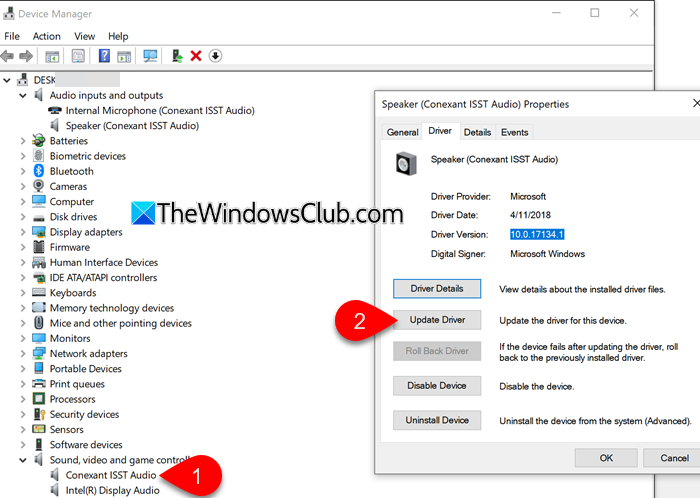
If the Conexant audio driver is corrupted, outdated, or incompatible with your system’s hardware, Windows may fail to detect the audio device, resulting in an error message. Updating or reinstalling the driver ensures that Windows is using a working audio driver, which can resolve the error.
Press Win + X and select Device Manager. Expand Sound, video and game controllers. In the Device Manager window, right-click Conexant ISST Audio and select Properties. In the Properties window, switch to the Driver tab. Select Update Driver. The Update Drivers window will appear. Select Search automatically for drivers, and Windows will check for updates through Windows Update and install them if available.
You can also download the latest audio driver directly from your PC manufacturer’s website or using their support tools. For example, HP users can use HP Support Assistant, Lenovo users can use Lenovo System Update, and Dell users can use Dell Update Utility. To install manually, select Browse my computer for drivers in the Update Drivers window, then point it to the downloaded driver file.
If updating does not help, you can uninstall the driver from Device Manager (right-click > Uninstall device) and restart your PC. Windows will reinstall it automatically.
2] Switch to the generic Windows audio driver

If the Conexant driver does not work, you may temporarily switch to the generic Windows audio driver until your PC manufacturer releases an updated driver.
Right-click the audio device again, choose Update driver, then select Browse my computer for drivers. Next, select Let me pick from a list of available drivers on my computer. Select the High Definition Audio Device (the name may vary on your PC). Click Next and install the driver.
After switching to the generic audio driver, you may lose some of the extra features Conexant provides, but you’ll still have normal audio playback.
3] Disable Conexant audio service
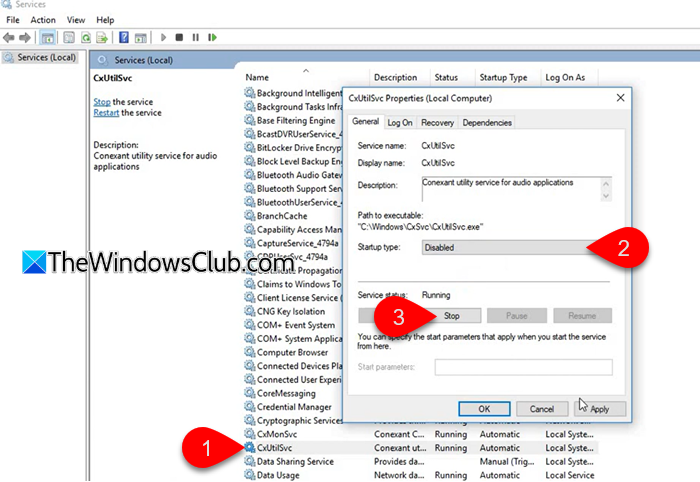
Conexant installs a background service that handles its audio enhancement features. If this service is corrupted or conflicts with Windows, it may prevent sound from working. Disabling it allows Windows to rely only on its core audio service and generic driver.
Press Win + R, type services.msc, and hit Enter. In the Services window, locate CxUtilSvc (Conexant utility service for audio applications). Right-click it and select Properties.
Under Startup type, choose Disabled. If the service is running, click Stop, then select Apply > OK.
Restart your PC and check if the sound works.
4] Fully uninstall Conexant software and delete its files
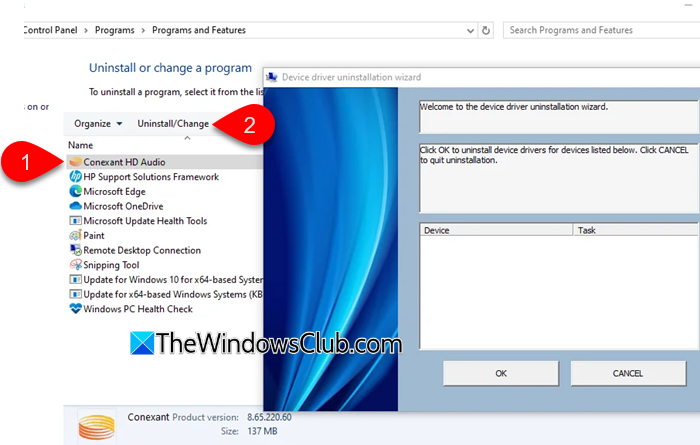
The error often comes from the Conexant SmartAudio software rather than the audio driver itself. If the software is corrupted, it may still try to launch at startup, triggering the pop-up. Removing the software and its leftover files prevents Windows from attempting to run it, which in turn removes the error message.
Press Win + R, type appwiz.cpl, and press Enter. In the list of installed programs, look for Conexant HD Audio or anything related to Conexant. Right-click it and select Uninstall.
After this, delete leftover Conexant folders. Open File Explorer and navigate to:
- C:\Program Files\Conexant\
- C:\Program Files (x86)\Conexant\
If these folders exist, delete them. By deleting the leftover files and startup entries, you prevent Windows from attempting to run the broken software, which in turn removes the error message.
Reboot the system to apply the changes.
5] Change Display Mode in BIOS
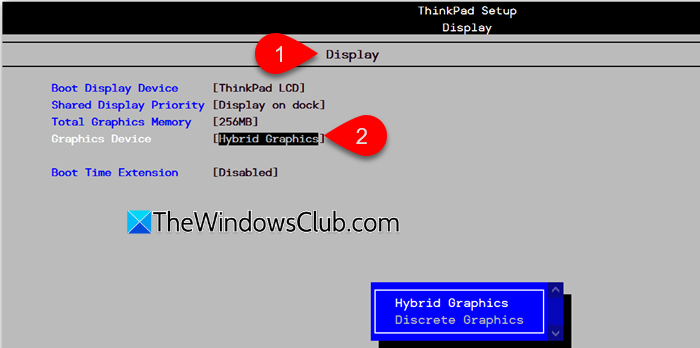
Some users reported that their Conexant audio device disappeared because of a BIOS setting. If the display mode is set to Discrete, the Conexant audio controller may get disabled, especially when it is tied to a particular onboard chipset. Switching it back to Hybrid mode restores the audio.
To do this, restart your PC and enter the BIOS/UEFI (usually by pressing Esc, F2, or F10 at startup). Look for Display Mode, Graphics, or a similar option under Advanced settings. If it’s set to Discrete, change it to Hybrid, then save and exit.
After reboot, the SmartAudio pop-up should no longer appear.
I hope this helps.
Read: Game audio stops working on Windows PC.
How to fix Audio device not found?
If your system’s sound stopped working and you see an error message “No audio input device found”, first run the built-in Audio Troubleshooter to detect issues. If that doesn’t work, check Device Manager to see if your sound card is listed. If it is, update or reinstall its driver. Also make sure the audio device is enabled in BIOS settings.
How to fix Conexant ISST audio?
Conexant ISST errors usually appear when the driver or SmartAudio software is corrupted. Try updating or reinstalling the Conexant ISST audio driver from your PC manufacturer’s site. If the error popup persists, disable or uninstall the Conexant SmartAudio software.
Read Next: Fix CxUIUSvc Service High CPU, RAM usage in Windows.
