
For many users with Conexant SmartAudio HD installed on Windows 11 or Windows 10, upgrading to a new version may cause issues. According to them, Conexant SmartAudio HD is not producing any sound. In this article, we will discuss this in detail and show you how to resolve the issue.
Why is there no audio on my Conexant SmartAudio HD?
For the most part, the issue is related to the audio driver installed on your computer. It can either be buggy or outdated. Additionally, some settings on your computer may be causing the issue. They might not directly mute your system, but a malfunction could cause the error in question.
Conexant SmartAudio HD No Sound issue for Windows 11/10
If you are facing no sound issue in Conexant SmartAudio HD device, then check the following solutions to resolve the issue.
- Rollback your driver
- Update Driver
- Disable Audio Enhancement
- Use High Audio Definition Device
Let us talk about them in detail.
1] Rollback your driver
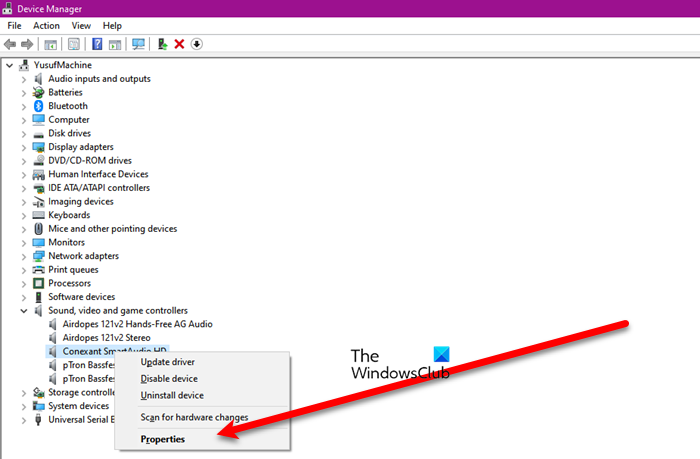
Let us start with a situation solution. If you have updated a new Windows and started facing such an issue. Your computer may go mute due to a bug. We will roll back the Conexant SmartAudio HD driver and see if that resolves the issue. The following are the steps you need to follow to do the same.
- Open Device Manager by Win + X > Device Manager.
- Expand Sound, video and game controllers.
- Right-click on Conexant SmartAudio HD and click Properties.
- Go to Driver and click Roll Back Driver.
Hopefully, this will resolve the issue for you. If the Roll Back Driver is greyed out, then move to the next solution.
2] Update Driver
Sometimes the rollback button for the driver is greyed out, which may indicate your driver is outdated. We recommend updating the audio driver and seeing if that resolves the issue. The following are some methods for updating the Conexant SmartAudio HD driver.
- Update Windows to update all the drivers.
- Use a free driver update app.
- Download the latest version of the driver from the manufacturer’s website.
- Open Device Manager and update the Conexant SmartAudio HD
After updating the driver, restart your computer and see if the issue persists.
3] Disable Audio Enhancement
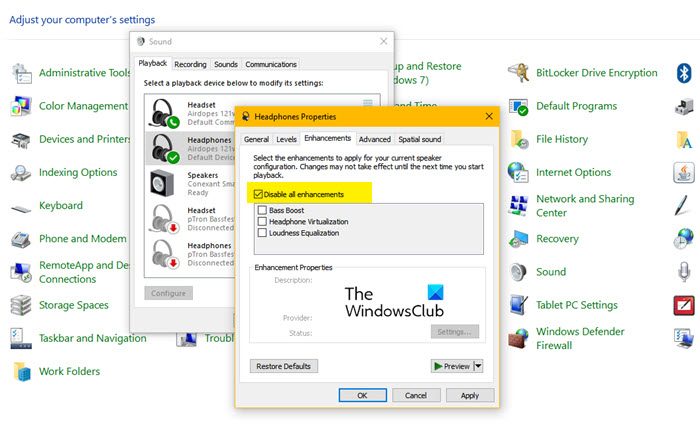
As mentioned earlier, certain settings on your system may be causing this issue. In this case, this is Audio Enhancement. Although it is meant to improve your audio experience, it is causing many computers to mute. That’s why you should follow the given steps to disable Audio Enhancement.
- Open Control Panel.
- Change View by to Large icons.
- Click Sound.
- Right-click on your Conexant SmartAudio HD and select Properties.
- Go to Enhancements and tick Disable all enhancements.
- Click Apply > Ok
Finally, restart your computer and check if the issue persists.
4] Use High Definition Audio Device

You can try switching to High Definition Audio Device as your speaker driver and see if that works. If the problem with your computer is the Conexant SmartAudio HD driver, then this will work for you. Following are the steps to switch to High Definition Audio Device and see if that works.
- Open Device Manager.
- Expand Sound, video and game controllers.
- Right-click on Conexant SmartAudio HD and click Properties.
- Go to Driver and click Update Driver.
- Select Browse my computer for drivers.
- Click Let me pick from a list of available drivers on my computer.
- Select High Definition Audio Device and click Next.
Then follow the on-screen instructions to install that driver. Hopefully, this works for you.
How do I enable Conexant SmartAudio HD?
If you are using a different driver and want to switch to Conexant SmartAudio HD, follow these steps.
- Open Device Manager.
- Expand Sound, video and game controllers.
- Right-click on speaker driver (Conexant SmartAudio HD) and click Properties.
- Go to Driver and click Update Driver.
- Select Browse my computer for drivers.
- Click Let me pick from a list of available drivers on my computer.
- Select Conexant SmartAudio HD and click Next.
This will allow you to use Conexant SmartAudio HD and experience its full capabilities.
Read Next:
