
This guide will help you understand, analyze, troubleshoot, and fix Blue Screen, Stop Errors, Error Codes, Bug Check errors, system crash errors, system faults, and kernel error crashes in Windows 11/10. When Windows encounters a condition that compromises safe system operation (i.e., a “bug”), the system halts.
Blue Screen of Death in Windows 11/10
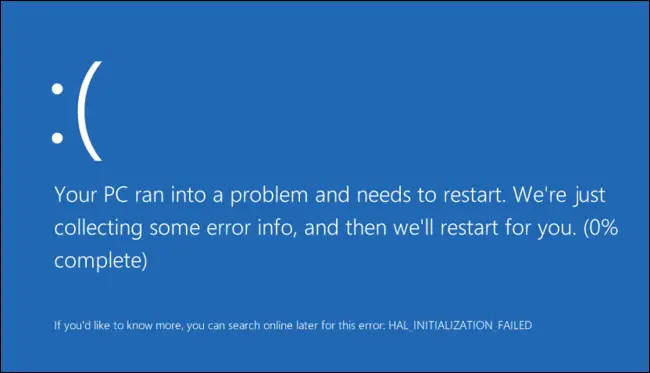
This condition is called a ‘bug check‘. It is also commonly referred to as a system crash, a kernel error, a system fault, or a Stop Error.
In Windows XP, the Windows Error Reporting system was essentially manual but has now been improved & streamlined in Windows 7 & Windows Vista. While this may be the case, Blue Screens haven’t just vanished. You may still get to see them on Windows 7/8, too.
Usually, when a BSOD occurs, it stays for a second before the PC immediately restarts. This way, we are unable to read what is written. To get around it, one has to disable the auto PC restart option from the StartUp & System Recovery settings. Knowing the error code can help identify the problem/solution. Do it as follows:
Disable UAC. Control Panel > System And Maintenance > System > Advanced System Settings > Advanced tab > Under Startup And Recovery > Click Settings > Clear the Automatically Restart check box > Click OK. Enable UAC.
Windows will attempt to fix the problem on its own in most cases, but if it cannot recover independently, it will cause a blue screen.

Users of the Windows system are sure to have experienced, at one point or another, the terrors of “The Fatal Exception”, commonly called the “Blue Screen Of Death”, or BSOD. Although the BSOD has largely been thrown onto the software slag heap, in Vista, crashes haven’t been totally banished. When Windows encounters a condition that compromises safe system operation (i.e., a “bug”), the system halts. This condition is called a ‘bug check’. It is also commonly referred to as a system crash, a kernel error, a system fault, or a Stop error. When Windows encounters such a serious error that forces it to stop running, it displays a BLUE SCREEN OF DEATH or just ‘lovingly’ called BSOD!
In Windows 11/10/8/7, unlike XP, where the system was essentially manual, the Windows Error Reporting has been improved & streamlined in Windows 7 & Vista. One had to follow up to see if a solution had become available. This was a rather painful process. In Windows 11/10/8/7/Vista, this entire reporting and follow-up process is automated.
Fix: Windows Blue Screen when idle
These days, a Windows 11/10/8/7/Vista user is more often likely to see a message as follows: “Microsoft Windows Operating System is not responding.” Users are given two possibilities. They can either “Close the program” or “Wait for the program to respond.” One waits in the hope that the issue will be resolved, or else one just closes the program and gets prepared to lose information. At least these messages look less daunting.
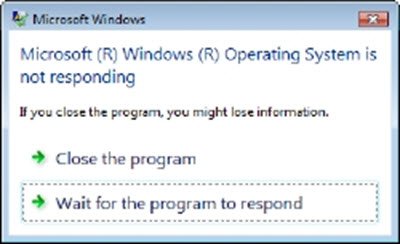
The BSODs, on the other hand, were/are quite traumatic and frustrating, to say the least!
The exact text of a Stop error varies according to what caused the error. But the format is standardized and is made up of 3 parts:
- PART 1: Symbolic error name: This is the Stop Error message that is given to the OS and corresponds to the Stop Error number that appears.
- PART 2: Troubleshooting recommendations: This text applies to all Stop Errors of that particular type.
- PART 3: Error number and parameters: It’s the bug check information. The text following the word STOP includes the error number in hexadecimal notation and up to four parameters that are typical of this error type.
In general, there are not too many options for any type of recovery. Normally, one tries to just “reboot” the PC in the hope that the BSOD occurred because of a rare condition of some driver that was overlooked in coding and testing. But if the BSOD persists, there are some tactics that may be employed to repair the system there are over 250 documented BSOD codes.
Take, for example, the most common BSOD:
Bugcode 0xA – IRQL_NOT_LESS_OR_EQUAL
This is a fairly common BSOD that occurs when a driver has illegally accessed a memory location while NT is operating at a specific IRQL. This is a driver coding error, akin to trying to access an invalid memory location.
Parameters:
1 – memory location that was referenced
2 – IRQL at time of reference
3 – 0 == read, 1 == write
4 – code addressed which referenced memory
Recovery/Workaround:
There is none. This is a fatal error and is a driver coding error.
Fix: Blue Screen when playing games on Windows PC
What is the first step to take to resolve a Blue Screen of Death error
The BSODs or Stop Errors in Windows 11/10 appear to be better, more user-friendly, and easier on the eyes. But they don’t give many details. You have to force your OS to display Stop Error information.
Read: Convert Windows error codes to strings using NET HELPMSG command
How to Debug Memory Dumps
To know how to debug Memory Dumps so that you can find out the cause for your BSOD, download and install the Microsoft Debugging Tools. Make certain that your page file still resides on the system partition. Otherwise, Windows will not be able to save the debug files.
You can use Crash Dump Analyzer software to analyze crash dump reports.
TROUBLESHOOT WINDOWS STOP ERRORS/BSODs
- First and foremost, see if a System Restore can resolve this issue.
- Else, then run your anti-virus and anti-spyware and your PC Junk/Registry Cleaner.
- After this, Run the Windows Check Disk Utility.
- Then, try to identify if you’ve made any software or hardware changes or modifications.
- In most cases, the software is the victim, not the cause of BSODs. So don’t rule out hardware problems. It could be damaged hard disks, defective physical RAM, overheated CPU chips or anything else.
- Check if you can see a driver’s name in the error details. If you can, then simply disabling, removing, or rolling back that driver to an earlier version can help solve that problem. Network interface cards, disk controllers, and Video Adapters are the culprits, most often.
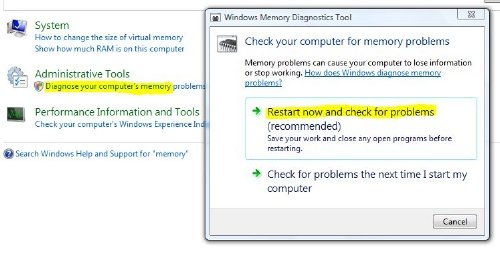
- Check your memory. Use the Windows Memory Diagnostic Tool. Go to Control Panel and type “memory” in the Search box. Under Administrative Tools, click Diagnose Your Computer’s Memory Problems. In the Windows Memory Diagnostics Tool, shown here, select one of the options.
- Check your system BIOS carefully Is an update available from the manufacturer of the system or motherboard? Check the BIOS documentation carefully; resetting all BIOS options to their defaults can sometimes resolve an issue caused by over-tweaking.
- Check if you are low on system resources. Sometimes, a critical shortage of Disk Space or RAM can cause BSODs.
- Check if a system file has been damaged. Work in Safe Mode, as only the core drivers and services are activated. If your system starts in Safe Mode but not normally, you very likely have a problem driver. Try running Device Manager in Safe Mode and uninstalling the most likely suspect. Or run System Restore in Safe Mode.
- Run the Windows Blue Screen Troubleshooter.
What to do if you suspect that a Driver is causing BSOD’s
If you suspect that a buggy device driver is at fault for the BSODs, call upon a lesser-known but powerful troubleshooting tool called the Driver Verifier Manager. Enter verifier in the search bar and hit enter to bring up Verifier.exe. Run As Administrator. This tool helps you to actually identify the flawed driver.
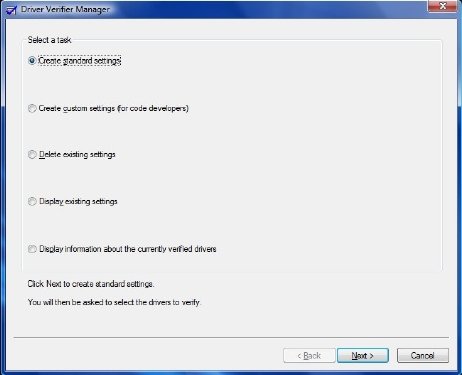
Now select “Create Standard Settings”. Next, select the type of drivers you want to verify. Unsigned drivers are a likely cause of problems, as they are created for older versions of Windows. Click Next, till completion.
Driver Verifier Manager works in the following manner. Instead of your machine throwing up an undecipherable BSOD at you at any time, you can make Driver Verifier stop your computer at startup with a BSOD, which will explain the actual problem rather accurately! You can then choose to resolve the problem by either updating, rolling back, or uninstalling the offending driver.
Please do note that in the rare eventuality, the Driver Verifier Manager does find a non-conforming driver, there could be a possibility that it may not be the offending one. So do exercise extreme caution. Regard the identified Driver/s with suspicious and exercise your best judgment in such a case.
Having narrowed down to the problematic Driver, you have three options: Update, Roll Back or Uninstall the Device Driver.
To do that, open Device Manager. Open the properties dialog box for the device, and use the following buttons on the Driver tab to perform maintenance tasks:
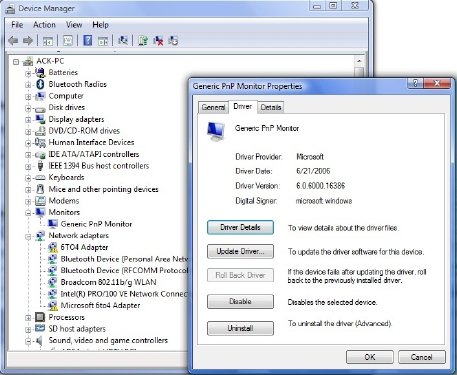
- Update Driver: This will start the Hardware Update Wizard.
- Roll Back Driver: This will uninstall the most recently updated driver and will roll back your configuration to the earlier version.
- Uninstall Driver: This will completely uninstall the driver’s files and registry settings for the selected hardware.
Read: How to find which Driver is causing the Blue Screen on Windows?
List of Common Windows Blue Screen Errors & solutions
STOP 0x000000D1 or DRIVER_IRQL_NOT_OR_EQUAL
Probably the most common BSOD! This occurs when a driver has illegally accessed a memory location while NT is operating at a specific IRQL. This is a driver coding error, akin to trying to access an invalid memory location. Recovery/Workaround: Usually none. But these may help KB810093 , KB316208 & KB810980.
Read: Bluescreen after installing Drivers in Windows
STOP 0x0000000A or IRQL_NOT_LESS_OR_EQUAL
A kernel-mode process or driver attempted to access a memory location without authorization. This Stop error is typically caused by faulty or incompatible hardware or software. The name of the offending device driver often appears in the Stop error and can provide an important clue to solving the problem. If the error message points to a specific device or category of devices, try removing or replacing devices in that category. If this Stop error appears during Setup, suspect an incompatible driver, system service, virus scanner, or backup program. This KB314063 may show you the direction.
STOP 0x00000050 or PAGE_FAULT_IN_NONPAGED_AREA
A hardware driver or system service requested data that was not in memory. The cause may be defective physical memory or incompatible software, especially remote control, and antivirus programs. If the error occurs immediately after installing a device driver or application, try to use Safe Mode to remove the driver or uninstall the program. For more information, see KB894278 & KB183169.
STOP 0x000000C2 or BAD_POOL_CALLER
A kernel-mode process or driver attempted to perform an illegal memory allocation. The problem can often be traced to a bug in a driver or software. It is also occasionally caused by a failure in a hardware device. For more information, see KB265879.
STOP 0X000000ED or UNMOUNTABLE_BOOT_VOLUME
This occurs if Windows if unable to access the volume containing the boot files. But if you get this message while updating TO Vista, check that you have compatible drivers for the disk controller and also re-check the drive cabling, and ensure that it is configured properly. If you’re reusing ATA-66 or ATA-100 drivers, make sure you have an 80-connector cable, and not the standard 40-connector IDE cable. See KB297185 and KB315403.
STOP 0x0000001E or KMODE_EXCEPTION_NOT_HANDLED
The Windows kernel detected an illegal or unknown processor instruction, often the result of invalid memory and access violations caused by faulty drivers or hardware devices. The error message often identifies the offending driver or device. If the error occurred immediately after installing a driver or service, try disabling or removing the new addition.
STOP 0x00000024 or NTFS_FILE_SYSTEM
A problem occurred within the NTFS file-system driver. A similar Stop error, 0x23, exists for FAT32 drives. The most likely cause is a hardware failure in a disk or disk controller. Check all physical connections to all hard disks in the system and run Check Disk. KB228888 will help you.
STOP 0x0000002E or DATA_BUS_ERROR
Failed or defective physical memory (including memory used in video adapters) is the most common cause of this Stop error. The error may also be the result of a corrupted hard disk or a damaged motherboard.
STOP 0x0000003F or NO_MORE_SYSTEM_PTES
Your system ran out of page table entries (PTEs). The cause of this relatively uncommon error may be an out-of-control backup program or a buggy device driver. For more information, see KB256004.
STOP 0x00000077 or KERNEL_STACK_INPAGE_ERROR
The system has attempted to read kernel data from virtual memory (the page file) and failed to find the data at the specified memory address. This Stop Error can be caused by a variety of problems, including defective memory, a malfunctioning hard disk, an improperly configured disk controller or cable, corrupted data, or a virus infection. For additional information, click KB228753.
STOP 0x0000007F or UNEXPECTED_KERNEL_MODE_TRAP
Most likely due to Hardware failure, like defective memory chips, mismatched memory modules, a malfunctioning CPU, or a failure in your fan or power supply, are the probable reasons for this BSOD. It can also occur if you have overclocked your CPU. The message gives more details. For more help see KB137539.
STOP 0x000000D8 or DRIVER_USED_EXCESSIVE_PTES
This indicated that a poorly written driver is causing your computer to request large amounts of kernel memory. Troubleshooting suggestions are identical to those found in the STOP 0X3F message. KB256004 will help you
STOP 0X000000EA or THREAD_STUCK_IN_DEVICE_DRIVER
It could occur after you install a new video adapter or an updated (and poorly written) video driver. Replacing the video adapter or using a different video driver could help. See KB293078.
STOP 0XC000021A or STATUS_SYSTEM_PROCESS_TERMINATED
This occurs if there is a serious security problem with Windows. A subsystem, such as Winlogon or the CSRSS is compromised or due to a mismatch in system files; or if system permissions have been incorrectly modified. A common cause of this problem is some 3rd-party programs. Try to identify any new program that you have installed and uninstall it.
STOP 0XC00000221 or STATUS_IMAGE_CHECKSUM_MISMATCH
This indicates a damaged page file, or disk or file corruption, or faulty hardware. The error will indicate the exact nature and the name of the damaged system file. You may have to use the Windows Recovery Environment or a System Restore or Last Known Good Configuration to resolve this issue.
REGISTRY_ERROR
This stop error is rare and is caused due to failure to read the registry properly from the hard disk. It is best to try and restore the registry from your backup.
DIVIDE_BY_ZERO_ERROR
This stop error is caused by an application trying to divide by zero. If you receive this error & don’t know which application caused it, you might want to try & examine the memory dump.
KMODE_EXCEPTION_NOT_HANDLED
An incorrectly configured device driver usually causes this type of error. Difficult to isolate and troubleshoot.
INVALID_PROCESS_ATTACH_ATTEMPT
This Bugcode 0x5 indicates that a kernel process was making an attempt to attach to another process. To aid in the diagnosis, the user should note all applications that were executing at the time of the failure. There is no recovery or workaround.
HARDWARE_INTERRUPT_STORM
Such an error is usually caused by a poorly written driver or firmware. It is difficult to troubleshoot, but Device Manager or System Information tool can help you.
INACCESSIBLE_BOOT_DEVICE
This stop error occurs when Windows has trouble reading from the hard disk. This error can be caused by a faulty device driver. You may also try running your antivirus.
PFN_LIST_CORRUPT
This Bugcode 0x4E error is usually caused by faulty RAM. You may want to get your RAM checked or replaced. If that doesn’t work, there is no other known recovery or workaround
MACHINE_CHECK_EXCEPTION
If you have overclocked your CPU, this could result. Also, check your power supply.
MULTIPLE_IRP_COMPLETE_REQUESTS
This Bugcode 0x44 indicates a fault in driver logic. This has been seen to occur on a heavily loaded system. There is no recovery or workaround.
NMI_HARDWARE_FAILURE
Usually caused by bad SIMMS. Best to call your hardware vendor.
You may also want to take the help of BlueScreenView. It is a utility that cans all your minidump files created during ‘blue screen of death’ crashes and displays the information about all crashes in one table. For each crash, BlueScreenView displays the minidump filename, the date/time of the crash, the basic crash information displayed in the blue screen (Bug Check Code and 4 parameters), and the details of the driver or module that possibly caused the crash (filename, product name, file description, and file version). For each crash displayed in the upper pane, you can view the details of the device drivers loaded during the crash in the lower pane. BlueScreenView also marks the drivers whose addresses are found in the crash stack, so you can easily locate the suspected drivers that possibly caused the crash.
Additional Resources:
Read: Purple, Brown, Yellow, Red, Green Screen of Death explained.

