
Although you can directly download Windows 10 ISO or Windows 11 ISO file, you can use the Media Creation Tool to download Windows 10 or Windows 11 and provides the best download experience for customers running Windows 11 and Windows 10.
Windows Installation Media Tool
To download the Windows Installation Media Tool, visit Microsoft.com here (Windows 10) or here (Windows 11) and scroll down till you see two purple Download Tool Now buttons.
The Windows Media Creation Tool allows you to download the Windows 11/10 ISO directly from Microsoft, without requiring a product key. You can use it to clean install or Upgrade to Windows 11/10. It can be used to download the following editions of Windows 11/10 – Windows Home, Windows Home N, Windows Home Single Language, Windows Pro and Windows Pro N.
The tool includes file formats optimized for download speed, built-in media creation options for USB & DVDs, and optional conversion to the ISO file format. There are two versions of the tool available: a 32-bit and a 64-bit version. Download the appropriate version of the tool and run it.
When you run the tool, it creates two directories on your system partition – $WINDOWS.~BT and $Windows.~WS. These folders contain the downloaded setup and installation files, and an option to resume the creation process if it fails.
Use Media Creation Tool to Upgrade PC to Windows 11
When you click on it to run the tool, you will see the following screen asking you if you want to Upgrade this PC now or Create installation media for another PC.
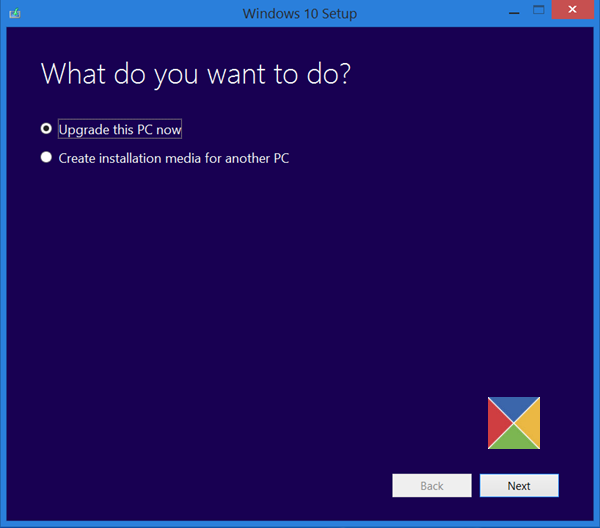
Create Installation Media
If you click on Create installation media for another PC, you will see a screen asking you to choose the media to use. You may use a USB Flash Drive which is at least 3 GB, or you can create an ISO file, which you can burn to a DVD later if you wish. I chose to create an ISO file.
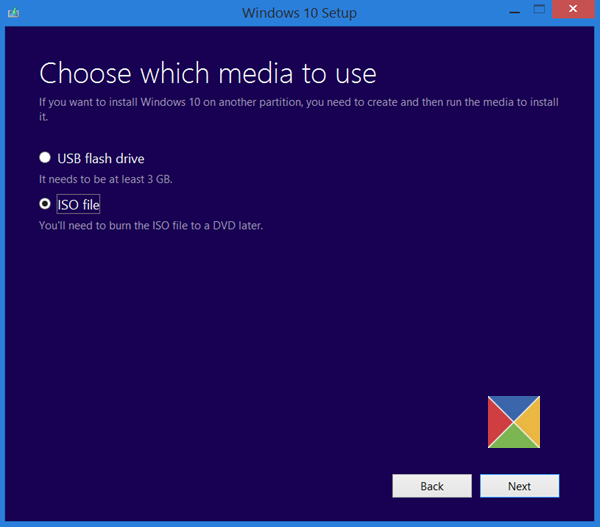
In any case, once you click on Next, the downloading of Windows 11/10 will start.

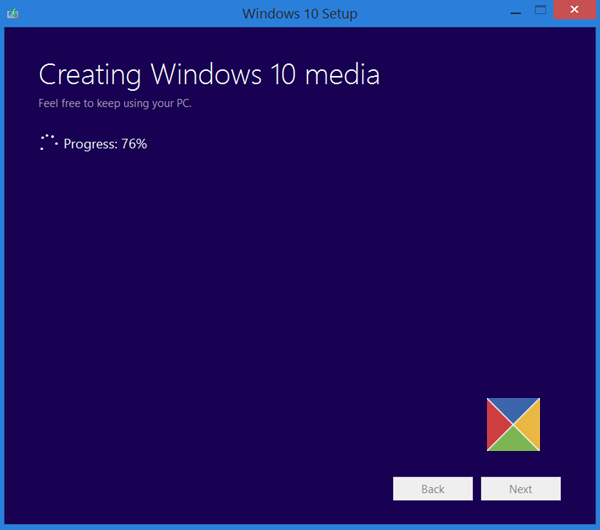
The tool will then soon automatically start creating Windows 11/10 media.
Once the ISO file is ready, you will see two options. One is to open the location where the ISO file has been saved, and the other is to open a DVD Burner software to burn the ISO to a disc.
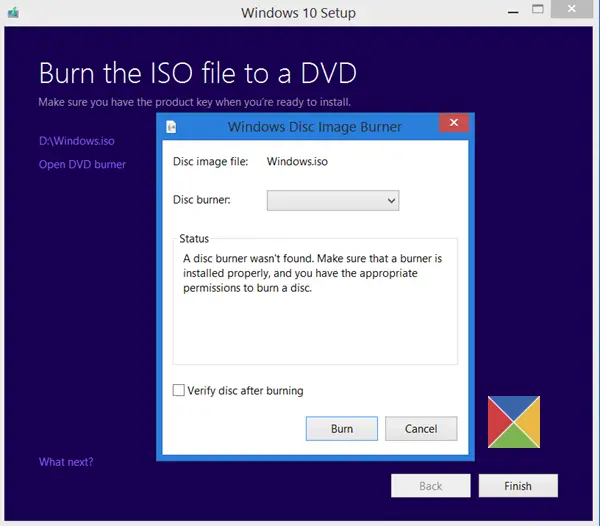
I chose to open the ISO folder and run the setup file inside it to perform an in-place upgrade of my Windows OS.
Upgrade This PC
If, on the other hand, you select Upgrade This PC in the first screen, as mentioned above, and click on Next, you will see the following screen.
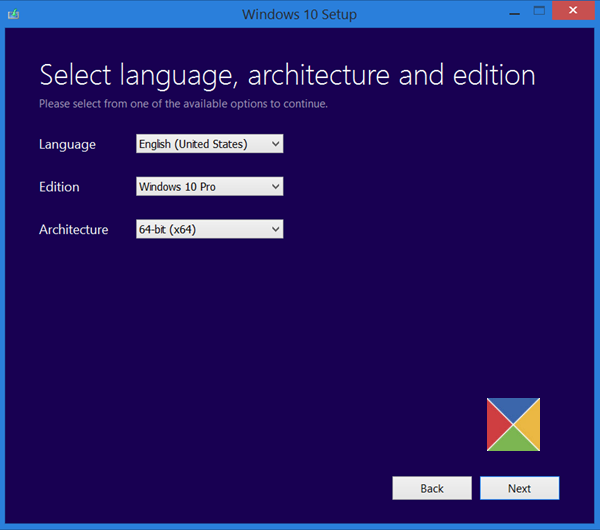
Select your Language, architecture, and edition and click Next. The upgrade process will begin directly.
The upgrade process went smoothly, except for one thing…
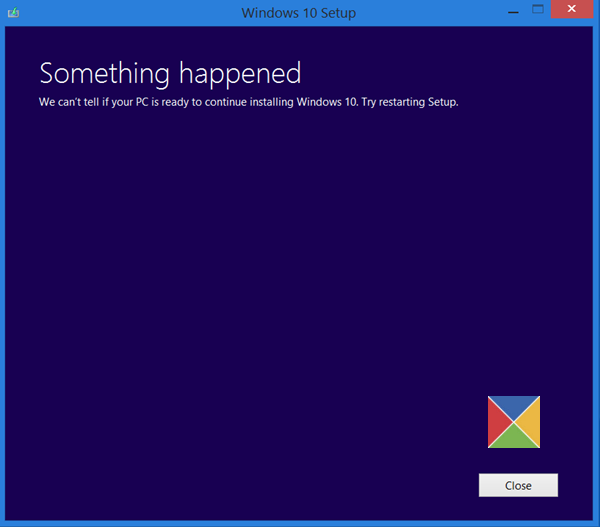
Something happened when installing Windows
I received a Something Happened error screen. I closed the screen and restarted the setup. It worked, and I was able to smoothly upgrade Windows.
TIP: See this post if you receive any Windows Media Creation Tool Errors.
Related reads:
- Windows 11 Installation Assistant is one of the best ways to upgrade your computer to Windows 11
- How to create a Windows bootable USB on Linux
- How to create a Windows Bootable USB on Mac
- How to create Windows 11 bootable installation media using Media Creation Tool.
Our next post takes you through a screenshot tutorial which shows how you can clean install or upgrade to Windows 11, using Windows ISO file you created here.
This post will show you how to install any version of Windows from one USB flash drive. You can also download Windows Enterprise ISO with Media Creation Tool.
