
The other day I was trying to install an application on my Windows PC, but it failed. If Windows Store apps or games are not downloading or installing on your Windows 11/10/8 computer here are a few things you could try to make the apps will download or install successfully. This post will even help you if it installs about 50% and then just gets stuck there – with or without an error code being displayed. The error message could be something like:
Something happened and this app couldn’t be installed. Please try again.
You own this app but can’t install it on this PC
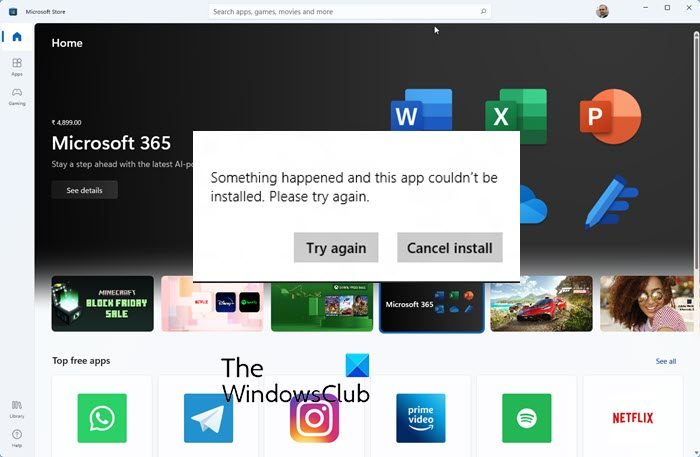
Windows Store apps not downloading, installing or updating
After hours of research, I found that the solution to the problem was rather simple, and so I thought of sharing it here. There are multiple reasons why this could happen. I’ll list all of them are so that you can try each option and see which one works for you.
Cannot install Apps or Games from Microsoft Store
1] Windows Firewall is disabled
It seems like, if the Windows Firewall is disabled, you will not be able to install the application from Windows Store. So the first thing you have to check is whether the Windows Firewall is turned off or not. To access type in Firewall in Start Search, and click on the result to open it. You could also navigate it as follows – Control Panel\All Control Panel Items\Windows Firewall. Here you have to make sure that it is turned on.
If for some strange reason you’re unable to turn on Windows Firewall, open Services Manager and check if the Windows Firewall service is stopped. Type services.msc and click on Services, and look for Windows Firewall. Now make sure that the service is set to Automatic and Started.
2] Incorrect Date & Time
If you have incorrect Date and Time set on your computer, you’ll have issues installing applications from Windows Store. You may even receive a message:
The time setting on your PC might be incorrect. Go to PC settings, make sure the date, time, and time zone are set correctly, and then try again.
So make sure you have the correct date, time. You can change it from Regional Settings from the Control Panel.
3] Licensing on Microsoft Store is not synced
If the licensing on the Windows Store is not synced properly, you will not be able to install apps on your Windows computer. To manually sync it – Go to Windows Store Settings and Sync Licenses
Now reboot the system and try to download again.
4] Change your Internet connection and see
Change your Internet connection and see. For some strange reason, this has been known to help. So if you are using a cabled broadband connection, use a WiFi and see – or vice versa.
Read: Unable to purchase apps from Microsoft Store.
5] Reset Windows Store cache
You may reset your Microsoft Store cache and then try to download or install the app.
6] Run Windows Troubleshooters
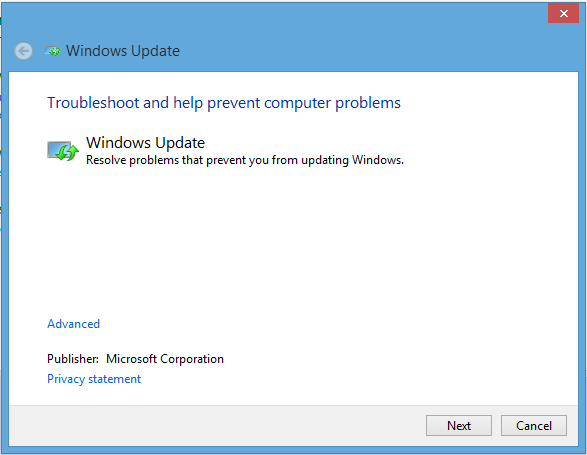
First, we’ll run the native Windows Update Troubleshooter to fix this issue. This has been known to help fix such issues.
After this, you should run the Windows Apps Troubleshooter.
Read: How to use authenticated Proxy Servers to fix Windows Update and Microsoft Store app Installation errors.
7] Reboot the system in Selective Startup or Diagnostic Startup
The next method is to rule out any third-party Firewall or application conflict. To do so you need to reboot the system in Selective Startup or Diagnostic Startup.
To reboot the system in Selective Startup or Clean Boot State.
- Press Win + R to open Run and type in MSCONFIG
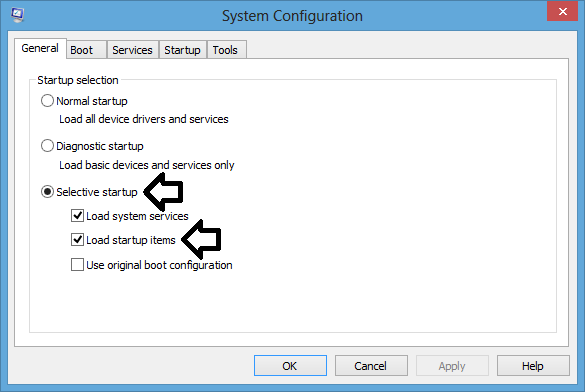
- In General tab select “Selective Startup” and uncheck on “Load Startup items”.
- Now click on the “Services” tab and uncheck on “Hide all Microsoft services”.
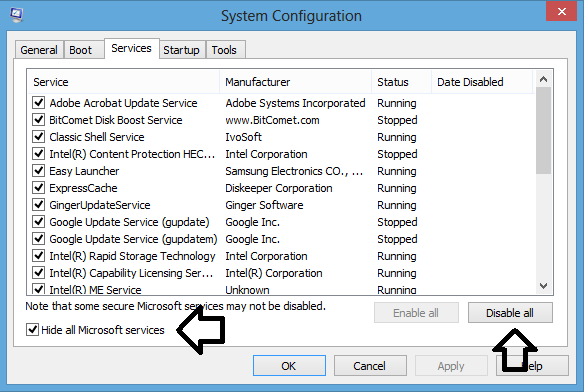
- Click on “Disable all” then just check your Wireless adaptor.
- If you’re not sure which is your WiFi adaptor then press Win + R to open Run and type in MSINFO32.
- Then expand Components –> Network –> Adaptor and on the right side you should find it.

- Now click OK and reboot your system and test it.
- Once it’s complete you can switch it back to “Normal Startup”
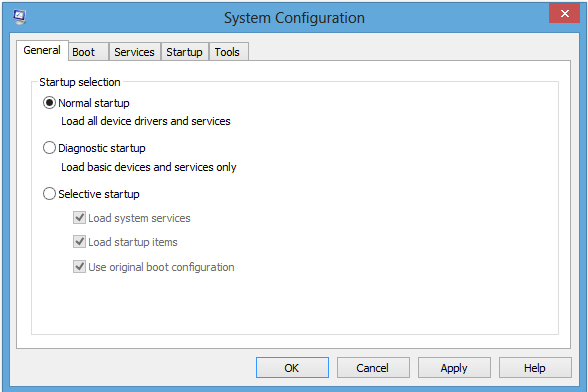
Check this if you are Unable to Install Apps from Windows Store.
To reboot the system in Selective Startup or Clean Boot State.
- On Desktop press Windows + R. This opens the run window
- Type in MSConfig and press Enter
- Under General tab uncheck on “Load Startup items.”
- Under Services tab check on “Hide all Microsoft services” and click on Disable all
- Now reboot the system and try to install it again.
Read: Microsoft Store is not opening after reset
8] Check the status of Microsoft Store Install Service
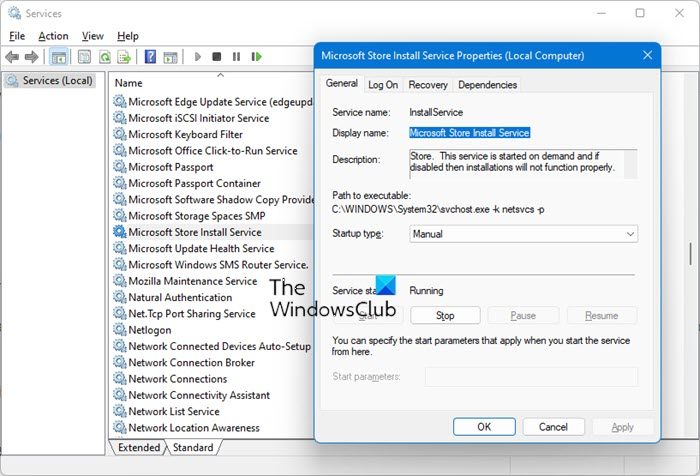
Open the Services Manager and locate the check the status of Microsoft Store Install Service. This service provides infrastructure support for the Microsoft Store. This service is started on demand and if disabled then installations will not function properly.
So you need to ensure that it is not disabled and that Here ensure that its Startup type is set to Manual.
Press the Start button and then see if your issue has been resolved.
9] Do not save encrypted pages to disk
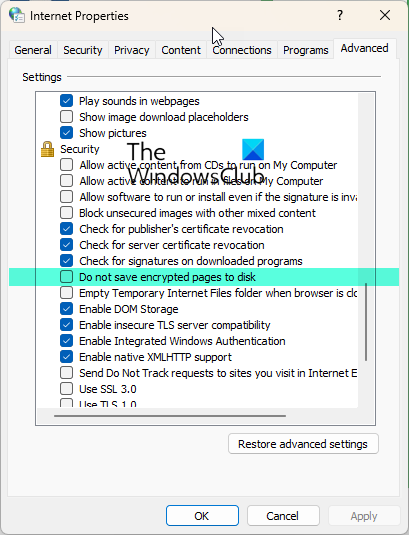
Try this as a temporary measure. Open Internet Options > Advanced tab and check the option Do not save encrypted pages to disk.
If that option is checked, uncheck it and click the OK button.
Now try and see.
Once your job is done, remember to reverse the change made here.
10] Reset Windows PC
To Refresh or Reset the PC also referred to as Repair Install, you can follow this article on how to Cloud Reset Windows 11/10.
We have already written a few articles that will help you troubleshoot Windows Store app problems:

